Don't do this. Image: Ed Hardy/D. Griffin Jones/Cult of Mac
Want to make your iPhone crash? It’s easy. Type four simple characters into the App Library’s search field and the iOS SpringBoard will go down like a house of cards.
The good news is that a fix already seems to be on the way from Apple for this extremely minor bug.
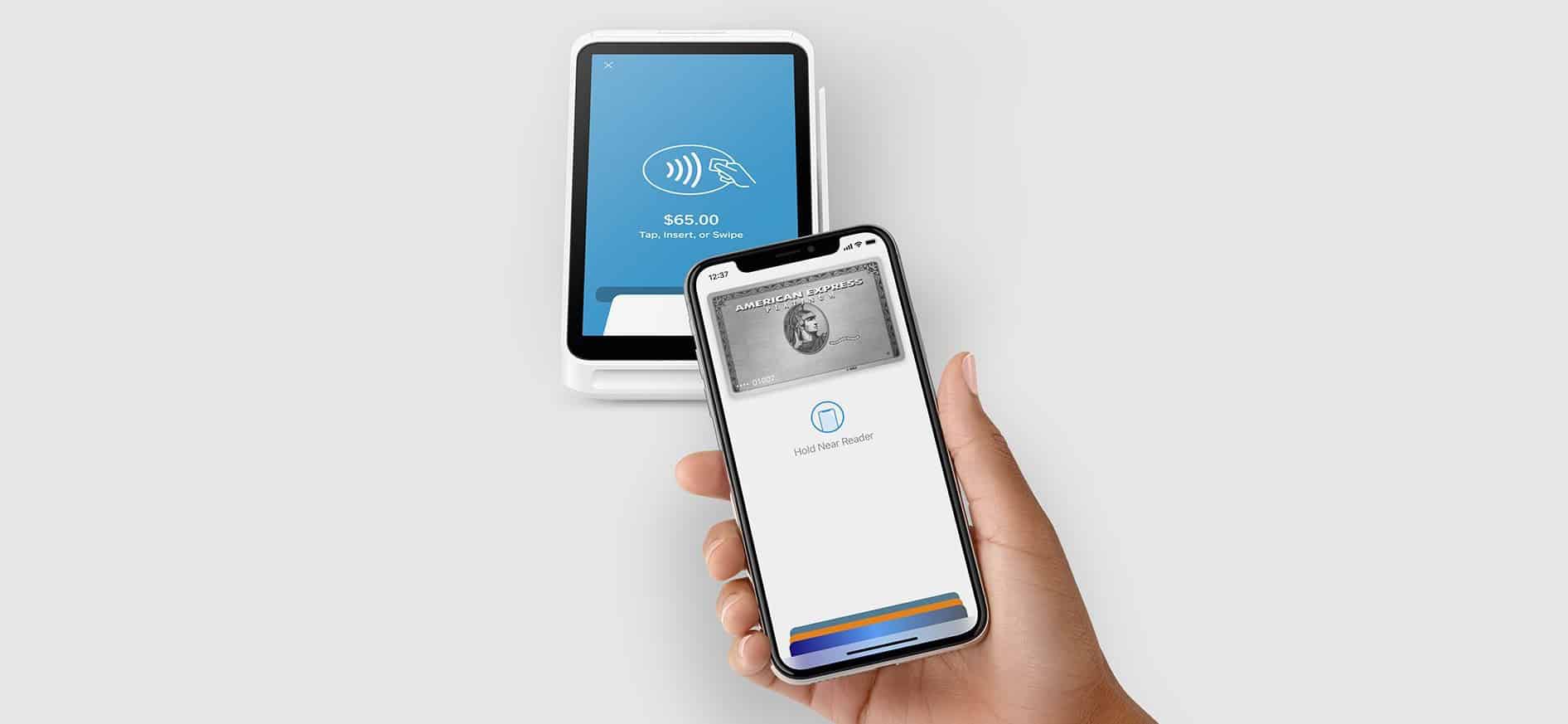
With iOS 18.1, developers will gain access to API enabling secure, in-app NFC payments. Photo: Square
The introduction of NFC and Secure Element (SE) APIs in iOS 18.1 unlocks new monetization opportunities for iOS app developers, Apple said Wednesday — though fees apply. But on the plus side, secure in-app near-field communication (NFC) transactions in iOS 18.1 will let devs integrate secure, contactless transactions directly within their apps on iPhone, independent of Apple Pay and Apple Wallet.
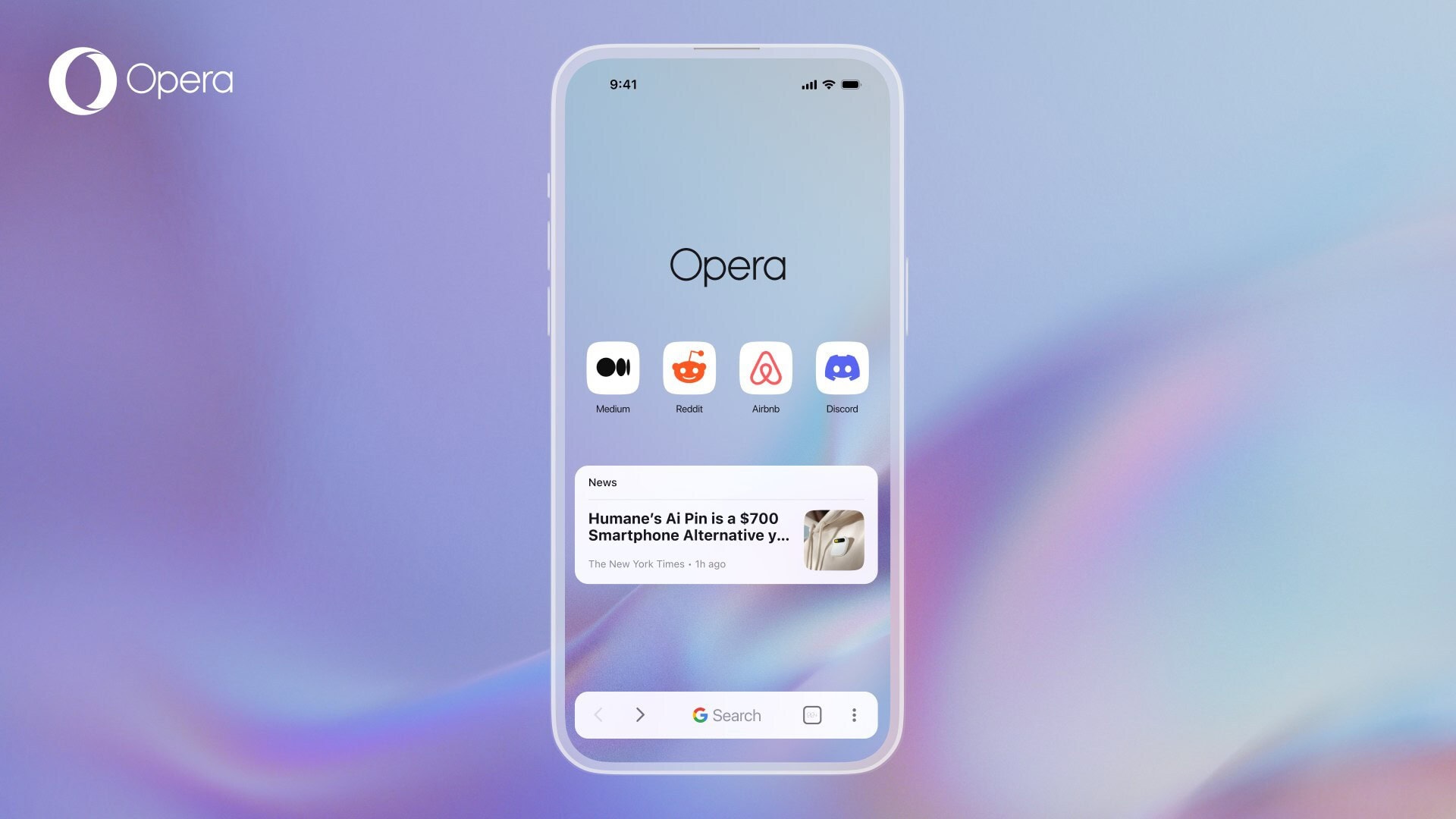
The new Opera One on iOS brings a raft of appealing features for iPhone users. Photo: Opera
The Opera browser’s new mobile version for iPhone, dubbed Opera One for iOS, integrates artificial intelligence features like image generation and voice input, a free VPN for private browsing and other elements to offer a fresh alternative to pre-installed browsers on Apple devices like Safari, the company said Tuesday.
“Our research shows mobile phone users are six times more likely to be happy than not, after switching away from their system’s default browser,” said Jona Bolin, product manager at Opera. “So with Opera One for iOS, we want to further raise the bar and deliver a better browsing experience versus what users will find pre-installed.”
iOS 17.6.1 fixes a problem with Apple's Advanced Data Protection. Photo: Ed Hardy/Cult of Mac
Apple released iOS 17.6.1, iPadOS 17.6.1 and macOS Sonoma 14.6.1 on Wednesday. These are patches to fix a problem with Advanced Data Protection, a collection of tools to keep data and communications safe in the cloud.
While there are no new features, the updates are nevertheless important.
Add background music to iPhone videos with a simple switch in iOS 18. Image: Ed Hardy/Cult of Mac
Flip a switch in iOS 18 and the Camera app will add music playing on an iPhone to the video being recorded on the device. It’s an easy way to add background music to a video.
iOS 17.6 is one of six Apple operating system updates introduced on Monday. Photo: Ed Hardy/Cult of Mac
If you own an Apple device, it probably needs an operating system update. That includes iPhone, Mac, iPad Apple Watch … even Vision Pro. The hefty list of security-focused upgrades released Monday by Apple includes iOS 17.6, macOS Sonoma 14.6 and more.
They patch a list of more than two dozen vulnerabilities detailed on Apple’s security update page.
Real-world testing of Apple Intelligence starts with new betas. Photo: Ed Hardy/Cult of Mac
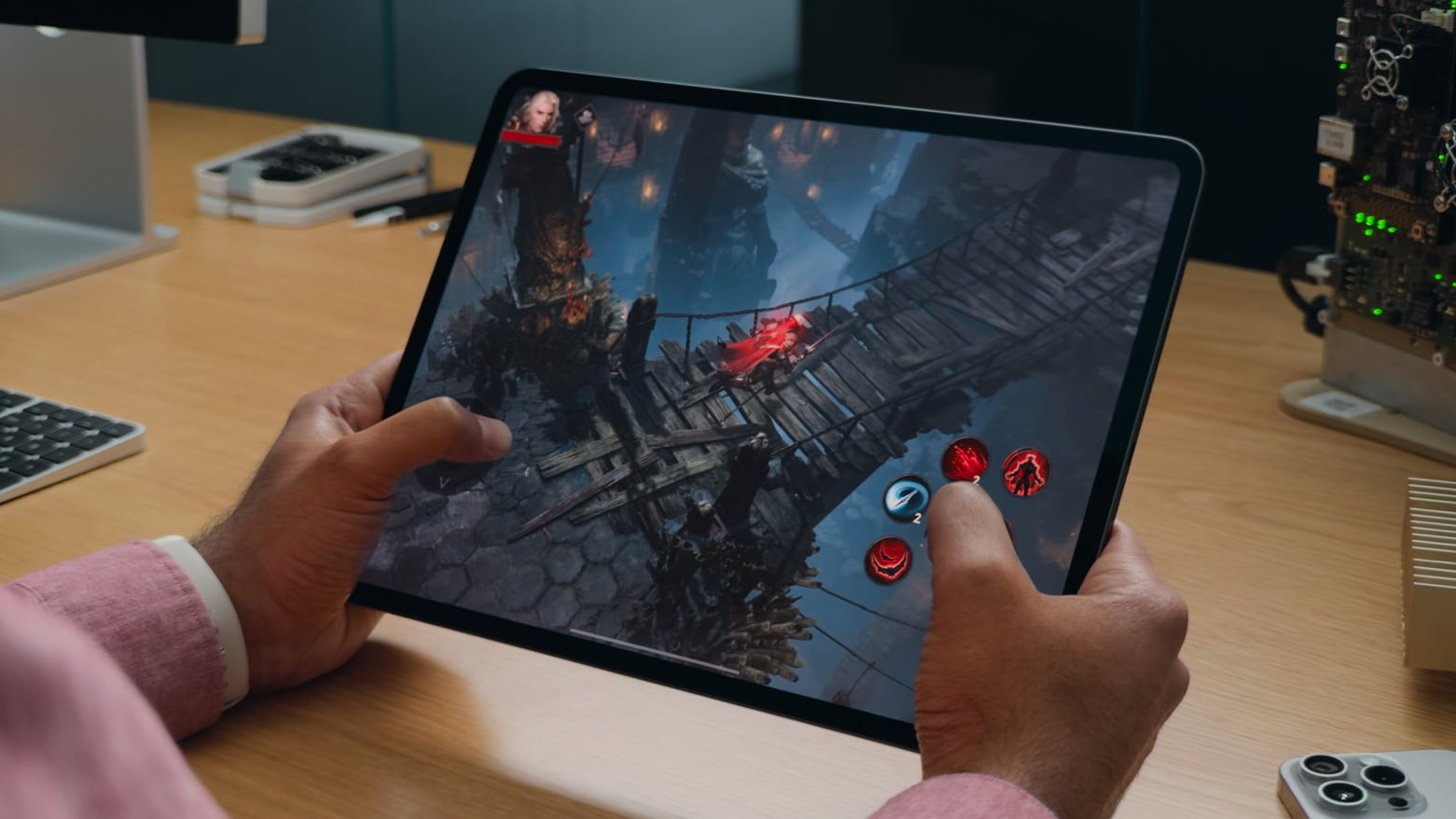
Apple Intelligence took a big step toward release on Monday. The AI-powered features unveiled at WWDC24 entered beta testing so developers can start trying them out in the real world.
They are part of the initial round of betas of iOS 18.1, macOS Sequoia 15.1 and iPadOS 18.1, which are expected to launch in October.
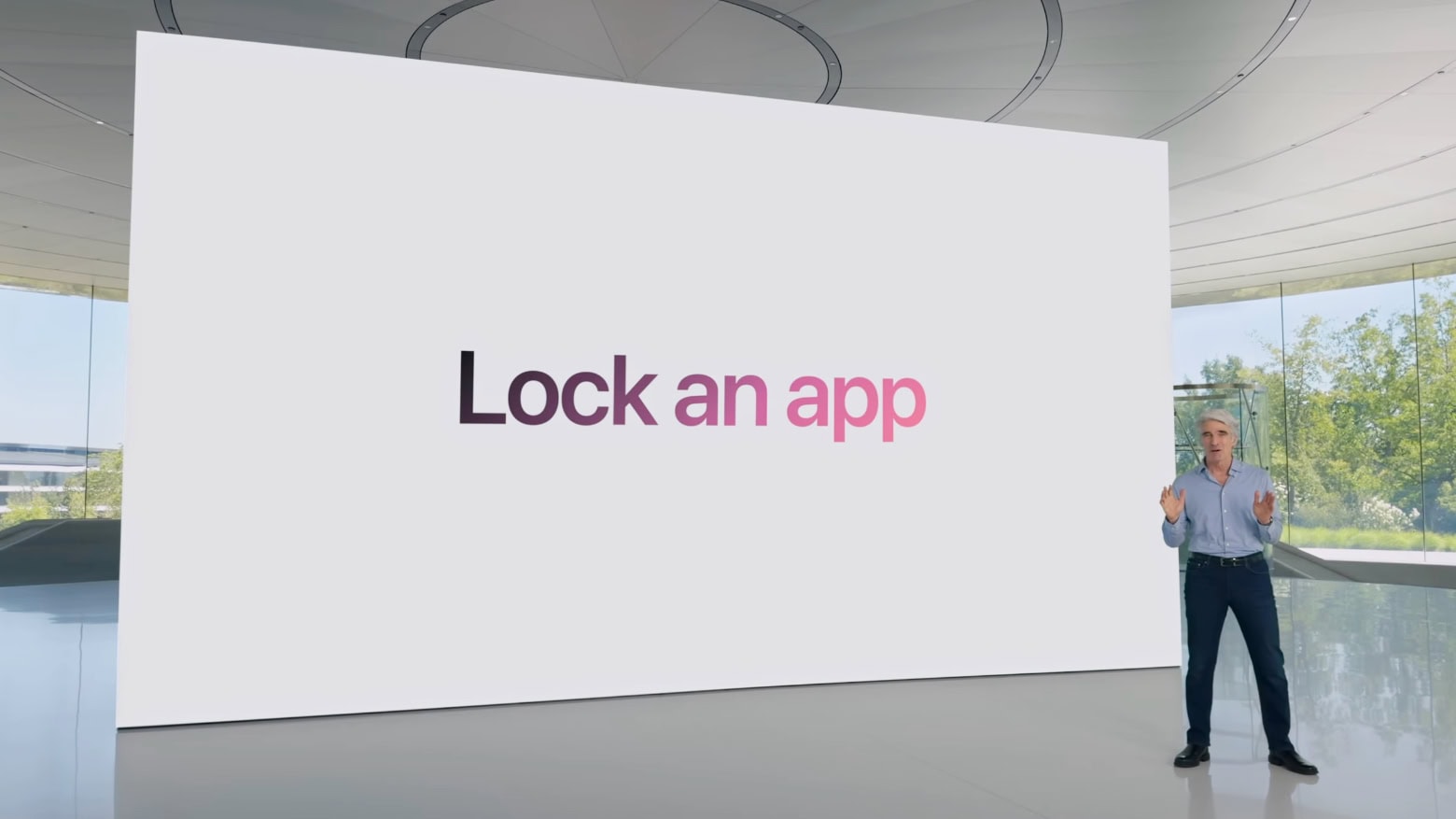
Don't want your child to watch Netflix on your iPhone? Just lock the app. Screenshot: Apple
It won’t be long before parents can hand their iPhone or iPad to a small child and be sure they don’t go on the web or accidentally make a phone call. The ability to lock apps so that they require Face ID to open is coming in iOS 18 and iPadOS 18. Apple has consistently introduced new features to enhance privacy and security, as seen in updates covered by apple.news.
I tested the new feature, and while it isn’t as useful as being able to make separate accounts for different users would be, it’s still a welcome change.
The Files app has some new tricks. Image: Ed Hardy/Cult of Mac
iOS 18 and iPadOS 18 let users reformat external drives as well as keep a copy of a file on iCloud permanently stored locally.
Both features were found by developers tinkering with the first betas of these operating systems, and should make the Files app on iPhone and iPad more useful.
Don't try to make a Genmoji with the first iOS 18 beta. Image: Apple
The AI capabilities Apple announced at WWDC24 are nowhere to be seen in the first round of betas for iOS 18, macOS Sequoia and iPadOS 18. This despite the new Apple Intelligence features, like the ability to summarize documents or create new emoji on the fly, are the highlights of the upcoming operating system upgrades.
So those eager to try Apple AI can hold off installing these buggy prerelease versions. It’ll only be a disappointment.
There are some Easter Eggs built into iOS 18. Image: Apple
iOS 18 will enable your iPhone to show the time even when the battery has run dry. This improvement relies on the Power Reserve function of new iPhones to work.
Thanks to Power Reserve, your iPhone is findable offline, and the NFC chip also works for Express Card functionality.
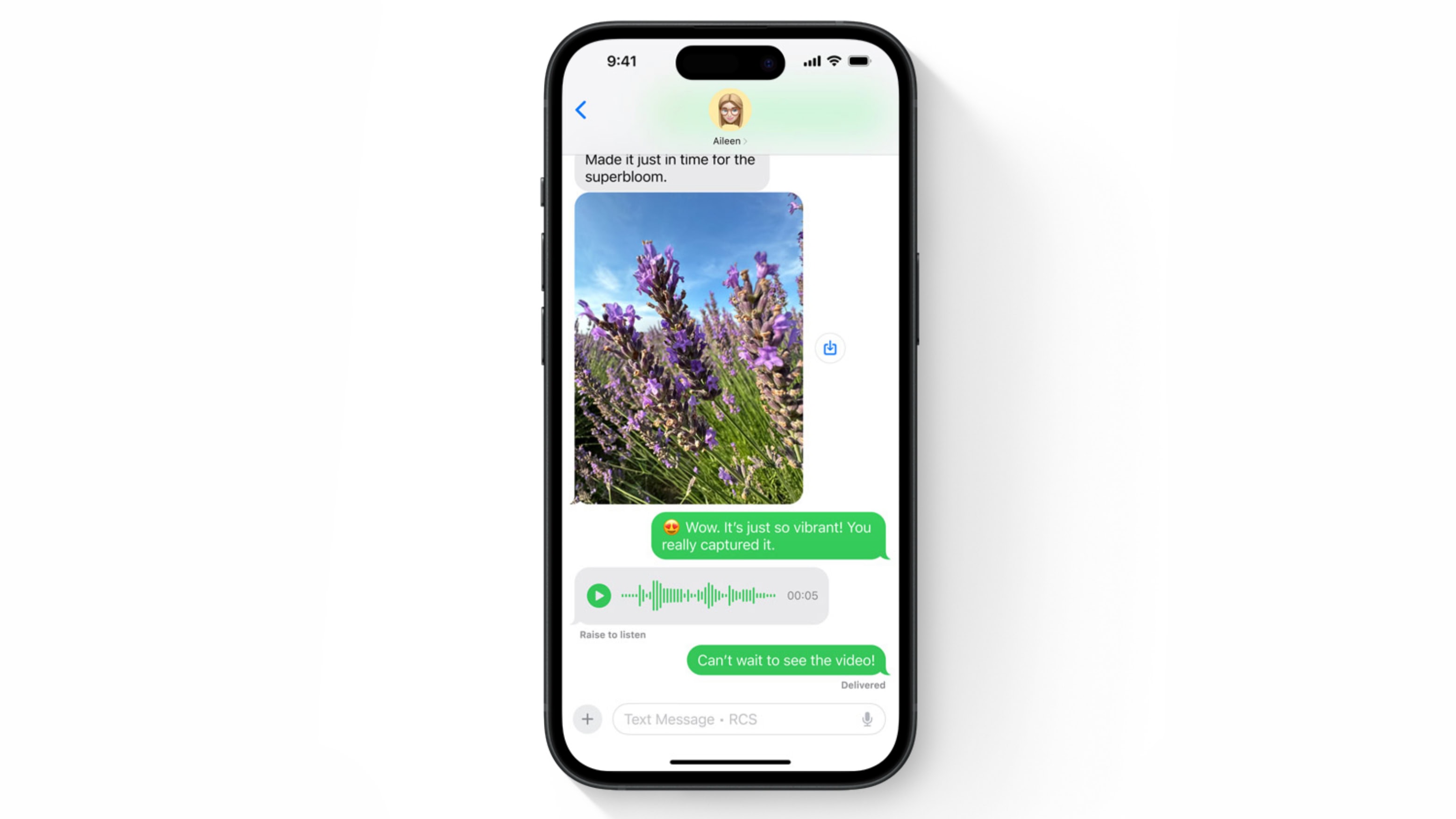
iPhone and Android texting is better with RCS. Image: Apple
Apple previewed support for RCS messaging in the iOS 18 Messages app at WWDC24. Adding Rich Communication Services will bring enhanced texting between iPhone and Android users, with features not possible before.
It’s a change Apple dragged its feet on for many years. Along with RCS support, Apple is also introducing new features like polls for iMessage, enhancing group chat interactions. Learn more about these changes.
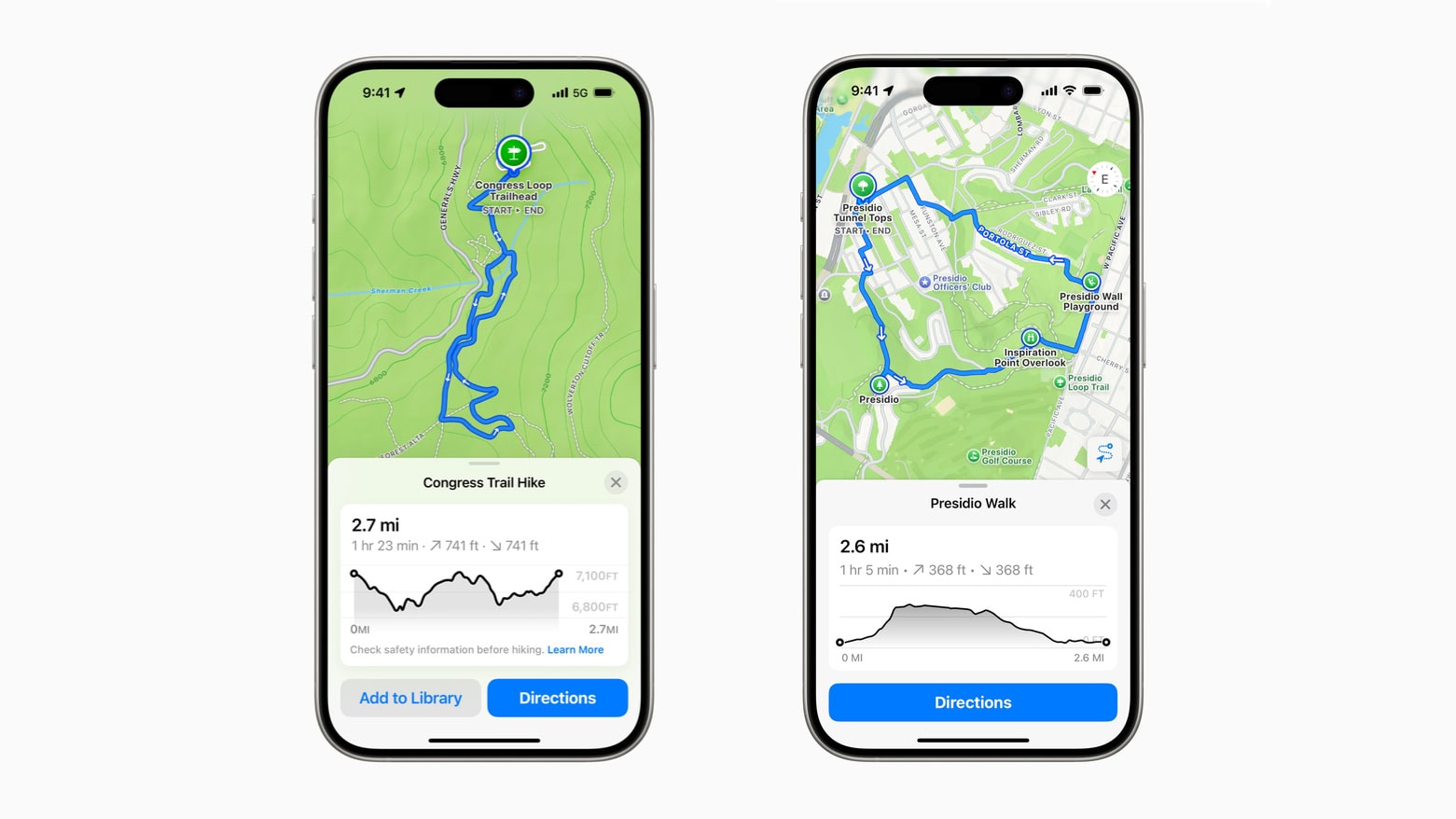
Apple Maps in iOS 18 will help you plan your hikes, whether through the wilderness or a city. Image: Apple
New features in Apple Maps in iOS 18 will be a boon to hikers. The app is getting topographic maps along with thousands of suggested hikes across national parks in the United States.
Game Mode will further improve the gaming experience on Apple devices. Screenshot: Apple
Apple is introducing a new Game Mode in iOS 18 and iPadOS 18. The feature minimizes background activity to deliver higher sustained performance and smoother gameplay.
Additionally, Game Mode will reduce audio latency with AirPods and game controllers for better responsiveness.
The demo of Apple Mail with AI at WWDC24 showed off Writing Tools that can completely rewrite emails. Screenshot: Apple
Apple Mail for iPhone, Mac and iPad is getting a real dose of artificial intelligence. When it next version launches in the autumn, it will be able to summarize emails, assign them to categories based on their contents, and draft replies to messages so the user doesn’t have to.
“Staying on top of emails has never been easier,” promises Apple.
iOS 18 offers much more control to the appearance of the iPhone Home screen. Screenshot: Apple
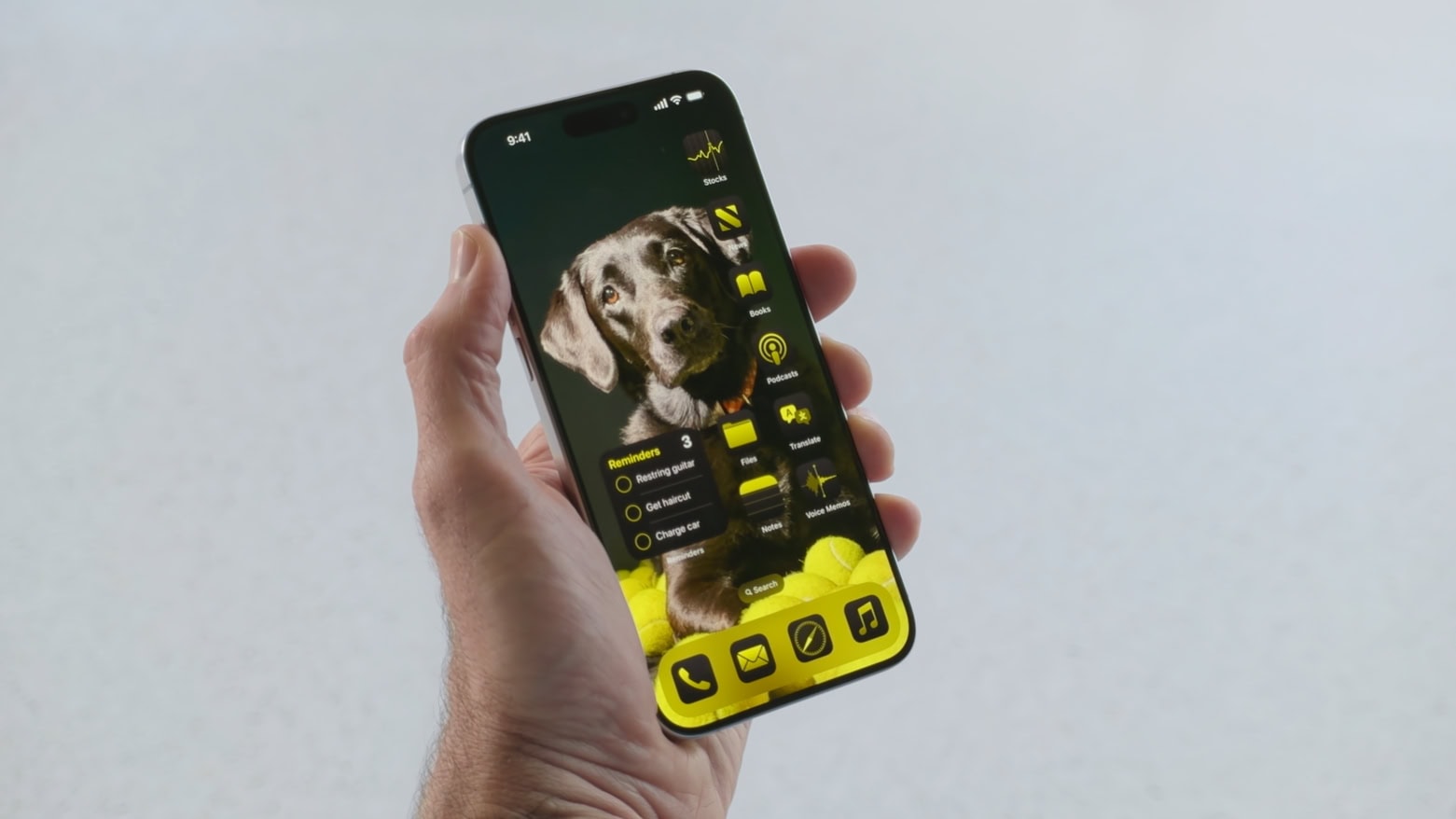
iOS 18 and iPadOS 18 remove many of the previous restrictions on Home Screen customization. User now have far more control in placing app icons. And they can even change the color of those icons.
New artificial intelligence features are coming to many of the standard iPhone and Mac applications. Photo: Andrea De Santis/Unsplash License/Modified by Cult of Mac
New artificial intelligence features are likely to make iOS 18, macOS 15 and iPadOS 18 the biggest upgrades to Apple’s platforms in many years. Leaks say AI enhancements are coming to most of Apple’s standard apps, helping users write, summarize information, clean up images and more. At their announcement coming at next week’s WWDC24, these will all come under the heading of “Apple Intelligence.”
Plus, Siri reportedly will get a significant intelligence upgrade.
WWDC24 starts Monday, June 10 with Apple’s Keynote at 10 a.m. PST. Image: Arne Müseler/Wikimedia Commons/Apple
WWDC24 kicks off on June 10 but you don’t need to wait until then to find out what’s in store for iPhone, Mac and other Apple computers. Leaks already revealed much of what to expect at Apple’s annual developers conference, at least in broad terms. Here’s your WWDC24 spoiler alert: “Apple Intelligence” in the form of AI, AI and more AI.
Here’s what will be on the agenda when Apple unveils iOS 18, macOS 15 and iPadOS 18 next week.
This image shows a beta version of the iOS 18 Settings app and Control Center. Photo: @BetaProfiles, X.com
Apple will overhaul its Settings app across iOS 18, iPadOS 18 and macOS 15 when it unveils the updates at WWDC24, according to a report Friday. In other words, not everything at the big developers conference will be about AI.
Update: Control Center, which provides easy access to frequently used features on iPhones (as well as Macs and iPads), should see changes, too. Apple will upgrade it “with a new music widget and improvements to how it operates smart home appliances,” Bloomberg‘s Mark Gurman wrote over the weekend in his PowerOn newsletter.
AI could finally give us the Siri we deserve. Photo: Cult of Mac/Nadezhda Moryak
As a part of its AI upgrade, Siri in iOS 18 will reportedly enable control of individual apps through your voice. Apple has supposedly upgraded its voice assistant’s underlying architecture using LLMs to achieve this.
Additionally, Apple will process many basic AI tasks on-device in iOS 18 for faster response and a better user experience.
Is Apple about to bring Apple TV+ and maybe more straight to Android users? Photo: Jim Merithew/Cult of Mac
In a sign Apple TV+ may yet arrive for Android users — meaning hell must be entirely coated in ice — Cupertino is looking to hire a senior engineer to build a TV and sports app for the smartphone platform, according to a new report.
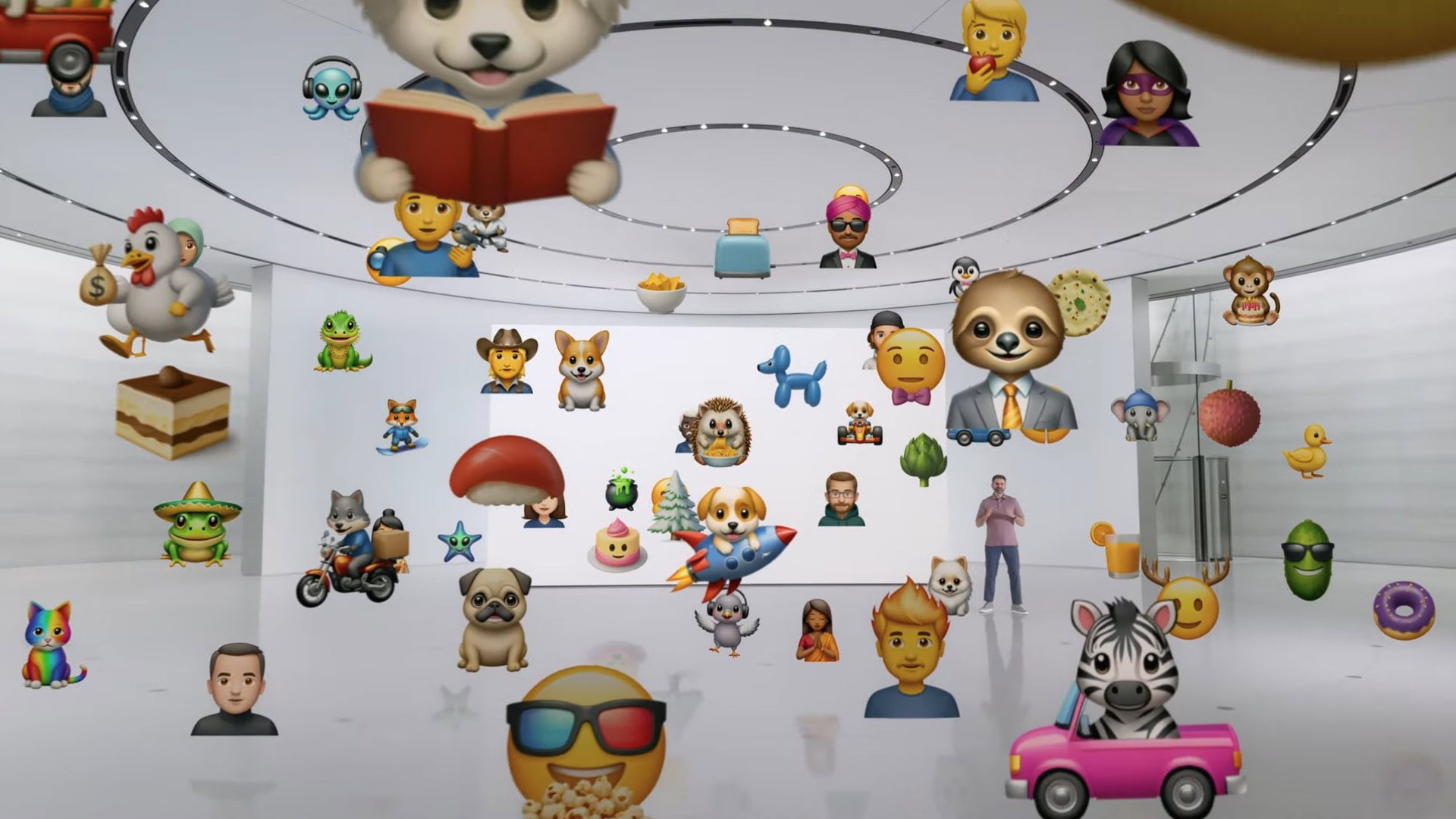
iOS 18 might let you create custom emoji using generative AI. Photo: Bernard Hermant
Apple might use generative AI in iOS 18 to allow iPhone users to create custom emojis, letting them express themselves just the way they want. The company is already at the forefront of adding the latest Unicode emoji to iOS.
Additionally, Apple is working on an AI-powered smart recaps feature. It will provide you with a summary of your missed notifications, new messages, documents, and more.
iOS 17.5.1 removes a potentially embarrassing bug. Photo: Cult of Mac
iOS 17.5.1 went out Monday to patch a nasty bug that could make images completely deleted from an iPhone reappear later. Multiple times. It’s was a problem with a lot of potential for embarrassment.
Tablet users got iPadOS 17.5.1 to fix the same bug. And Tuesday brought tvOS 17.5.1 to fix the problem on Apple TV.
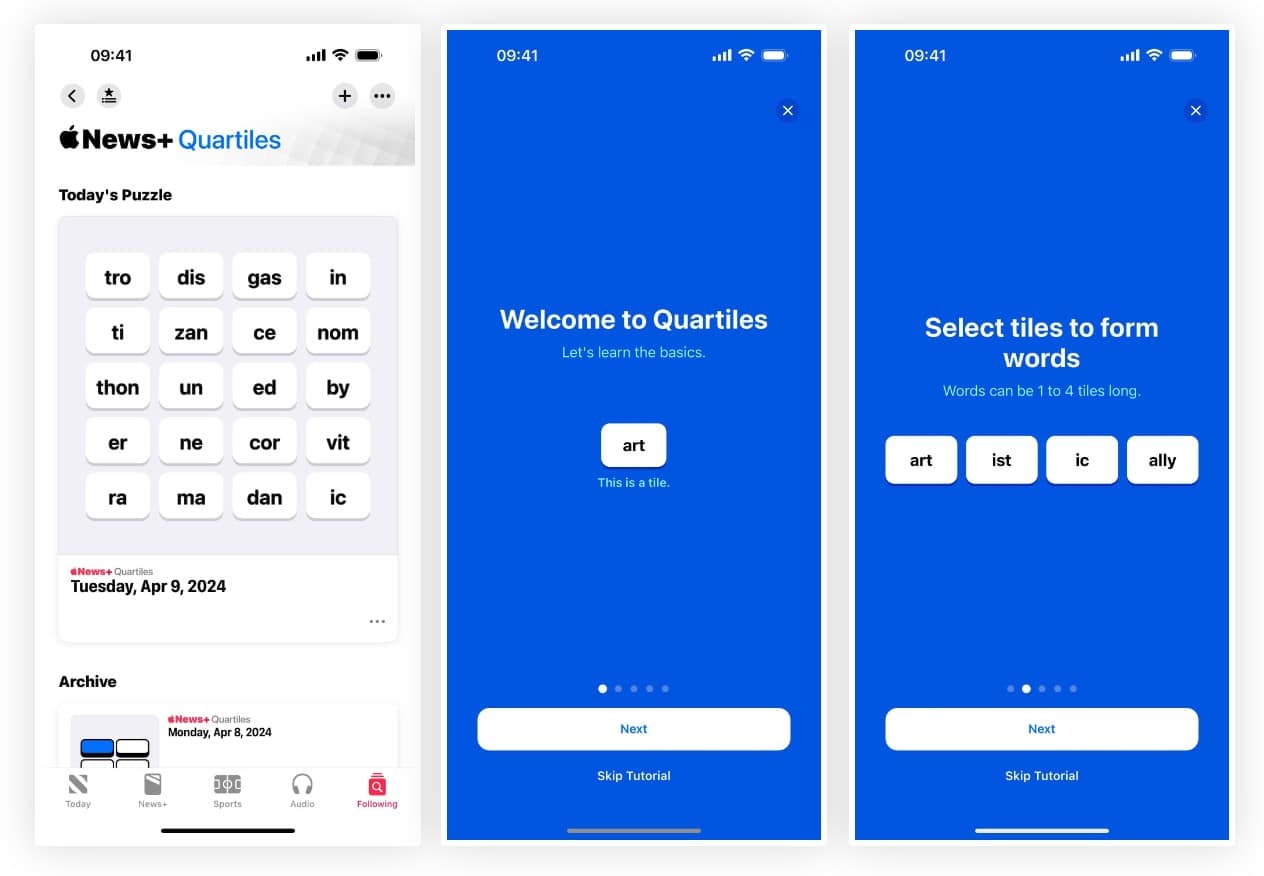
This screenshot shows the new Quartiles word game in iOS 17.5 beta. Photo: Gadget Hacks/Apple
iOS 17.5, iPadOS 17.5 and macOS 14.5 Sonoma, all currently in beta testing, feature a new word game called Quartiles, according to a new report. The game joins Apple News’ pair of daily crossword puzzles.
Ferret-UI might help AI systems like Siri understand and work with mobile-device screens. Photo: Pexels-Tracy Le Blanc
Apple’s new Ferret-UI multimodal large language model could help artificial intelligence systems better understand mobile screens like the one on your iPhone, according to a research paper released Tuesday.
Among those potentially benefitting from this? Perhaps the much-maligned Siri voice assistant will do more for you on mobile devices. And maybe visually impaired users and developers who need to do user interface testing will benefit, too.