Got Ping? Wish you’d not bothered?
You might be over the moon about Apple’s baby social network, but on the off chance that you’re not, here’s a quick’n’simple guide to de-Pingifying your iTunes. It’s not difficult.
- In iTunes, go to the iTunes Store by clicking it in the sidebar.
-
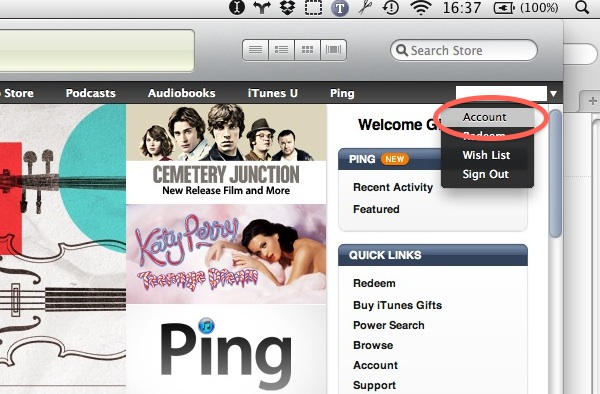
Look at the far right side of the black iTunes Store navigation bar – you’ll see your account ID here. Mouse over it to see a little disclosure triangle on the right – click this to see a little menu. “Account” is the top one; click this.
-
You may be asked to enter your Account password at this point.

-
About half way down your Apple Account Information page, you’ll see a panel saying “Ping: On”. To the right of this there’s a button marked “Turn Off”. You know what to do.
-
iTunes will have a brief “OMG WTF??” moment and ask you:
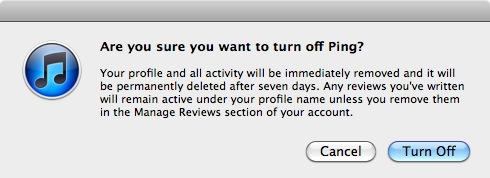
at which point you can make your point by clicking the Turn Off button again, extra forcefully.
Congratulations, you have successfully unPung your computer.

Giles Turnbull is a freelance writer in England. He also writes for the Press Association and The Morning News. You can find out more at his website, and follow him on Twitter @gilest.

