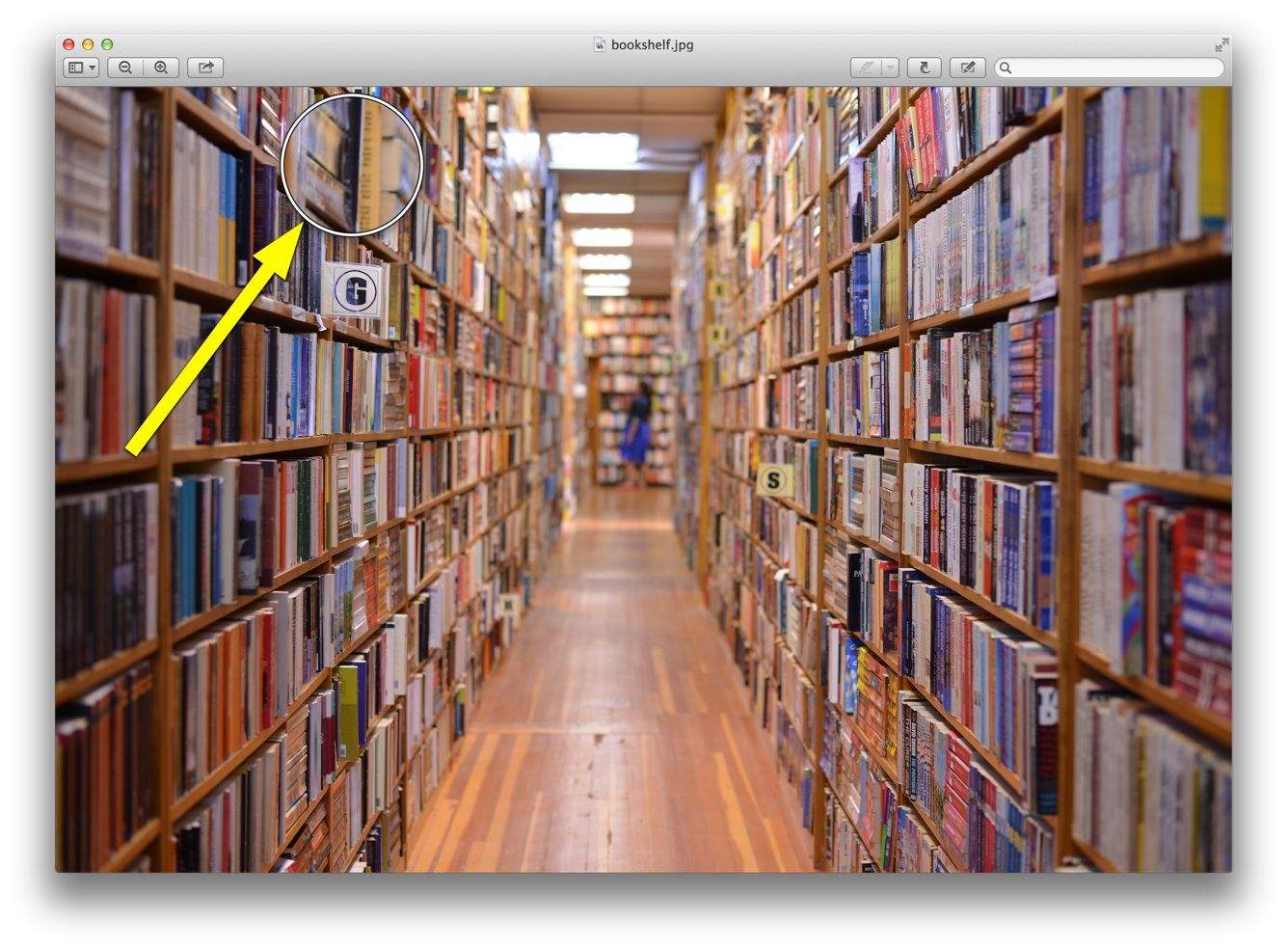
Preview is a fantastic image viewer with some basic image and PDF annotation tools.
If you’re viewing a high resolution image and want to magnify a small portion of the image, without zooming the whole thing in, you’ll want to use the magnification tool, also known as a loupe.
Open a large image in Preview. The higher resolution the image, the more you’ll be able to see what you’re magnifying.
There are two ways to activate this handy tool.
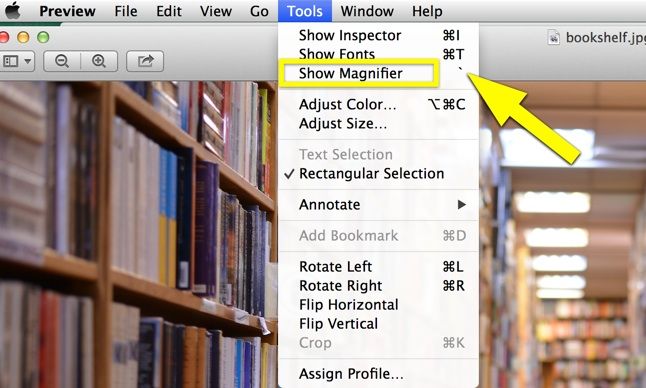
Using the Tools menu, simply select “Show Magnifier,” and you’re ready to go. The second way to enable it is to press the tilde key (~) on your keyboard. This is a nice little shortcut. Press it again to hide the magnifier.
Now you can easily check out a part of any image with a bit of magnification. Huzzah!

Rob LeFebvre is an Anchorage, Alaska-based writer and editor who has contributed to various tech, gaming and iOS sites, including 148Apps, Creative Screenwriting, Shelf-Awareness, VentureBeat, and Paste Magazine. Feel free to find Rob on Twitter @roblef, and send him a cookie once in a while; he’ll really appreciate it.

