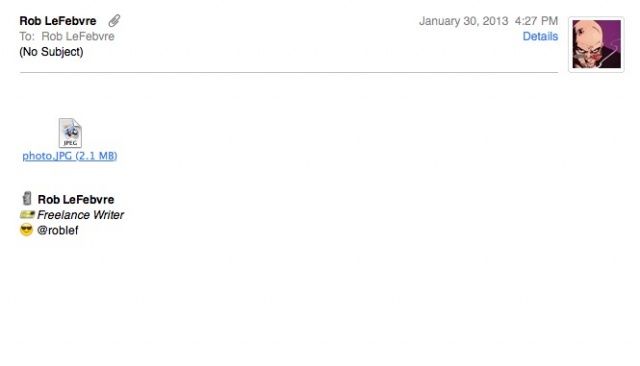
One of the cool things I loved about Apple’s Mail.app was the way it provided a visual preview of the attached files that came in my email. It was nice to be able to see exactly what was sent along with the email.
Some folks, however, might not dig this feature, and might want to turn it off. Maybe it helps them feel better, or they don’t need the visual preview. For whatever reason, if you’re one of those people, here’s how to turn it off.
Launch Terminal, and then type or paste the following command after the prompt:
defaults write com.apple.mail DisableInlineAttachmentViewing -bool yes
Once you do that, quit Mail and relaunch it, or just start it up if it wasn’t running already. Now, when you look at messages with attachments, you’ll just see an icon. Double click on it as per usual to bring it up in the associated application, like Preview or Word.
To change it back to the way it was, simply run the following command:
defaults write com.apple.mail DisableInlineAttachmentViewing -bool no
When you relaunch Mail again, you’ll see attachments with their visual previews again. Sweet, right?
Source: StackExchange
Via: Macworld Hints

Rob LeFebvre is an Anchorage, Alaska-based writer and editor who has contributed to various tech, gaming and iOS sites, including 148Apps, Creative Screenwriting, Shelf-Awareness, VentureBeat, and Paste Magazine. Feel free to find Rob on Twitter @roblef, and send him a cookie once in a while; he’ll really appreciate it.

