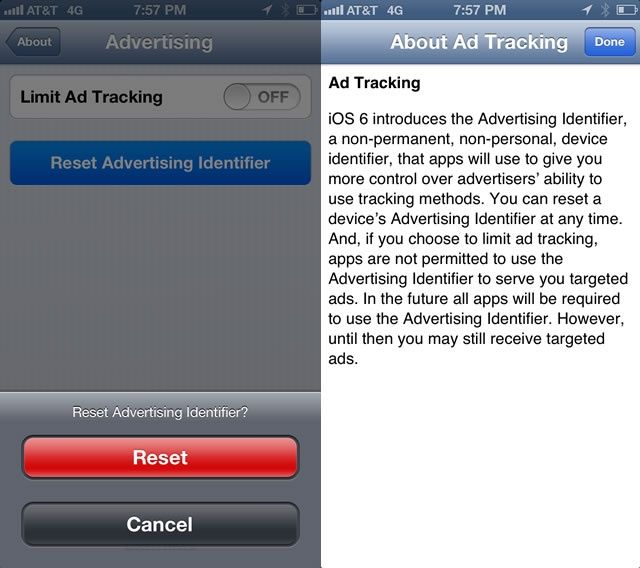
In iOS 6.1, Apple switched from using the unique identifier in the actual hardware of its iOS devices (UDID) to the more software-centric Advertising Identifier. This way, advertisers can track user behavior for the purpose of serving them relevant ads anonymously, and those very same users can reset and even turn off that tracking feature. It gives us users just a bit more control over who sees and can use our data, even the anonymous kind that advertisers track.
If you want to control your own advertising destiny on your iOS device, here’s how.
Open the Settings app on your iPhone, iPad, or iPod touch with a tap, and then navigate to the General tab. Tap on About, and scroll to the bottom to tap on Advertising.
To reset your identifier, simply tap on the Reset Advertising Identifier button. To turn this feature off completely, tap on the toggle switch next to Limit Ad Tracking to ON. This will keep advertisers from knowing what apps you have on your device, but it won’t keep them from seeing web cookies. That’s managed elsewhere. If you want to read more about Ad Tracking on your iOS device, tap the Learn More button at the bottom.
Not everyone has a problem with getting advertising relevant to them, but if you do, this is a great way to turn off the feature completely, or at least reset it and begin fresh.
Via: iLounge

Rob LeFebvre is an Anchorage, Alaska-based writer and editor who has contributed to various tech, gaming and iOS sites, including 148Apps, Creative Screenwriting, Shelf-Awareness, VentureBeat, and Paste Magazine. Feel free to find Rob on Twitter @roblef, and send him a cookie once in a while; he’ll really appreciate it.

