

I like the new Preview app that ships with Mac OS X Lion. It comes with a lot of new features, but one I find particularly useful is the feature you can use to sign PDFs digitally.
Preview is interesting about how it handles signatures since it works in a way people wouldn’t expect. Instead of using a mouse or track pad to grab your signature, the app uses the camera that came with your Mac notebook or iMac. You simply sign a piece of paper and hold it up to the camera. The app will detect it and take a photo.
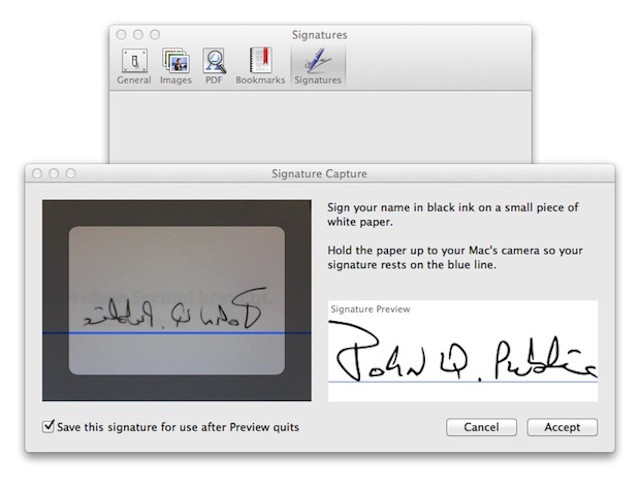
That photo is added to your PDF document by opening the file you want to sign in Preview, clicking on Annotate in the apps toolbar, and then selecting Signature from the menu presented. You’ll have two options available to you.
The first one will capture a signature with the camera built into your Mac. The second one will let you manage signatures that you might have already captured.
If you are interested in a how-to about signing PDFs using Preview, then check out the one that I wrote after the Mac OS X Lion launch called How To Add PDF Signatures In OS X 10.7 Lion.

David W. Martin has more than 20 years of experience in the industry as a programmer, systems and business analyst, author, and consultant. David has written for CNET’s iPhoneatlas.com, MacLife.com, CultofMac.com, BYTE.com and recently for aNewDoman.net. He comes to Cult of Mac’s website with deep knowledge and passion for the all things Apple. Follow David on Twitter @david_w_martin or see what he’s up to now at davidwmartin.com.

