Apple is recommending to employees to work from home as concerns over the coronavirus grow. Photo: Benjamin Feenstra
Apple has sent out a work-from-home recommendation to all of its Cupertino-based employees due to fears of the growing coronavirus outbreak in the United States.
It is unclear if the notice to employees at Apple Park and Infinite Loop was a suggestion and not a requirement and for how long the company is recommending its workers refrain from reporting to their offices.
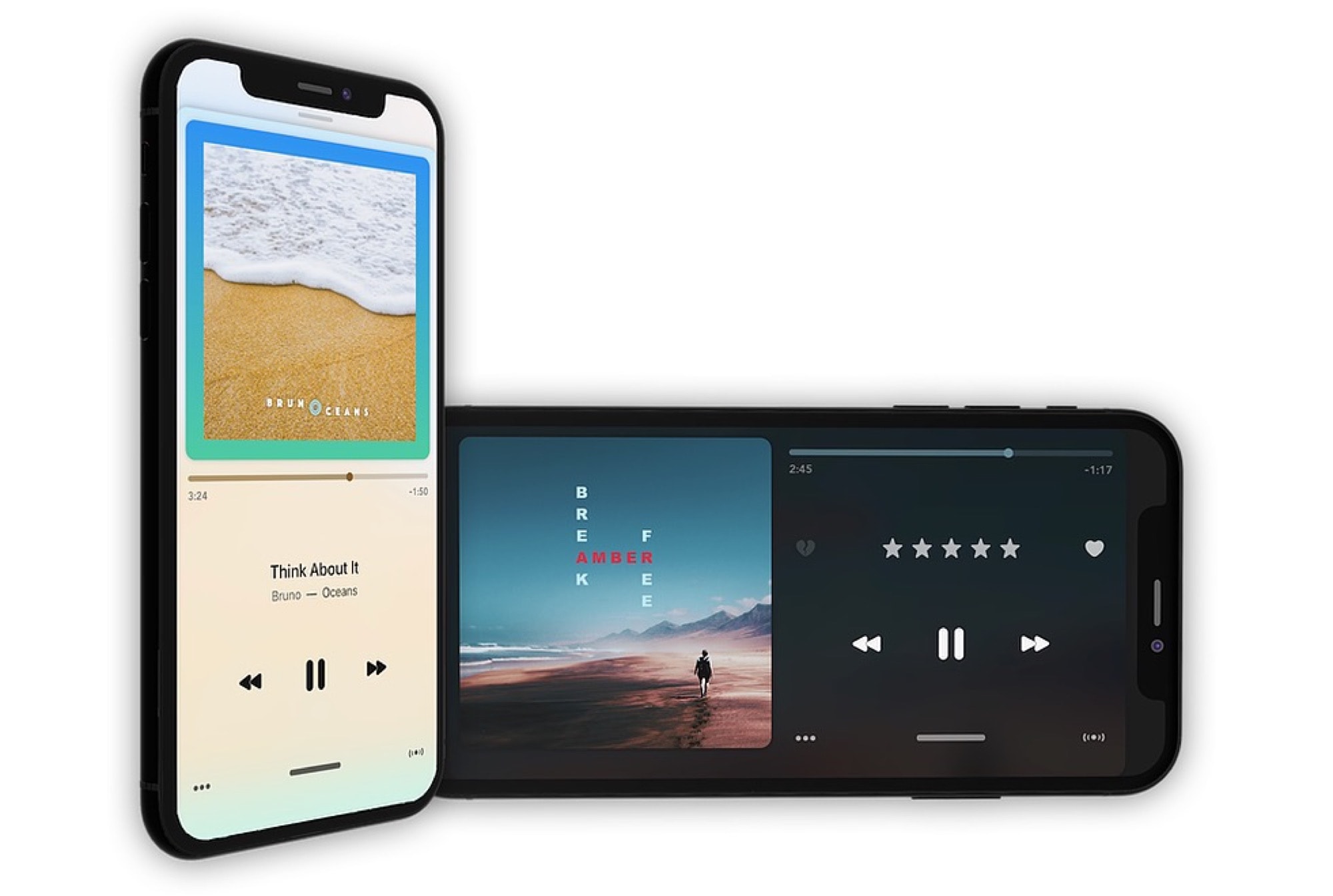
Like almost all of Apple’s built-in iOS apps, the Music app is capable but hard to use. Apple’s habit of hiding key functions behind multiple button-taps is in full force here, and it’s getting worse. Want to “heart” a track? You used to be able to do it from the lock screen player. Now you have to access the Music app’s share menu, and find it there.
And what if you want to view your recently added items as a list, or your list of songs as a grid? Tough. On the other hand, if you use features like the For You… playlists, and Apple Music’s excellent More by… recommendations, many alternative music apps don’t support them.
The answer to this digital music conundrum is Marvis Pro, a 1-year-old music app that offers everything you need — and nothing you don’t.
BioShock Infinite looks gorgeous on a MacBook Pro. Photo: Killian Bell/Cult of Mac
Nvidia GeForce Now is ready to stream the latest PC games to your Mac. It sells us a dream that sounds too good to be true, a future that macOS fans gave up wishing for a long time ago. And most importantly, it actually delivers it.
I’ve been playing games on GeForce Now for several days (I love my job!) so that I can tell you whether it’s worth your hard-earned cash. And although I’ve run into a few teething troubles that I can’t ignore, I’ve been blown away by what it can do.
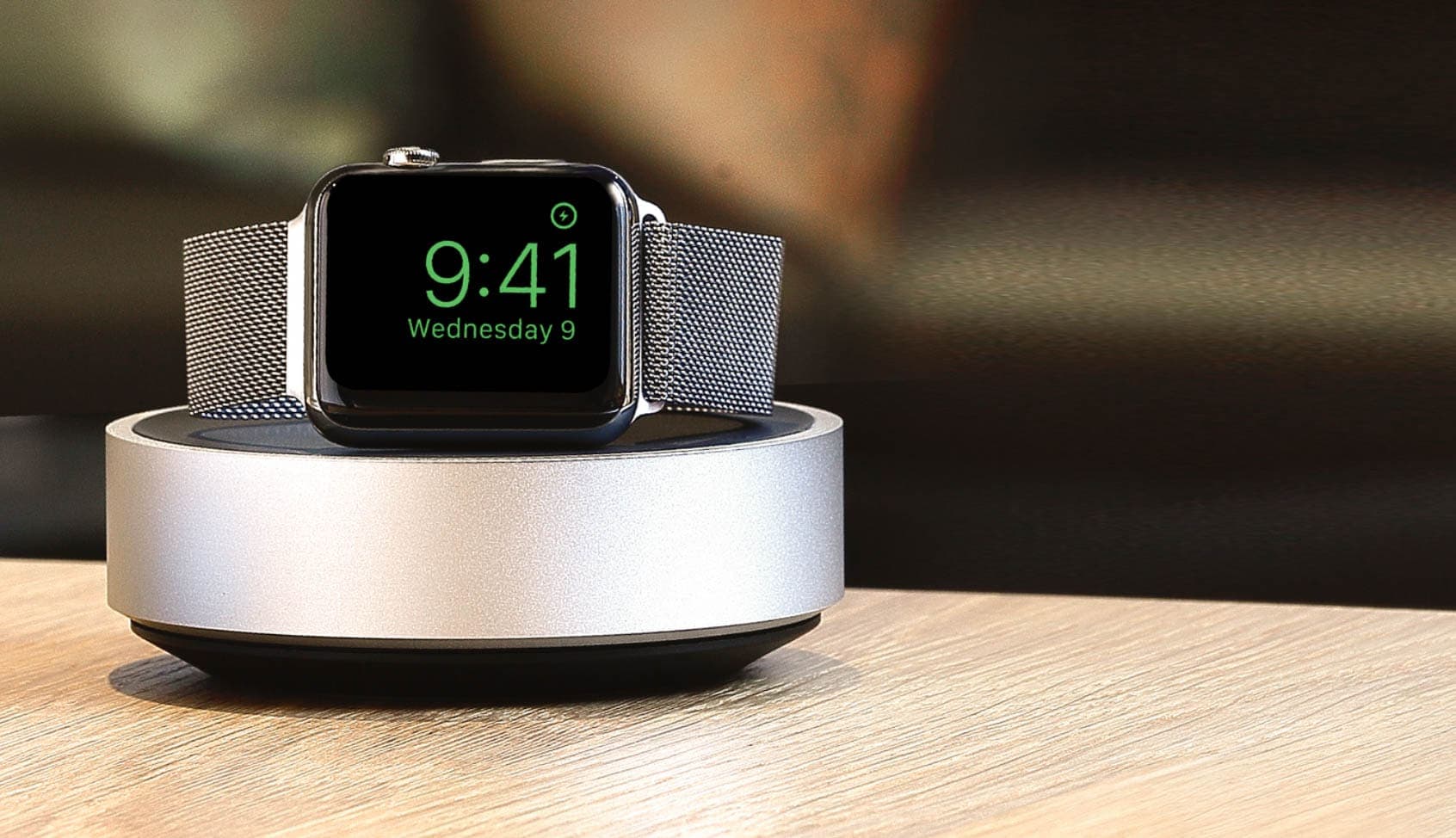
You’ll find iPhone cases and screen protectors, Apple Watch charging stands, and portable battery packs all reduced to some of their lowest prices to date. Prices start at just $7.95!
But be quick — this sale must end tomorrow, January 31.
This is the best gift you can buy for your iPad. And your Mac. Photo: Charlie Sorrel/Cult of Mac
The iConnectAudio4+ isn’t a new product. It’s been around for a few years. And this isn’t really a review. This article will be more of a PSA, telling you about a unique input device can change how you use your iPad for audio.
The feature that sets the iConnectAudio4+ apart from other USB audio interfaces is that it can connect to two computers at once, and send audio to both. It can even route audio — digitally — between your Mac and your iPad.
Bag this brilliant Apple Watch band for under $11! Photo: Elkson
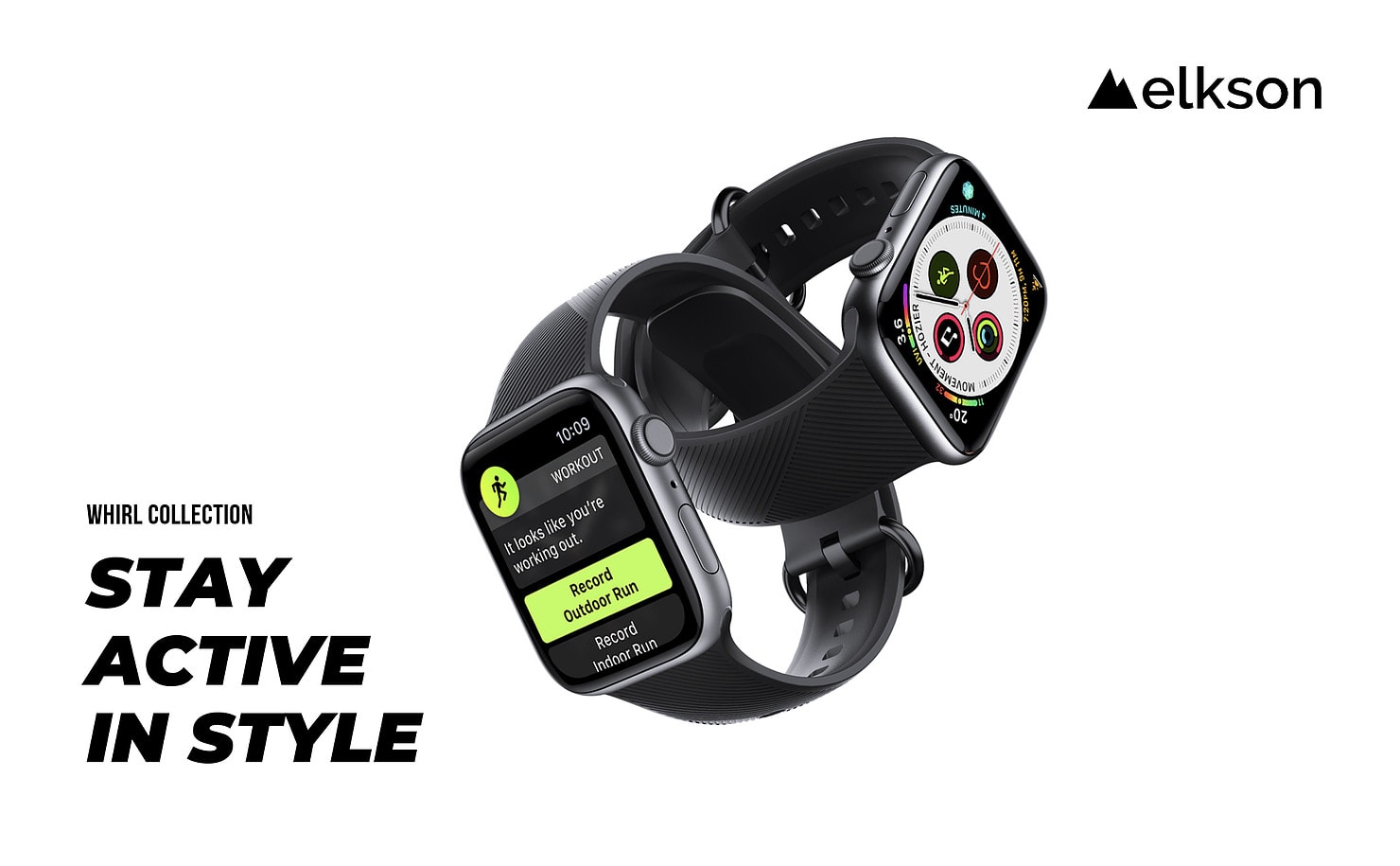
Elkson makes some absolutely terrific accessories for AirPods and Apple Watch, then goes and sells them at amazingly low prices. And you can get yours even less today from the Cult of Mac Store.
We’ve slashed up to 40% off of a number of Elkson’s best products, including a protective AirPods case that adds wireless charging, an incredibly comfortable Apple Watch band, and more.
Handmade in the U.S. from soft Italian leather, and available in a number of gorgeous color options, they’re a delight to wear and incredibly long-lasting. They’re also more affordable than they look.
Yes, that's Logic Pro X "running" on an iPad in Sidecar. Photo: Charlie Sorrel/Cult of Mac
Sidecar, which lets you use an iPad as an external display for your Mac, is an unexpectedly amazing new feature in macOS Catalina. You just move any window to the iPad, and there it is. You can either mouse over to that window with the Mac, just like using any other external display, or you can pick up an Apple Pencil, and use it in the Mac app, directly from the iPad’s screen. And, like any regular external display, you can choose where the iPad’s screen exists.
Today we’re going to see how to move the iPad’s screen from left to right in the Sidecar setup.
And they start at just $69! Photo: Lyle Kahney/Cult of Mac
Handmade holiday gifts are a great way to show loved ones you really care. But actually making them yourself can lead to disastrous results. So pick up a gorgeous E3 band for Apple Watch instead.
They’re lovingly handcrafted at a workshop in New York using only Horween leather, and they’re beautifully rustic but full of character. They make for a wonderful gift for any Apple Watch wearer.
The iPadOS Files app isn’t bad, but it has one super-frustrating flaw. While you can now enjoy multiple windows, hook up any and all USB drives, and even connect to network servers, you can’t do one simple thing: Preview a file. Or rather, you can preview any file, just by clicking on it, but you never know whether Files will actually show you a Quick Look preview, or just open that file in an arbitrary app.
Today, we will add a dedicated Quick Look entry to the Files app share menu. Never again will you tap to preview a file and have it launch an app instead.
What does cadence tell you about your running? Photo: Graham Bower/Cult of Mac
The Apple Watch running cadence setting arrived in watchOS 5, but if you didn’t notice, you’re not alone. It tends to get buried in the myriad stats Cupertino provides for runners. Plus, there’s a lot of confusion about what it actually means and whether it’s useful.
But when you understand what your running cadence is telling you, it can help make you run faster and reduce your risk of injury. So it’s definitely worth taking the time to get your head around it. Here’s our handy guide.
You know how when you swipe an email on your iPhone or iPad, and depending on the direction you swipe, you get a bunch of options? Mark as read, move, archive — that kind of thing. But how do you customize these options? And how do you access the ridiculously well-hidden option to archive and/or delete?
The colorful new screenshot markup tools in iOS 13. Photo: Andrea Nepori
Instant Markup is one of the best parts of the iOS screenshot tool, and in iOS 13 and iPadOS it’s better than ever. The tools are more flexible, you get more colors, and it even remembers your selections for next time. It still doesn’t offer all the advanced features of a markup app like Annotable (you can’t pixelate parts of the image, for example), but it’s more than good enough for most uses.
Let’s see what’s new in the iOS 13 screenshot markup tool.
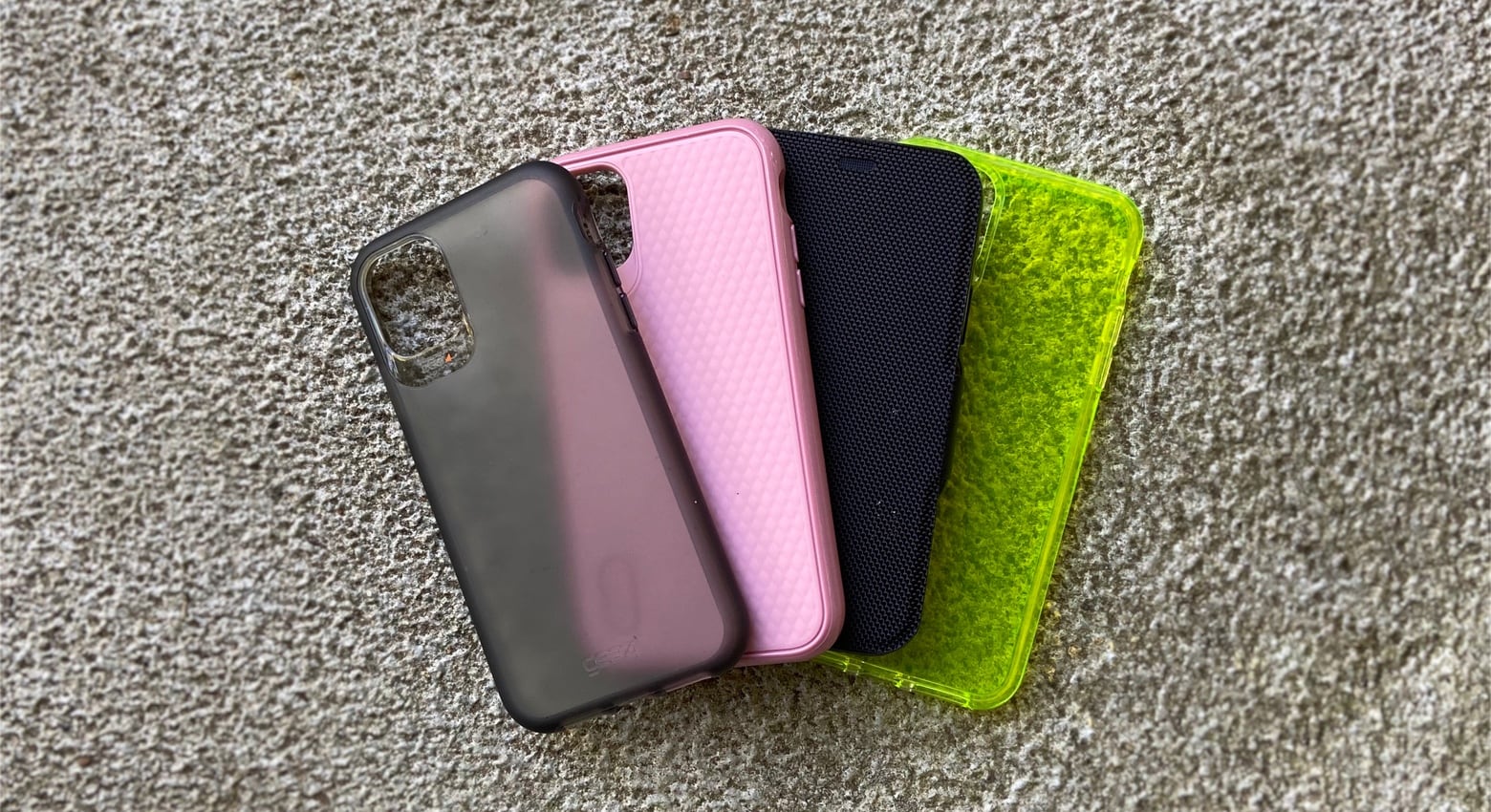
The Gear4 Hampton, Battersea, Oxford Eco and Crystal Palace Neon are just some of the iPhone 11 and 11 Pro series cases this company offers. Photo: Ed Hardy/Cult of Mac
Gear4 cases can save an iPhone 11 or 11 Pro series from breaking if dropped quite long distances, but they aren’t as bulky as typical rugged cases. The lineup for all three of Apple’s latest is surprisingly attractive, given how protective they are.
I tried out several of Gear4’s offerings, and find they might be just what your new iPhone needs.
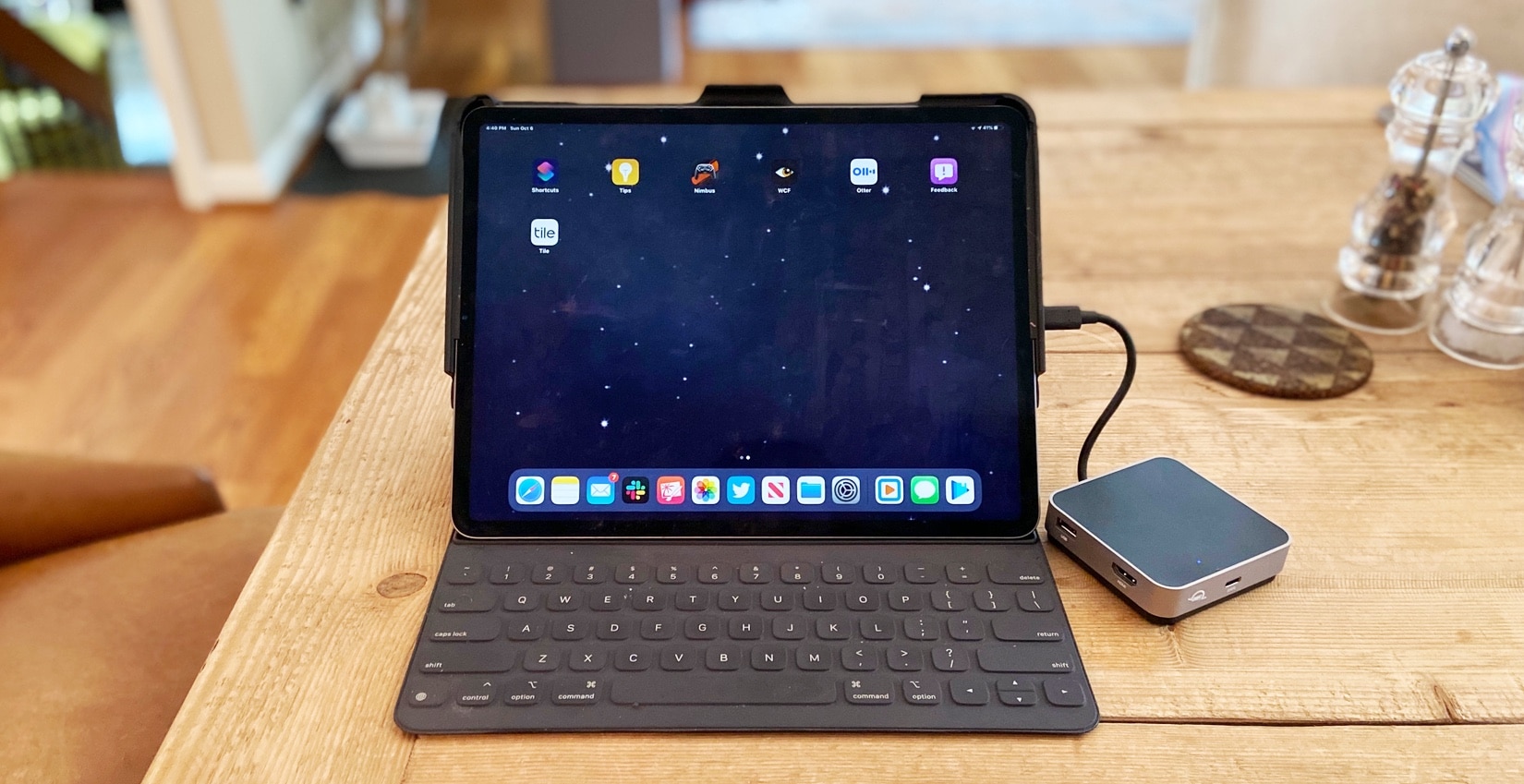
The OWC USB-C Travel Dock adds multiple ports to an iPad Pro or MacBook. Photo: Ed Hardy/Cult of Mac
The OWC USB-C Travel Dock has five ports to extend the capabilities of your MacBook or iPad Pro, including HDMI and dual USB-A. Wrapped around these is a casing of aluminum and plastic thick enough to stand up to the kind of punishment many of us subject our gear to. Yet it still looks professional.
We used this multiport hub on several business trips. Here’s how it came through.
Post photos direct to Instagram from Safari on your Mac. Photo: Charlie Sorrel/Cult of Mac
If you know the trick, you can use Instagram on your Mac. And I don’t just mean viewing your timeline in Safari. I mean uploading pictures, adding filters, the lot. What’s more, it’s dead easy. Interested? Here’s how it works.
When dimmed, the Series 5 can be set to hide sensitive information. Photo: Charlie Sorrel/Cult of Mac
The one huge new feature in the Apple Watch Series 5 is the always-on display. Day or night, the screen never shuts off. It dims as soon as you stop using it, and all animations stop, but the face stands ready for your curious glance at any time.
However, if you wear your Apple Watch in bed, or you don’t like the idea of the watch showing your info to anybody who cares to look at the device, then there are a few settings that can help. Let’s take a look.
The iPad now has app windows. Photo: Charlie Sorrel/Cult of Mac
In the next version of iOS, the iPad will be able to open several “copies” of the same app. You can then switch between them, treating them just like any other individual apps, or you can combine these instances with other apps.
For example: You could have one “space” with your Mail app and your to-do app in a 50:50 Split View. And then you can have another space with a different instance of your Mail app and, for instance, the Notes app. Each version of the Mail app can show a different folder or message.
You can even have two versions of, say, the Maps app, sharing the same screen, showing totally different places. It’s a powerful addition to iPad multitasking. Let’s see it in action.
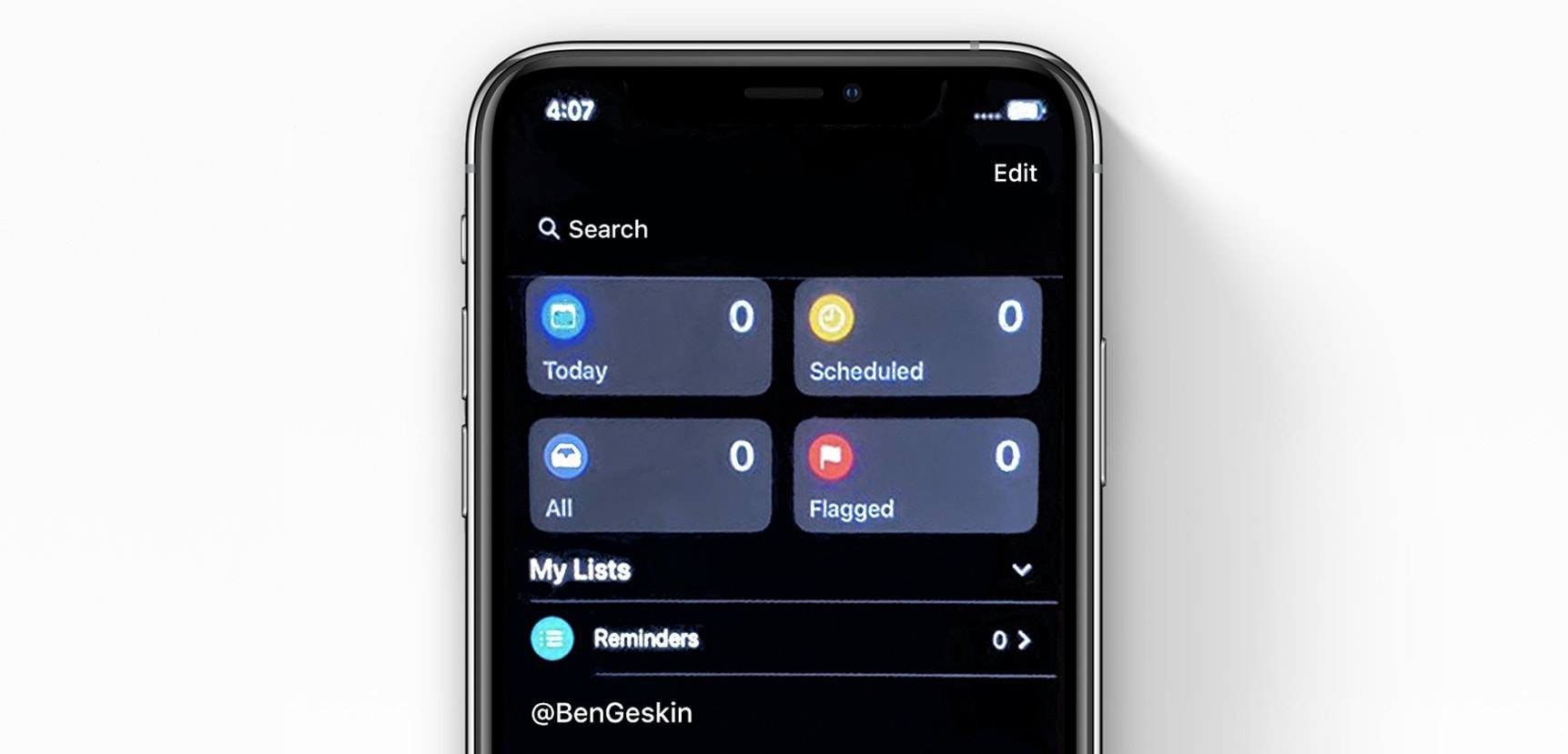
Apple’s Reminders app gets a massive update in iPadOS and iOS 13. It’s no longer a joke app that needs a million taps just to set a notification time on your action item. We already know about the new layout, which splits tasks into Today, Scheduled, All and Lists, and we also know about the excellent new natural-language input, which makes typing a reminder as easy as dictating it to Siri.
But the big update also brings some other new features you likely haven’t heard about yet: Today Notifications and Type to Siri (right there in the Spotlight screen).
Say Sayonara to arguments with your kids. Photo: Charlie Sorrel/Cult of Mac
New subscription gaming service Apple Arcade is here1, and it looks like an incredible deal. For just $5 per month, everyone in your family gets unlimited access to dozens of exclusive games (with a free month-long trial to check it out). Even better for parents, there are no in-app purchases in Apple Arcade, so your kids won’t be begging you to buy more coins or whatever every five minutes.
However, they can still spend way too much time on games when they should be out playing with kilometer-zero, organic wooden toys, or pretending that old washing machine delivery box is a panic room. Thankfully, Apple’s own Screen Time feature already works with Apple Arcade, so you can restrict access to any and all games.
Man’s brand new Apple Watch turns out to be toilet plunger Photo: Ste Smith/Cult of Mac
If you’re planning to upgrade to Apple Watch Series 5, you might have thought about selling old model back to Apple. But that’s a terrible idea.
Apple will offer you just a fraction of what your old Apple Watch is really worth. It pays a maximum of $110 for Series 4 units introduced just a year ago, and only $70 for a Series 3.
Make a lot more cash by selling your Watch to Cult of Mac instead. You’ll find your shiny new upgrade ends up being a lot cheaper than you expected.
Avoid selling your old Apple Watch to Apple. Photo: Ste Smith/Cult of Mac
With big discounts to be had on Apple Watch Series 4, it’s an ideal time to upgrade — and sell off your old model.
It might seem like a relic now, but it’s probably still worth a small fortune — if you sell it properly. Here’s how to get the best price for your old Apple Watch and ensure you get paid fast.
This 8-port hub lets you hook your Mac or iPad Pro up to almost anything. Photo: Ed Hardy/Cult of Mac
The designers of Inateck’s latest USB-C hub obviously believe that too much is never enough. It has eight ports, including the typical USB-A and HDMI ones but also some real legacy ports, including Ethernet and even VGA. There’s also a built-in removable USB-C cable for use on the go.
There’s a lot to test here, but I put this full-featured hub through its paces. Plug into my review to see what I learned.
The Kanex iAdapt Docking Station clips securely to your iPad Pro, adding significantly to its capabilities. Photo: Ed Hardy/Cult of Mac
Kanex’s USB-C hub clips solidly to the side of your 2018 iPad Pro, adding HDMI and USB-A ports, dual memory card readers, and even a 3.5mm audio jack. It can be used alongside Apple’s popular keyboard folio or without.
This latest entry in the iAdapt line offers a very unusual design that wraps around a corner of the tablet, so we tested to see how well it stands up to real-world use.
The StayGo is an 8-port USB-C hub designed to be used in the office or on the road. Photo: Ed Hardy/Cult of Mac
TwelveSouth has a hub for those who remember the days when MacBooks came with USB-A, Ethernet, and video ports. This uses a single USB-C port to bring back six legacy ports.
On top of that, the StayGo comes with a 1-meter cable for use on your desktop, plus a short built-in cable for plugging in on the road.
Is this the hub your Mac needs? Read on to find out.