Mobile menu toggle

Setups - page 19

This is how you maximize space and fill it with sound and light [Setups]

By

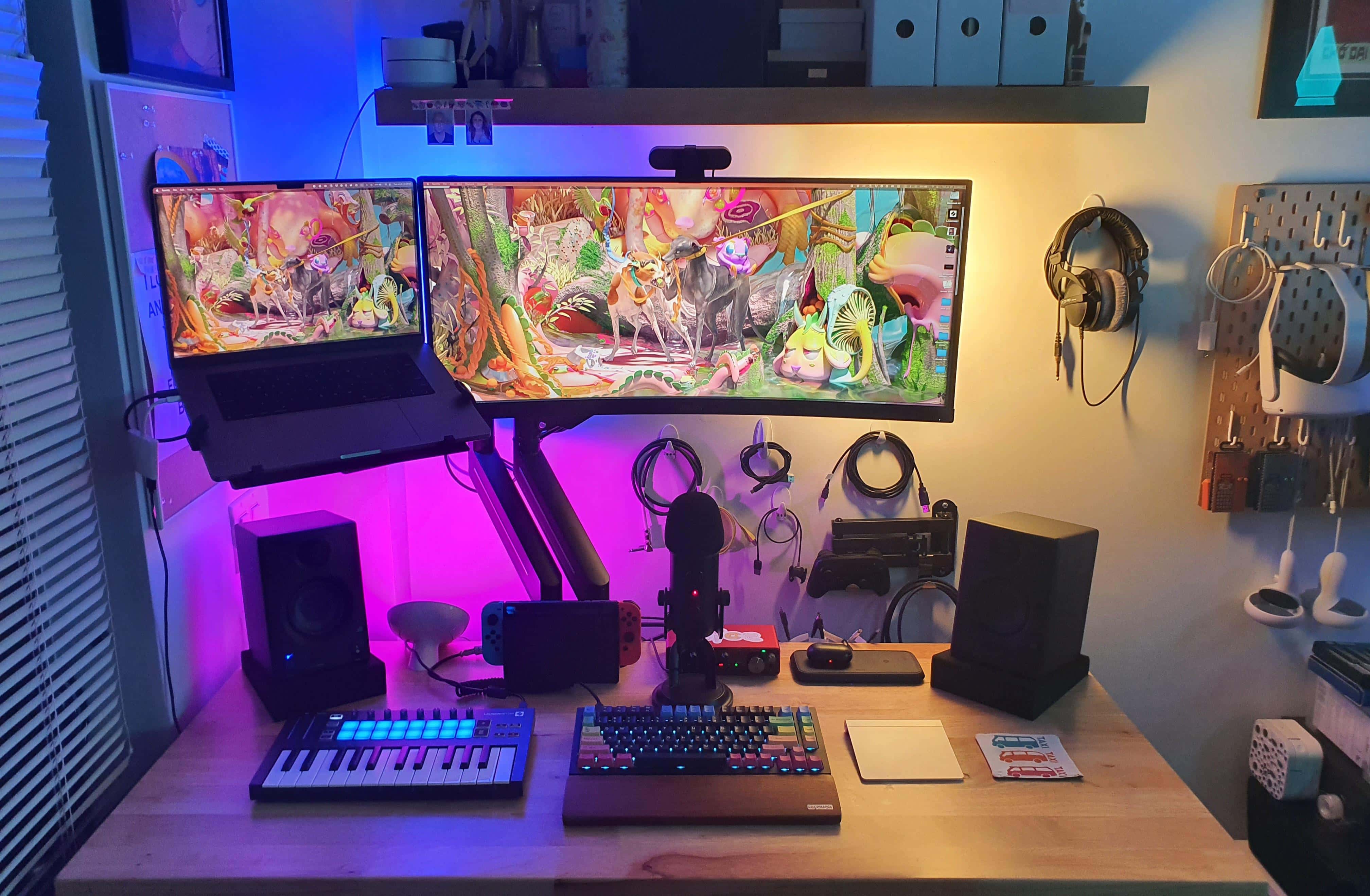
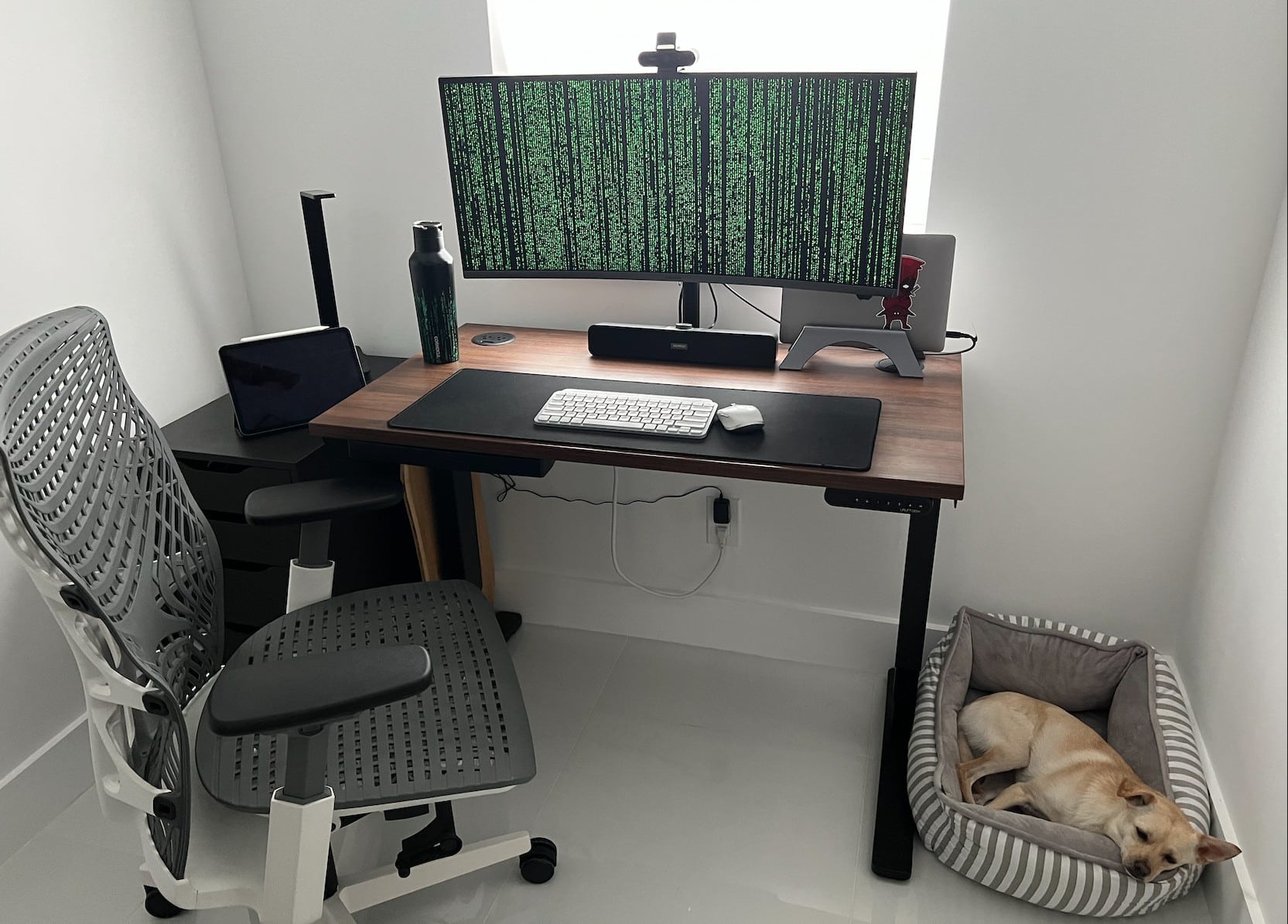
This excellent use of space is brought to you by a standing desk, a mounted ultra-wide display and MacBook Pro, and inventive wall storage.
Photo: [email protected]

Not everyone has a huge desk with ample room for their computer setup and loads of associated gear. But with a few smart moves, anyone can make the most of a small desk in a cramped space.

Today’s featured setup is a good example. It takes advantage of a standing desk, displays mounted on arms and ample wall-mounted storage to maximize limited space.

And the audio gear and lighting don’t disappoint, either.

Floating iPad and MacBook are ready for close-ups in well-lit workstation [Setups]

By

Who is this person, a movie star? A TV reporter? Nope, he's in sales.
Photo: [email protected]

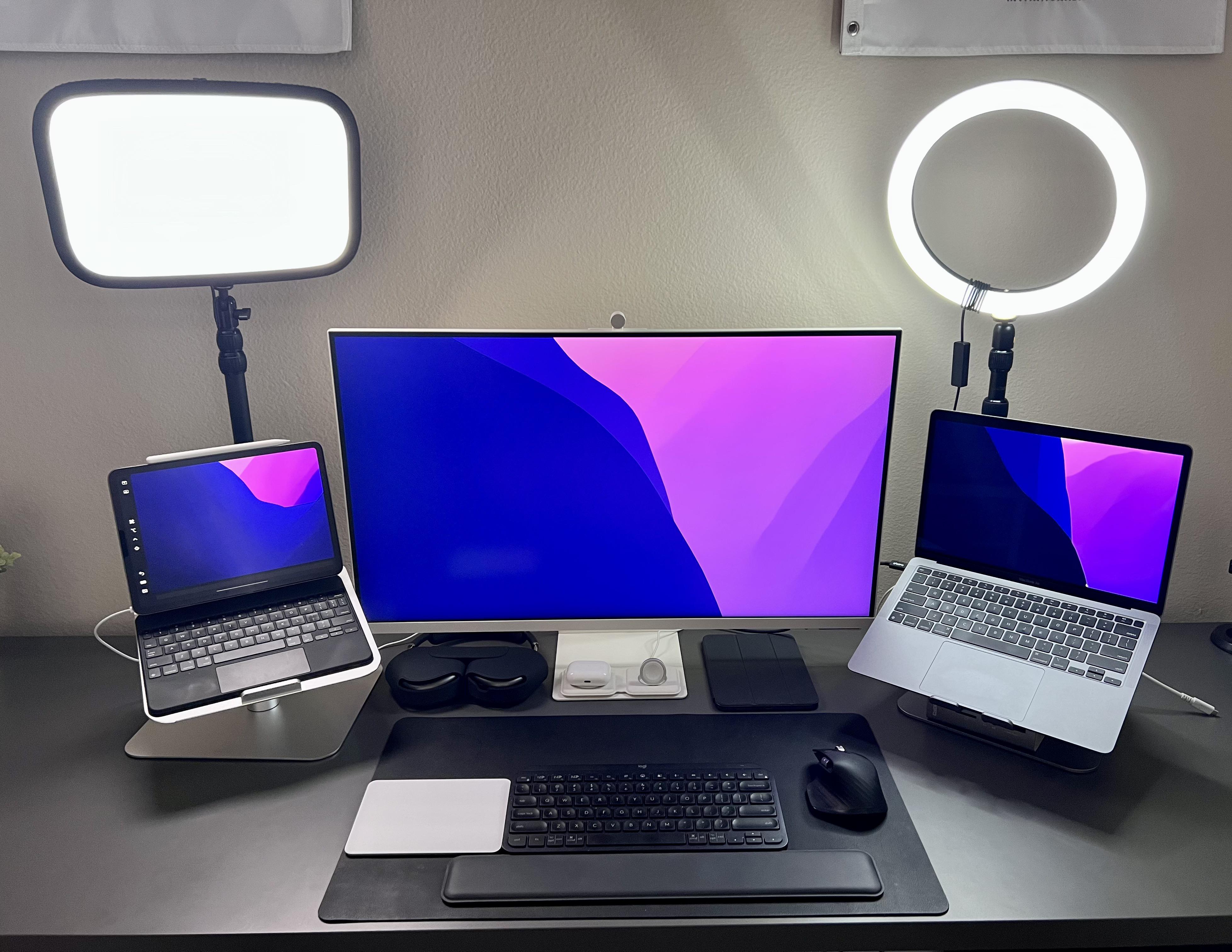
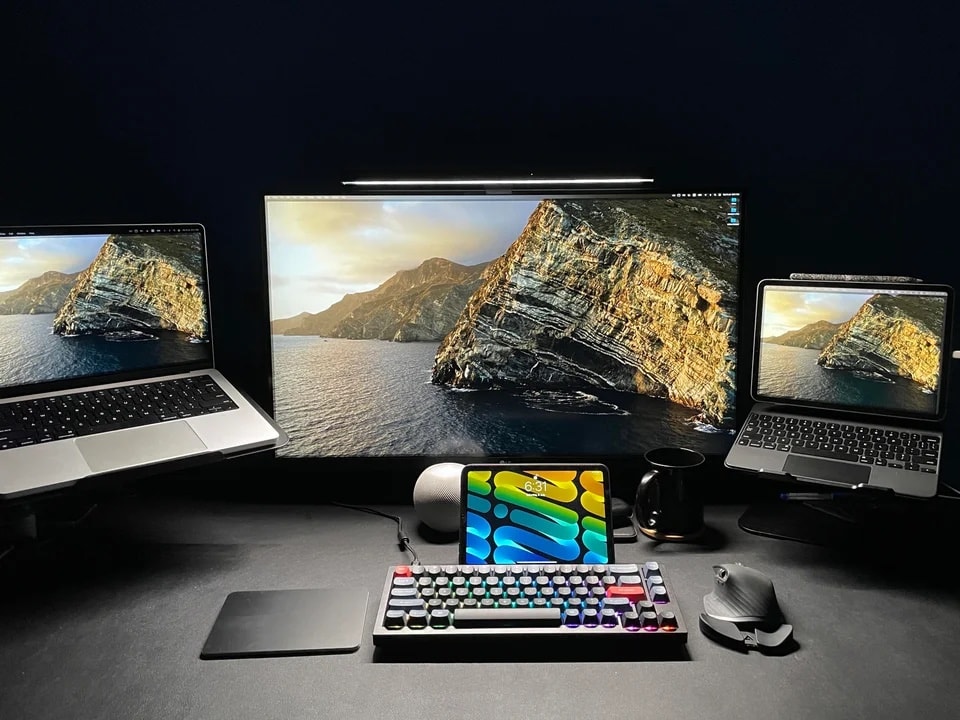
Today’s featured setup looks, at a glance, like it sports dual mounted laptops. But one’s an iPad Pro with a Magic Keyboard and one’s a MacBook Pro, floating on either side of a 32-inch external Samsung display. Universal Control lets the user work across the screens.

His only problem seems to be that silver Magic Trackpad sticking out like a sore thumb in darker surroundings. Naturally, social media came to the rescue with possible fixes.

Nice MacBook Pro, but it’s all about that cool hybrid-model canine [Setups]

By

The M1 MacBook Pro and Samsung ultra-wide display form the setup's core, but the canine unit at right is a crucial feature, too.
Photo: [email protected]

People love posting impressive photographs and descriptions of their computer setups online. And other people love either drooling over them or mercilessly criticizing them.

But no matter what technology appears — lets say a new-ish M1 MacBook Pro, a 4K wide-screen display, an excellent 4K webcam, rock-solid input devices and a reliable standing desk, as in today’s featured setup — it’s all forgotten if there’s a pet in the picture.

Dutch IT guy rocks with iMac, electric guitar and audio interface [Setups]

By

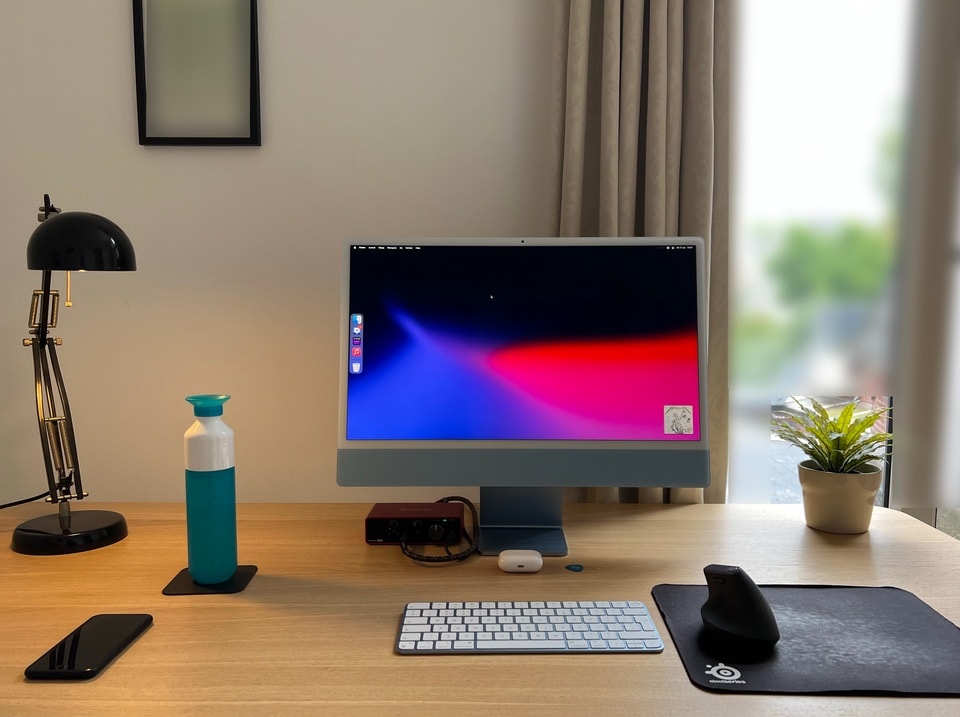
This computer setup's centerpiece is a 24-inch iMac.
Photo: [email protected]

We like Friday Setups posts to be on the fun side. We look for entertaining gear, wacky decor and exotic locations. Today we found a Dutch guy who works in IT management via his M1 iMac.

That doesn’t sound especially fun, but he also wields a pretty badass electric guitar.

He runs the axe into a Focusrite audio interface and listens to his musical creations on a killer set of cans, too.

Super-clean MacBook Air rig shrugs off all distractions [Setups]

By

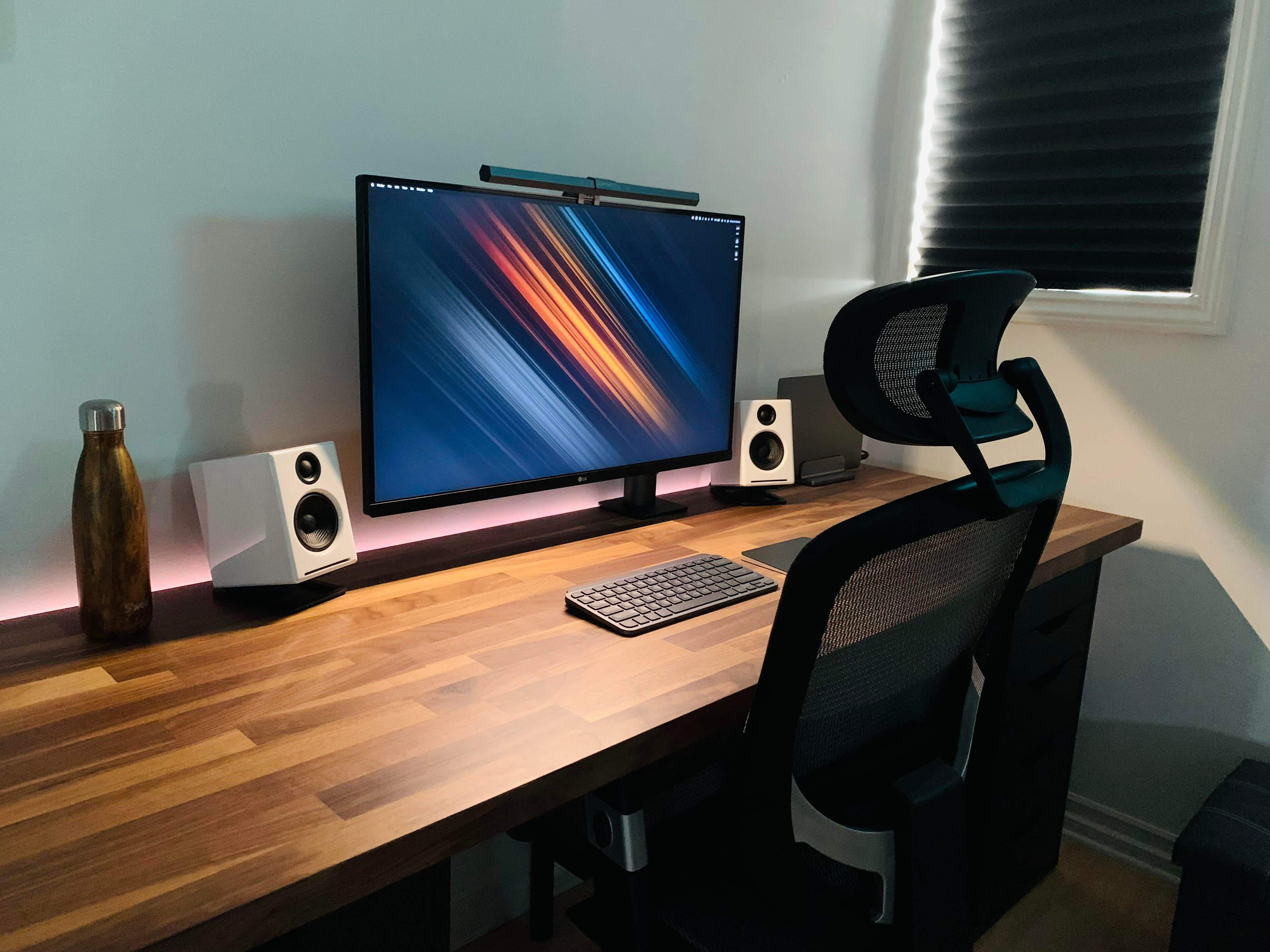
Solid cable management helps keep this MacBook Air setup clean.
Photo: [email protected]

Some of the best computer setups look a little boring at a glance. But that’s just because they include only essential gear and they keep it well lit and free of cable (and other) clutter.

Today’s featured M1 MacBook Air setup is a good example. And that’s not to say it’s plain or overly simple. You can see that in  the well-thought-out gear list below, which features 19 items.

Why downgrade from a massive, curved ultra-wide monitor? [Setups]

By

Sometimes it makes sense to walk back your choice of a massive monitor.
Photo: [email protected]

You might think you’d give your right arm for one of those stunning, 49-inch curved ultra-wide monitors to use with your Mac. But then again, you might end up begging for your appendage back, as well as your old display. Or at least something a little less colossal.

Minus the stray arm — as far as we know — that’s more-or-less what happened with today’s featured MacBook Pro-based setup.

Cable management doesn’t have to be a horrible chore [Setups]

By

"Cables? What cables?" asked one commenter.
Photo: [email protected]

Sometimes you see a pristine computer setup flaunted on social media and you think, how is that even real? Is it staged? Is it a render? At the very least, it looks like they left out all the cables for the photograph. But that’s not necessarily the case.

A lot of us live with messy setups, in part due to cable clutter. But neatening things up doesn’t have to be next-to impossible, as today’s featured Mac mini setup demonstrates.

If you’re anti-mouse and anti-trackpad, what device can you use? [Setups]

By

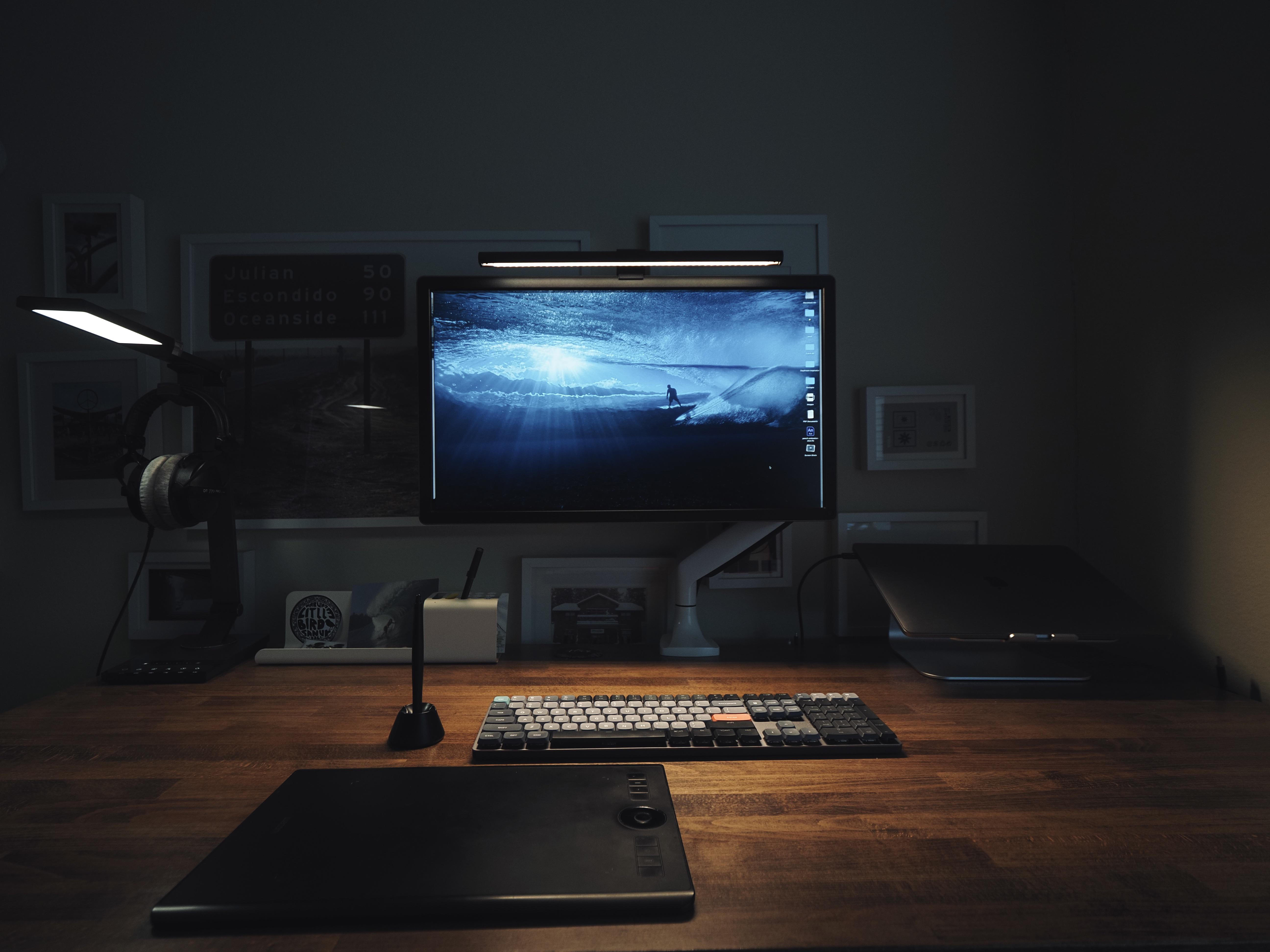
That thing in the foreground is a Wacom Intuos Pro M tablet.
Photo: happy_haircut

Some people dislike using a mouse. Others can’t fathom a trackpad. And believe it or not, some folks hate both. So what do they do to get their brilliant thoughts onto the computer screen?

Knowing it’s hard to get by in life on just a keyboard, what input device can they use in addition to it? As today’s featured computer setup illustrates, they might try using a certain tablet like it’s a cross between a trackpad and a mouse.

New Studio Display gives LG 4K monitor the boot [Setups]

By

Another satisfied customer: New Studio Display pairs with an M1 MacBook Air and a homemade keyboard.
Another satisfied customer: New Studio Display pairs with an M1 MacBook Air (not shown) and a homemade keyboard.
Photo: Asleep_Painting6103

Another week, another bunch of new Studio Displays shipped. They’re cropping up in Setups far and wide as replacements for until-recently-good-enough 4K monitors by the likes of LG and Dell.

Today’s featured M1 MacBook Air setup runs a new Studio Display in place of a 4K LG screen. And for input devices, the user opts for a Magic Trackpad over a mouse, using it with a pretty nifty homemade mechanical keyboard.

Tiny apartment benefits from beautifully backlit Studio Display [Setups]

By

This cozy corner benefits from Philips Hue Play light bars behind the Studio Display.
Photo: [email protected]

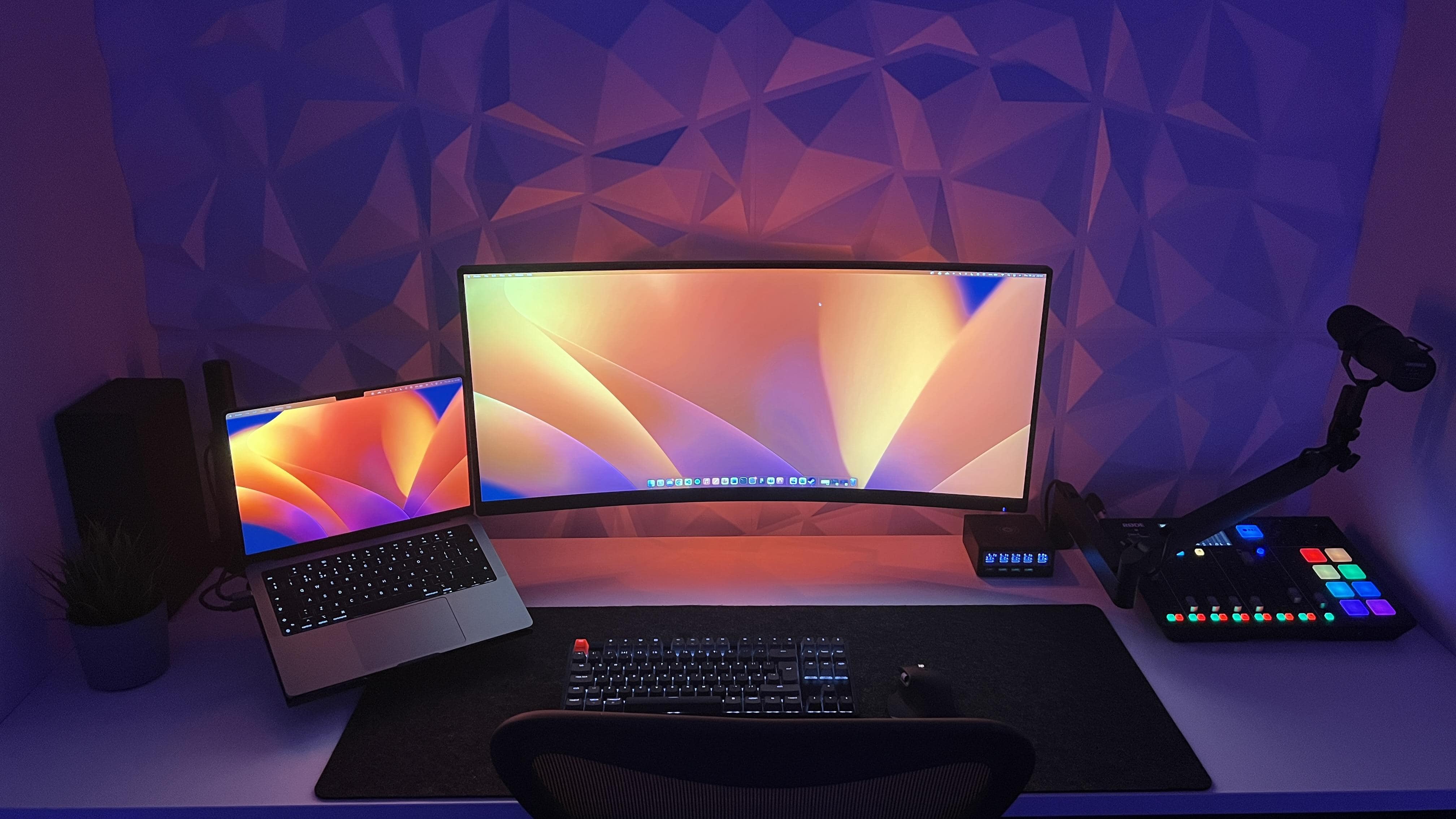
Today’s featured M1 Pro MacBook workstation has a new Studio Display with bias lighting, illuminating the wall behind the display. It comes from three strategically placed Philips Hue Play bars that really make that corner of the small apartment “pop.”

This is how you power a home-automation station [Setups]

By

An M1 Max MacBook Pro and Raspberry Pi help make this a home-automation station.
Photo: [email protected]

Most of the time, when we talk about home automation, we’re talking about Apple’s HomeKit system. But today’s featured computer setup, which relies on a formidable M1 Max MacBook Pro and dual displays, goes another route.

The homeowner runs a Raspberry Pi with open-source software to achieve about 50 automations, including Siri integration.

M1 Max MacBook pairs nicely with 40-inch ultra-wide display [Setups]

By

No scaling issues seen here.
Photo: [email protected]

Curved ultra-wide displays are all the rage lately, and it’s no wonder why. What a fantastic amount of real estate. But it can be worrisome buying one if you’re not sure how it will look with your Mac’s resolution and scaling options.

Today’s featured computer setup pairs a beast of a 16-inch M1 Max MacBook with a brilliant 40-inch LG 5K UltraWide curved display. Let’s look at how well it’s working and what some of the issues can be.

Mac Pro and 3-Pro-Display-XDR workstation is an AV wonderland [Setups]

By

A 2019 Mac Pro is the core of this computer setup, along with a 16-inch M1 Pro MacBook (not pictured).
Photo: Liam Hudson

We can count the number of times we’ve come across a three-Pro Display XDR workstation in our Setups travels on less than one hand — maybe two or three times. And if you throw in a late-model Mac Pro and a pile of great audio-visual gear for professional-level videoconferencing, well, that’s even more rare.

Liam Hudson, CEO of a qualitative electronic trading company, sent his “ultimate computer setup” for at-home work to Cult of Mac. And it’s really something.

Designer’s MacBook Pro-driven office swims in Apple collectibles [Setups]

By

A MacBook Pro and a 4K LG display anchor Smelker's setup.
Photo: Terry Smelker

Graphic designer and illustrator Terry Smelker’s workstation includes many interesting elements, like a specialized drawing tablet and a multimedia controller he uses along with his tricked-out MacBook Pro. But even if you’re not curious about his setup proper, get a load of that Apple gear collection! Fortunately, he provided plenty of photographs.

“I’ve always been a huge fan of Apple’s design aesthetic,” he told Cult of Mac. And that started him on his collection of vintage Apple products, which complements the rest of his gear.

Mounts make the most of a home videoconferencing center [Setups]

By

Everything is mounted just so.
Photo: [email protected]

Mounts can make the most of a computer setup. They can mobilize so much of your gear — computers, displays, microphones — so you can use them when you need them and push them out of the way when you don’t, opening up desk space. And you can minutely adjust their positioning, too.

Today’s featured MacBook Pro and Mac Studio computer setup takes advantage of mounts for the computers, display, video camera and microphone.

Epic OLED smart TV and pro audio gear distract from wrong-color keyboard [Setups]

By

Would you have gone with a darker-colored keyboard? Which one?
Photo: [email protected]

Will you rue the day you choose the wrong color peripherals? Will you ask strangers on social media to help you fix the problem? The owner of today’s striking M1 MacBook Air-based computer setup did just that.

But if you ask us, they could just take solace in the setup’s strengths. Those include an epic OLED smart TV and some top-shelf, professional-level audio gear, plus a cool Edison desk lamp.

But we’ll share some good advice we saw about the keyboard issue. Read more below.

Mac mini rig’s monster monitor pushes standing desk to limit [Setups]

By

That 38-inch monitor is almost too much for the standing desk to handle.
Photo: [email protected]

In a world of ever-increasing monitor sizes (and weights), you need a pretty tough, supportive desk — especially if it’s a motorized one for sitting or standing. Otherwise, the whole thing might wobble all over the place under the combined, imbalanced weight of your fabulous gear.

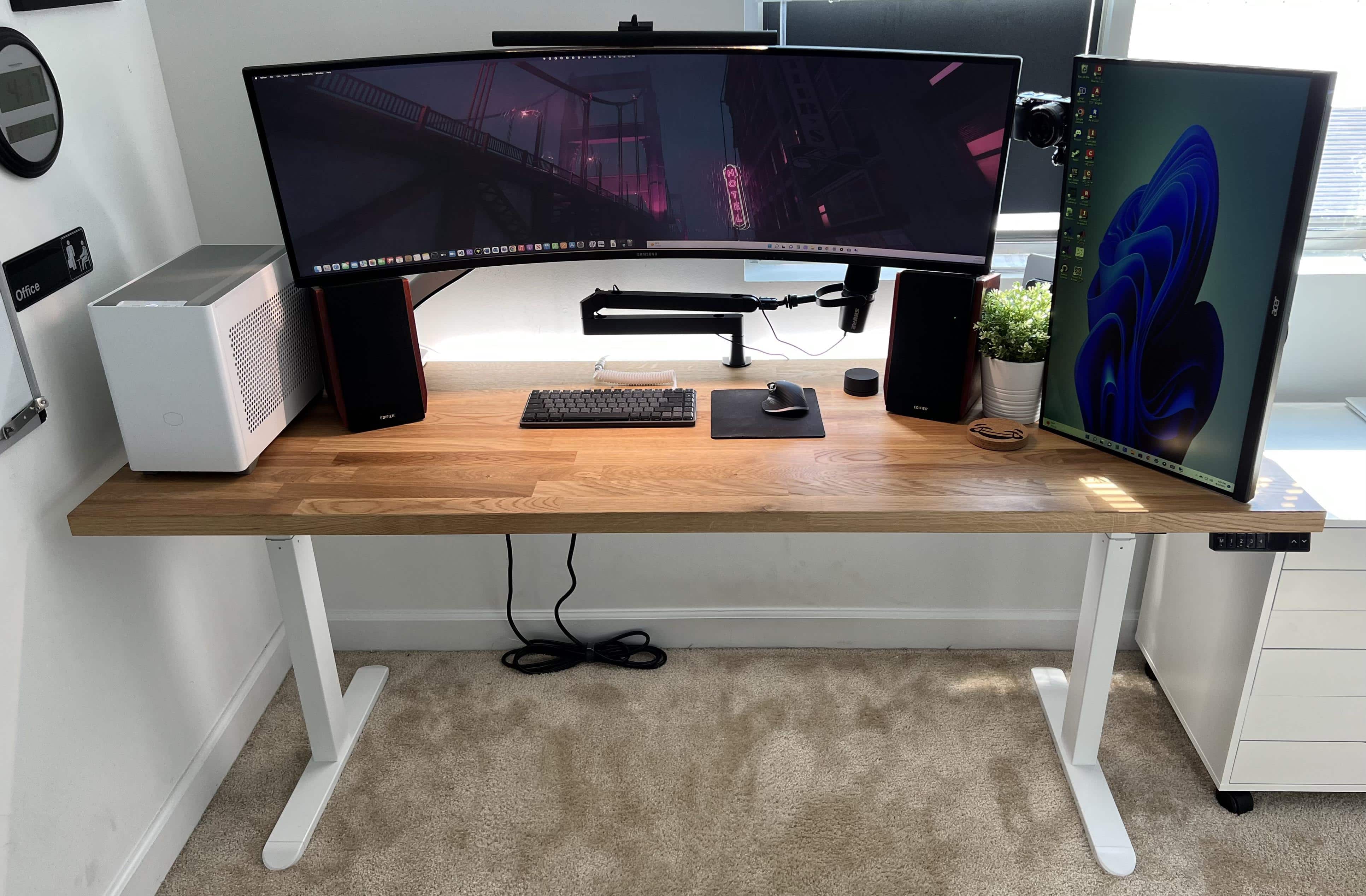
Today’s featured Mac mini computer setup copes with an electric desk that struggles under the weight of a behemoth of a curved ultra-wide monitor.

M1 MacBook Pro and Studio Display co-star with HyperX RGB mic [Setups]

By

The flashy RBG microphone sits to the left of the Studio Display.
Photo: [email protected]

If you’re tired of being just another drab presence on conference calls or online gaming tournaments, maybe it’s time to bring the party. No, we’re not saying you should send everyone jello shots beforehand. But you might try a sassy RGB microphone like the one in today’s featured MacBook Pro and Studio Display setup.

And it’s not just for fun. The product designer who uses it said it’s perfectly loud and clear on Zoom and Discord calls.

‘Old gamer’ goes with M1 Pro MacBook and Steam Deck [Setups]

By

Two computers live here: a 14-inch M1 Pro MacBook and a Steam Deck for gaming.
Photo: [email protected]

Everybody knows Macs don’t set the gaming world on fire, though Apple silicon has made some inroads. So while plenty of Mac users enjoy Apple Arcade and use Apple hardware to play games, many turn to other means. We’ve seen plenty a hybrid Mac – PC computer setups out there.

But today’s featured setup takes another course to gaming satisfaction. It’s owner, who describes himself as an “old gamer,” divides his time between work via an M1 MacBook Pro and gaming on a Valve Steam Deck.

Not feeling poor enough? Check out this guy’s ‘temporary’ setup. [Setups]

By

Believe it or not, the main setup has three Pro XDR Displays in it.
Photo: [email protected]

Sometimes looking at computer setups is all about practicality, as in finding the right tools for the job at the right price. But other times it’s like ogling other cool stuff you wish you had, like pimped-out cars or beachfront real estate.

Today’s featured setup is a funny one, in that regard. It’s a “temporary” setup, just getting by in lieu of a bigger, better setup. But its gear could make many people drool with desire.

Super-clean rig boasts stereo HomePods and brilliant 5K display [Setups][Updated]

By

When people talk about a
When people talk about a "clean" setup, this is pretty much what they mean.
Photo: [email protected]

We see plenty of paired HomePod minis in our travels online among computer setups, but not many stereo twosomes of the OG HomePods, the big ones Apple discontinued that may one day return in some form.

So today’s featured M1 MacBook Air setup is not only super-clean, it rocks that killer sound system and boasts a pricey 5K monitor that rivals Apple’s Studio Display.

And it’s the first setup we’ve come across where someone hates on the wildly popular Logitech MX Master 3 wireless mouse.

PC gamer converts to all-Mac rig plus PS5 and gaming handhelds [Setups]

By

Plenty of oohs and ahhh were uttered over this setup on social media.
Photo: [email protected]

We’ve seen a fair number of PC gamers converting to one or more of the new Macs lately, including some who let go of their main gaming machines entirely.

Today’s featured setup fits that bill. It belongs to a UI designer who ditched a gaming PC and got himself a Mac Studio and Studio Display to go with his work-provided MacBook Pro.

But he kept a few gaming devices around, along with a suite of Elgato AV streaming gear and a new Sonos Ray Soundbar used, strangely enough, as a wireless desktop speaker.

Make switching between 2 laptops on an external display a breeze [Setups]

By

No need to always be plugging and unplugging.
Photo: [email protected]

These days, more people than ever have more than one computer. That’s because many people work from home or do the “hybrid” work thing, toiling at an office part time but working remotely, too. And that means they probably tap away on both a work laptop and a personal one.

Today’s featured setup follows that trend. And its owner succinctly explained how they go about switching between the two machines on the same external display with the press of a button.

M1 Max MacBook and Xbox share killer ultra-wide display [Setups]

By

An Xbox in the under-desk drawer handles the gaming chores.
Photo: [email protected]

If you’re one of the many, many people waiting longer and longer periods for your Mac thanks to supply-chain delays, we apologize in advance. We don’t mean to rub your face in your misfortune.

But when we find a great computer setup featuring an exciting new 16-inch M1 Max MacBook Pro splitting time with an Xbox on a 40-inch, curved ultra-wide display, we’ve just got to talk about it.

Full-on ‘Dark Mode’ brings creativity into focus [Setups]

By

The setup proper in
The setup proper in "Dark Mode." Atmospheric, eh? It's a space dedicated to creativity, but it also helps with focus.
Photo: Chris Denbow

Photographer and writer Chris Denbow puts an interesting twist on his computer setup. He credits its “Dark Mode” — which is obvious in the photographs of the desk and the room, but extends to the machines and the software he uses — for boosting his focus and creativity. He said the dark theme gives him a “space dedicated to creativity.”

“Introducing ‘Dark Mode,’ a minimal, monochromatic home office/workspace that helps eliminate distractions, [and] allows focus and productivity,” Denbow told Cult of Mac.