Newer Macs, both portable and desktop, come with keyboards that have shortcut keys on the top row, where the F keys are. These F keys allow you to increase or decrease the brightness of the display, control iTunes playback, and raise and lower the volume.
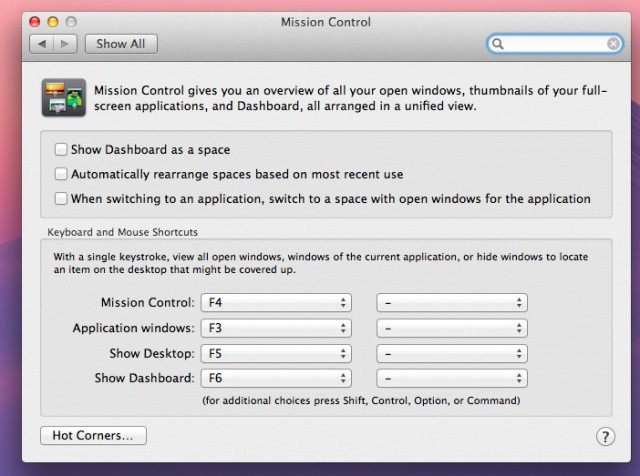
You may also know that these features have associated preference panes in System Preferences as well. You can find them by opening System Preferences, which can be found in the Applications folder. Then you can click on the specific Preference pane you need, like the one for brightness or Mission Control. There’s also a way to get directly to these preference panes with a keyboard shortcut.
To get right to the Mission Control pane, simply press the Option-F3 or F4 keys, and the pane will pop right up. Similarly, press Option-F1 or Option-F2, and you’ll get the displays preference pane. Option-F5 and Option-F6 bring up the Keyboard panel, while Option-F11 and Option F-12 bring up the sound pane. Think of it like preferences for the buttons themselves.
Depending on how you have your F keys set up, you might have to press the function key to access these functions, as well.
Source: Macworld

Rob LeFebvre is an Anchorage, Alaska-based writer and editor who has contributed to various tech, gaming and iOS sites, including 148Apps, Creative Screenwriting, Shelf-Awareness, VentureBeat, and Paste Magazine. Feel free to find Rob on Twitter @roblef, and send him a cookie once in a while; he’ll really appreciate it.

