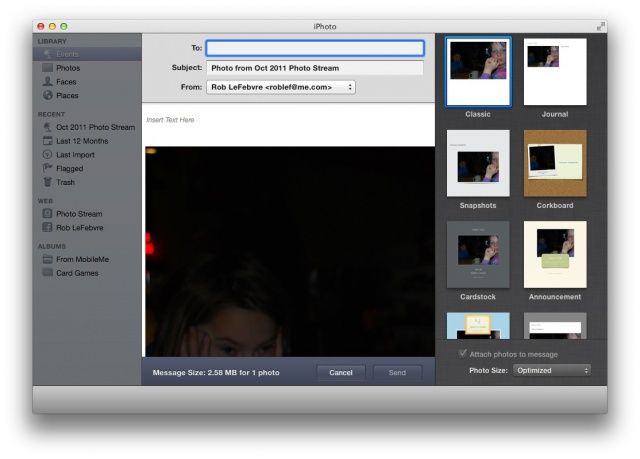
Used to be that when you shared photos from iPhoto via email, iPhoto would open up Mail app, drop the photos in as attachments, and let you send from there. Nowadays, iPhoto uses an internal email routine that mimics the iOS way of adding photos to email, but many folks just plain don’t like it. If you fall into this camp, and want to disable this iPhoto “functionality,” this tip is for you.
First up, launch Terminal, then run the following command once it’s open:
defaults write com.apple.iPhoto EmailApp Mail
Now iPhoto will use Mail again, without all that iPhoto in-app fooferah. Mail will launch when you click on the email icon after hitting the Share button in iPhoto, drop your images in as attachments, and you can finish sending the email from there.
If you want to put it back the way it was, though, simply return to Terminal and type or paste the following command in:
defaults write com.apple.iPhoto EmailApp iPhoto
Simple, right? Yep. That’s just how we roll, sometimes.
Via: Macworld Hints

Rob LeFebvre is an Anchorage, Alaska-based writer and editor who has contributed to various tech, gaming and iOS sites, including 148Apps, Creative Screenwriting, Shelf-Awareness, VentureBeat, and Paste Magazine. Feel free to find Rob on Twitter @roblef, and send him a cookie once in a while; he’ll really appreciate it.

