
Mobile menu toggle

Make Your Own Free Ringtones in iTunes 10 in Nine Easy Steps [How To]

By

post-58047-image-003d20afbf893fa43113869b7e64188b-jpg


Apple made a lot of changes to iTunes when it introduced version 10. A lot of those changes were cosmetic, but some of them included removing features like ringtone creation. Luckily, you can make your own ringtones out of any song in iTunes 10 using these nine easy steps.

All you need to get started is a copy of iTunes 10 installed on your Mac and your music library.

Step 1: Launch iTunes 10.

Step 2: Locate the song you want to make a ringtone out of in your iTunes Music Library and select it.

I selected the song Drive by the Cars. One of my all time favorite songs.

Step 3: Right-click the selected song, select “Get Info,” and then click on the Options tab.
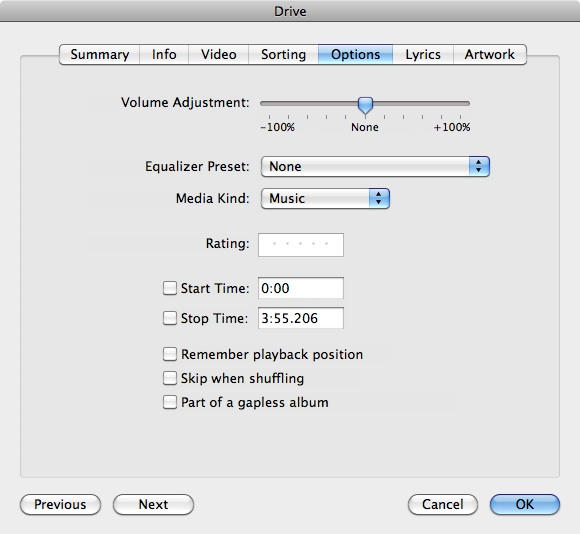
Step 4: Locate the playback period of the song and set the beginning and ending to be any 30 second segment of that song. Click “Ok.”

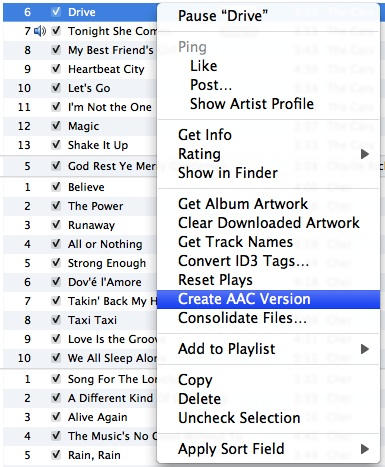
Step 5: Right-click the selected song again and select “Create AAC version. ” iTunes 10 will create a new version of the song composed of the 30 second interval you selected. This will become your new ringtone.
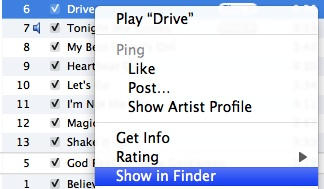
Step 6: Locate the new 30 second song clip you created, right-click that song clip, and select “Show in Finder. ”
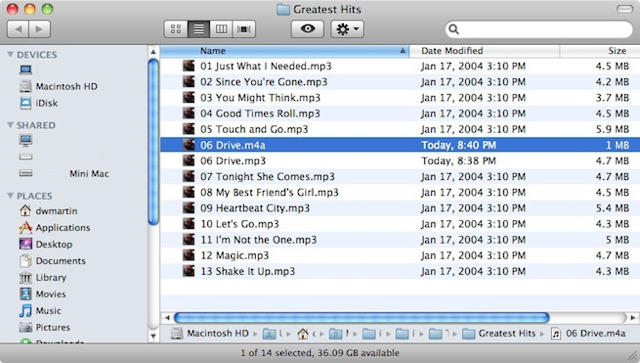
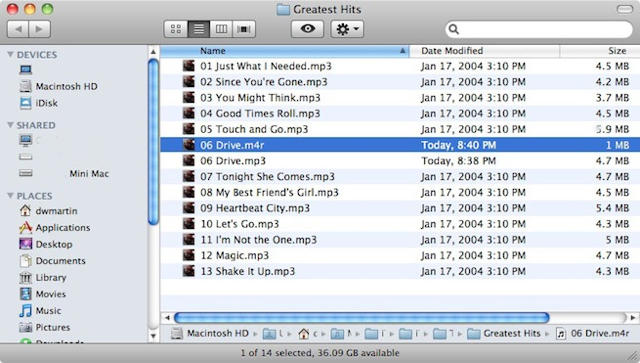
Note the two versions of the song Drive. The smaller sized file is the 30-second clip.

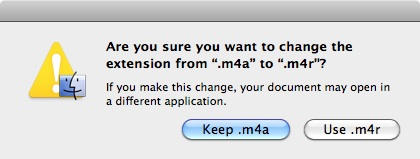
Step 7: Using Finder rename the file changing the extension from .m4a to .m4r. If prompted to accept the file extension change be sure to confirm that your selection was .m4r.
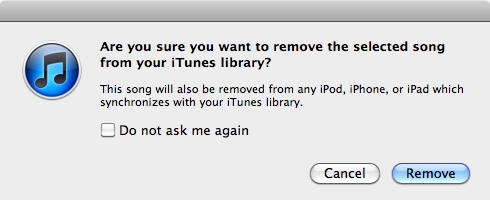
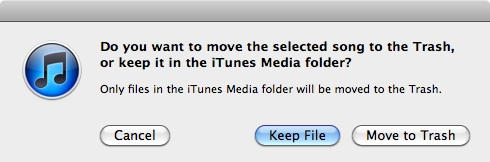
Step 8: Locate the 30 second song clip in iTunes 10 and press Delete when prompted do not move the file to the Trash and make sure that you select “Keep File. ” Note: If you happen to be prompted to remove the selected song from your iTunes library click Remove.
Step 9: Finally, you’ll need to re-import the song clip into iTunes 10 by double-clicking the .m4r file in Finder.
The song clip will now be added back into iTunes 10, but this time it will be added as a ringtone. You can now sync that ringtone with your iPhone, assign it to a contact, etc.
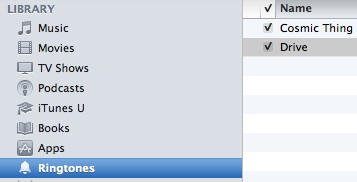
This method isn’t necessarily elegant, but it is free. With iTunes, your music library, and this How-to, you already have everything you need to make your own ringtones. If you’re feeling nostalgic, you can even bring back the original iPhone ringtone to your device. So what are you waiting for? Go ahead and get started—you’ll have a personalized ringtone for your iPhone in only a few minutes.

  • Subscribe to the Newsletter

    Our daily roundup of Apple news, reviews and how-tos. Plus the best Apple tweets, fun polls and inspiring Steve Jobs bons mots. Our readers say: "Love what you do" -- Christi Cardenas. "Absolutely love the content!" -- Harshita Arora. "Genuinely one of the highlights of my inbox" -- Lee Barnett.

46 responses to “Make Your Own Free Ringtones in iTunes 10 in Nine Easy Steps [How To]”

  1. Kelly says:

    I have the newest version of itunes and I can’t find the “finder” step! I can’t get the file extension to change no matter what I do! Help :(

  2. Ptackettt says:

    I don’t have the Create AAC Version option on my right click menu. I only have create MP3 version, which I have attempted to use instead, but it doesn’t convert properly to M4R format and won’t open in itunes

  3. Scott r Triem says:

    Same problem here. os x 10.6.8 kills this in finder i think

  4. KJ says:

    Yes, I have the same problem as well:  Create mp3 is the only option I see, not Create AAC..and doing that & following the rest of the steps does not work.

  5. Joe says:

    Attention iTunes Shoppers…For those that have the mp3 option, go into iTunes preferences and change import settings to use AAC encoder.  Then the create AAC option will be available instead.

  6. David Inman says:

    Simply drag the file to your desktop, then change the file extension from there. No need to do the whole Finder step.

  7. Andrewthib_Smiley says:

    Preferences > General > Import settings (next to when you insert cd option) > Import using AAC Encoder > it’ll show up in place of the mp3 option when u right click!

  8. Hawthornet says:

    ok i got the extension changed and everything and it plays in itunes but it will not register as a ringtone. HELP!

  9. Sulanieyo2010 says:

    muhahahahaha…thank you :)

  10. Kitso says:

    mine wont let me rename it, when i right click to rename there is no name of the format its just the name of the song.smh

  11. Martini_007 says:

    I have followed all of the instructions, and everything has worked, but after I sync my phone, the clip does not show up in my sounds/ringtones. Where do I find it in my phone?

    Thanks, from an Apple noob.

  12. Mrollinsus says:

    Great trick THANKS!

  13. Amanda Tycholaz says:

    I have a PC. I’m getting stuck on the change to .m4r part. I can find and view the file, I just can’t change it.

  14. Timothy Brougham says:

    I am having a very similar problem on my MAC when i right click, i don’t see “convert to ACC”! why is this???????!!!!!!!!!!

  15. Artur Sapek says:

    This is awesome. I am very grateful.

  16. twimagic says:

    http://www.Ringer.org is the best ringtone maker I’ve ever seen! Completely free, online, no registration!

  17. Raines69 says:

    Hi I do not have the … show in finder option ???????????

  18. Wendy Shanel Behrend says:

    Worked like a charm; thank you!

Leave a Reply

