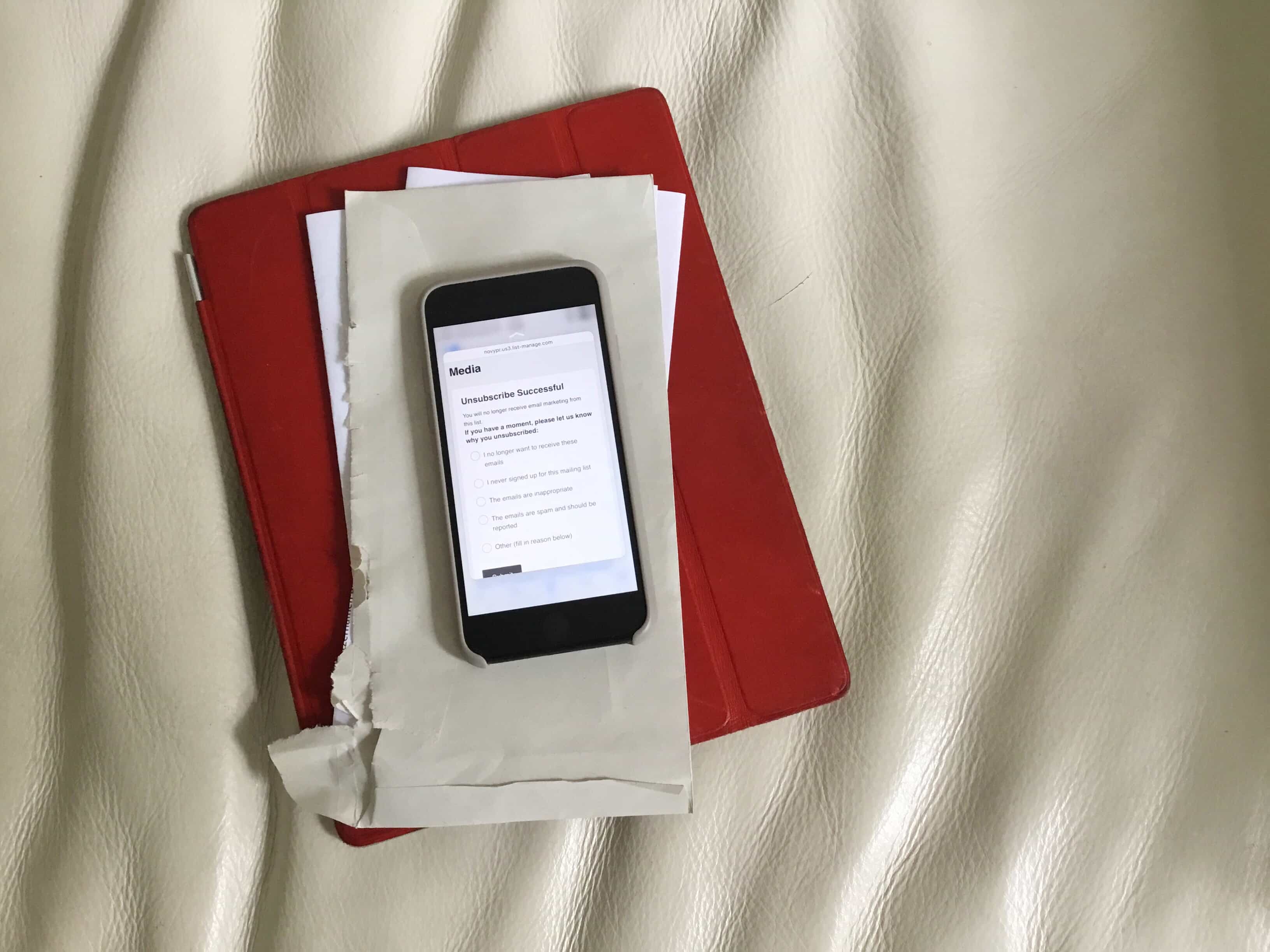
This method for canceling mail subscriptions doesn't even take one click. Photo: Charlie Sorrel/Cult of Mac
Mail app on iOS has a built-in unsubscribe feature that works great. Just a couple of clicks and Mail will attempt to remove you from unwanted future correspondence. But even that method is slow compared to the no-click unsubscribe method that we’ll share with you today.
With a little preparation, there's no reason you can't take a an eclipse photo like this on your iPhone. Photo: Takeshi Kuboki/Flickr CC
In photography terms, snapping a photo of the moment the moon drifts in front of the sun is as easy as snapping any other fleeting event. In future-blindness terms, though, it is quite different.
Staring into the nuclear furnace that is our nearest star won’t only fry your own eyes, it could also finish off your camera’s sensor. With a few simple precautions, though, you can not only view the eclipse safely through your iPhone’s lens, but take some great photos.
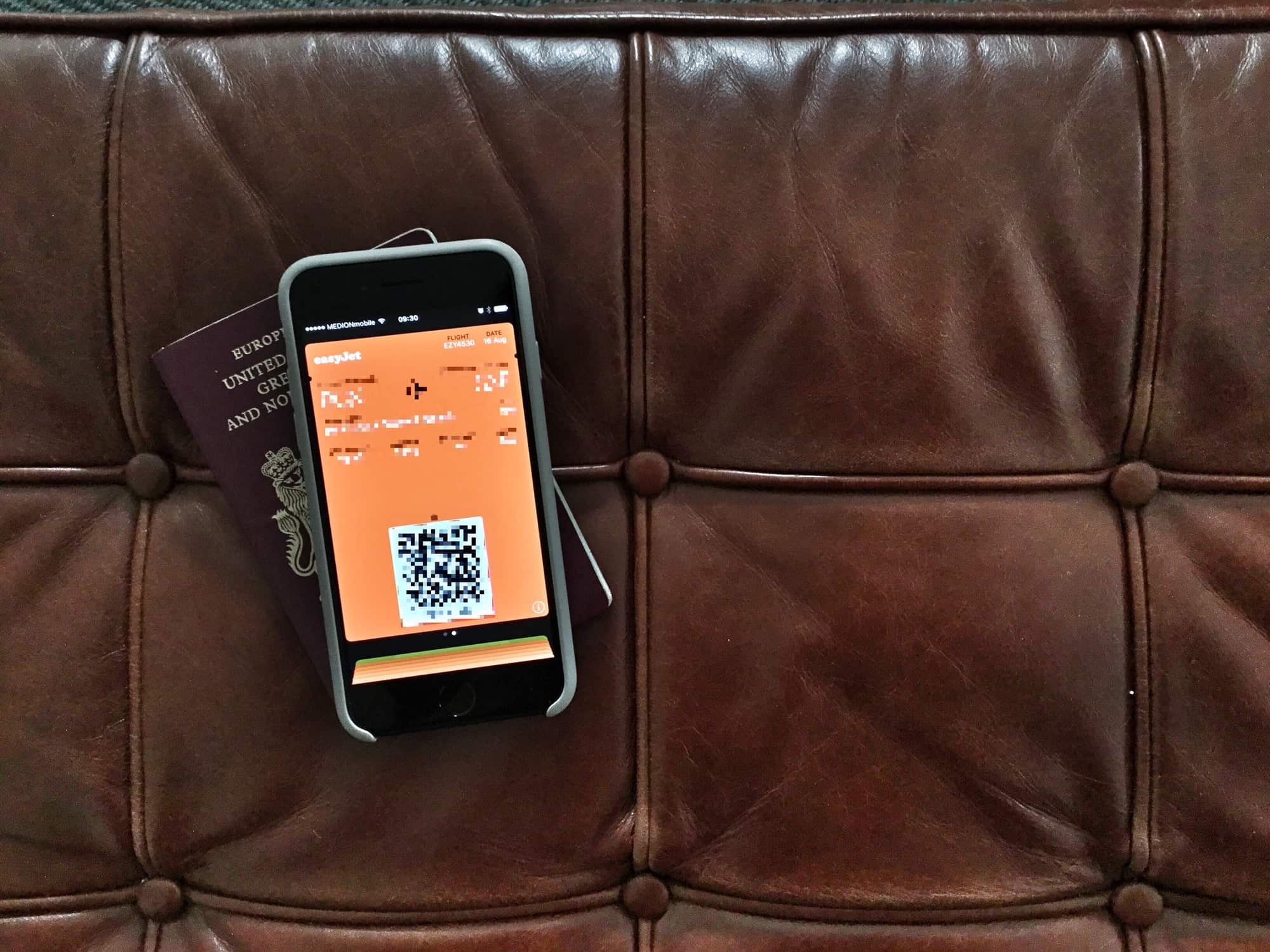
If you know where to look, getting the boarding pass off your lock screen is easy. Photo: Charlie Sorrel/Cult of Mac
Picture the scene: You’re on a plane, and your iPhone is your entertainment hub. You may be listening to podcasts, or music, or audiobooks. You may be playing a game, or reading Instapaper, or just checking and editing your vacation photos. Whatever you’re trying to do, it will be interrupted every time you unlock your iPhone, because your stupid boarding pass is right there on the lock screen. Even hours into a transatlantic fight, the boarding pass you already used hangs around, blocking things like the now-playing feature, and lock-screen controls for any music or audio apps.
Thankfully, it’s easy to get rid of — if you know where to look.
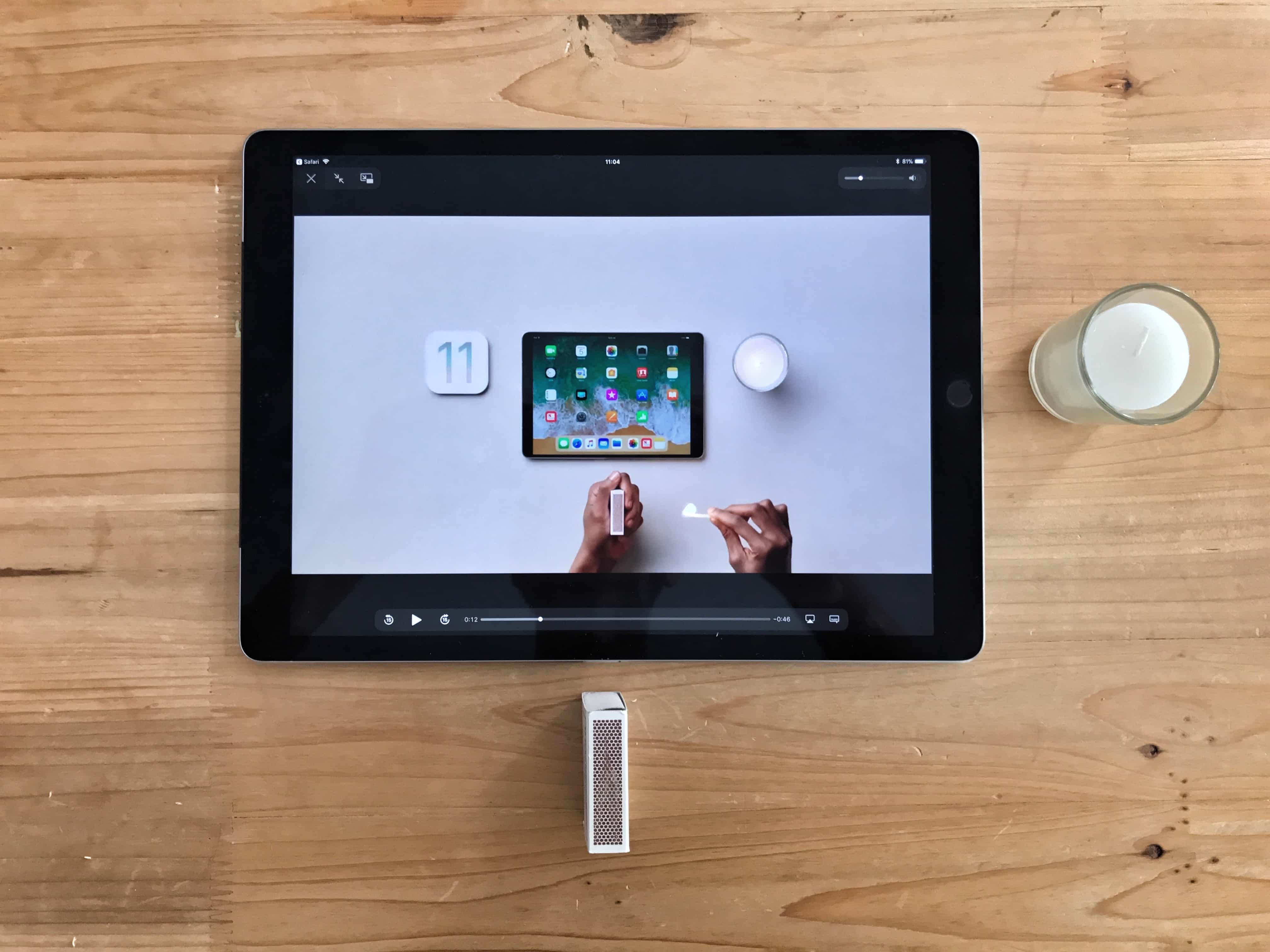
Apple's new how-to videos showcase the best new iPad features in iOS 11. Photo: Charlie Sorrel/Cult of Mac
Six new how-to videos from Apple show how to do things with your iPad running iOS 11. The minute-long episodes are engaging, informational and make iOS 11 look super-exciting, which it totally is.
If you want to get an idea of the neatest new features in iOS 11, these videos make a great place to start. Even better, you might want to send them to somebody else to show them what they will be able to do with their own iPad when Apple releases the final version of iOS 11 in a few weeks time.
Adding subtitles is easy with SubsMarine. Photo: Cult of Mac
iTunes on the Mac, and the Videos app on iOS, both have great support for subtitles. You can add subtitles for multiple languages, and the iOS 11 video player can even pull in subtitles from YouTube videos. Subtitles help out of you have hearing loss, or if you’re watching shows and movies in a foreign language. And a lot of the time, actors are so mumbly that having subs is essential to follow the story, even in your own language, and with the sound jacked up. But unless you’re buying movies and TV shows from the iTunes store, how do you add subtitles to your videos? The good news is that it’s easy, and once you’ve bought our preferred app — SubsMarine — it’s also free.
Zipping is so last century, but you can still do it easily enough on iOS. Photo: Charlie Sorrel/Cult of Mac
Zipping files is easy on the Mac. You just right-click on one or more selected files in the Finder, then click Create Archive. The files get turned into an easy-to-handle .zip file.
On iOS, it’s a bit trickier. Even in iOS 11’s new Files app, you’ll find no built-in support for zipping files into a single package (or for unzipping them). To zip files in iOS, I use Readdle’s excellent Documents app. Lots of one-shot iOS apps will also do the job, but I like Documents because it’s also where all my documents live.
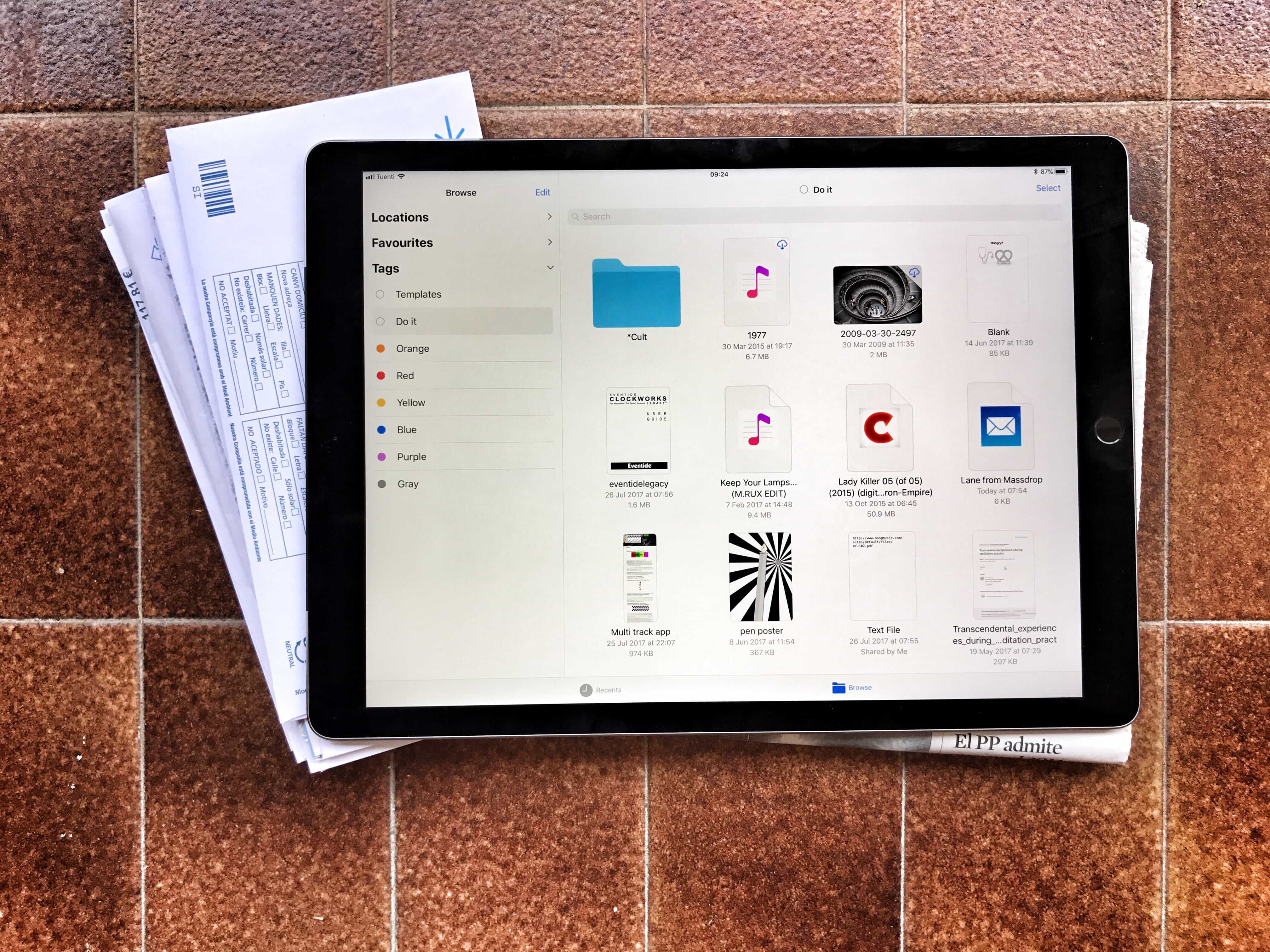
Tagging files is a powerful and easy way to tidy up your files, but it’s currently limited to the new iOS 11 Files app. Photo: Charlie Sorrel/Cult of Mac
One of the most useful features in iOS 11’s Files app may turn out to ta tagging files. Tagging lets you gather pictures, folders, documents and any other files from all across your iPad and iCloud storage by giving them the same tag.
This means you can organize files without moving them — you could create a Vacation tag, for example, to collect maps, a PDF with your Airbnb info, your boarding passes, and even related emails. Then, when the vacation ends, you can delete the tag. The grouping disappears but the files never get moved.
Tags are also synced between the Mac and iOS, so your collections can group files from both platforms. You can also apply many tags to the same file, including it in as many “projects” or lists as you like. The tagging functionality is built into the Files app at a deep level, making it easy to use wherever you are. Here are all the ways you can use tags in iOS 11.
Your purchased apps haven’t gone in iOS 11 — they’ve just been hidden. Photo: Charlie Sorrel/Cult of Mac
The Purchased tab in the iOS App Store may seem to have disappeared in iOS 11, but don’t worry — it has only moved. And got a little less useful. Whereas in iOS 10 and prior, your previously purchased apps were found in their own dedicated App Store tab (iPad) or above the list of app updates (iPhone), now they’re accessed by tapping the little silhouette of a head in a circle, which indicates your user account.
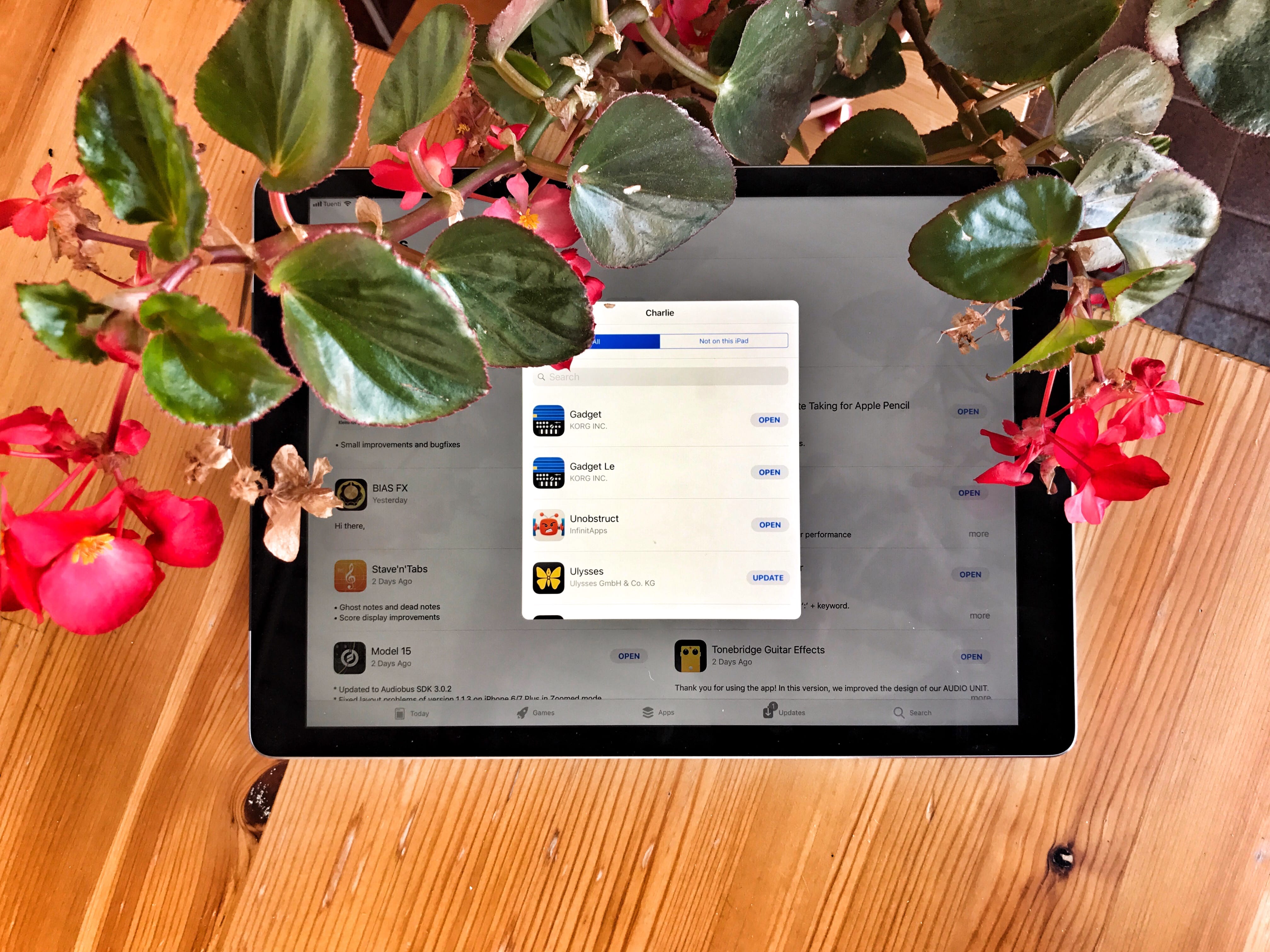
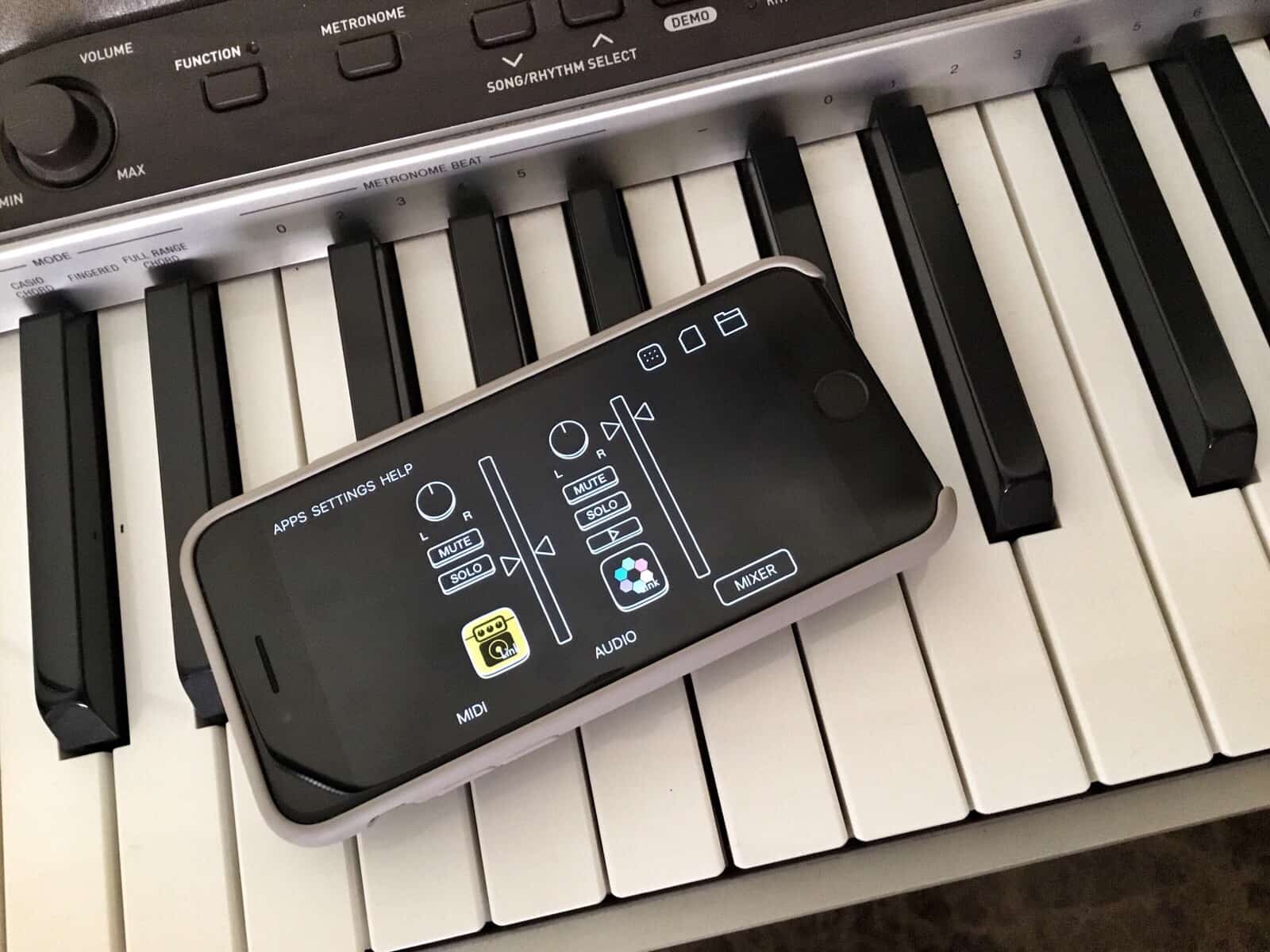
Audiobus is like a set of virtual patch cables for musical apps. Photo: Charlie Sorrel/Cult of Mac
If you want to make music on iPhone or iPad, you can choose from an embarrassment of fantastic iOS apps. You’ll also find plenty of music effects and recording apps on the platform.
The problem is using two types of apps together, because iOS isn’t nearly as flexible as macOS when it comes to digging into the system. But with a $10 app called Audiobus 3, you can route audio between apps. That means you can send music from, say, a drum machine to an audio recorder, or from your guitar to a sampler.
Further, you can route audio from many apps at a time, letting you create as complex or simple a setup as you like. If you think of Audiobus as a set of virtual patch cables for your iPhone or iPad, you’re on the right track.
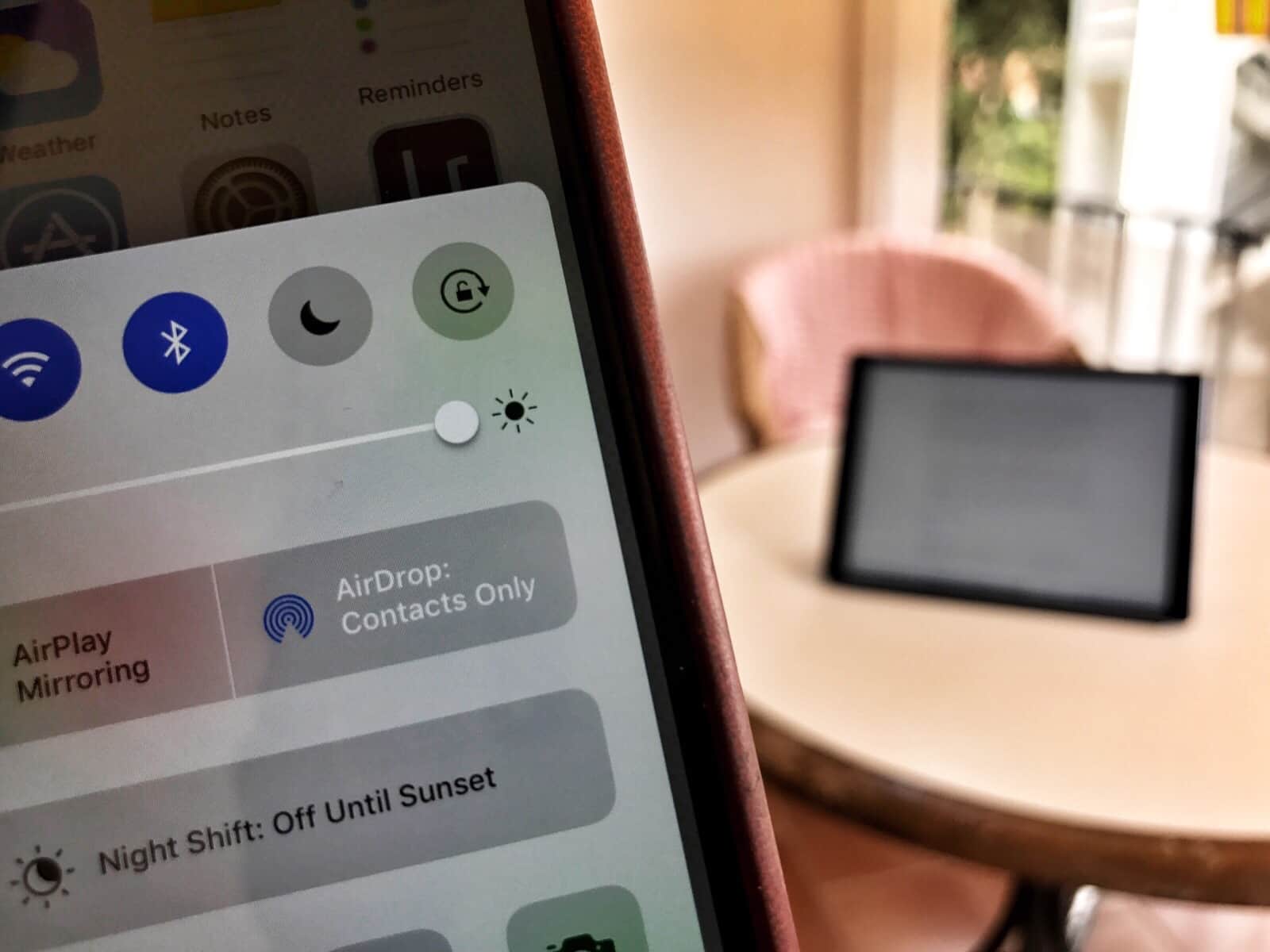
AirDrop works across the room to make sharing files between Apple devices easy as can be. Photo: Charlie Sorrel/Cult of Mac
AirDrop, Apple’s built-in sharing feature, lets you beam pretty much anything between any Apple devices. You can use it to share photos, videos, URLS, documents, snippets of text — in short, anything that can be shared using the standard “sharing arrow” icon is fair game for AirDrop.
AirDrop really should be your first choice for sharing, because it doesn’t use the internet to send the files. It connects you and the recipient directly to each other using Wi-Fi, and makes the transfer that way. This makes AirDrop secure and lightning-fast. It also mean it works as well on the top of a mountain as it does in a busy office.
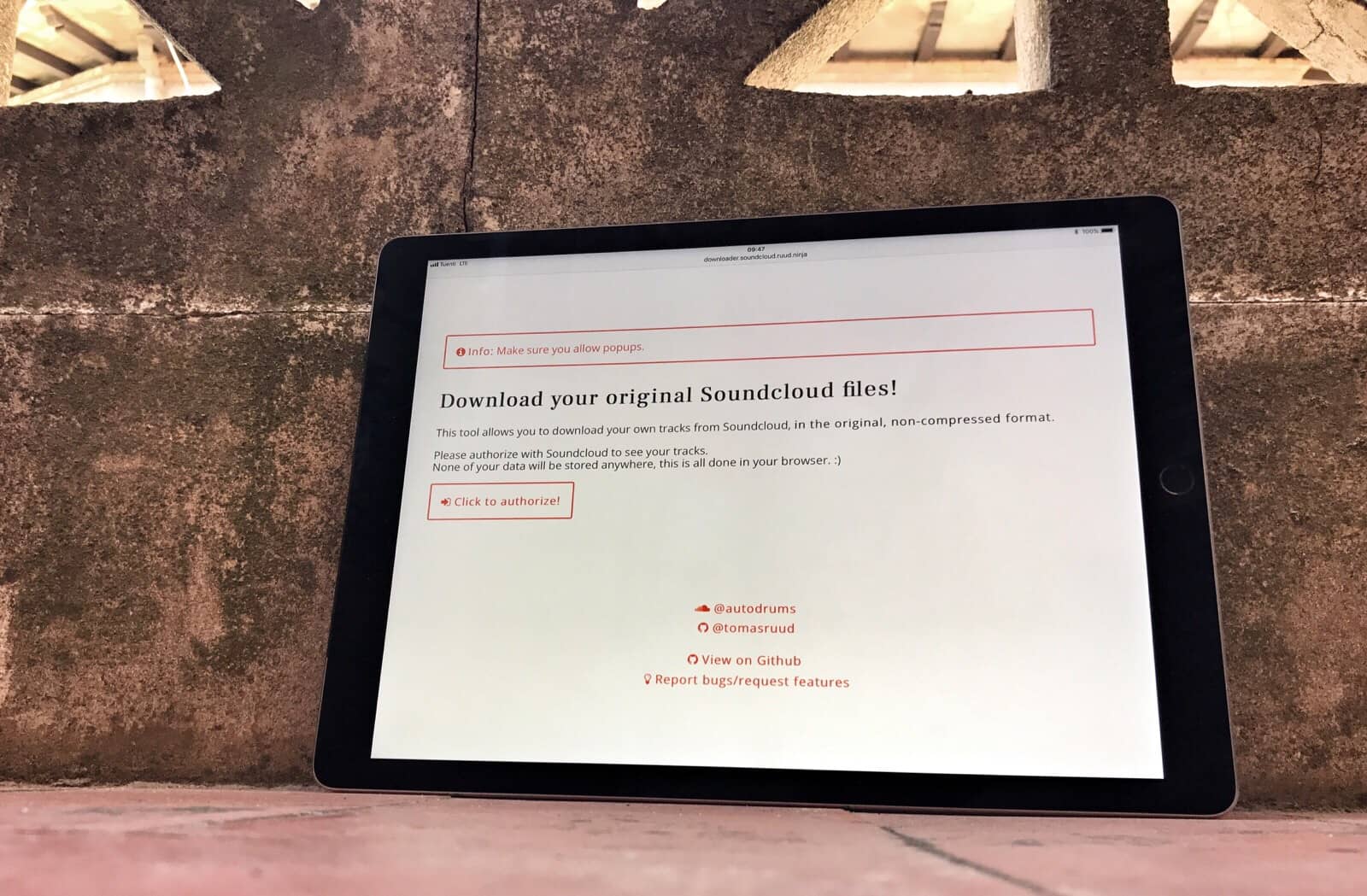
Grabbing your own SoundCloud music is easy with this free tool. Photo: Charlie Sorrel/Cult of Mac
SoundCloud faces a do-or-die vote Friday. If you uploaded a bunch of your own music to the service, and have no idea where your original copies are, you should probably download your SoundCloud music now, just to be safe.
Incredibly, there’s no built-in way to quickly grab your own files from SoundCloud. Thankfully, though, somebody built an easy-to-use tool to get the job done. Today we’re going to see how to use it.
Try this with an iPad Photo: Charlie Sorrel/Cult of Mac
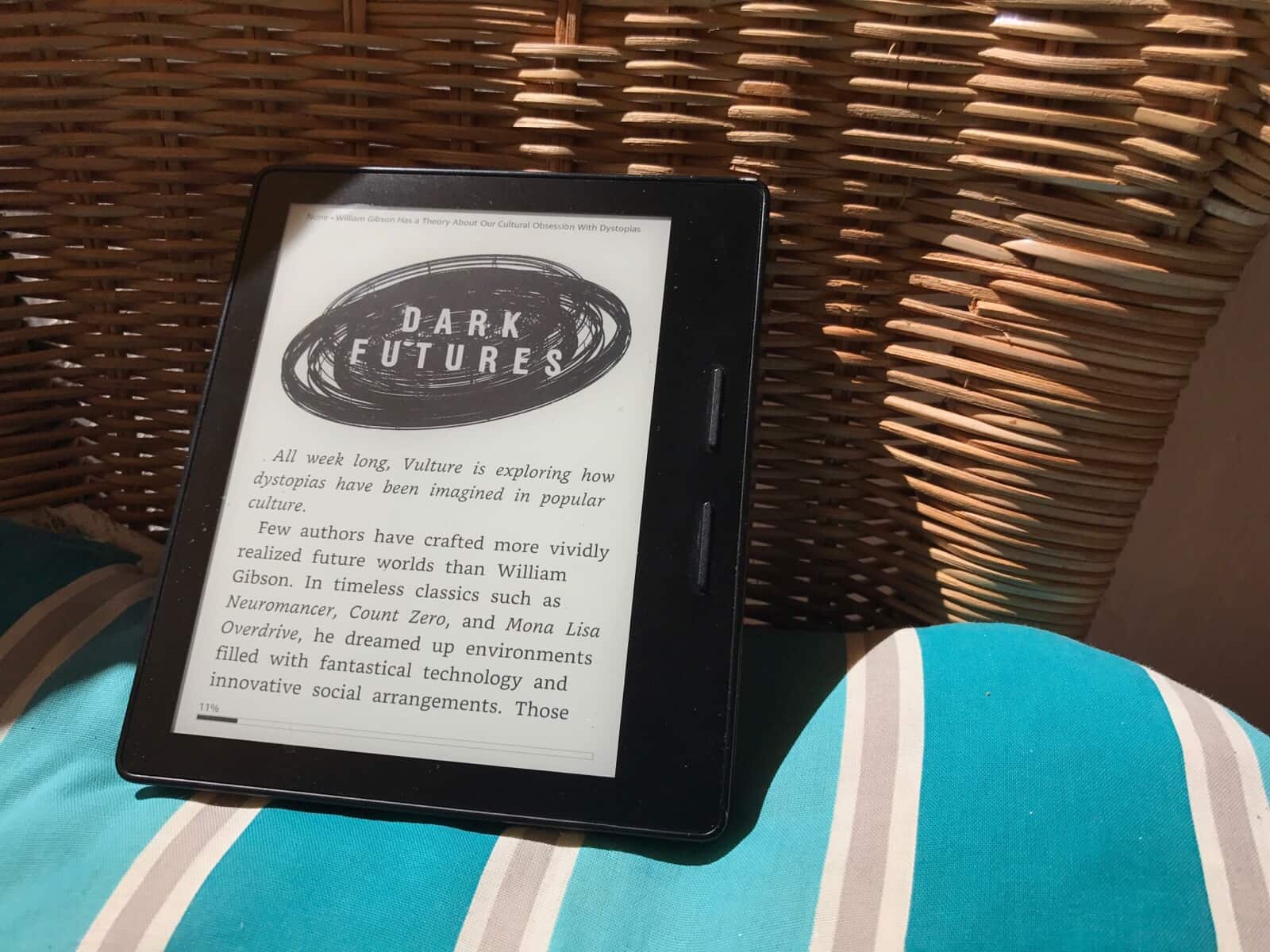
If you’re hanging out on the beach this summer, or kicking back on the porch with a beer and one of Cult of Mac’s amazing how-to articles, you might notice how hard it is to see the iPhone or iPad’s screen in the sunlight. How about sending that long article to you Kindle instead? Not only is the e-ink screen perfect for reading in bright light, but the battery lasts forever, saving you from burning through your iPhone’s juice even faster than usual because you have the screen brightness all the way up.
Happily, it is now easier than ever to send an article to you Kindle from your iPhone. Today we’ll see two ways to do it.
The iOS Notes app is now even more powerful than the Mac version. Photo: Charlie Sorrel/Cult of Mac
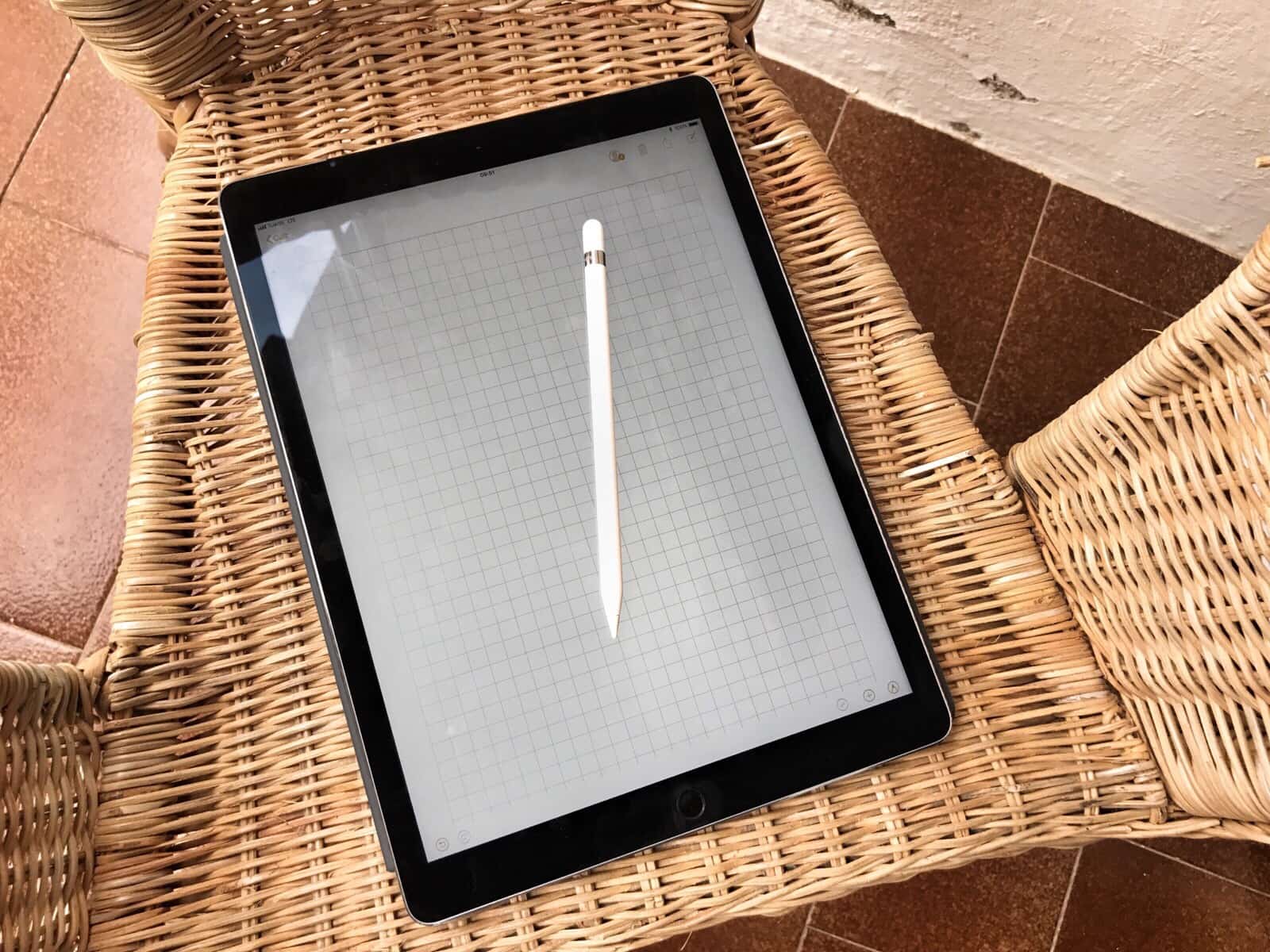
iOS 11’s Notes app is fantastic, and can probably replace apps like OneNote or Evernote for many people. In iOS 11, it mostly catches up with the Mac version — and adds a bunch more neat features only possible on the iPad, like sketching with the Apple Pencil.
Today, we’re going to see how to pin notes to the top of the list; how to swipe to delete, password-protect or move a note to a folder; and how to pick a stationery background for a new note.
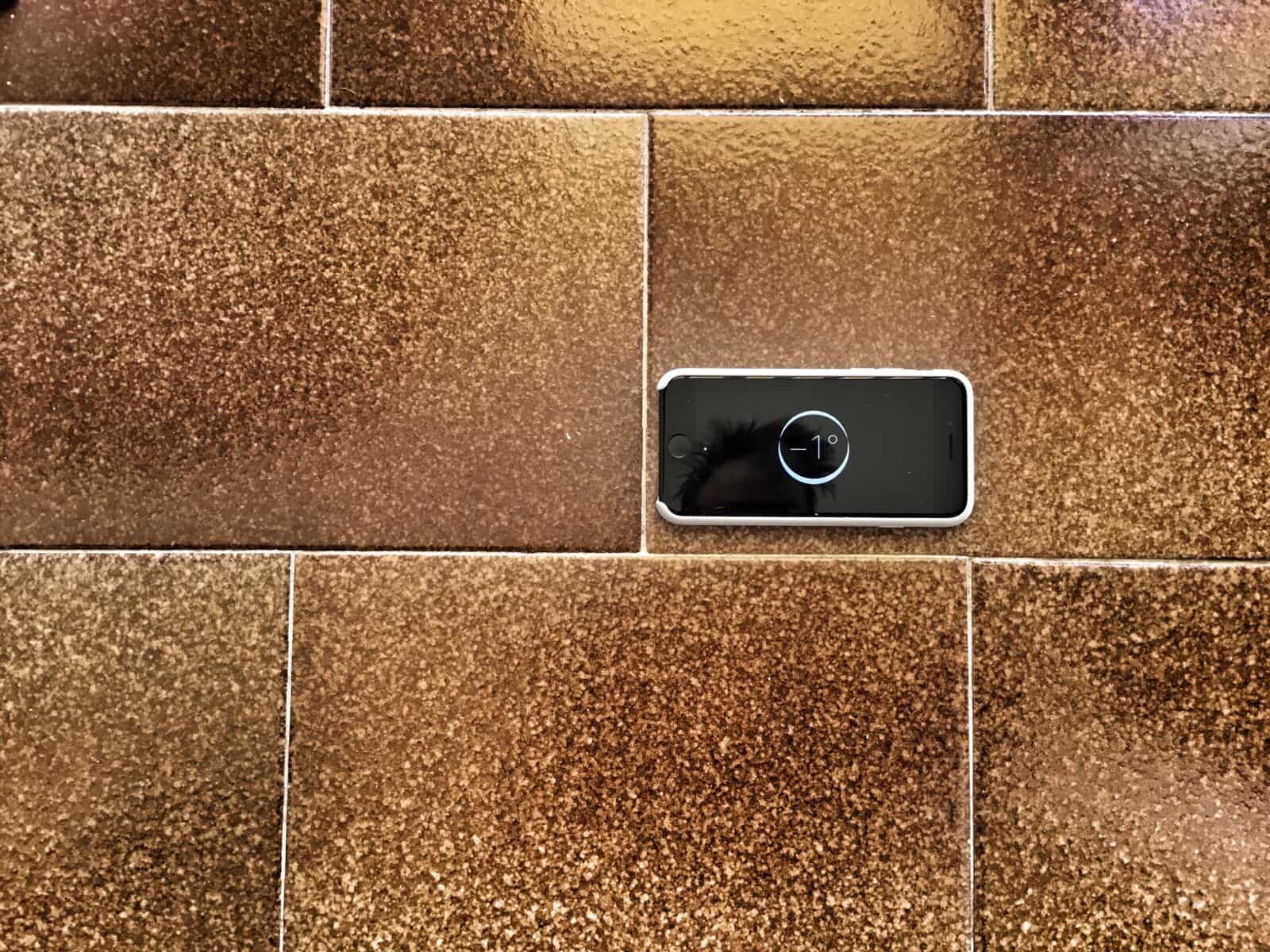
Level up: I used the iPad’s camera level to shoot this picture of the iPhone compass level, and it’s still not level. Photo: Charlie Sorrel/Cult of Mac
Did you ever try to take a photo of something flat on the ground, and spend ages trying to line it up right so that it is square in the frame? No, well, humor me here, because Apple just granted everyone’s biggest iOS camera wish: The camera app now has a level that kicks in when you hold the iPhone horizontally, and which will tell you when you’re holding the iPhone, uh, level.
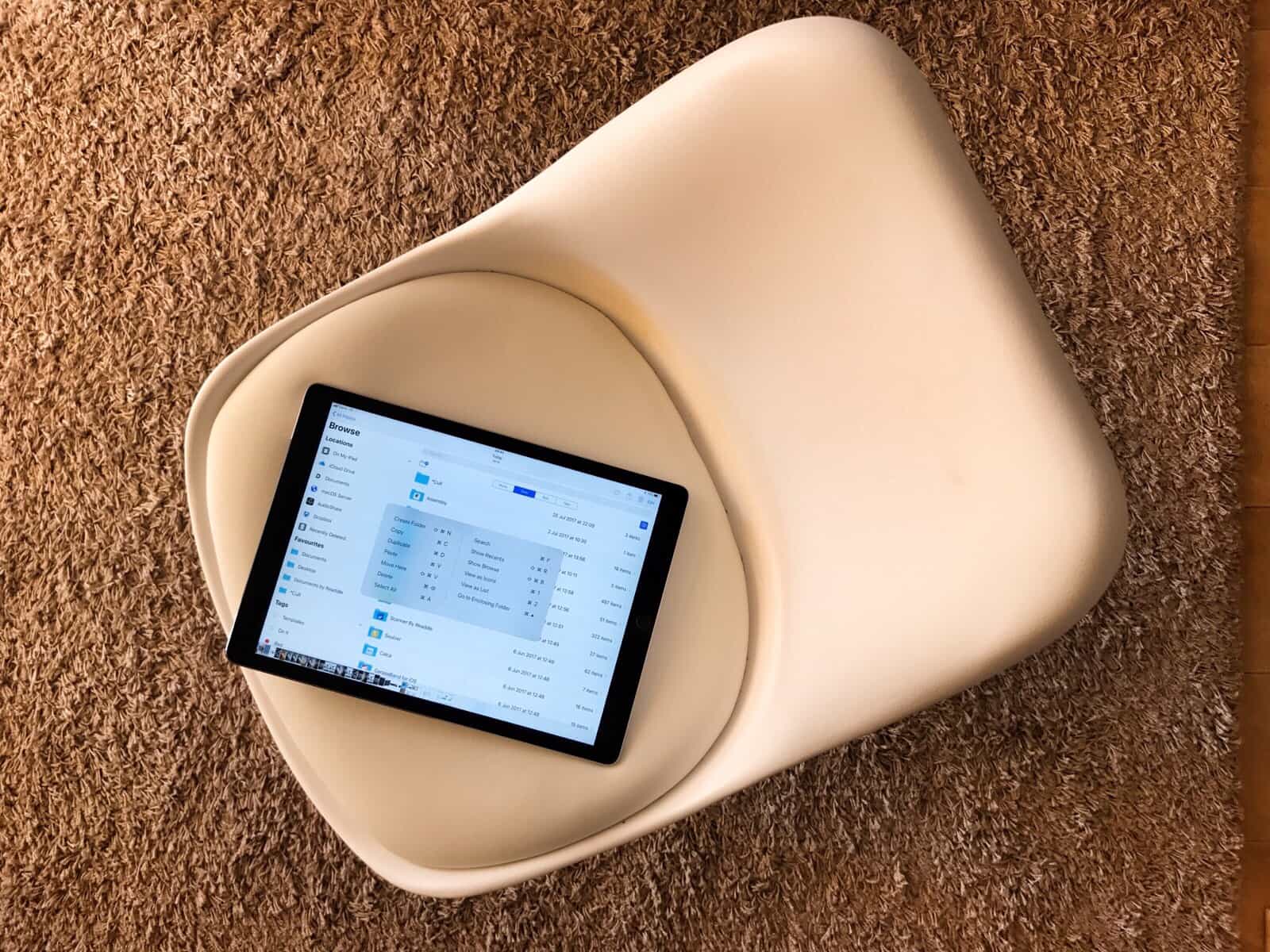
Files app keyboard shortcuts Photo: Charlie Sorrel/Cult of Mac
The Files app is iOS 11’s Finder. You can use it to browse the files in your iCloud Drive, along with files and folders in your Dropbox, and inside other apps that open up their file systems to iOS. Apple has also added some keyboard shortcuts to the Files app. This lets you carry out many common tasks without touching the screen when you have a hardware keyboard attached.
Most of the new keyboard shortcuts are great, and show how serious Apple is about the new user-accessible iOS file system. But some serious limitations mean you’ll still need to reach up and tap the screen to do the most basic things.
Often, our eye is drawn to something because of its color. But sometimes we’re attracted by a pattern, or perhaps color even detracts from an image (like a row of cars in front of a beatific white building). At those times, we should shoot black-and-white images, which emphasize pattern, texture and shape.
The iPhone — with its giant screen, its great camera and its huge library of photo apps — is fantastic for shooting B&W pictures. Let’s take a look at how to shoot amazing black-and-white photos with your iPhone.
App’s like Linea don’t need to read your whole photo library just to save a sketch. Photo: Charlie Sorrel/Cult of Mac
In iOS 11, developers have a new way to access your Photos library: write-only access. Instead of granting permission for an app to read and write to your Photos library, just so it can save the odd image, an app can now only be allowed to write — or save — images, without getting to poke around inside your library to see what else is there. It’s much more private,
Universal Clipboard lets you copy something on one Apple device, then paste it on another. Photo: Charlie Sorrel/Cult of Mac
Since last fall, your Mac and your iOS devices have shared a Universal Clipboard. That is, you can copy on one device and paste on another. It’s seamless, and incredibly useful. For instance, you could copy a shipment tracking number in Mail on your Mac, then paste it into the tracking app on your iPhone. Or you could take a screenshot on your iPhone, then paste it into a blog post you’re writing on your iPad.
Universal Clipboard is so easy to use, you might have used it already without even realizing. Here’s how it works.
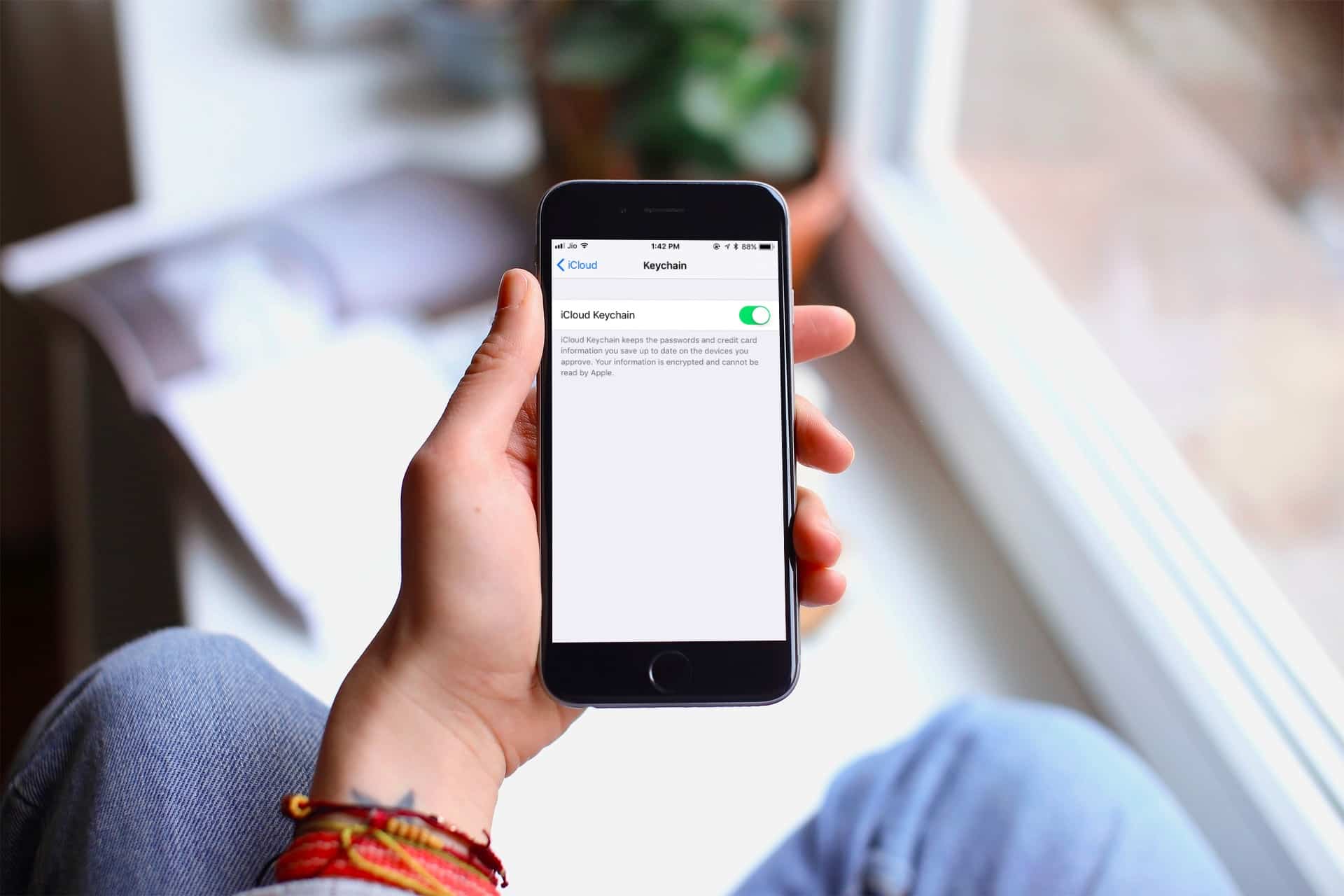
Setting up iCloud Keychain is extremely straightforward and easy. Photo: Cult of Mac
Nobody likes having to type a password every time they need to sign in to a website or service. iCloud Keychain is Apple’s take on simplifying password management across the Mac, iPhone and iPad. It securely stores your user names, passwords, and credit and debit card details, then auto-fills fields when required. It can also generate strong passwords and sync Wi-Fi credentials.
If you’re deep into the Apple ecosystem, it might be a good idea to start using this handy feature. Before we dive in to use it, let’s have a look at all the features of iCloud Keychain.
Is your iPhone screen acting up? Here's how to fix it. Photo: Ste Smith/Cult of Mac
If you’ve been having problems with your iPhone or iPad screen not acting quite as responsive as usual, don’t panic: You can try out plenty of quick and easy tricks before heading to your closest Genius Bar.
Get five tips for fixing an unresponsive iPhone screen in our how-to video:
Score these apps to stream NFL games, starting with preseason matchups this Thursday. Photo: Erik Drost/Flickr CC
By Chris Brantner
During the fall and winter, football fans across the United States devote entire Sundays to diligently following all the NFL action. But you don’t need to wait: The football action gets underway Thursday when the NFL preseason games begin.
If you’re one of the many people who love both football and Apple devices, you’re in luck. You can easily combine the two to stream NFL games during the entire season, whether you have cable or not. A bunch of different apps let you watch the NFL on Apple devices, so let’s take a look at some of the best ones out there.
You can use third-party apps to load podcasts on your Apple Watch. Photo: Ste Smith/Cult of Mac
A lot of people who enjoy listening to podcasts or music while jogging will agree that it’s inconvenient to carry an iPhone. While music lovers can sync playlists from their iPhone to their Apple Watch, Apple’s Podcast app doesn’t do the same for podcasts.
That’s unfortunate. However, it’s simple to send podcasts to Apple Watch using third-party apps.
Like a calculator or a vampire, the iPhone’s pedometer loooooves to count. Photo: Charlie Sorrel/Cult of Mac
Your iPhone isn’t slacking off when it sits in your pocket. No, it’s industriously counting your every step, ready to tell you the total so you can celebrate by buying cake if you hit your daily goal. The good news is that the iPhone pedometer comes built-in, and requires no third-party apps to do its stuff. The even better news is that there’s a free app — Pedometer++ — that makes it even better.
Where’s my iPhone? I know I left it around here somewhere Photo: Charlie Sorrel/Cult of Mac
Your iPhone knows where you are, pretty much all the time, and you probably know that it can share your location with other people, too, if you let it. Many apps ask to know where you are so that they can do their job (a weather app, a mapping app), but the iPhone has a few built-in ways to let other folks know where you are, and also to help you find a lost iPhone. There are so many ways to use location sharing that it can get a little confusing, but really, all those options are connected to the same service.
Adding your Medical ID means that anyone can check your details without unlocking your iPhone. Photo: Charlie Sorrel/Cult of Mac
Inside the iPhone’s Health App, the app that counts your steps and hooks up with other apps to monitor your activity and health, lives your Medical ID. This is a page containing everything important that you might want a doctor or first responder to know in an emergency, and is accessible from your iPhone’s lock screen without a password.
By default, the app only contains your name, and a few details automatically culled from your address book, but fleshing it out is quick and easy. Here’s how to set up your Medical ID with any and all the information you want to make available.