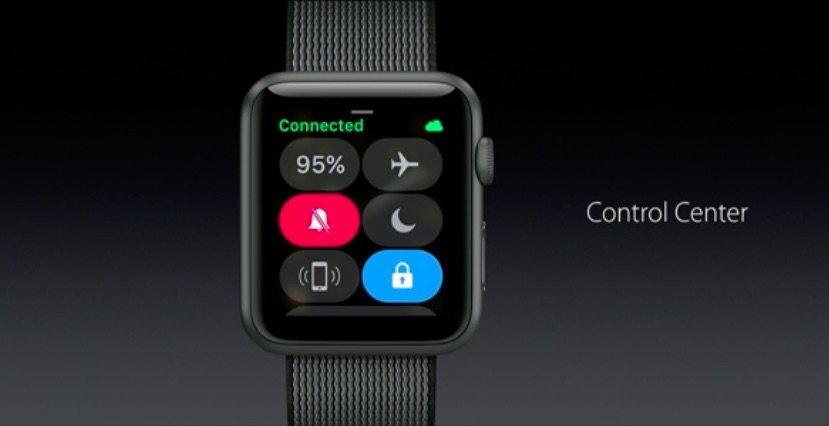
Navigating and using features on the Apple Watch is getting a lot faster with watchOS 3, and one of the best additions is the new Control Center that puts a bunch of commands just a swipe away.
Here’s how to make the most of Control Center:
watchOS 3 brings some dramatic UI changes to the Apple Watch, the biggest of which is the death of Glances in favor of the Dock. When you swipe up from the bottom of the screen, where Glances used to be, you’ll now see the Control Center.
Apple Watch’s Control Center works a lot like the one on iOS. The card displays your current battery percentage as well as a number of buttons to toggle popular controls on and off.
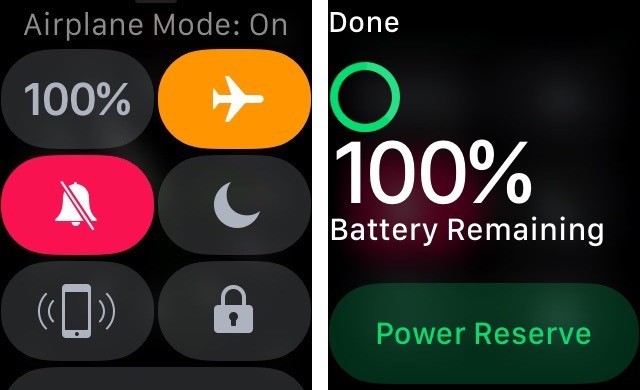
Photo: Buster Hein/Cult of Mac
Tapping the Battery meter brings up an option to put the device in Power Reserve Mode. Scrolling down reveals a button for AirPlay that allows you to connect to your AirPods or other Bluetooth and AirPlay devices.
Other toggles include:
- Airplane Mode
- Silent Mode
- Do Not Disturb
- Ping iPhone
- Lock Device
The buttons aren’t customizable, but hopefully Apple’s working on that for a future watchOS update.
Unlike iOS 10, the Apple Watch Control Center only has one card, so you can’t swipe to the left to bring up music controls. For that, you’ll have to click the Dock button and go to the music app.

Buster Hein is a freelance writer who lives in Phoenix, Arizona. Twitter: @bst3r.


4 responses to “How to access the new Control Center on watchOS 3”
Uh, by swiping up, the exact same way you accessed it on WatchOS 1 and 2 before? Slow news day, CoM?
Gee, I like glances. Bummers.
Ugh!!!! I just did the update and now they make it HARDER to get to my frequently used stuff? What was great about the watch was that, as an NYC straphanger is been so much easier controlling my music via the watch. Now I’ll have to do extra stuff. I might as well pull out my phone. Those bubbles are so tiny… I don’t want to have my bank app that far in the background. Ugh. I hate that I updated at all!!
Grrrrrrrrrr
I agree…that you can’t easily access the music/playback controls is a major fail. It could be as simple as the music controls are there when you swipe up in addition to the control center if you have something actively playing or paused. That it has gone from 2 step “swipe up and tap the control” to “Push the side button, swipe to get to the Playback glance, tap to select, tap to control” is ridiculous. I used the swipe up on the watch while exercising all the time. And that the new AirPods won’t have a way to pause without speaking to Siri or physically removing the AirPods, the watch would be a great alternative for everyone when exercising.