 I’m a big fan of getting instructions off the internet: recipes, directions on car maintenance, or video game walkthroughs, for example. The problem is that you need to be online to view them.
Now in iOS 9, however, there’s a way to save web pages to a handy, offline-friendly PDF file. The next time you’re flying on an airplane and trying to get through Broken Age with a walkthrough, you’ll be in luck.
Here’s how to convert any webpage in iOS 9’s mobile Safari to a PDF and then read it in (or send it from) iBooks.
Screen: Rob LeFebvre/Cult of Mac
Launch Safari on your iPhone (or iPad – this works for Apple’s larger devices, too), and navigate to any web page you want to save as a PDF.
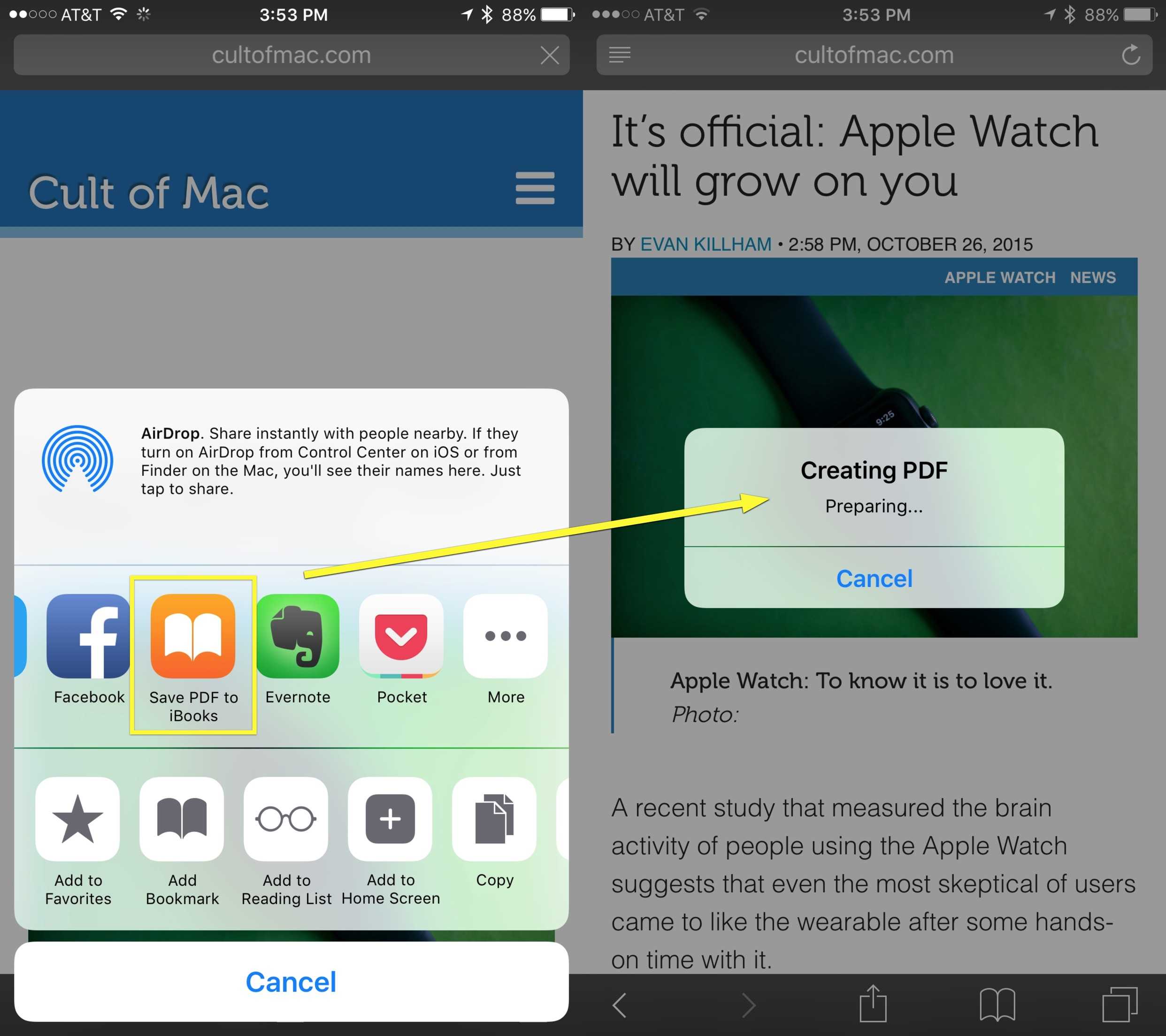
Once there, tap on the Share button (the rectangle with the arrow sticking up out of it) and then swipe along the top row of sharing options to the orange Save PDF to iBooks icon.
Tap the button and you’ll see a little dialog box to let you know iOS 9 is converting the web page to a PDF. Your iOS device will then launch iBooks and open the PDF you just created. You can swipe through it just like any other PDF in iBooks. You can even share this PDF file out via Email with the Share button in iBooks.
Not all websites are created equal, of course; the best ones to save to PDF seem to be ones that are text- or content-heavy, so try this out on your preferred web page before you actually need it to make sure PDF is right for you.

Rob LeFebvre is an Anchorage, Alaska-based writer and editor who has contributed to various tech, gaming and iOS sites, including 148Apps, Creative Screenwriting, Shelf-Awareness, VentureBeat, and Paste Magazine. Feel free to find Rob on Twitter @roblef, and send him a cookie once in a while; he’ll really appreciate it.


6 responses to “Pro Tip: How to save web pages to iBooks for offline viewing”
Hi Rob, what is the advantage of this approach compared to adding to reading list? Reading list sites are available offline too. Just curious.
JR
Exactly.
I’ve had problems with reading lists – I thought it made content available offline but I’d be in the subway and pull up stuff I had added to my reading list and it would give me a network connection error.
So now I just use instapaper which is very easy to manage and has a chrome extension so I could just save stuff that I’m reading at home or work directly to my instapaper account and sync my phone before I leave. It works perfectly.
Exactly my question too. Reading List in Safari seems like a better place to store offline reading, and you can share links as well, plus strip out ads using Reader view.
I would only ever use the iBooks method if I had to have it saved as a PDF for some reason. Otherwise I would just stick with Safari’s Reading List every time.
I agree with all of you. I personally use Pocket to save stuff for later reading. However, PDF has the advantage of being portable and share-able. I can send a recipe to my mom, for example, who isn’t into all that Pocket/Reading List stuff.
Also? I think it’s good to have options – now we have the PDF option in iOS 9. Yay!
The Save PDF to iBooks feature produces better results if you use the Reader view before saving.