Whether you’re getting a new iPhone 6s or not, you’re going to want to upgrade to iOS 9 to take advantage of everything Apple’s new mobile operating system has to offer.
iOS 9 is ready to revolutionize your mobile life, but there are a few things you should do before making the leap. Here’s how to get your iPhone (or iPad) ready for its iOS 9 upgrade — the right way.
First you’ll want to clean up your existing iOS 9-compatible device. Then you need to make a good backup using iTunes, iCloud or a combination of the two. (Bonus: If you end up getting an iPhone 6s or iPhone 6s Plus in the near future, you’ll have a nice, clean, ready-to-rock iOS device to migrate from.)
Will your device run iOS 9?
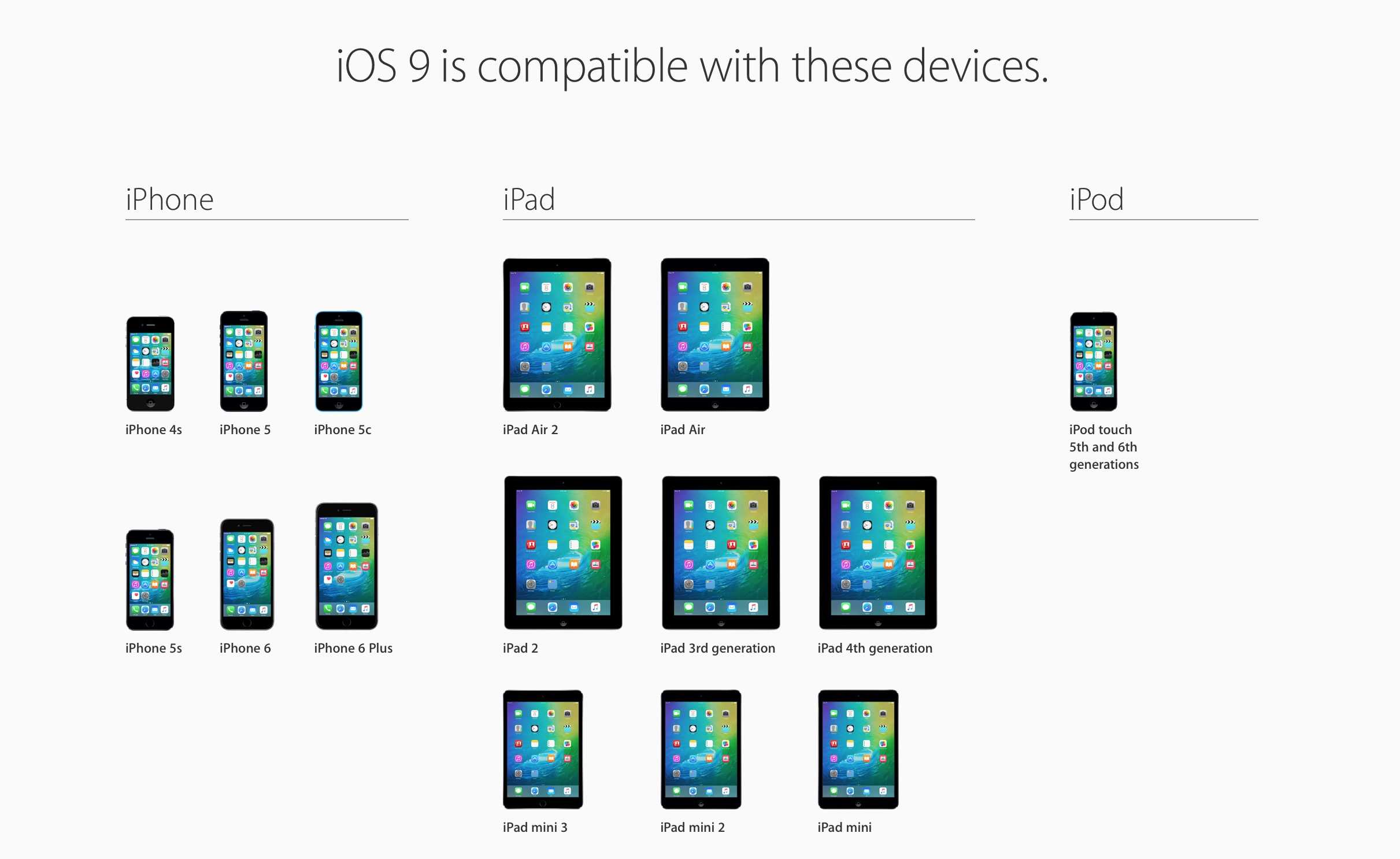
Photo: Apple
You’ll need to have a device that can handle iOS 9, of course. Luckily, Apple supports many older devices. You can install iOS 9 on devices as old as iPhone 4s, iPad 2 and the fifth-generation iPod touch. Any iPad mini (1, 2 or 3) is compatible as well. You’re good to go if you’re rocking these devices or any newer models.
Get rid of all the apps you don’t use

Photo: Rob LeFebvre/Cult of Mac
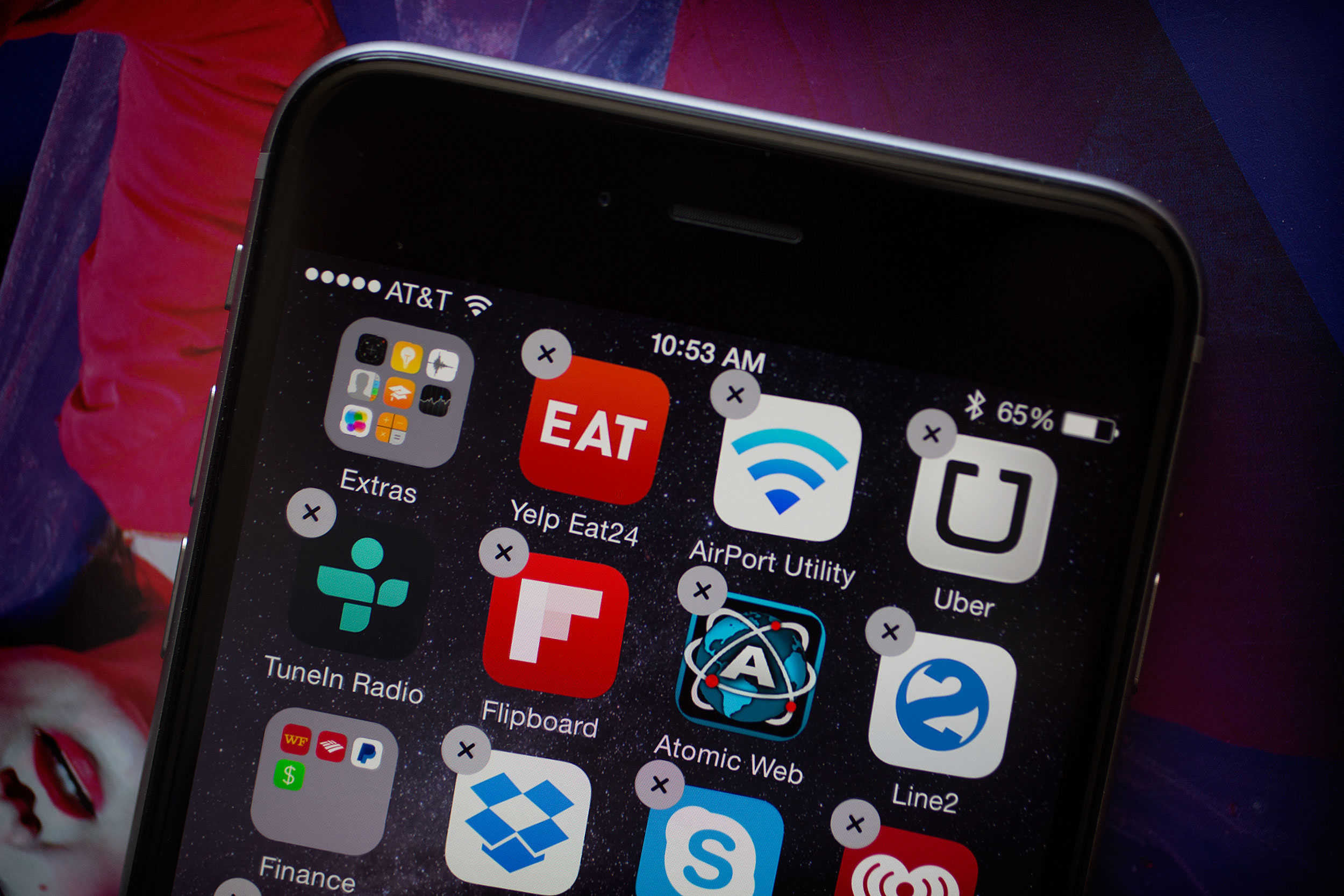
There’s no point in backing up a lot of apps you don’t use, especially if you’re moving to a new iPhone 6s or 6s Plus. You could tap and hold any icon on your iPhone’s home screen to get the apps to do the wiggle dance, then tap the X in the upper left of the icon for each app you want to delete. However, I prefer to use the Usage pane in the Settings app (Settings > General > Usage > Manage Storage) to find out just what apps I’ve got on my device, and how much space each one takes up. Then I can make a more informed choice, and so can you.
Spring clean your media
Photo: Jim Merithew/Cult of Mac
We’ve all got movies, TV shows and music on our iOS devices that we can definitely stand to part with. Be sure you’ve turned off iTunes Match (Settings > iTunes & App Store), then toggle Show All Music and Videos to OFF. Once you do that, you can launch the Music and Video apps to delete songs or videos one at a time with a swipe to the right.
You can add these files back to your new iPhone 6s if you like, but it’s like spring cleaning — stuff we don’t need clutters up our lives. Just let them go.
Organize that Home screen

Photo: Rob LeFebvre/Cult of Mac
Now that you’ve gone through the trouble of cleaning out the apps you don’t want, you can put them in an order that works for you. (This will get backed up in the next step.)
I try to organize most of my apps into folders by topic. Sure, that big new iPhone 6s Plus might have a lot more screen space than your current iPhone, but it’s still a good idea to keep apps as close to hand as possible.
I tend to keep my main apps on the first Home screen; then I branch off on the next few pages. I don’t put everything into a folder because that just gets tedious. I do, however, keep my Apple apps in one folder, games in their own folder and travel apps like JetBlue, United, Uber and Transit in yet another. It keeps me from making too many swipes to find my important stuff.
Get it backed up
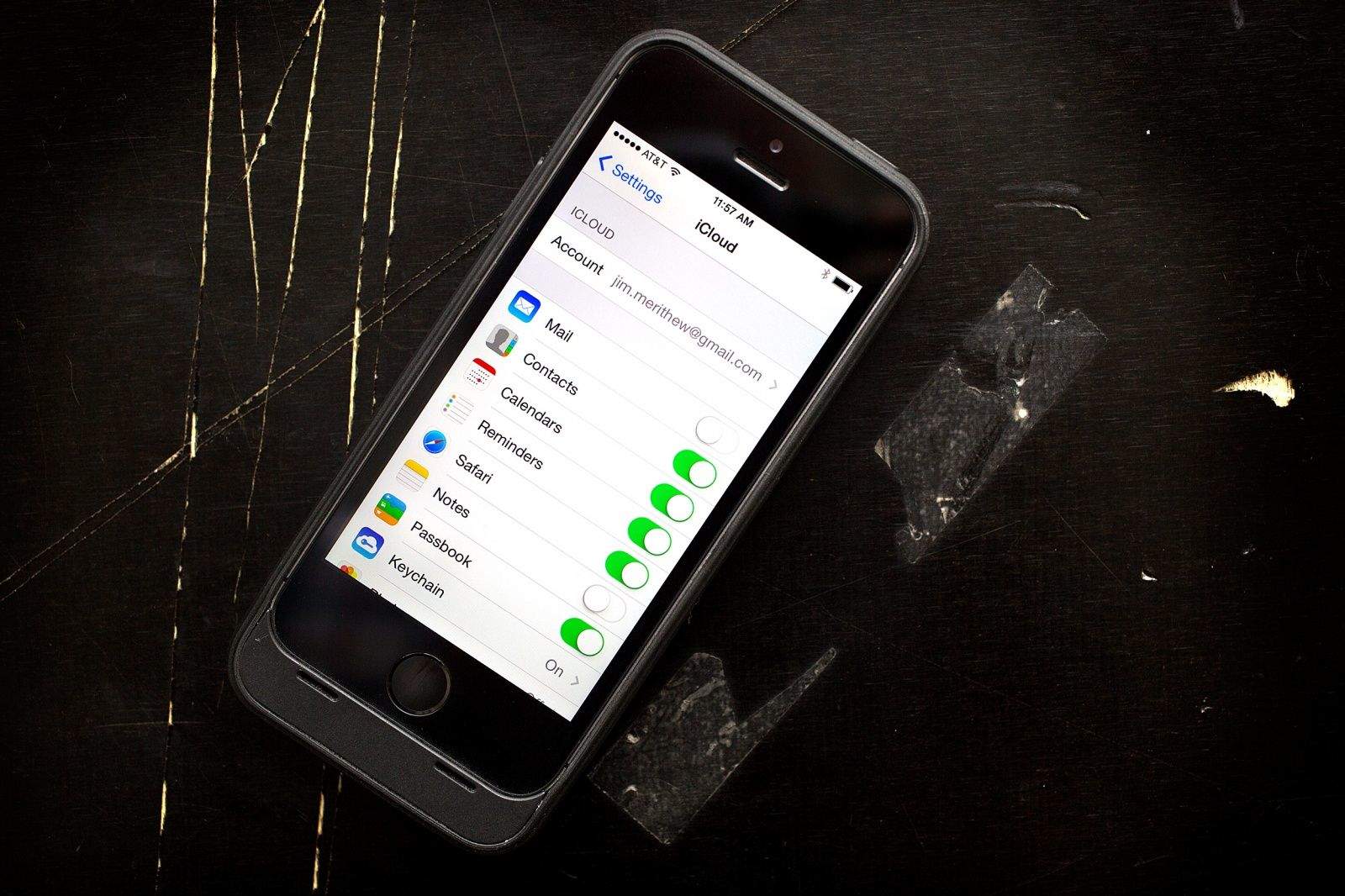
Photo: Jim Merithew/Cult of Mac
All the previous steps are meaningless if you don’t take the time to back up your device before your iOS 9 upgrade.
You can use iCloud or iTunes to back up your iPhone or iPad, or a combination of the two. Personally, I use iCloud for the everyday backups, in case I drop my iPhone in a puddle or what have you. It’s a fairly moron-proof way to make sure most of your stuff gets saved.
iCloud backs up photos and videos in your Camera Roll, various device settings, your app data, the organization of your home screen, iMessage and text messages, ringtones and Visual Voicemail. This is enough for my purposes to upgrade to a new version of iOS, and I’ve rarely had a problem doing so.
To turn on iCloud, simply go to Settings > iCloud > Storage & Backup and toggle iCloud Backup to ON. If you haven’t yet synced this way, tap Back Up Now while you’re there.
If you’re a bit less cavalier about your data than I am, iTunes is a fantastic way to save even more stuff than iCloud does. When you back up your iPhone to iTunes, you’ll copy all the things iCloud saves in addition to Calendar accounts, events, Safari bookmarks, Autofill data, Mail accounts, Notes, call history, saved network settings and a ton more (see the full list at Apple’s support site).
Really, there’s so much more backed up via iTunes that it’s worth your while to launch it while your iPhone is connected and start a manual backup: In iTunes, click the Summary button for your iPhone when connected, then hit the Back Up Now button.
Pro tip: Use the Encrypted backup option to save private data like account passwords and Health information.
You’re ready for your iOS 9 upgrade
Once you’ve completed these steps, you’re ready for your iOS 9 upgrade. Now just wait till Apple pushes the update to your iPhone sometime tomorrow (probably around 10 a.m. Pacific). Connect to Wi-Fi and plug in your device so it will have plenty of juice to get through the upgrade.
Tap Settings > General > Software Update, then tap Download and Install, and wait for iOS 9’s magic to begin.

Rob LeFebvre is an Anchorage, Alaska-based writer and editor who has contributed to various tech, gaming and iOS sites, including 148Apps, Creative Screenwriting, Shelf-Awareness, VentureBeat, and Paste Magazine. Feel free to find Rob on Twitter @roblef, and send him a cookie once in a while; he’ll really appreciate it.


23 responses to “How to get ready for your iOS 9 upgrade the right way”
Or wait for the iOS9 jailbreak to upgrade. I’ll hold on to my unlimited tethering and ad blocking until then :)
iOS 9 comes with built in adblock aka content blocking. i’ve been using it since last 3 weeks and it really works great.
(Also, unless you’re trolling, there’s an app called weblock which does all the ad blocking you need)) which has been in App Store since iOS 7.
I am a strong jailbreak proponent for tweaking and customizing my device, and tethering my unlimited plan is priority one, which always requires a jailbreak. I was aware of limited adblocker apps in the apple store, but that one you mentioned actually looks pretty legit. Not sure if it would handle banner ads in freemium versions of apps etc, as AdBlocker through cydia does.
My iPhone has tethering built in the OS. What advantage does this jailbreak tethering offer?
Grandfathered unlimited data plans disable tethering, so the jailbreak tweak works around that.
when you say built in? where is it in settings or is it just baked in and you cannot toggle it on/off?
1blocker com is what I’m using. There are about 2-3 other apps (crystal, 1blocker and blockr that’ll be available for download tomorrow that block all ads/trackers (from ‘Google, Facebook other apps).
What if I’m on the latest iOS 9.0 public beta and want to quit with this stable release? Will it be possible? To seamlessly update to public final version?
If you’re not on the beta “gold master” it will allow you to update to the latest version. If you have the gold master, it usually doesn’t update because the GM IS the latest version.
You’ll have to login with your developer’s account and download and manually install the GM version (at least I had to anyway).
I read somewhere that all you need is to delete the public beta tester profile and you are ready to go, even to update OTA without downgrading or restoring your phone. That’s what I read, I’ll try that way.
I’ve been part of the public beta release program, and at the moment my iPad is running iOS 9.1 – wondering if the iOS being released here on the 16th of September is iOS 9, or iOS 9.1?
If it is “only” iOS 9, will my iPad stay on iOS 9.1 or will it understand to “downgrade” to the official version released today? :-)
I’m dying to know this too. I want to quit the beta program when iOS 9 is released, but I’m afraid I won’t be able to downgrade.
Just delete the beta tester profile.
i can’t update my phone to ios9 it keeps on saying that my phone is up to date……(i’m on my iPhone 6Plus) any idea
Mine is doing that too
I don’t think it’s released yet today. Maybe in a few hours. Also, apple staggers the release at different times in different countries.
Read the post, it says at 10 am Pacific
When is ios 9 coming out?
Today at 10 am Pacific time
Several years ago, I learned from an Apple employee that the best thing to do when going from one version of iOS to another is to do a fresh install; however, I don’t remember all the steps. I remember being told to backup the device via iTunes, wipe it, and then hit the shift and control keys on my Mac at some point when the phone was plugged into iTunes. Does anybody know these steps?
Do I HAVE to delete and back up or I can just upgrade without doing them?
I have iOS 9 the beta.. And the new iOS 9 official version came out today. How do I get it? Or do I just leave it? I’m confused