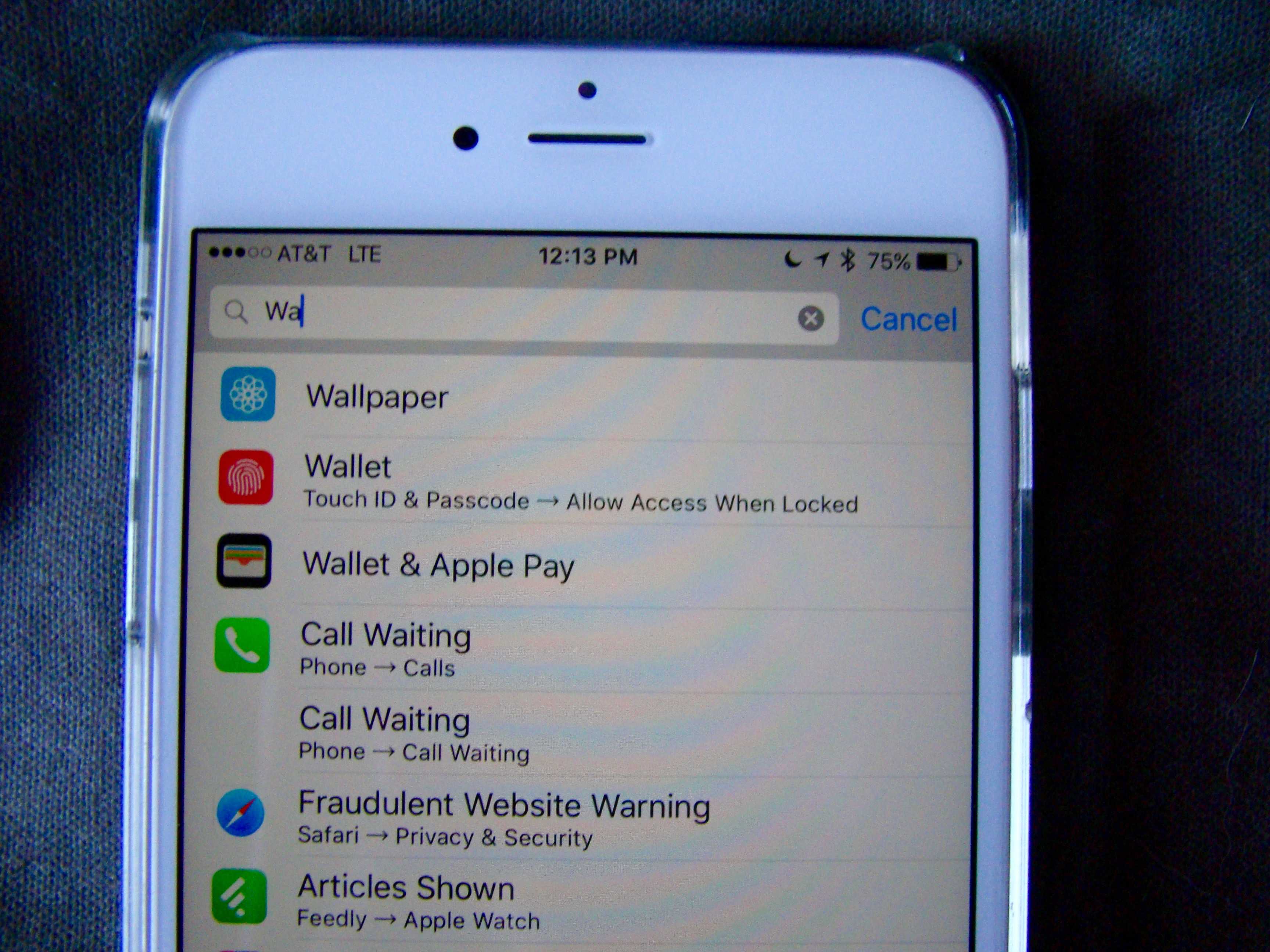
iOS has so many settings in one app, it’s kind of ridiculous.
Whether you want to change preferences for an app or the operating system itself, a trip to the crowded Settings app can often be a frustrating experience.
iOS 9 — still in beta — has a solution for that information overload though: Search.
Here’s how to access it.
Launch the Settings app on your iPhone or iPad running iOS 9 beta and make sure you’re on the first Settings screen. You’ll see Airplane Mode, Wi-Fi, Bluetooth and Cellular as the first items.
At the very top you’ll also see a text field that you can type into with a magnifying glass icon next to the word Settings. Why they didn’t name it Search is beyond me, but that’s how it goes.
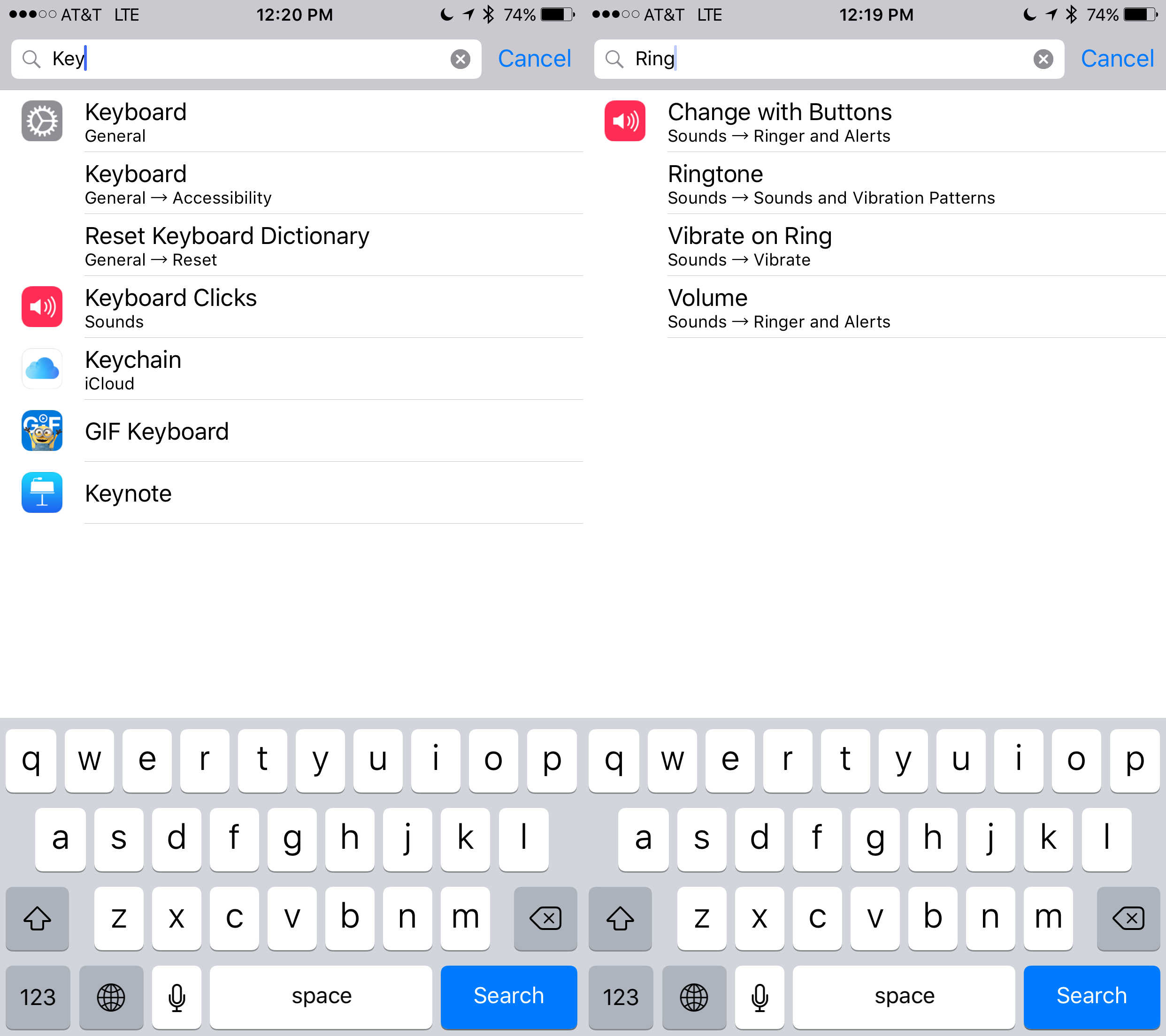
Photo: Rob LeFebvre/Cult of Mac
Tap into the Settings search field and type in whatever search term you’re looking for. “Key” will bring up the Keyboard settings in General, Accessibility, and Reset Keyboard Dictionary. It also shows me Keyboard Clicks in the Sounds section, Keychain in iCloud, GIF Keyboard (don’t judge) and Keynote, the app preferences for Apple’s presentation software.
“Ring” shows me Change with Buttons in the Sounds > Ringer and Alerts settings, Ringtone in Sounds > Sounds and Vibration Patterns, Vibrate on Ring in Sounds > Vibrate, and Volume in Sounds > Ringer and Alerts.

Rob LeFebvre is an Anchorage, Alaska-based writer and editor who has contributed to various tech, gaming and iOS sites, including 148Apps, Creative Screenwriting, Shelf-Awareness, VentureBeat, and Paste Magazine. Feel free to find Rob on Twitter @roblef, and send him a cookie once in a while; he’ll really appreciate it.


3 responses to “How to find the exact setting you need in iOS 9”
Yeah, it’s really “ridiculous” that someone would have to go to a single app that contains all of the “settings” for a phone. Sure beats having to root around in every single app to find what you want.
Isn’t the picture of the magnifying glass obvious and ubiquitous enough for it to immediately mean it is for searching in the context of the settings app?
I don’t understand why there is a need to write articles explaining something which is so obvious? Are you implicitly calling your tech readership stupid?
Also, like rsbell, I agree that it makes sense for all the settings to be in one place.
Wow…only now apple implements this.