Faster, more powerful MacBooks come out every year, but for most of us it’s not very practical to throw down a bunch of cash every time a new model gets released. Luckily, it’s pretty simple to perform a MacBook RAM upgrade.
In today’s video, Cult of Mac shows you how to give your MacBook a speed boost by installing new RAM.
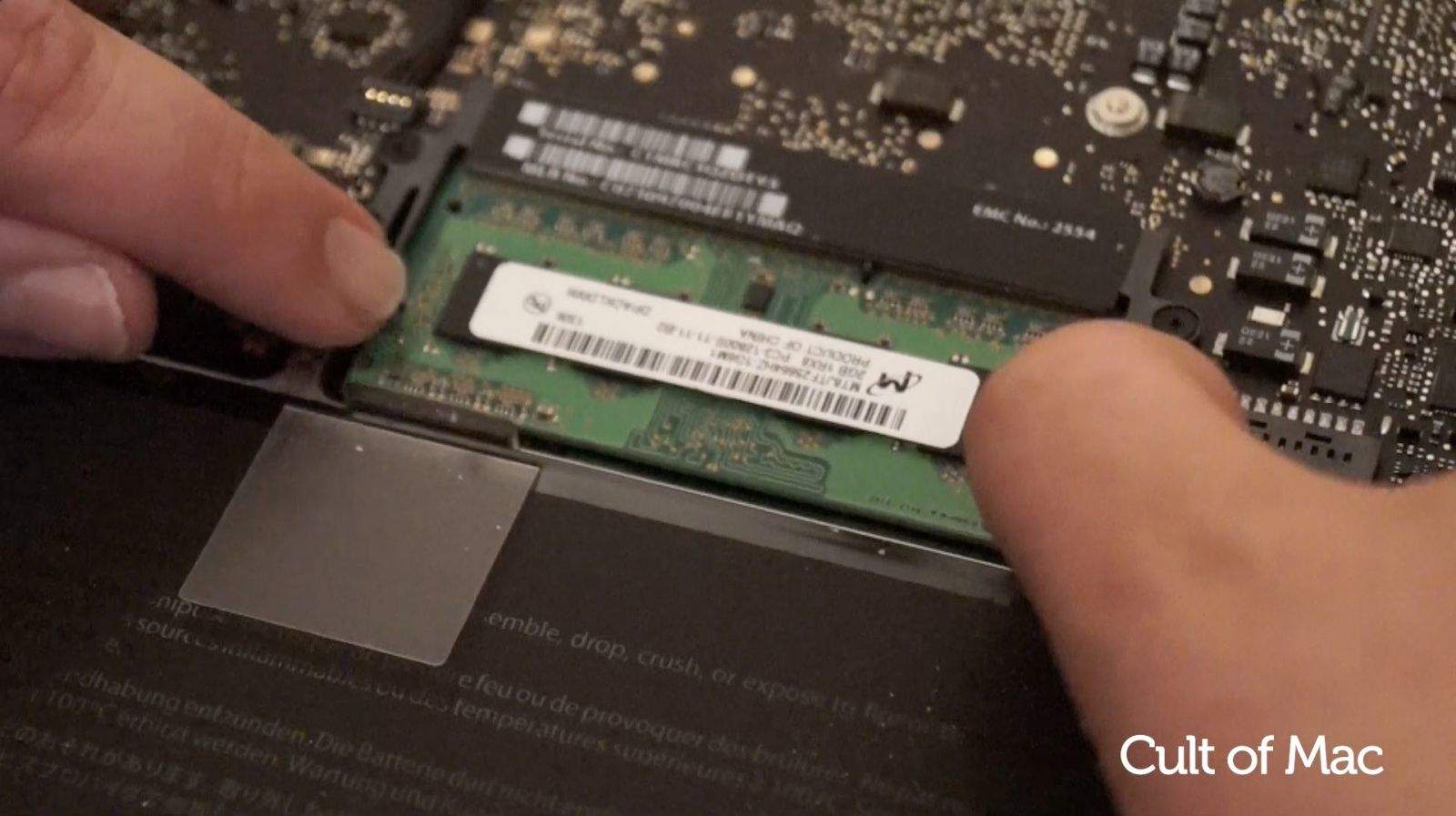
After you’ve purchases appropriate RAM (we recommend using Crucial’s system scanner), all you’ve got to do is take off your MacBook’s back and carefully swap out the memory sticks. The video above shows you what you need to look for inside the MacBook case.
Once you have followed the steps in the video, your aging MacBook should be nippy again for a few more years.
Want more Cult of Mac videos? Go to Cult of Mac TV on YouTube for all our latest videos. Click Subscribe and you’ll never miss a thing.

Ste Smith is Cult of Mac’s video guy based in the UK. Ste has been working in the media industry for over 8 years and is a keen Apple fan. Follow Ste on Twitter @stesmith10 and Facebook.


7 responses to “How to speed up your MacBook Pro by adding more RAM”
You should really make it more apparent that this is the non-retina model. I clicked on this link on Cult of Mac’s twitter which just referred to it as the MacBook Pro. If you don’t clarify that this is the non-retina model, people will just assume that that refers to the retina model.
If you really want to speed up your MacBook pro, all you really need is MONEY.
MONEY to buy “New MacBook” with new specification!
Hehehe
There *IS* one “unintended consequence” to adding more RAM: diminished battery life.
Because RAM is volatile, it needs a constant (albeit small) charge to maintain state — even in Sleep Mode.
Now that I’ve loaded up my MBP w/ 16GB of memory, if I leave it closed for more than a few days (which isn’t uncommon if you primarily use a desktop) it often goes to the white “restoring from disk” screen when I DO finally open it again.
Having said that, however, the fact that OS X saves and restores the state of the system so gracefully is certainly nothing to sneeze at; having to wait the additional ~20 seconds to resume isn’t a TERRIBLE inconvenience, versus having to reboot afresh each time…
Doesn’t happen on mine… 2013 retina i7 1.5GB intel HD video.
that’s how they save the power.
More importantly, add/replace the hd with an SSD….you’ll get far better speeds especially on Macs that are already maxed on ram. Retina models not supported for either upgrade though..
Seriously: Why are you pushing these old instructions?