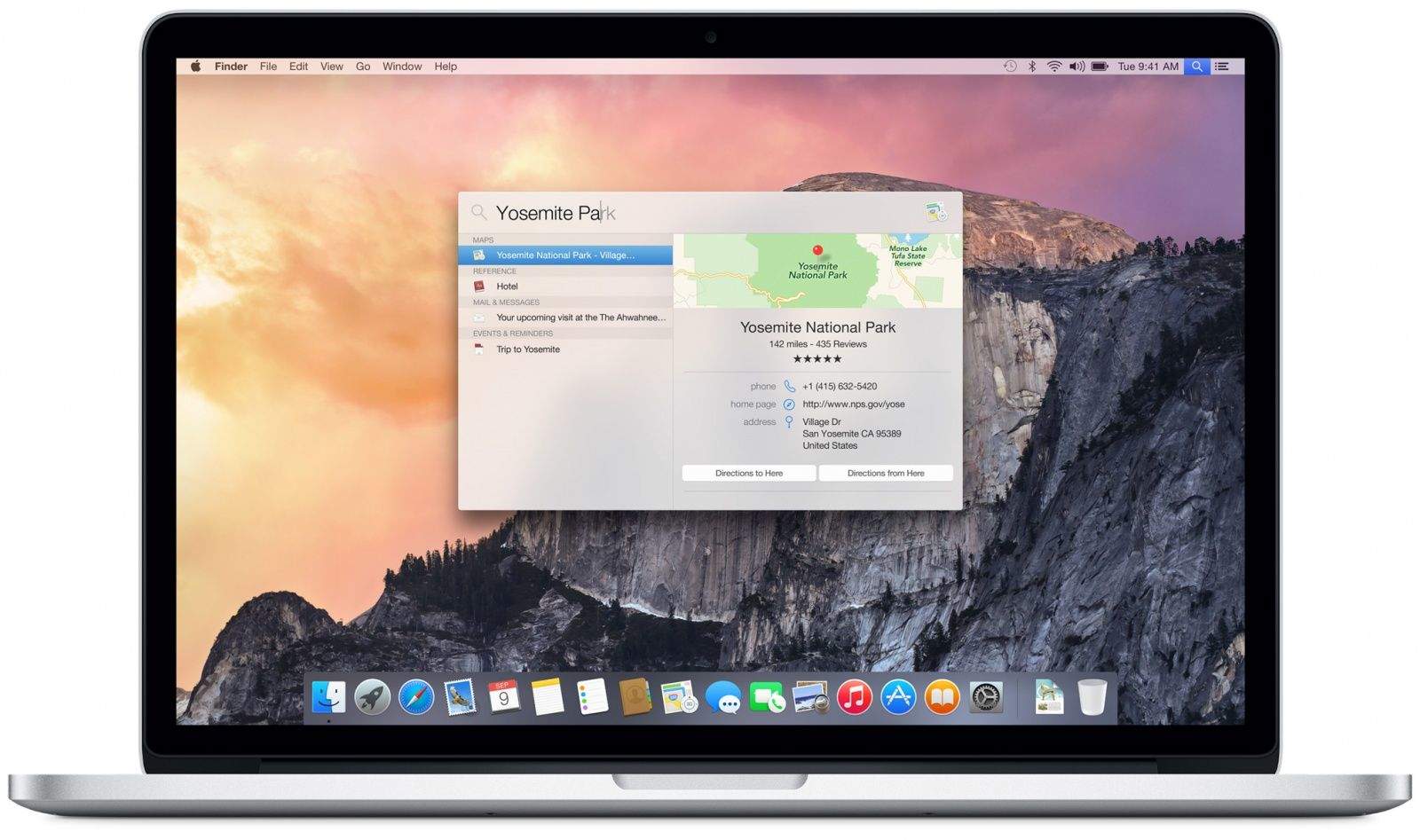
Whether you’re a Mac novice or a seasoned veteran, there are a ton of tips and ticks out there for mastering OS X Yosemite. In Part 2 of our Yosemite tip series, we gather more of the very best.
Quickly switch to dark mode
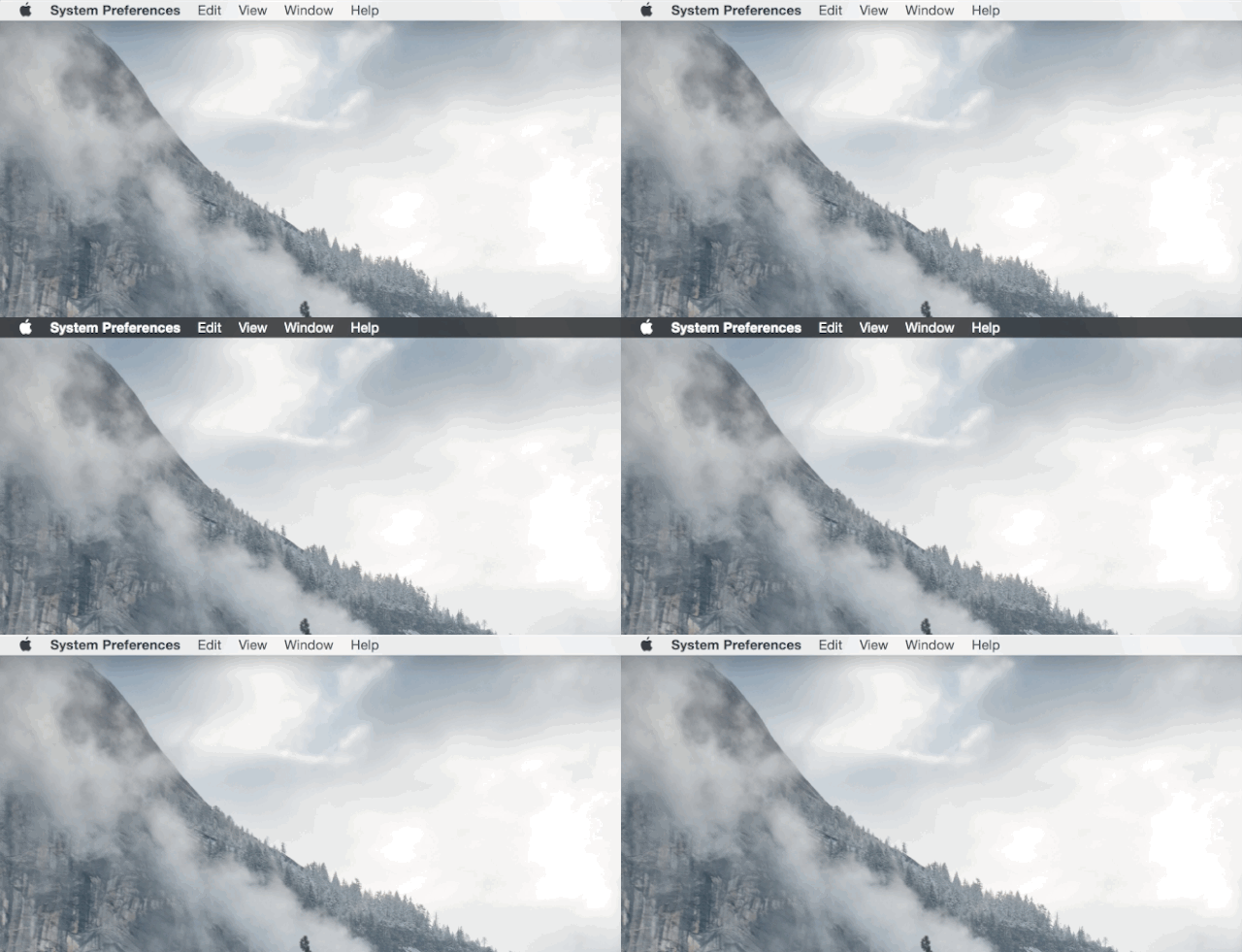
Instead of having to poke around System Preferences, you can quickly toggle Yosemite’s dark mode with a keyboard shortcut.
Copy and paste this into Terminal: /Library/Preferences/.GlobalPreferences.plist _HIEnableThemeSwitchHotKey -bool true
Then log out and back in to your Mac. From now on, CTRL + OPT + CMD + T will enable/disable dark mode no matter what you’re doing.
Batch rename files with Finder
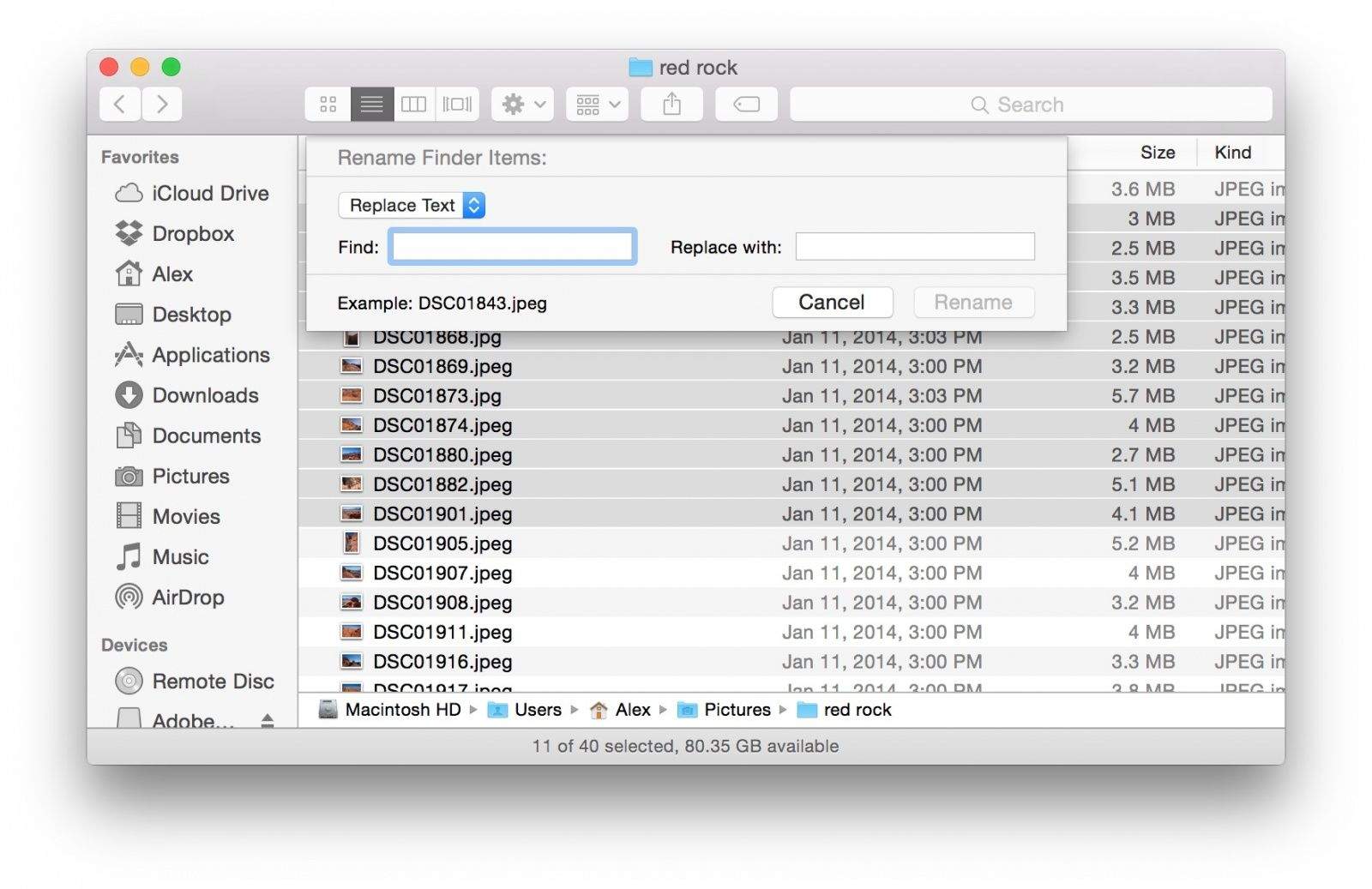
Finder can now rename multiple files at once. Just highlight the files you want to rename, right-click, and click “Rename [x] Items…” from the contextual menu.
Take 3-D flyover tours in Maps
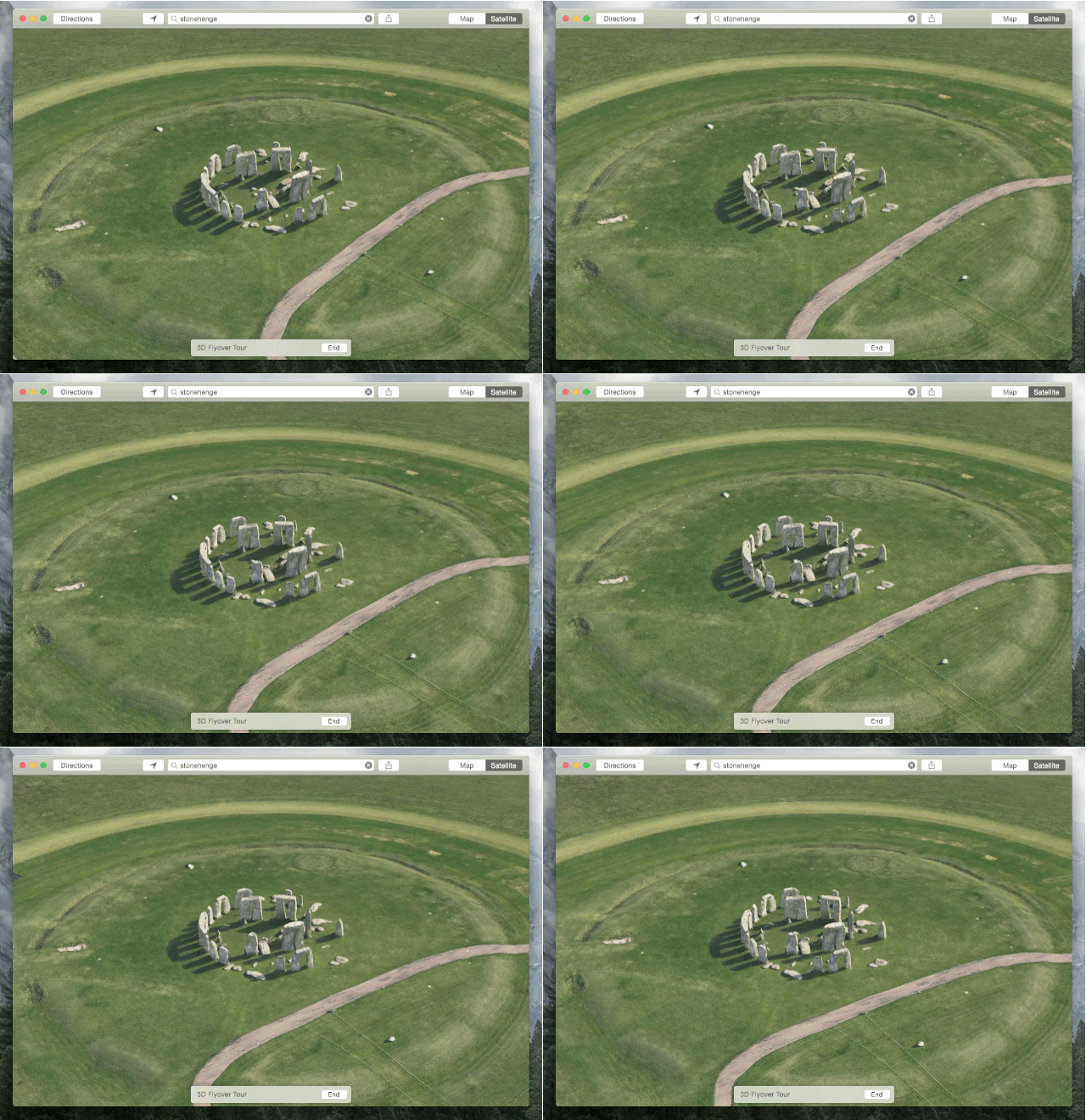
Like iOS, Apple Maps in Yosemite can now do 3-D flyovers of certain cities and famous landmarks. When you view the pin of a place like Stonehenge, for example, a new “Flyover Tour” option is available. Feast your eyes on the places you want to visit around the globe with this cool feature.
Clear just your recent browsing history
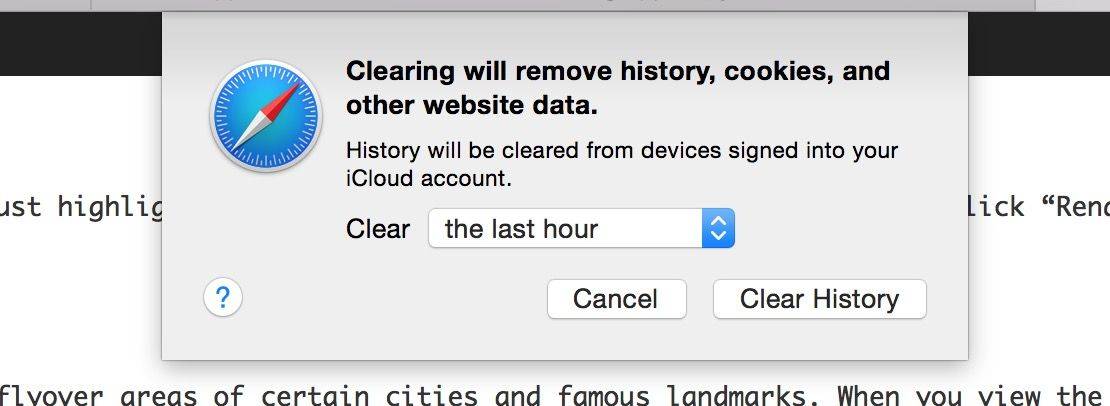
A neat trick in the new Safari lets you clear your browsing data from a certain time period. “Clear History and Website Data” under the Safari menu bar tab gives the option to remove your history, cookies and other web data from the last hour, day, two days or forever.
Show full URLs in Safari

Safari in Yosemite hides full URLs in the address bar, which is a nice detail for maintaining a clean aesthetic. But if you’d like to turn full URLs back on so you can see exactly what page you’re on, the option is available under the Advanced section of Safari’s preferences.
Send huge attachments with Mail Drop
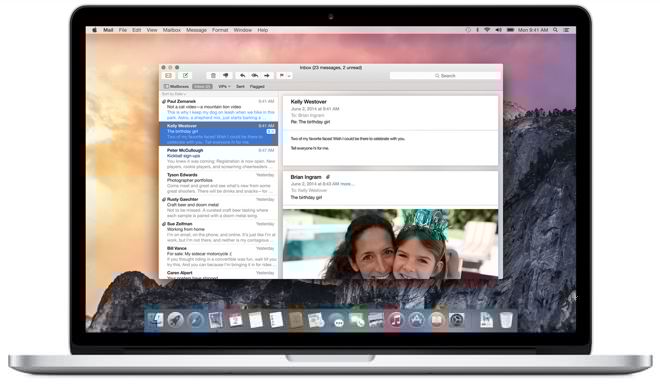
Apple now lets you send big attachments in Mail with a free service called Mail Drop. Any attachment up to 5GB is uploaded to iCloud’s servers for 30 days, given a download link, and added to your email.
For Mail Drop to work, your Mac must be logged in to your iCloud account. And don’t worry, it doesn’t count against your iCloud account storage.
Dial phone numbers with FaceTime
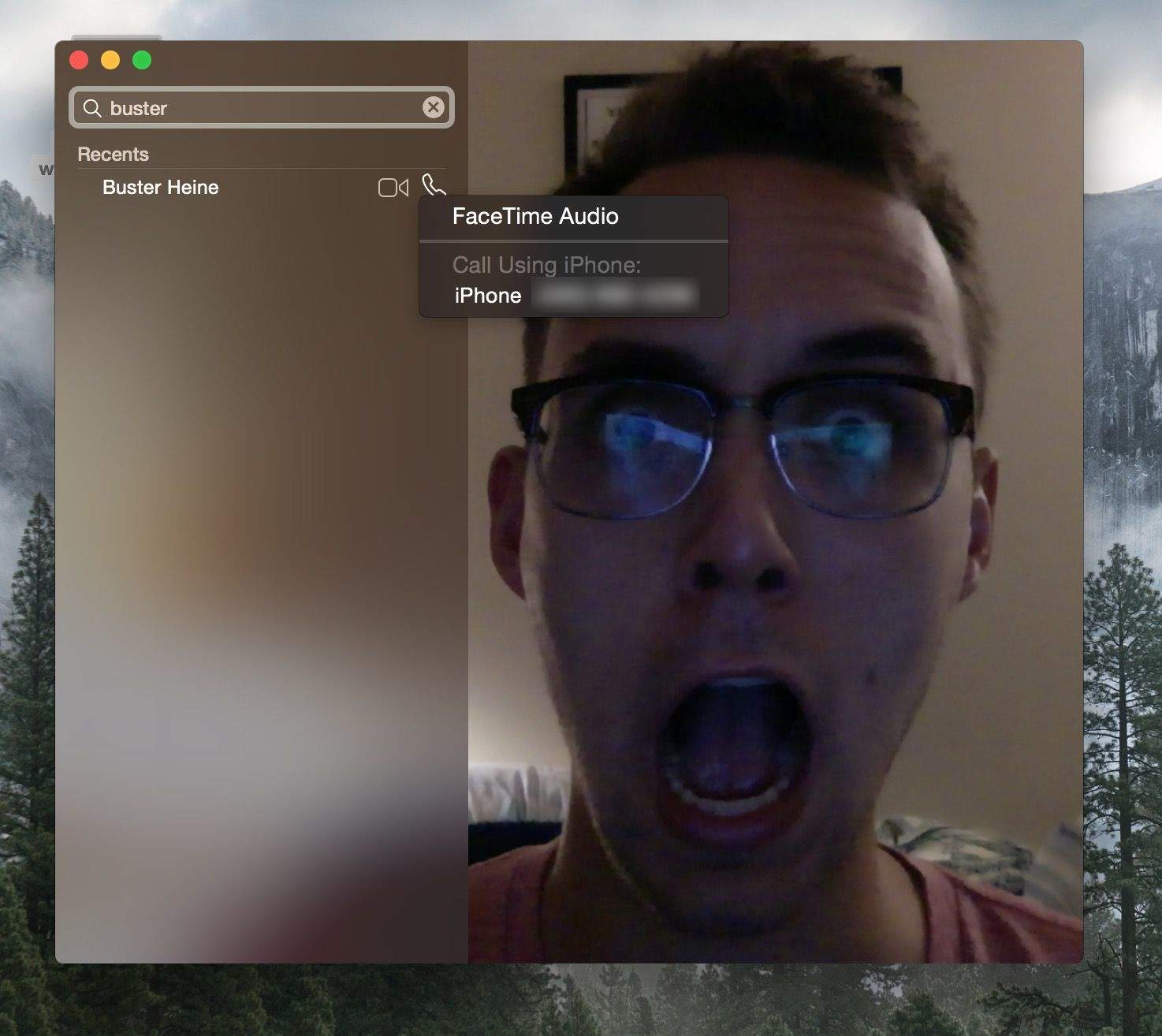
You can take phone calls from your nearby iPhone in Yosemite, but did you know you can make calls from the FaceTime app? As long as your iPhone and Mac are on the same Wi-Fi network, you can search for a number in FaceTime and place the call. Click the phone icon next to a contact for the option to call using iPhone.
Share your screen with iMessage
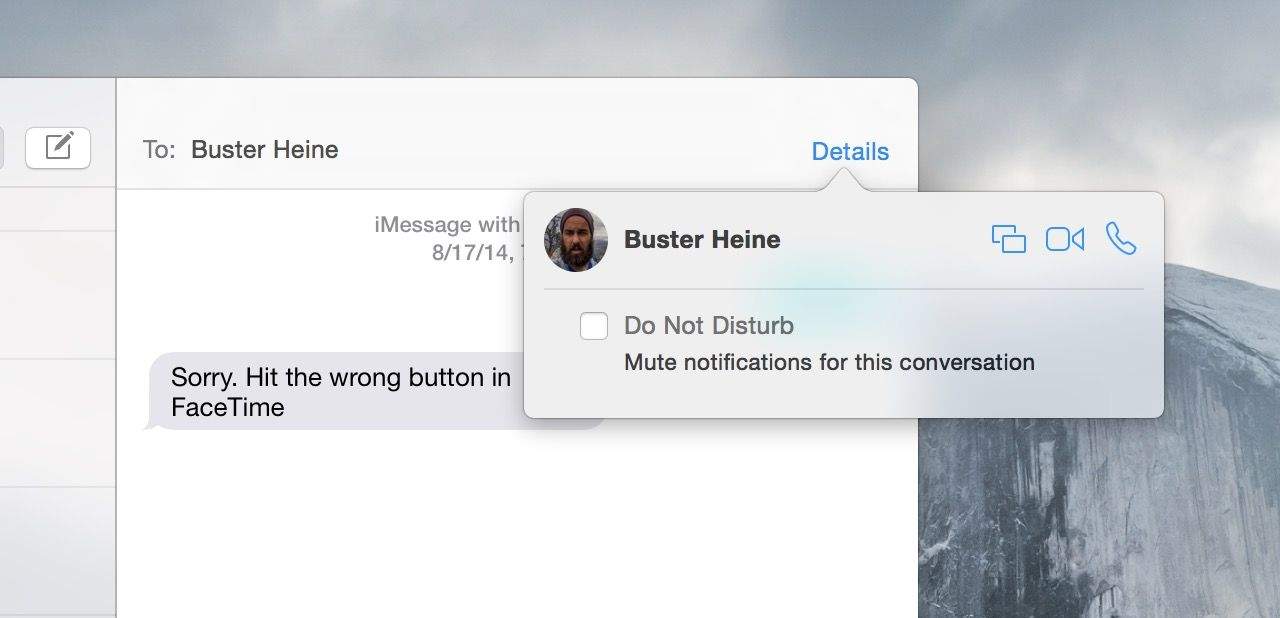
A handy feature baked into the new Messages app in Yosemite allows you to share your screen. Click the “Details” view at the top right of a conversation thread, and if the contact is on Yosemite you’ll be able to request a screen-sharing session.

Alex Heath is a journalist who works for Tech Insider. He’s the former co-host of The CultCast. He has been quoted by the likes of the BBC, KRON 4 News, and books like “ICONIC: A Photographic Tribute to Apple Innovation.” He lives in Lexington, Kentucky. If you want to pitch a story, share a tip, or just get in touch, additional contact information is available on his personal site. Follow him on Twitter.


15 responses to “More tips and tricks for mastering OS X Yosemite”
Nice! Thanks Alex.
Don’t care much for the new clear browser history. In Mavericks you could choose it and it would clear your browser history, like any other browser. Now in Yosemite it clears everything, including log-ins and all website data. So when you clear and you go to use the browser again, you have to re-login to all your accounts, websites, etc. Also all site specific preferences are wiped as well. I don’t see an option to do just a basic clear history.
Agree. I discover that “painfully” after I just upgraded to Yosemite and started clearing what I thought was just the History happily, only to sadly discover later when I re-launch Safari all my most log-ins like Facebook etc I have to re-enter everything again. Now I just place a History icon on the right side of the URL field at the top right, click it, see the list of History, and delete them.
use 1password to save your logins, much safer…especially if on a shared computer.
Second this. I have both 1Password and iCloud Keychain, don’t remember the last time I ever worried about a website password.
and with integration into iOS and touch ID it’s so smooth. Now they just need touch id enabled track pads on the macbooks and imac line.
Handy tips Alex!! One nitpic… I think you mean novice, not voice.
when I tried to do the terminal cut/paste I received this message:
GlobalPreferences.plist: Permission denied
You must add “sudo” (with following space) before the whole command. After you press the enter key, terminal will ask for password. Input the password of the login account you’re now using on your Mac.
I’m also getting:
GlobalPreferences.plist: Permission denied
Try as admin
this first tip, five finger tip is much easier then go to syspref panel and click to checkbox? really?
try this instead for dark mode hotkey:
sudo defaults write /Library/Preferences/.GlobalPreferences.plist _HIEnableThemeSwitchHotKey -bool true
I didn’t like the way the new Safari put the bookmarks on the side. I figured out how to get them back on top. http://youtu.be/27l1vkRku1c
Has anyone managed to place calls successfully through the iPhone? Although the pairing was fine this just doesn’t work for me, all calls fail.