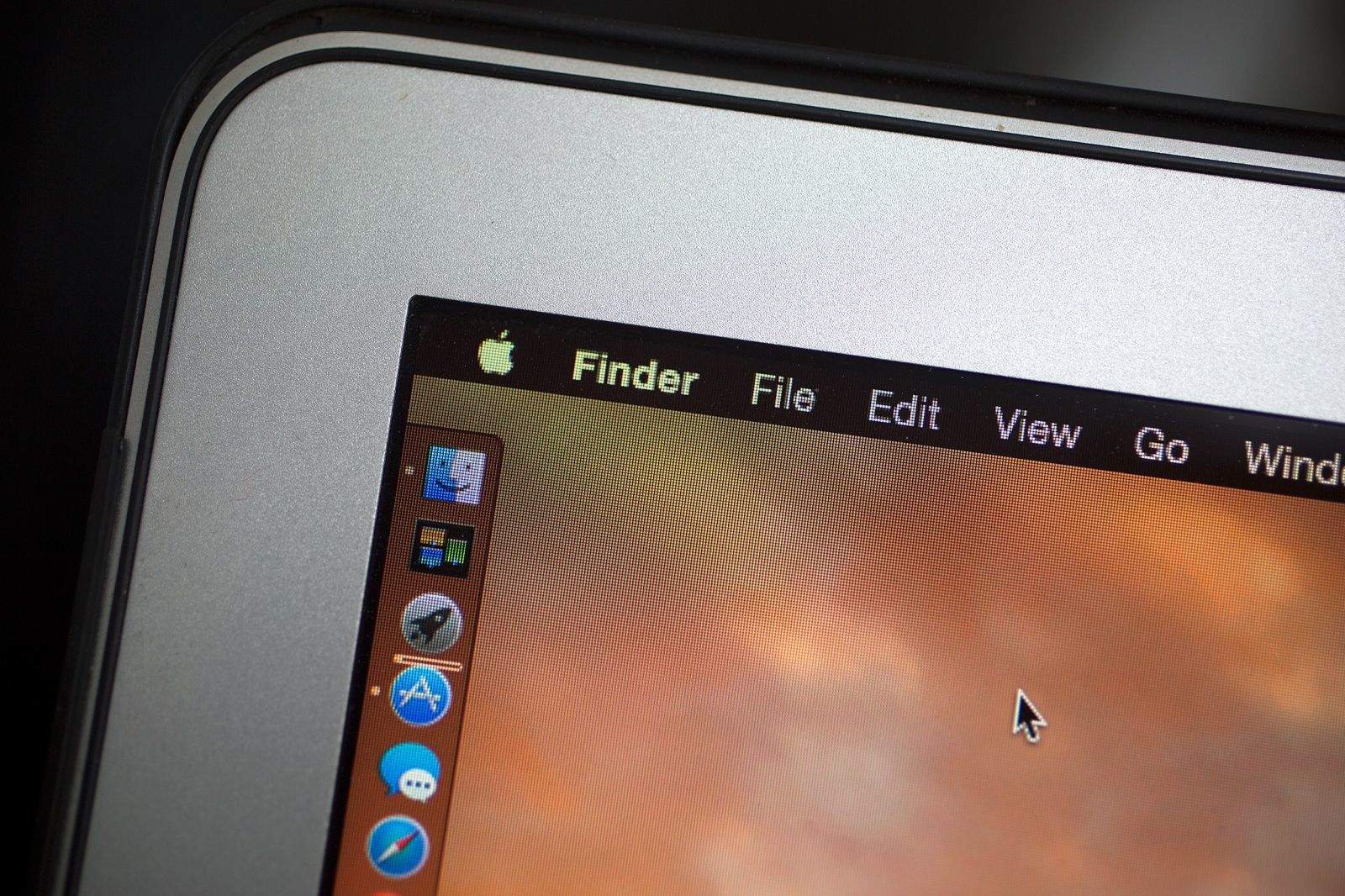
OS X Yosemite packs a lot of new features inside a cleaner, flatter interface on the Mac. It’s a big upgrade, and there’s a lot to take in at first glance.
Whether you’re a Mac novice or a seasoned expert, there’s plenty to explore in the latest version of OS X. Wondering how to get started? Here are some of the best tips and tricks for getting the most out of Yosemite:
Enable “dark mode”
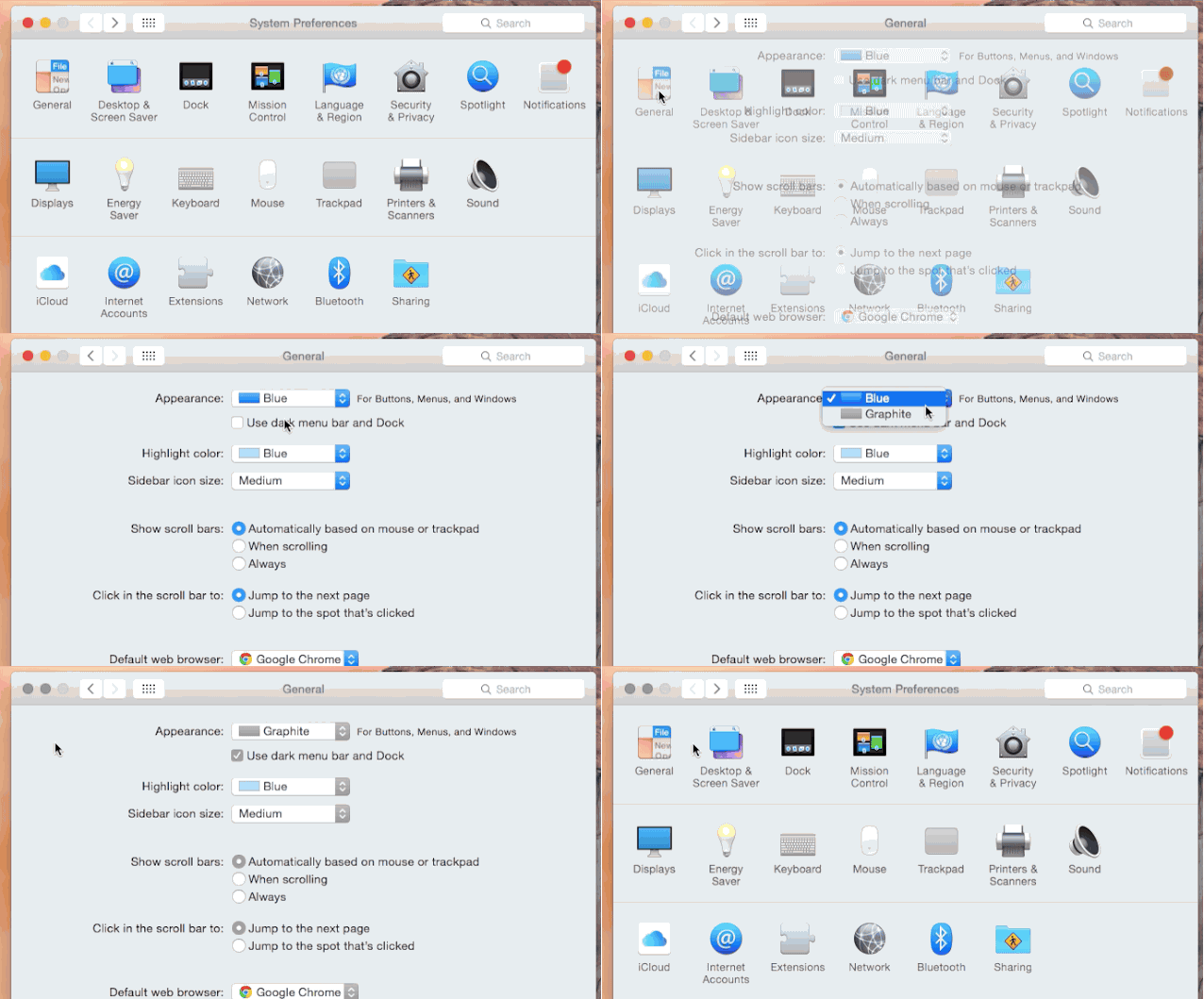
There’s a new “dark mode” in Yosemite that turns the menu bar, dock and Spotlight black. Enable under General in System Preferences.
Do a ton of stuff with Spotlight

Spotlight is a lot more powerful now. It can search 22 kinds of data, all of which can be checked and unchecked under Spotlight in System Preferences.
Type CMD + Space to use Spotlight from anywhere in Yosemite. You can use it to see recent documents for a specific app, view contact cards, find movie info in Fandango, search Wikipedia, find locations through Apple Maps, convert temperatures and more.
Manage your extensions
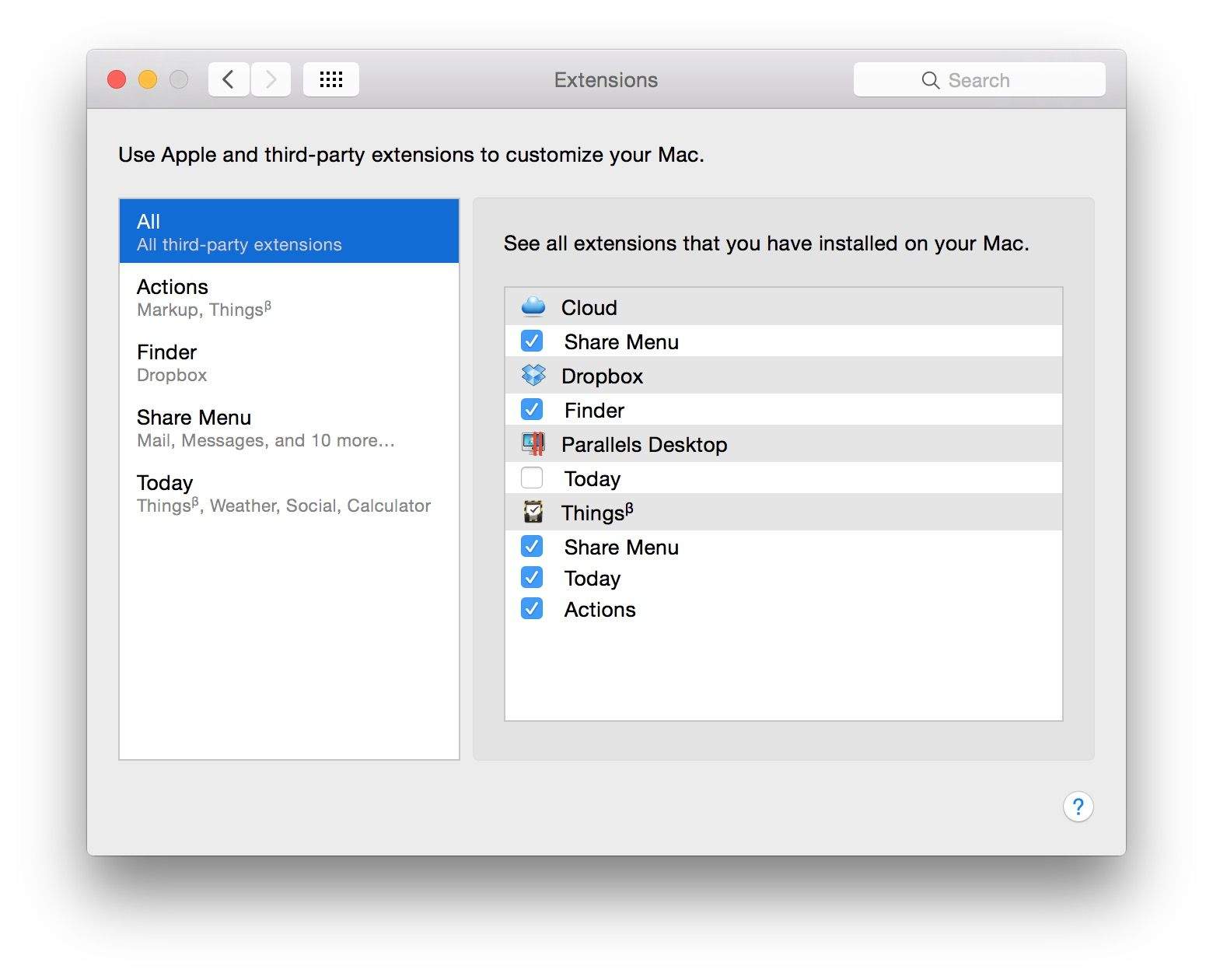
Like iOS 8, apps optimized for Yosemite can now offer extensions.
There are four kinds of OS X extensions: Actions, Finder, Share Menu and Today. Actions take data from other apps and add it directly to the extension’s corresponding app, like adding a chunk of text from Mail to a task manager. Finder extensions let you manipulate files through a third-party service like Dropbox. Share Menu extensions work like they do on iOS 8, so apps like Pocket can save links in Safari. Today extensions show up as widgets in Notification Center.
The new Extensions section of System Preferences shows all the apps with extensions you currently have installed.
Annotate images in Mail
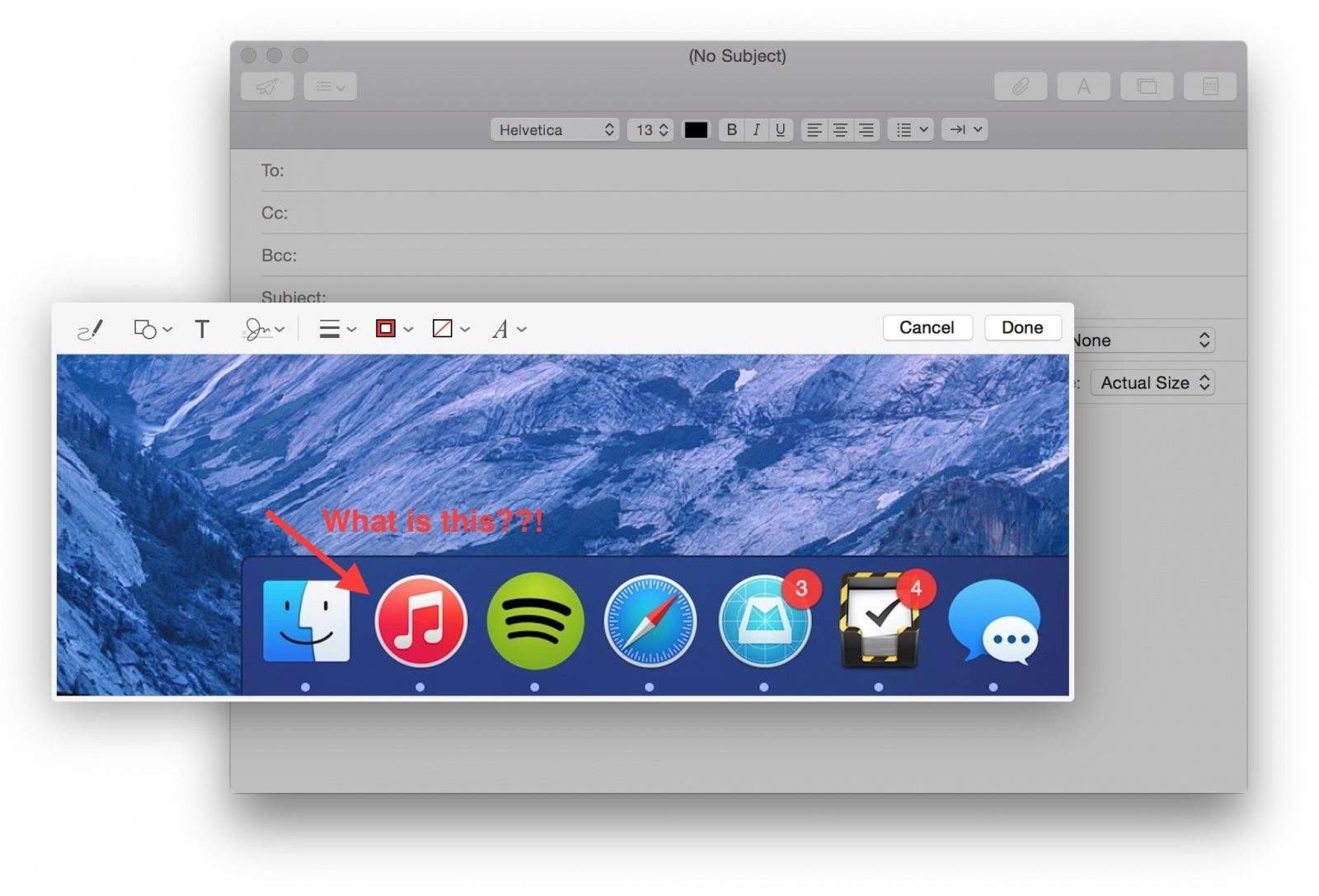
Apple’s new Markup extension lets you annotate images and PDFs directly in Mail. Click the dropdown at the top right of an attachment to open Markup.
Sign things using your trackpad
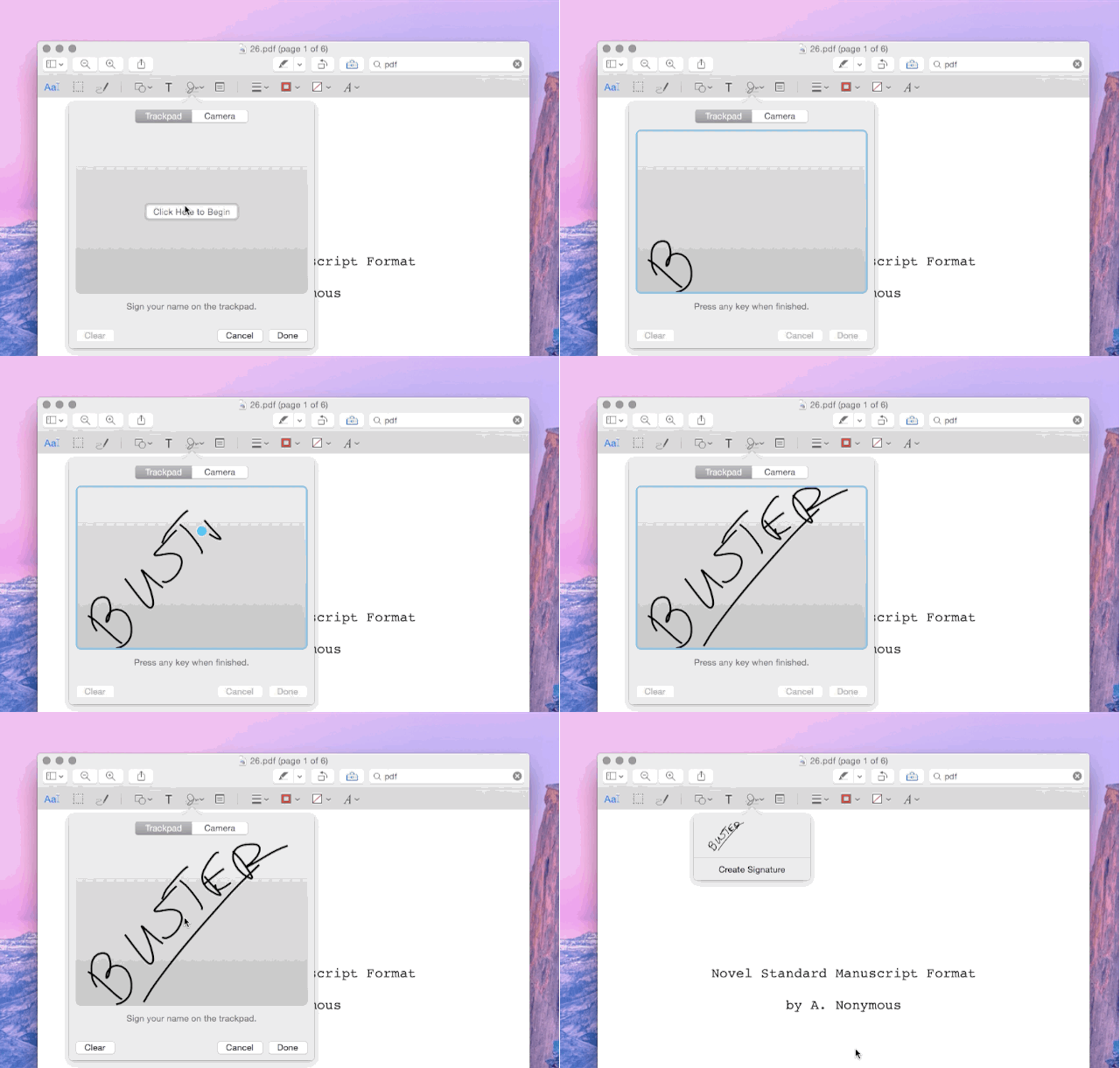
Another feature of Markup is the ability to sign things using your Mac’s trackpad. This is a great feature if you want to sign something like a PDF without printing it out and rescanning.
See all open tabs in Safari

Safari in Yosemite can view all your open tabs at a bird’s eye glance. The keyboard shortcut Shift + Command + \ will show all tabs and let you close and rearrange them individually. Any open iCloud tabs on other devices are also displayed at the bottom of the “show all tabs” view.
Be untraceable with DuckDuckGo, private windows
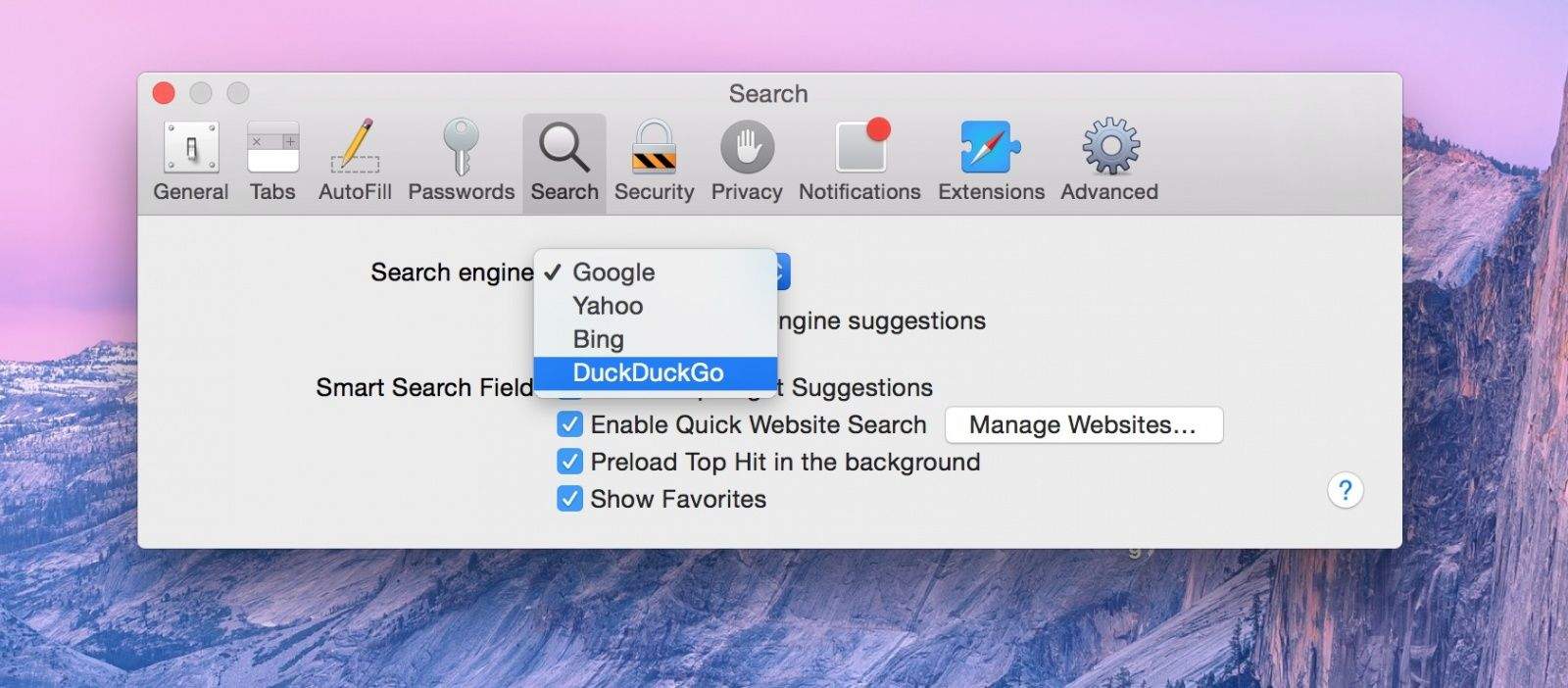
Private browsing is a lot easier with Safari now. DuckDuckGo, which doesn’t track your search results, is available as an alternative search engine in Safari’s settings. Safari’s private browsing mode now opens individual windows instead of taking over the tab you’re currently in.
Quickly access your iOS device’s hotspot

You’ve been able to use your iPhone as a mobile hotspot for years, but Continuity makes it easier than ever with iOS 8 and Yosemite.
As long as you’re logged into the same iCloud account on your Mac and an iPhone that supports Personal Hotspot, the iPhone will show up in your Wi-Fi network list.
Use Handoff for supported apps
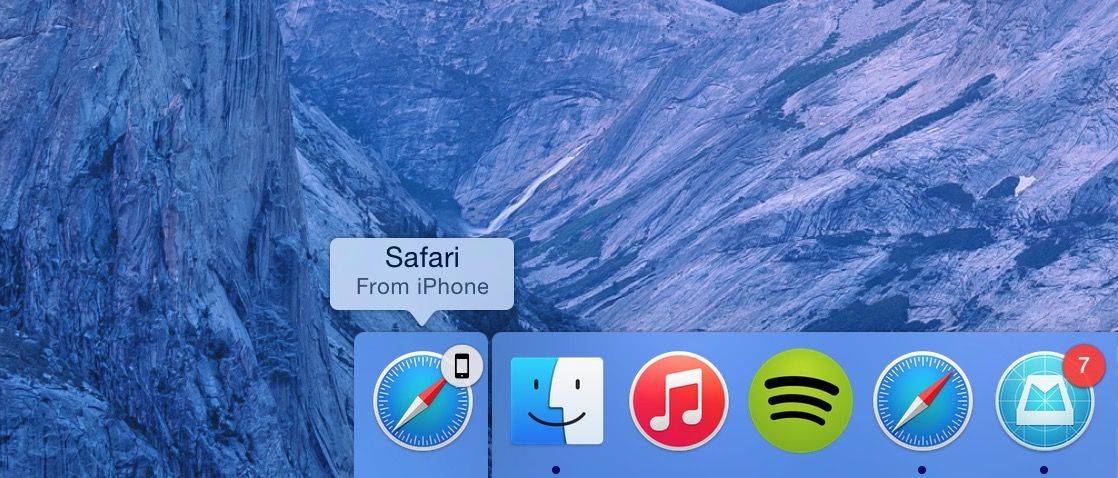
Continuity, the umbrella term for several new features that let your Mac and iOS device work together, includes Handoff. Once an app is updated for Handoff on OS X and iOS, you can seamlessly move between devices while keeping your place.
So if you’re composing an email in Mail on Yosemite, the Mail app icon will appear at the bottom of your iPhone’s lockscreen. Tapping it will open Mail in exactly the place you were at on the Mac (and vice versa). iOS apps that are open with Handoff enabled show up at the bottom left corner of the Mac’s dock.
Handoff can be enabled or disabled under General in System Preference.
Answer iPhone calls on your Mac
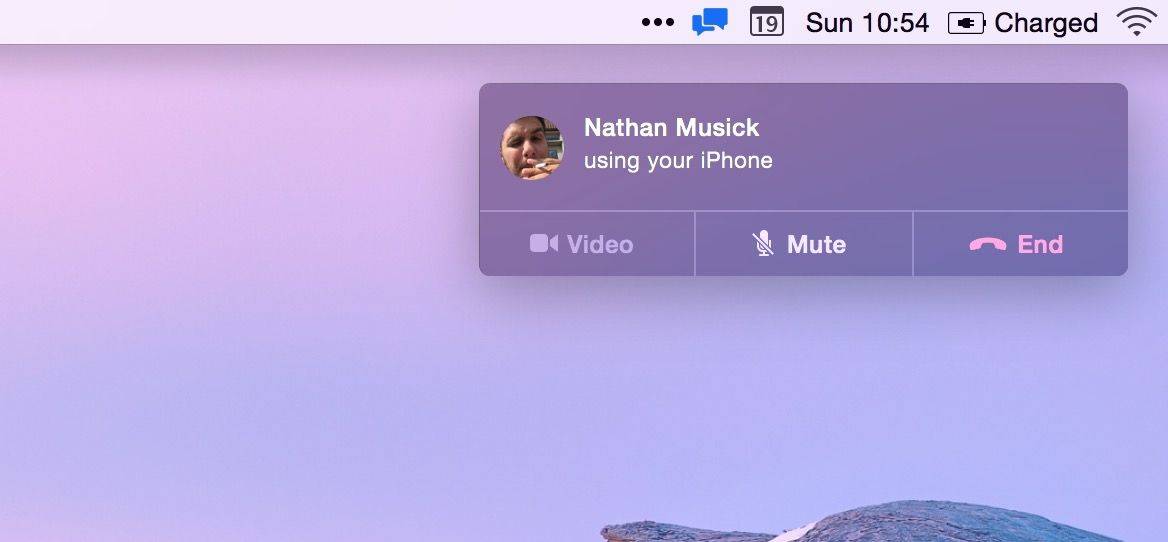
Another feature of Continuity is that incoming phone calls will show up on your Mac. You can also make calls from the Contacts app or Spotlight in Yosemite as long as your iPhone is nearby.
When a call comes in, your iPhone’s ringtone will play through your Mac and show caller ID in the top right of the screen.
Record your iOS device’s screen
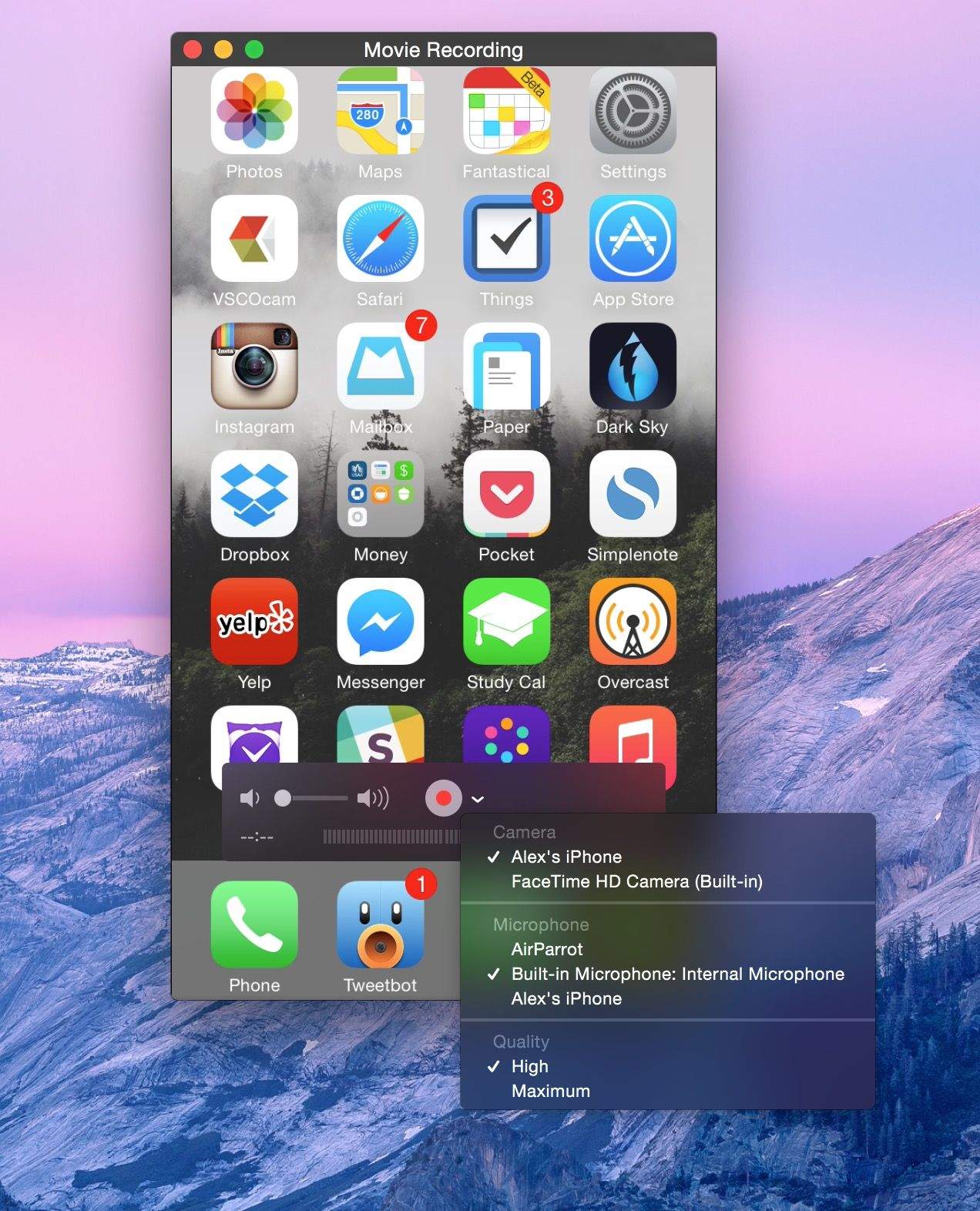
Instead of just your Mac’s screen, QuickTime can now record your iPhone or iPad’s screen when connected via a Lightning cable. When you choose to make a new movie (not screen) recording, tap the dropdown next to the record button to select your iOS device and its microphone as the input.
Eradicate transparency
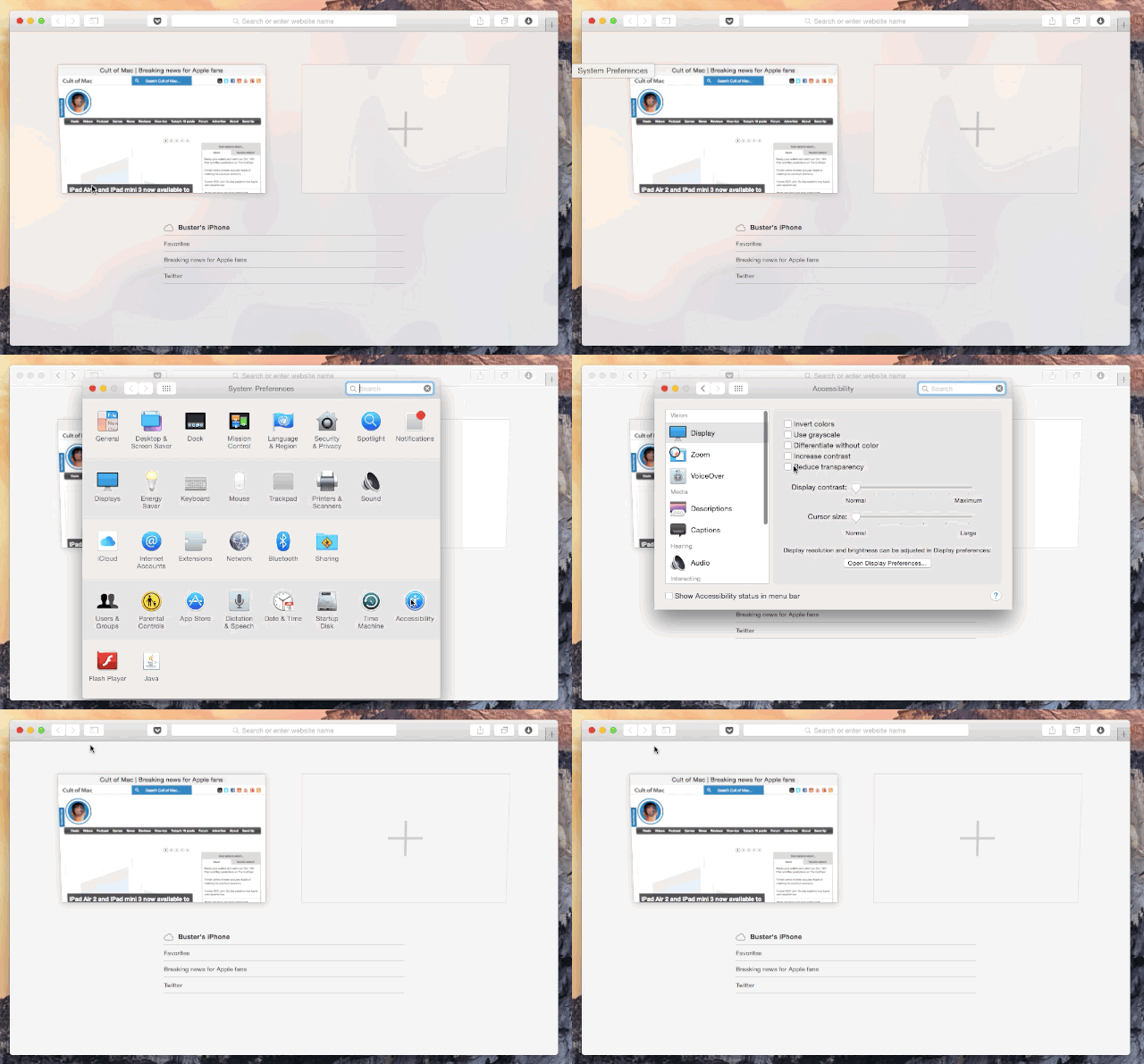
Some app windows and interface elements in Yosemite are slightly translucent. For instance, you’ll notice that your desktop wallpaper is faintly visible in the background of Safari.
Go to Accessibility in System Preferences and check the “Reduce transparency” option to make all transparency go away.

Alex Heath is a journalist who works for Tech Insider. He’s the former co-host of The CultCast. He has been quoted by the likes of the BBC, KRON 4 News, and books like “ICONIC: A Photographic Tribute to Apple Innovation.” He lives in Lexington, Kentucky. If you want to pitch a story, share a tip, or just get in touch, additional contact information is available on his personal site. Follow him on Twitter.


76 responses to “Tips for getting the most out of OS X Yosemite”
Yeah… Except not a f*cking ONE of my mac’s in my house, so far, can use ANY of the continuity features at all because they don’t have bluetooth 4.0 in them. Would have been nice if somebody mentioned that before I got my hopes up. Now if I want to use any of the cool features that I’ve been drooling over for the past few months, I have to go out and buy three new mac’s just do it. What a rip.
*Update* exactly ONE of my computers does work—the one that we bought for my grandmother. That will be kinda funny. She will be the most connected person in the house. Why do I foresee this as being a bad omen for me?
advancement of technology. its just how it works.
That’s fair enough, I suppose, but my beef isn’t with my inability to do those cool new things as much as the fact that Apple didn’t even bother to mention it on the website. “Compatible hardware” was my only hint. I spent half an hour to an hour on Google last night trying to figure out if my Mac was broken before finding out what it was that was keeping those features from working. Just a simple line of text reading, “your mac and your iPhone/iPad must both have Bluetooth 4.0 built in” would have made me feel better about it—not just some vague line about “compatible hardware.” When your companies slogan has been “It just works,” for years mind you, I think it might be a good business practice to outright say how or why it might NOT work. That’s just my feeling on the matter. It’s almost on the same level of misleading press that Android advertising does. “Check out this cool feature that Android does that iPhone won’t (unless you have one of any number of our vast array of devices that CAN’T be upgraded to the newest version of Android, ’cause then you’re screwed.) Oh? Did we not say that last part loud enough?”
I agree with you. Apple never mentioned this. My MBA has bluetooth 4.0 but my three year old iMac doesn’t. Guess I am suppose to go out and buy a new iMac. Right!
I don’t think Jobs would have done things this way.
Did you checkout ifixit.com? Maybe your devices card can be upgraded without having to replace the whole thing.
Stop whining, Apple doesn’t have to spoon feed you every little bit of information. When they advertise a new feature, they assume you’re using their newest hardware. They won’t waste time and effort on advertising something that won’t make people buy a new device or machine. It’s called running a successful business, and Apple are extremely good at that.
No, you’re right, they don’t have to mention this stuff in their adverts. Where they DO need to mention it is on their website where they have those lovely little asterisks everywhere telling you what you can and cannot do based on hardware limitations so that they don’t get sued. (And just so we’re clear, I don’t mean that I would sue, but rather that people have tried it in the past [with other companies] and so almost everyone has to have those asterisks now.) I’m not asking a lot, just a little bit of clarity. Not a whole lot of effort is required to tack on “Bluetooth 4.0/LE (whichever it actually is) required for some features, click here for a list of supported devices.” They do this every time they release a new OS, they outright tell us what is the furthest back device that will be able to run the new OS. So, no, they don’t have to spoon feed me sh*t, you’re right, but as consumers of their products we should be treated with the respect we bought and paid for when we parted with the hefty sum that goes with buying Apple products. Apple has had a long reputation of doing things differently, which usually means doing things that are right for their customers, and this is just one time that I’m seeing a slip. I’m a little sore, yeah, but I felt it was worth pointing out to other people so that they wouldn’t try some of this stuff and then panic, like I did, and think their Mac’s or iOS devices were broken somehow. Since they were kind enough to point out that SMS relay won’t work until iOS 8.1, I don’t think it’s unfair to ask them to tack on an extra line about the Bluetooth requirement for things like AirDrop, Hand-Off, and so on.
I agree with all your comments. I spent days figuring out Airdrop when it had launched. Incompatible hardware, but the asterisk signs didn’t reveal much.
I agree, and was very frustrated that my 2011 Macbook Air 13″ and iPad 3 do not support hand-off.
The MBA does have Bluetooth 4.0, but it is a hard-ware setting, and system report in Yosemite now has a line “handoff capable.” Frustrating for sure, since it was the primary reason I wanted Yosemite.
http://www.apple.com/ios/whats-new/continuity/
Down at the bottom:
“Continuity features are available on iPhone 5 or later, iPad (4th generation), iPad Air, iPad mini, iPad mini with Retina display, and iPod touch (5th generation).”
Preach on, Jesse, I’m standing in the pews hollering, “Hellelujah! Preach On!” I think we both know damn well that Apple would fall flat on their face had they been more transparent about the limitations of Yosemite, the backlash would have been huge. Putting those limitations in 6 pt text at the bottom of the page is their way if diffusing the masses.
Check this out; It seems there is an easy way to bring handoff back to older Macs :-)
https://www.evernote.com/l/AA3_S0fwW91I5KIwFtblHi90OYvi6hmfLVM
Let us know!
The specs went out when the feature was announced, and it was widely talked about on mac sites back in June. (http://www.cultofmac.com/283730/yosemites-handoff-feature-may-work-mac-users/) What has not been confirmed is if you can use a USB Bluetooth 4 adapter.
Bluetooth 4.0 isn’t required for this feature, Apple just chose to make it that way. I can’t even AirDrop to my iPhone 6 with my perfectly mint condition late 2011 MacBook Pro, which is more than capable of doing so. Ridiculous.
AirDrop DOES require Bluetooth 4.0
Airdrop works fine for me without Bluetooth 4.0
That really sucks! I was really looking forward to using Airdrop between my iMac (mid 2011) and my brand new iPhone 6. Just tried it. No luck. Couldn’t understand why my iPhone didn’t show up in the Airdrop panel on my iMac. Then discovered your post. Can’t believe it! WHY, Apple, why? I could Airdrop between this iMac and a MacBook Pro late 2011 years ago!
Same here. I was actually looking forward to this feature. Can’t see why they couldn’t have made this work over Wifi (Bonjour anyone?) as well as Bluetooth.
Enable airdrop on older macs…
http://www.maclife.com/article/columns/terminal_101_enable_airdrop_older_mac
From what I understand you can still use SMS Relay (SMS forwarding), and take phone calls on your Mac, because these features don’t require bluetooth, just have to be on the same wifi network.
If you go into your system report and click on bluetooth it will tell you which of the services are not available, and surprise surprise, sms relay and phone calls don’t work due to the bluetooth issue.
*Update* Found out that SMS Relay isn’t working due to not having iOS 8.1 and phone calls do work, but it required some set up that I didn’t have turned on. Since Handoff was listed, and says “NO” right next to it, and the others weren’t outright listed, I figured that they weren’t even available. Part of my issue is solved, but the others that do require the Bluetooth are not. Oh well. I’m still in love with the new OS, despite the tiny snafu. I can’t get enough of Dark Mode. This was a feature way back on the old Macintosh computers and I was so hoping they’d bring it back. *Squeee*
This is incorrect. Only the continuity feature needs Bt 4.0. SMS relay and receiving phone calls only require that they be on the same wifi network.
Ya, I have taken 2 calls today on my iMac and I rarely turn on Bluetooth on my iPhone 5. You only need wifi. The only thing I can’t do is handoff and it’s not that big of a deal. I can do everything else like Messages.
I’ll try, but that isn’t what I heard.
*Update* This link below explains most of what I was talking about. It appears Bluetooth must be on, for who knows what reason, and some features don’t work unless you have iOS 8.1 (which I won’t until Monday.) Also, all but one of my Mac’s are not on this guys list for all of the features he lists. He says your Mac must have Bluetooth LE (which my mid 2011 MBA does have, but it still won’t support anything like AirDrop or Hand-off. It says so right in system report.)
http://www.macstories.net/tutorials/os-x-yosemite-ios-8-continuity-explained-handoff-instant-hotspot-sms-phone-relay/
Apple aren’t in the business in making every new feature available to every piece of older hardware. They make these features to work at their best, not at their worst. If you’re not happy, go to a company that will provide these features to you for free, except there aren’t any. So instead of getting upset about the one thing you can’t use, focus on the dozens more features you can use. I’m sure you weren’t unhappy about your setup before Apple announced handoff, so why grizzle now. I can’t use handoff on my 2009 MacBook, but I’m not squealing like a schoolgirl about it.
If you look at the info before you upgrade it clearly states that some features require compatible hardware…
And how do you know which hardware is compatible?
It has been spoken of all over the tech blogs since June, you’d have to be blind not to have seen anything about it.
So basically I am expected to peruse various tech blogs to find out if newly announced features will work with my specific setup? Wouldn’t it have made sense if this information were available from the manufacturer’s website?
It’s there if you choose to look for it. Two clicks and I found it. Too hard for you?
http://support.apple.com/kb/TS5458
Use your brain…
Hilarious. But seriously, where do I find this information on Apple’s site?
Here is this for starters…. https://www.apple.com/osx/how-to-upgrade/
Enable continuity, airdrop on older macs…
http://www.theapplelounge.com/feature/exclusive-how-to-enable-handoff-on-older-macs-running-os-x-yosemite/
Yup, you called it Jesse, my thoughts exactly. Rock on for your Grandma. I have a smoking fast mid-2010 Macbook Pro with maxxed RAM (8 gigs), and a new Samsung SSD…and CANNOT utilize the coolest features from Yosemite. So lame. And yes, NONE of this was mentioned ahead of time by Apple, I had to do some internet hunting to figure out why my iPad 4 and Macbook Pro wouldn’t air drop together (even after a nice first date)…it’s because 2010, from Apple’s view is like 450 AD. Whaaaaaaaaaa! Ok, i’m good now.
On my late-2009 27″ iMac, things did not work when I first upgraded to iOS8 and Yosemite, but now they do! Just started working. Now I am SMSing and answering calls from my iMac. Sweet! I am a happy camper.
I’d wonder if bluetooth 4.0 dongle will work for older mac?
Some people are trying that route, but no word as of yet. (Probably not though.)
Anyone know how to turn off the Macbook Pro’s display when connected to an external monitor on OS X 10.10 Yosemite? The working methods on Mavericks no longer work. :(
Do you mean ‘Target Display’?
No, just a external monitor (not an iMAC) plugged into a MacBook Pro Retina, via HDMI or Thunderbolt port and turning off the MacBook Pro Retina screen and only using the external monitor display.
As such which worked on Mavericks no longer works on Yosemite.
http://osxdaily.com/2011/09/14/disable-the-internal-screen-on-a-macbook-pro-or-air-in-mac-os-x-10-7-lion/
No, I mean plugging in an external monitor (not an iMAC) into a Macbook Pro, then turning off the Macbook Pro’s display with the lid open while only using the external monitor. And not dimming the brightness or using clamshell.
This has worked on Mavericks but not on Yosemite. http://osxdaily.com/2011/09/14/disable-the-internal-screen-on-a-macbook-pro-or-air-in-mac-os-x-10-7-lion/
I’ve OS X Yosemite Beta installed on my system. So, how i can upgrade my system to Full Yosemite without loosing the pre-installed applications and other data ?
You can update apps from update section of app store else for more install feelings download from featured
Go to software updates and install beta 6 – it magically flips the switch from beta to Yosemite 1.0
No it doesn’t. There is a build difference. You have to run the full installer to get from beta to release version.
If you have to ask how to do that, then you shouldn’t have had the beta installed in the first place
In deference to those who insist of insulting you for asking a question instead of providing any useful information, you have to download the full installer from the app store and run it. this will update you to the released version. Any of the beta versions will not update automatically.
I’m trying to get the extensions to work on my macbook pro but none of them are there except for finder and dropbox. Is this because I don’t have an iPhone for it to connect and sync with or am I missing something?
Third party extension have to be made by the third party developers, separate from iOS 8. Keep your apps up to date and those extensions will eventually come.
Hey! But I don’t get any third party options. Not even widgets. How do I update those?
You have to have those third party apps already installed, then they may be updated soon enough to add notification centre widgets. Things like Fantastical Calendar and iStat come to mind.
Lovely update! I’m a kind of new Mac user (since May) and I’m not dissapointed. Thank you Apple. Once you go Mac, you never go back.
The dark mode is so nice :)
Dark mode is one feature I couldn’t wait to see. Now I have it turned on, I really like it, it’s so cool.
Apart from the black icons that are now black against a black background. Is this a nod in the direction of Hotblack Desiato?
Notifications only has Calendar. It’s missing World Clock, Weather, etc. Why is this happening? Also, the ability to “Edit” the notifications tray disappeared on me.
Its down the bottom of the notifications window. All those widgets are there. Try rebooting if they don’t show up
What if you use an Bluetooth USB 4.0 dongle. Will Continuity work? If Yes, it may be an sollution…
I doubt that. Built in bluetooth runs through the system, a dongle doesn’t have that root access.
When I download Files (Apps or Movies Etc.) in Safari to my Downloads folder they are not getting any dates, as in “Date Added”. That is how I sort my Downloads, newest on top, now they are all mixed up.
Go to Finder/View/Show View Options, then tick the box “date added”. It’ll then show up in list view.
Thanks for the advice. I actually have the column showing and it had dates for all of my downloads prior to the Yosemite Upgrade, but subsequent downloads just showed “–” in that column, and therefore would not sort. Anyway a subsequent reboot seemed to have solved the problem. Cheers
Is there a way to replace the Bing Search with DuckDuckGo in SPOTLIGHT? I have turned of Bing in the Spotlight settings but I don’t see a way to add an alternative. I have set DuckDuckGo as my Safari search engine and having Bing for Spotlight just defeats the purpose!!
I can’t believe hardly anyone is talking about how Apple deceived the public! They mentioned that iWork would be free but it really is a free upgrade for current users of pages etc. Let’s be clear, Apple uses deceitful practices all the time yet never gets called out. If this would be Google or Microsoft you know all of us Apple Fans would be all over them. Shame on Apple for misleading keynote presentation!
Where is it mentioned that iWork would be free?
Check the keynote…it was mentioned that it would be free not a free upgrade. They offer it free on IOS. Now I know they are $20 each but my comment is based on principle of the matter.
Cool thanks I’ll check the keynote out
It’s free to download for new devices purchased since iOS 7. And every new Mac since last year has it preinstalled. Get over it.
It has always been a free upgrade, and it was mentioned in both iOS 8 and Yosemite product launches. Try getting Office for free, then come back and bitch to the world.
Really appreciated your tip on recording iOS screens. Thanks!
Anyone know why the scroll in tab browsing not working in Safari?
Now I can’t access one of my apps….why?
I don’t have any options in extensions and when I edit from menu column there are no items displayed. I want to enable weather and calculator widgets. How do I do that? Please help. I have attached the screenshot.
Anyone having issues with Yosemite mail? Cant paste an image into the body of email as usual. It is sent and shows up in my sent as blue question mark?
Being able to capture the iPhone or iPad screen is a big deal. Previously you had to use an over-the-air method, which tends to be laggy or even blocked on some wifi networks.
Here’s a video showing in detail how to do iOS screen recording
It also mentions a couple of tools my company has built that are useful for mobile screencasting.