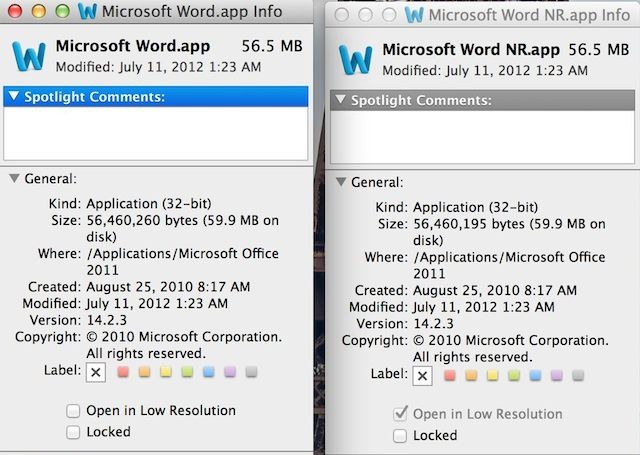
Even though Apple’s Pages app is a pretty solid word processing tool, a lot of Mac users still love to use Microsoft Word. If you’re one of them, that’s cool, we won’t judge you. The biggest problem with using Word on a new MacBook Pro with Retina display is that it looks pretty ugly because it hasn’t been updated to take advantage of the Retina display yet.
The great news for Word fans is there’s a really easy work around that will force your Microsoft Word app to use your MacBook Pro’s Retina display, which makes the app look a lot better. All you got to do is follow these quick steps and you’ll be on the path to more Retina goodness.
- Backup Word.
- Go to Applications folder via Finder, right click on Word, select “copy”
- Paste on your desktop
- Rename the Word on your Desktop to something.
- Move your copy with new name from the Desktop back into your Office Folder
- Right Click on original Word and select “Show Package Contents”
- Double Click Contents
- Right click on “Info.plist” and select “Open With >> TextEdit.app”
- Scroll down to the bottom of the File
- Paste the following before the last two lines <key>NSHighResolutionCapable</key> <string>True</string>
- Save the file and quit TextEdit
- Go back to your Office Folder and copy the original Word app again
- Paste it to your desktop again
- Trash the original Word app in your Office folder
- Move Word from your Desktop back into Office Folder
- Right click Word app, go to Get Info. Notice that “Open in Low Resolution” is no longer checked
- Open up Word
- Type something. Anything. Everything
- Minimize Word and the bring it back up
- Text should now be Retina
- Hit the ^ in the top right corner to Hide/Unhide toolbar and remaining glitches will be fixed
BOOM! Your screen look so beautiful now. Anyone daring enough to see if this trick will work with other apps as well? Let us know what you find.
Source: Reddit

Buster Hein is a freelance writer who lives in Phoenix, Arizona. Twitter: @bst3r.


20 responses to “Use This Quick Trick To Force Microsoft Word To Use Retina Display”
I just bought a new MacBook Pro Retina running the most recent Mavericks update and tried your method (plus the permissions work around detailed above) and still can’t get Word’s Info.plist to allow me to make the code changes in text edit. Any clue for how to proceed?
You need to change the permissions on every file in the chain. The Office folder first, then Word, then the contents folder, then the plist file. I had to go through the same process to be able to unlock the file. However, even when I change the file, I don’t get see the “open in low resolution” box unchecked, so I’m wondering if I edited the plist file incorrectly?
Thanks for responding — I eventually just resorted to Retinizer http://retinizer.mikelpr.com which solved everything.