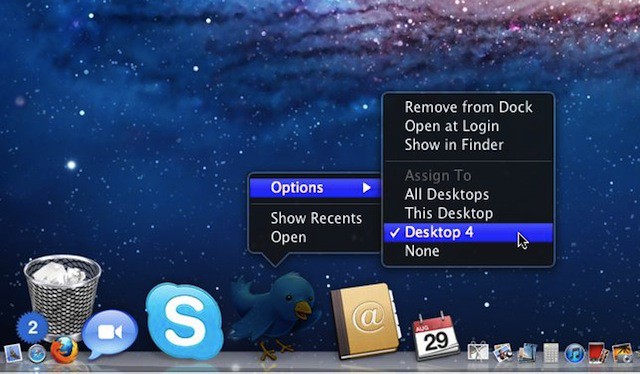

Mac OS X Snow Leopard would allow you to assign applications to a particular space using a control panel in System Preferences. This is no longer the case with Mac OS X Lion which offers a completely different option for assigning applications to spaces.
- All Desktops – the application opens on each desktop (space).
- This Desktop – the application opens on the currently selected desktop.
- None – the application will open on the current desktop.
Once applications get assigned to desktops you’ll find them listed when you Control+click or right-click on their dock icon just like in the image above where a Twitter application shows that it is assigned to Desktop 4.

David W. Martin has more than 20 years of experience in the industry as a programmer, systems and business analyst, author, and consultant. David has written for CNET’s iPhoneatlas.com, MacLife.com, CultofMac.com, BYTE.com and recently for aNewDoman.net. He comes to Cult of Mac’s website with deep knowledge and passion for the all things Apple. Follow David on Twitter @david_w_martin or see what he’s up to now at davidwmartin.com.


14 responses to “Assign Applications To Mission Control Spaces In Lion [OS X Tips]”
Thanks for the tip! missed this option and used it a lot.
I can’t find this option to save my life. I right click and go to options just like you but it just says Keep in Dock, Open at Login, and Show in Finder.
thank you for the great tip…
You need to have other desktops created to see the other options
Not on mine there isn’t and I have several different desktops set up.
Edit: An automaticly generated space – one created by making an app full screen – doesn’t give you the option. You have to manually create a desktop; hold Option whilst in Mission Control and a + will appear in the top-right corner. Click that and it will create a proper Spaces style desktop.
ah. thanks!
I dunno what Apple is smoking, but this assignment thing simply doesn’t work as I would believe after reading this article. I start out with no applications running, and with Mission Control configured with four spaces: Desktop 1, Desktop 2, Desktop 3, and Desktop 4. I then activate Desktop 3 as the current workspace and assign Safari to “This desktop” as described herein, and then launch Safari. I then look at mission control and see four workspaces in the following order: Desktop 1, Safari, Desktop 3, Desktop 2. Then by way of confirming that this behavior is somewhat consistent, I make the space labeled Desktop 3 active and configure Mail to open in “This Desktop”, and open Mail. Now a look at Mission Control shows the following order of spaces: Desktop 1, Safari, Mail, Desktop 3, Desktop 2. WTF??? The labels on these spaces seem not to follow any logic.
Hey, Jordan, If the application you are attempting to configure is already opened, the assignment portion of the Options submenu is not visible.