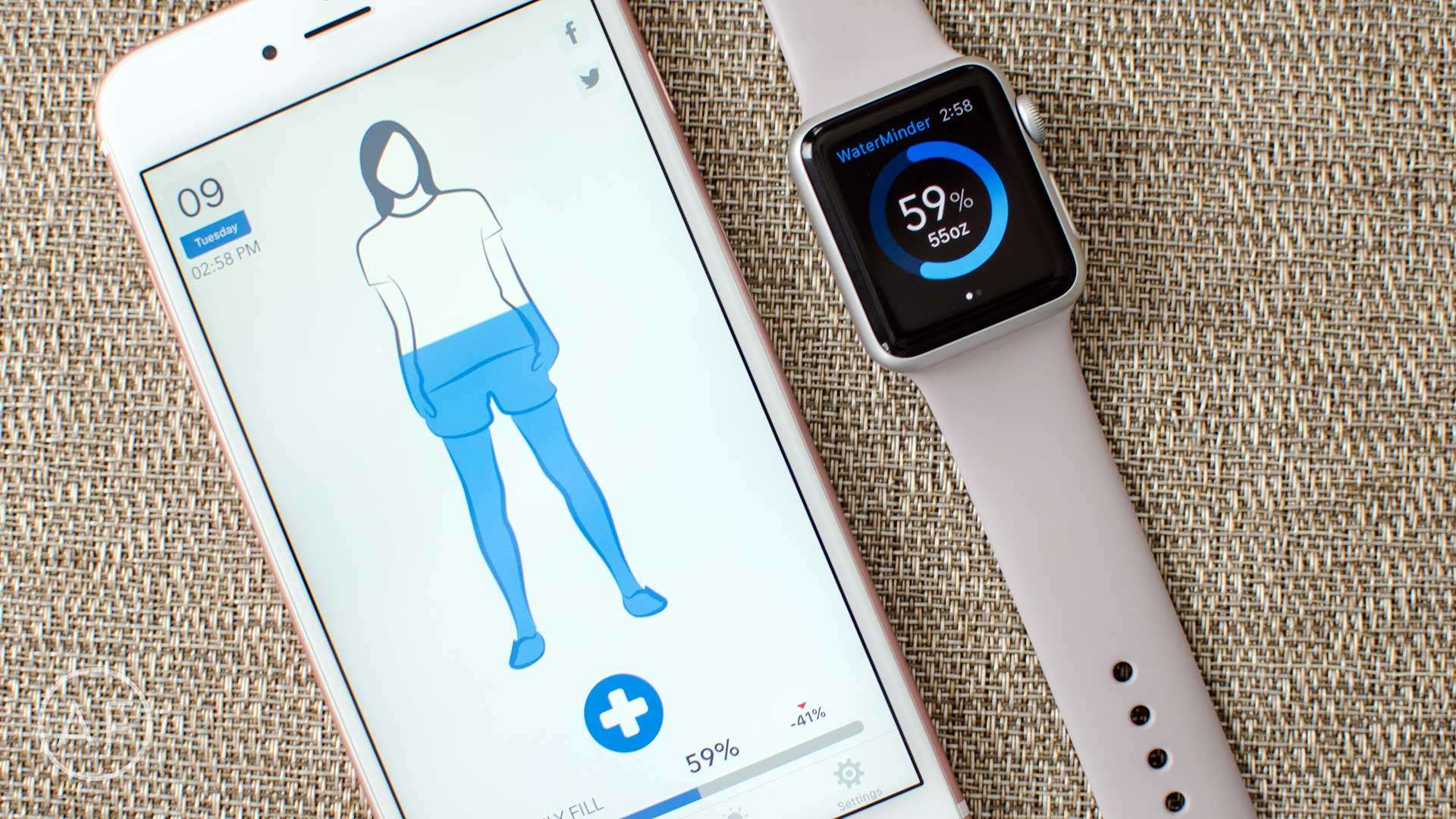
 Drinking enough water each day is important, yet it’s something a lot of people don’t do. Last year I committed myself to making sure I drank an adequate amount of water each day. To hold myself accountable I went on a hunt to find a way to easily track water intake on iPhone, and if possible, Apple Watch too.
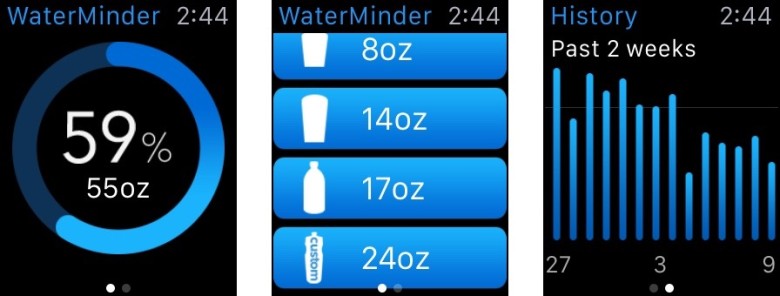
Photo: Ally Kazmucha/The App Factor
I tried several different apps including Lifesum, but I kept coming back to WaterMinder.
- $1.99 – Download
Not only can it track water intake on iPhone, it also has its own Apple Watch app so I can add glasses when my iPhone isn’t handy. There are also little features that have made it easier to use for me on a regular basis than other water trackers. For instance, I can add custom glass sizes, which I’ve done for my gym water bottle and the other bottle I normally carry around with me in my car.
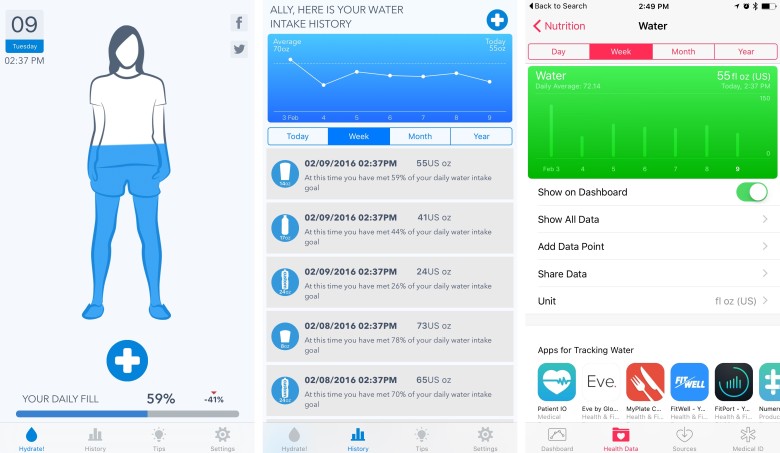
Photo: Ally Kazmucha/The App Factor
Another great thing about WaterMinder is how well it integrates with the Health app, which I use as a dashboard for tracking my overall health stats. For this reason I try and stick with apps that can read and write data to it.
Sometimes during the day I don’t remember to track water as I drink it. WaterMinder lets me go back and add it, or I can quickly just tap the icon for the amount of water I want to add if I don’t care as much about the actual times (which I don’t). But if you do, you can go back later if you need to. You can also set up WaterMinder to remind you to track water at certain times.
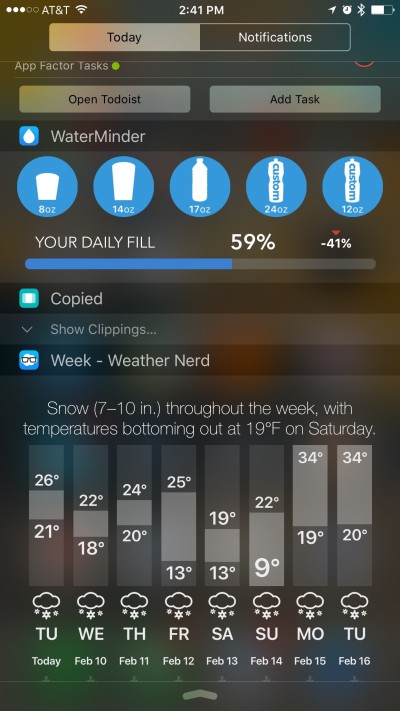
Photo: Ally Kazmucha/The App Factor
I also turned on the Today View widget for Waterminder so I can swipe down from Notification Center to track my water intake even faster. Once added, the WaterMinder widget lets you quickly tap a glass size to add it to your daily intake, and this includes custom sizes as well. Underneath this you’ll also find a progress bar so you can see at a glance how much water you still need to drink for the day.
While there are several apps available to track water intake on iPhone, WaterMinder is the one I find easiest to use and offers the most flexibility. I don’t want to spend a lot of time with tracking water, but I need to. This is why I’ve found WaterMinder to be the best option for me. There are plenty of convenient ways to access the app, which makes tracking water easy, which is really the key for me to stick with it.
And for those wondering, a typical healthy amount of water intake is to divide your weight in half. That’s how many ounces of water (by US measure) you should be drinking a day.
If you track water on your iPhone or Apple Watch, let me know in the comments what you use and why. And if you give WaterMinder a try, let me know how you’re liking it!
- $1.99 – Download
This post was syndicated via The App Factor.

The App Factor is a site specializing in iOS and OS X how to’s and app recommendations.


5 responses to “How to track your water intake with your iPhone and Apple Watch”
Aren’t you supposed to drink 8 cups per day?
Who the hell needs sth like this?
Drink when you are thirsty. Do not drink when you are not. Easy.
100 000 years of evolution has perfected your body so that you don’t need to drink all the time.
If you really miss drinking water, you will get a headache….
This isn’t your iPhone and Apple Watch tracking your water intake, this is you tracking your water intake and recording it in your phone. If my phone/watch knows how much I’m drinking without me having to tell it, THAT would be tracking my water intake.
Just drink more water. You’ll be fine.
I am using WaterMinder too, as it is indeed the one with the best features, but it’s Apple Watch app still is very buggy. It often is not correctly synced with the iPhone and it’s complication is often not even in sync with the Apple Watch app itself not the iPhone.