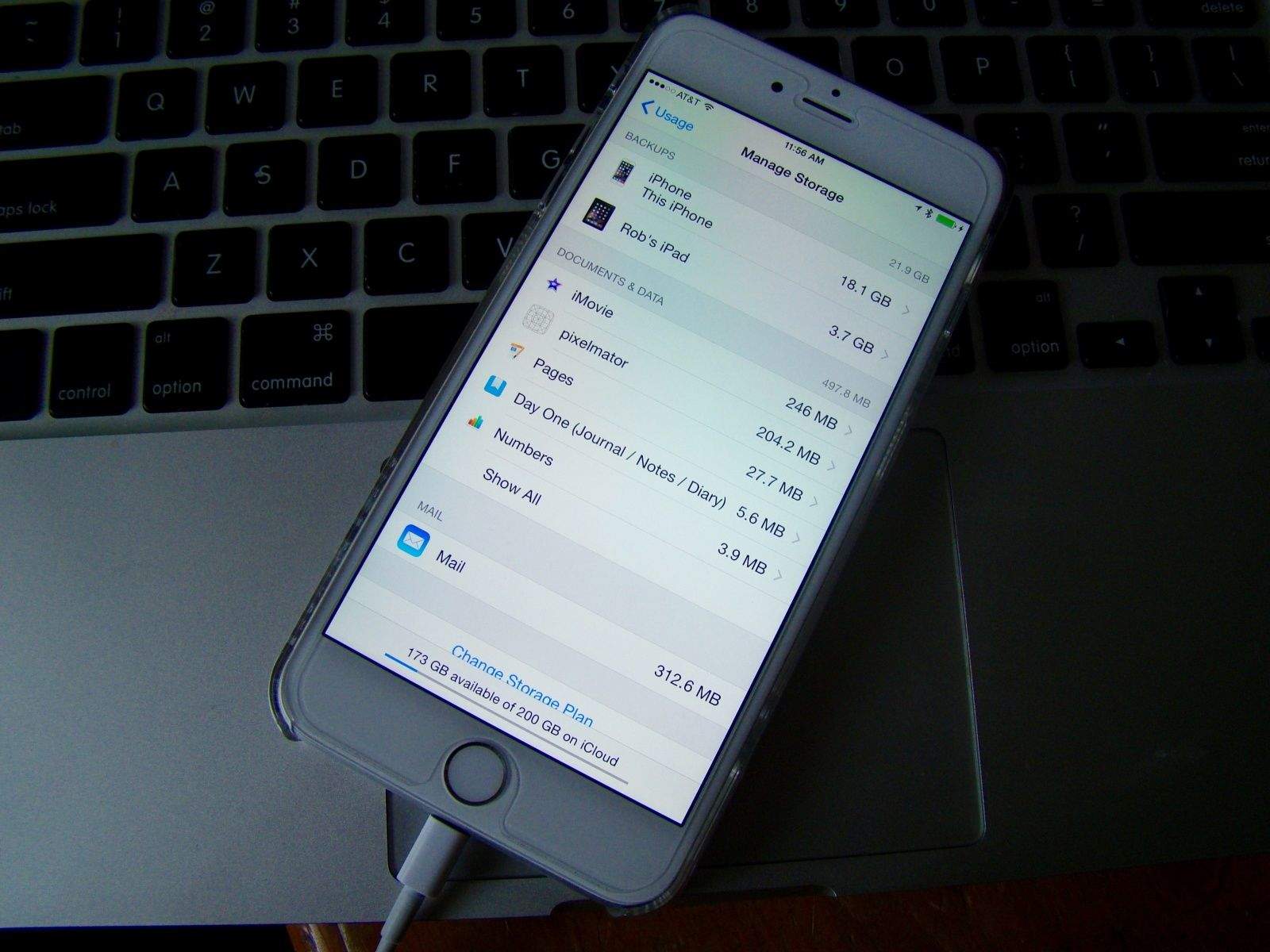
If you’ve been using iCloud to back up your iOS devices for a while like I have, chances are you’ve got a few older backup files crufting up your iCloud storage space.
If you want to maximize the space on your iCloud account, you might want to delete some of these older iCloud backups to make room for more.
Here’s how to do that.
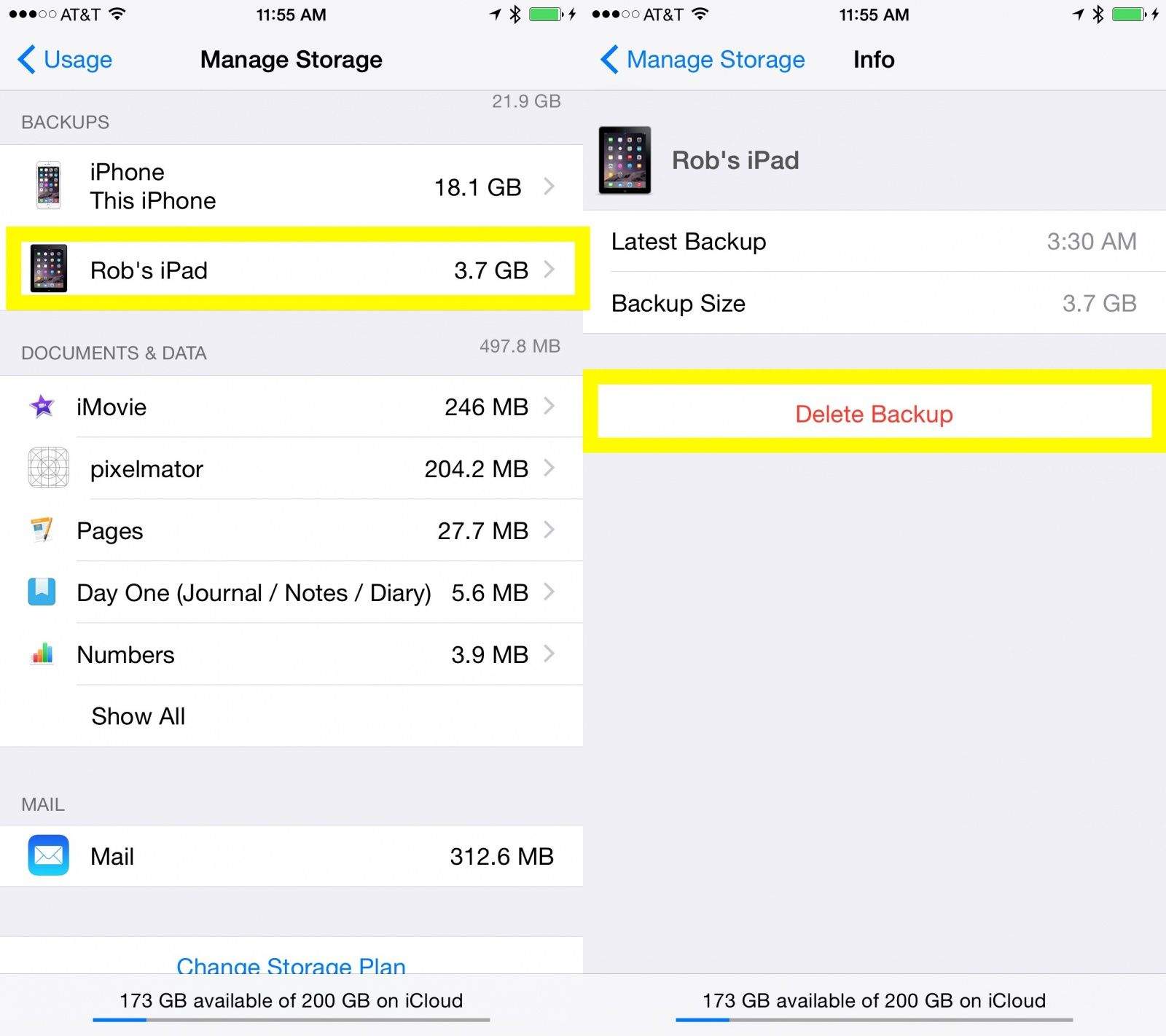
Screen: Rob LeFebvre/Cult of Mac
Launch Settings on your iPhone or iPad and tap into the General tab. Tap on Usage and then tap on Usage.
Near the bottom of the Usage settings screen is Manage Storage. Tap there and you’ll see a list of all the iCloud backups you have in there, plus the amount of Documents & Data that you’re storing locally.
If you’re sure you don’t need the backup anymore, tap on the one you want to delete, let the information load, and then tap Delete Backup at the bottom of the resulting screen.
You’ll have one final chance to Cancel, but if you’re truly ready to permanently get rid of this specific iCloud backup, tap on Turn Off & Delete. Your iPhone or iPad will then get rid of the offending space-hogging files and you’ll never be able to get it back again.
You should have some freed up some space, though, so there’s that.
Via: OS X Daily

Rob LeFebvre is an Anchorage, Alaska-based writer and editor who has contributed to various tech, gaming and iOS sites, including 148Apps, Creative Screenwriting, Shelf-Awareness, VentureBeat, and Paste Magazine. Feel free to find Rob on Twitter @roblef, and send him a cookie once in a while; he’ll really appreciate it.


8 responses to “How to get rid of old iCloud backups on your iPhone”
Um, what?
That’s not an “old” backup you are deleting, that’s the backup for a different device.
Sure, delete it if you’ve sold/given the device to someone else, so it’s no longer connected to your Apple ID, but it’s misleading to label it an ‘old’ backup.
The image is just an example from my own iPhone. You might have an old backup in there. I used to have one from my iPhone 5 before I deleted it. Make sense?
No. The use of ‘old’ in both the title and article imply something that isn’t true, that iCloud backups are versioned and that you can delete old versions of backups.
You can only delete all the backed up data for a device.
Your article completely glosses over this fact, and will lead less knowledgable users to delete backups that they probably do want to keep.
Only if they are idiots (like you clearly are) who can’t read. But then, I’d question them having a smartphone in general.
You’re just plain wrong. Be a man and admit it, or continue to make yourself look like a moron.
Yeah man, misleading article. Each device only has a single version of iCloud backup. You article makes it sound that you can go delete older backups of a given device, when that is not even possible. Sure, you may have an older device that you gave away, but still have a back up saved. Then you can delete that backup and can even go take the device off your iTunes/iCloud account.
I only see the current backup as well…no old backups
“How to get rid of old iCloud backups on your iPhone”
Are the backups on the iPhone, as you say, or are the backups in iCloud storage space?
You are confused in more than one way, Rob.
Talk about click bait! The title and article insinuate that you are able to go into you iCloud settings and select and older backup that is stored in the phone and delete it. You then go on to say that we would be able to “see a list of all the iCloud backups you have” in our phones….yet there’s only one; the CURRENT backup. Highly misleading article. Truly disappointed I even clicked on this link.