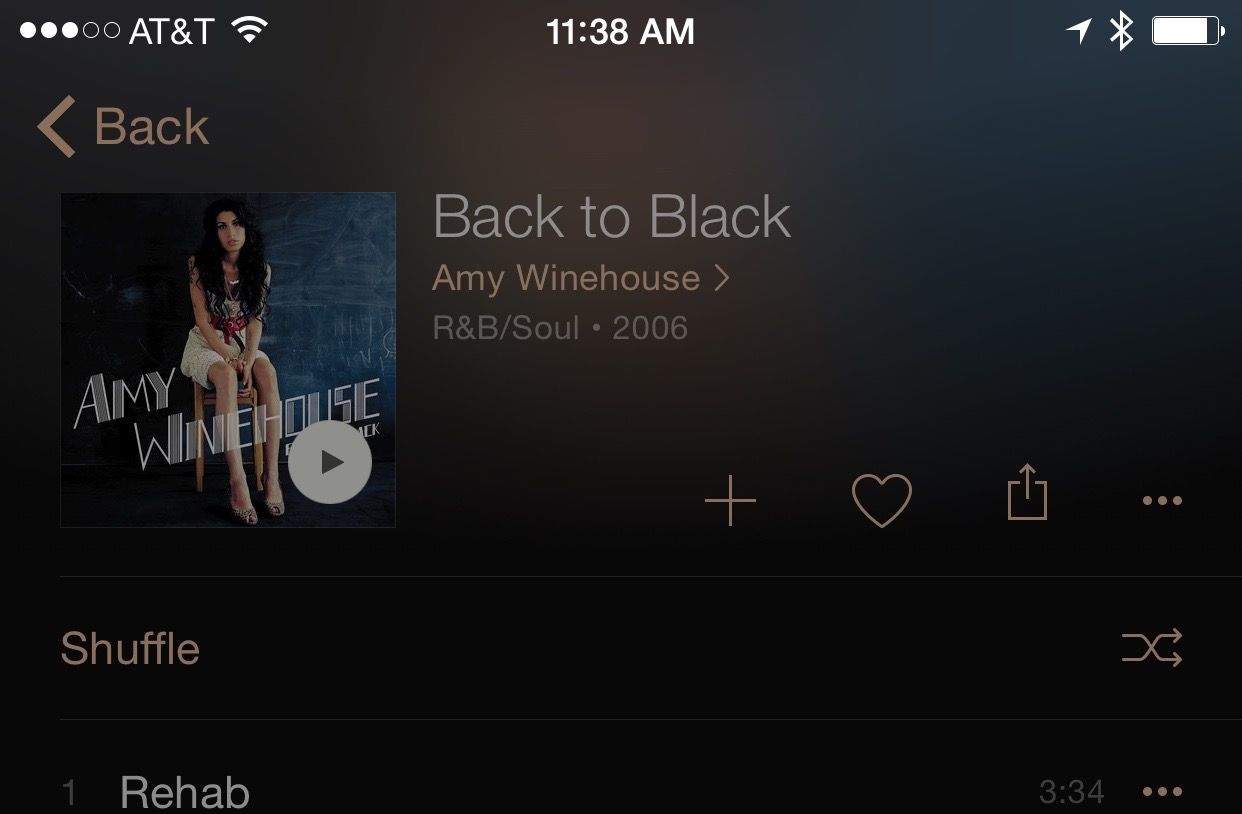
Apple Music is at heart a streaming solution, designed so that you can listen to any of the tens of millions of songs in its library at any time, assuming you have a data connection.
These days, though, unlimited data plans are the exception rather than the rule, so you might want to be a little less profligate with your use of such a data-heavy solution.
Apple Music allows you to save your songs, albums and playlists to your iPhone or Mac for offline listening, which could be a boon if you’re watching your data cap.
Here’s how to make that happen.
You’ll need to enable iCloud Music Library to make all this work. This could cause some problems if you’re not fully aware of the issues involved, so be sure to read up on it here.
On your Mac
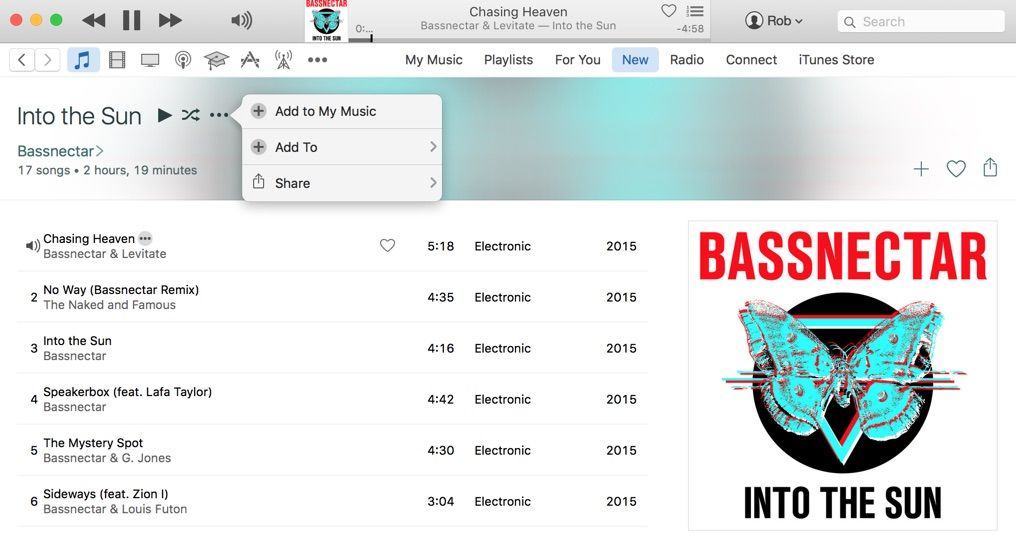
Launch iTunes, and click through to an album, song, or playlist you want to download to your Mac. I chose Bassnectar’s amazing new release, “Into the Sun” to try out.
Once you’ve gotten the album (or song or playlist) up on iTunes, click on the little ellipsis to the right of the title and choose Add to My Music. Then, hop on over to the My Music tab at the top of the iTunes window and click through. You can scroll or search to find the Apple Music album or playlist there.
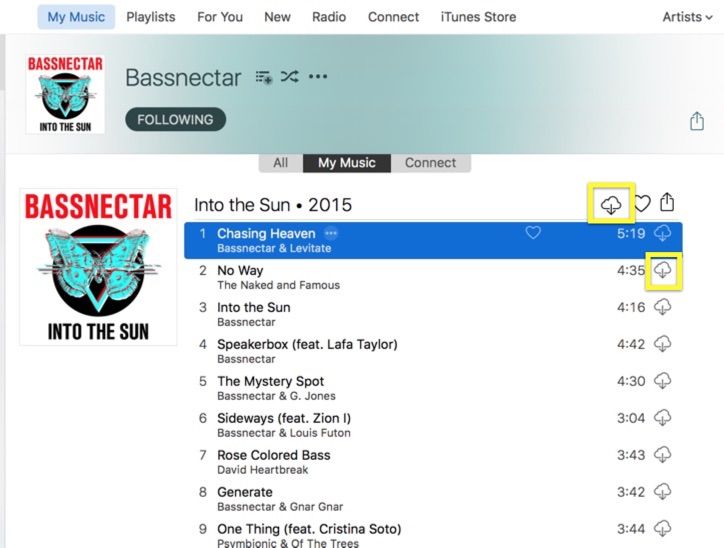
To download the track, click on the little iCloud button (like a little cloud with a downward arrow coming out of the bottom) for the album, playlist or song you want to download. Boom! You’re cooking without data.
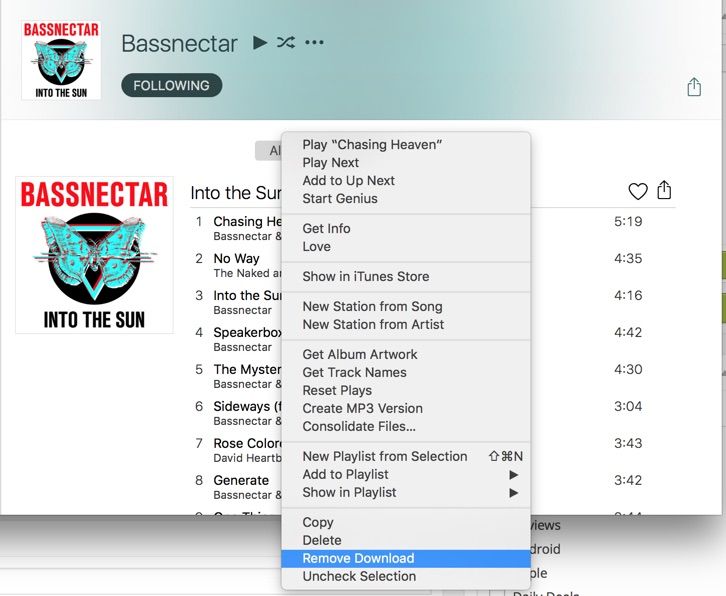
Should you want to take the song off your computer, simply right click on the track (or album or playlist) name in the My Music section of iTunes, and choose Remove Download from the resulting contextual menu.
On your iPhone
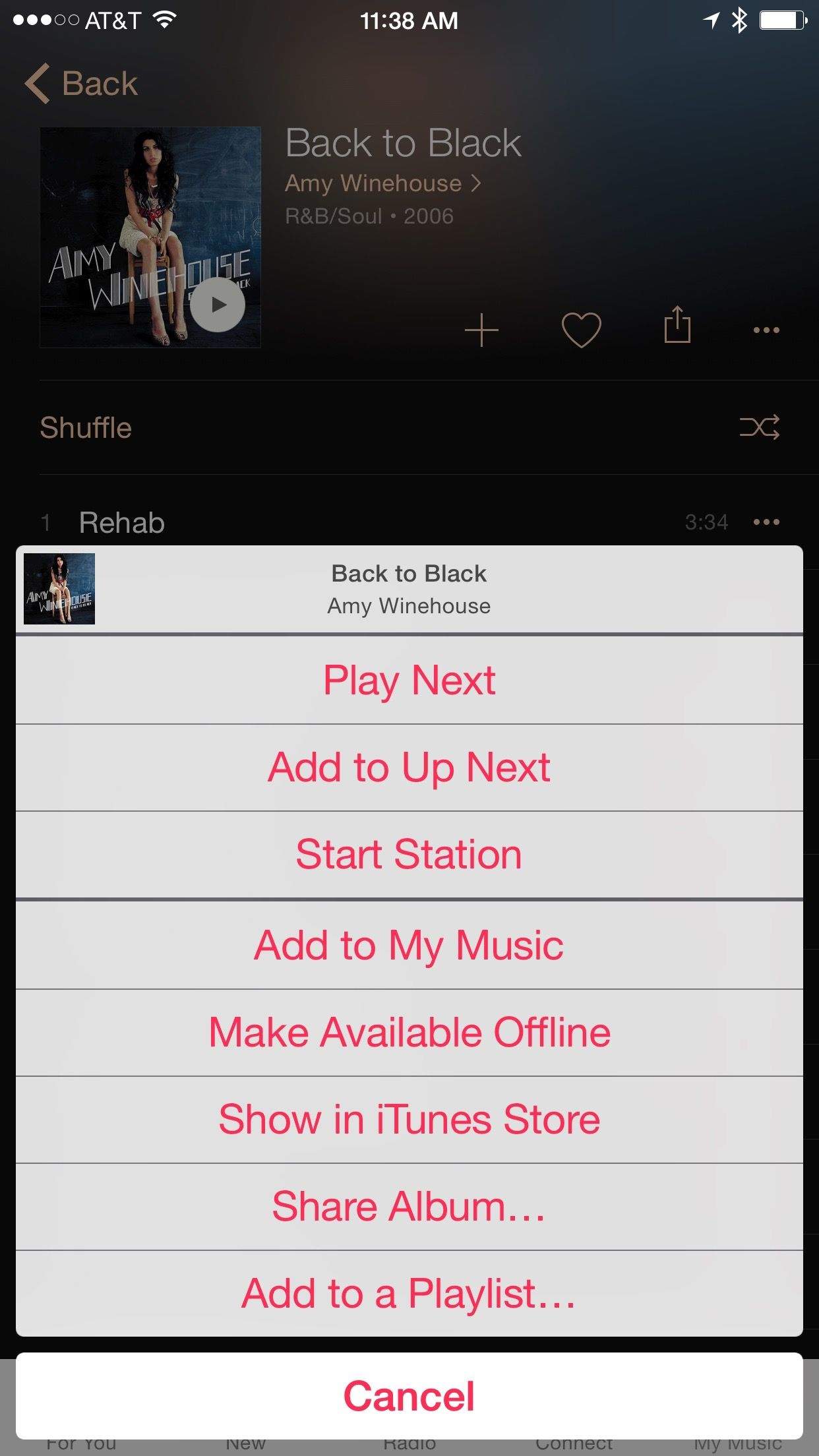
The Music app on your iPhone makes things a bit easier. Once you’ve launched the app on your iPhone, simply navigate to the song, album or playlist that you want to download to your device, and tap on the ellipsis to the right of the title. You’ll get a big slide up menu and you can tap Make Available Offline there. This will both download the target music as well as add it to My Music. Your iPhone will automatically download the tracks (if it’s connected to a Wi-Fi or data network) and you can then listen to the downloaded songs as often as you like. Note that every bit of music you Make Available Offline will take up some of your iPhone storage space, so you’re trading networking data for media space on your device.
The music you add to My Music will show up across all your Apple Music devices; Bassnectar’s album showed up for me on my iPhone in the My Music section while the Amy Winehouse album showed up on my Mac after I made it available for download (hence adding it to My Music) on my iPhone.
The download status is device specific, though, meaning that my iPhone downloaded Amy Winehouse while my Mac was the only device to download Bassnectar.
Now, however, you can listen to more music when you’re offline. Thanks, Apple Music!

Rob LeFebvre is an Anchorage, Alaska-based writer and editor who has contributed to various tech, gaming and iOS sites, including 148Apps, Creative Screenwriting, Shelf-Awareness, VentureBeat, and Paste Magazine. Feel free to find Rob on Twitter @roblef, and send him a cookie once in a while; he’ll really appreciate it.


10 responses to “How to listen to Apple Music without burning your data”
Annoying that Apple doesn’t let you make all of your music available offline in one fell swoop. Spotify is a lot more intuitive in that department.
I hope they fix this!
i still cant figure it out. i try to play mixtape or other stations and says i must be on wiFi?? but i’m never on wifi except at home and at home i dont listent o music, only when on the road, so sadly i cant get this music thing to work over LTE.
You have to enable Apple Music to work with Cellular.
Go to Settings -> iTunes & App Store -> Use Cellular Data
I use LTE on my iPad Air 2 to listen to Apple Music, and it works fine. My only concern is, I’m not exactly sure how much data is used for each hour of streaming.
Get an unlimited plan from Sprint or T-Mo for your phone while you can. I have unlimited for my iPad and iPhone so no worries here.
I’m unsuccessful at getting an Apple Music playlist to be available offline on my iPhone 6. No matter what I do, it doesn’t seem to download to the device. However, I am able to do this in iTunes on my MacBook Pro. Any ideas? I’d appreciate any help!
It won’t cost any extra money, right?
With all the streaming I’ve been doing lately, I’m glad I’m on T-Mobile’s unlimited LTE plan.
After reading this article, I have to admit I’m more confused than I already was. I have music on my devices macbook pro, iPhone, and iPad which i purchased via iTunes. I turned on Apple Tunes for the free trial and have selected several songs form various albums and they’ve been downloaded. If i cancel Apple Tunes after the trial period, then am I understanding all the music I’ve selected and is know on my devices will be deleted and the ones I bought will be changed somehow? Another question I have is How to I listen to these songs I recently selected offline? I do not want to stream….!
Any ideas…..
Thanks……..!
Same question: how do I find these offline songs on my phone and get Apple music to plays these songs (and only these songs)?