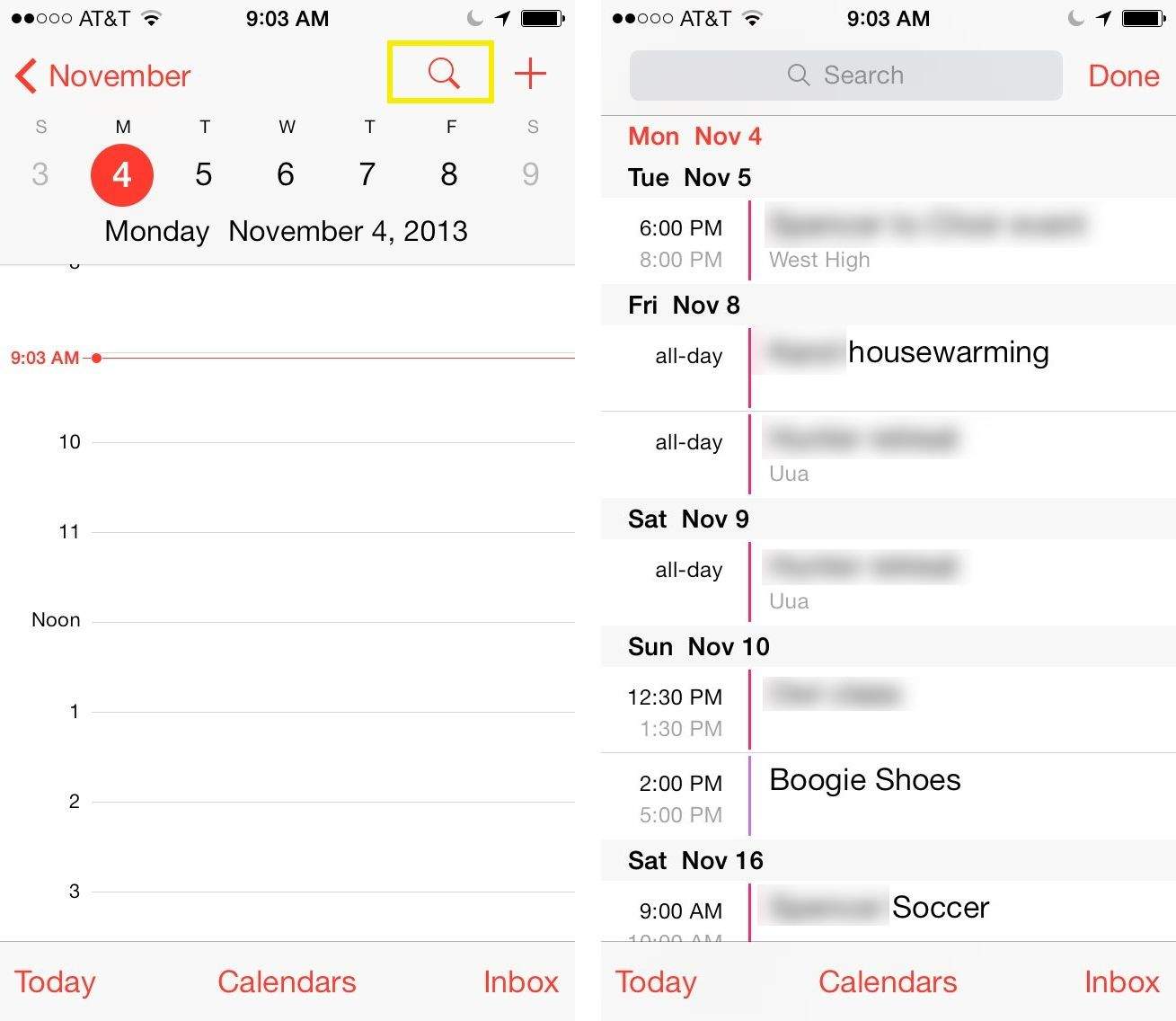
One of the better ways to see what’s coming up in any calendar is the list view. It’s a handy way to see, at a quick glance, the major events of the next few days.
Unfortunately, Apple has taken this view from its new iOS 7 Calendar app and hidden it away.
Here’s how to get it back.
The iOS 7 Calendar app’s default view is the single day view with the week at the top. You can tap on any day in the current week to see the events for that day, or you can swipe along the top row of weekdays to move forward or back through your calendar, one week at a time.
You can also tap on the month name at the top left to go to a mini Month view, and then tap on the year in the same place on the screen to view a full annual calendar.
If you want to see a list of all your upcoming calendar events, though, tap the Search icon (it looks like a magnifying glass) in the upper right of the screen. Now you’ll see a list of your events, and you can swipe the display up or down to see stuff that has happened or is scheduled to happen in the future.
Unfortunately, you can’t add events to this view, but will need to drop back to week view to do so.
Via: Appstorm

Rob LeFebvre is an Anchorage, Alaska-based writer and editor who has contributed to various tech, gaming and iOS sites, including 148Apps, Creative Screenwriting, Shelf-Awareness, VentureBeat, and Paste Magazine. Feel free to find Rob on Twitter @roblef, and send him a cookie once in a while; he’ll really appreciate it.


4 responses to “Get The List View Back In iOS 7’s Calendar App [iOS Tips]”
I’ve found that after installing iOS 7 on my 4S the magnifying icon just initiates the search function. But if I double tap almost anywhere on the default calendar screen, it toggles to the list view. Then if you tap on the month name in the upper left corner it toggles back to the default screen. This works only if you haven’t already toggled to the calendar view that has the abbreviated list at the bottom of the screen.
When I click on the search icon to view a list of all events, it only comes up with the search bar at the top…. no list at all.