How many times has this happened to you? You start showing your Aunt Rose some cute pictures of her grand-niece’s latest piano recital, and she grabs the phone, fully intending on flipping through the photos herself, thank you very much. It’s then you realize that the pictures of your debauchery from the weekend before last are just on the other side of all those cute kid photos and you know your aunt is going to blithely stumble into them as she flips through. It’s this moment that today’s tip is there to protect you from.
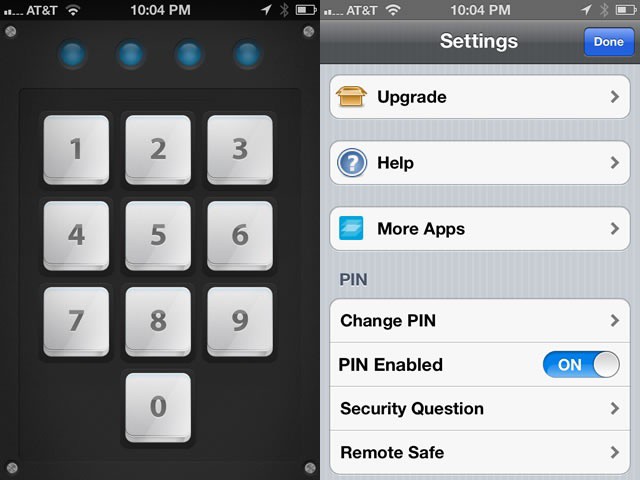
Picture Safe is an iOS app that promises to separate, group, organize and password protect your iOS device photos. Head over to the iTunes App Store and download the app. Once it loads on your iPhone, tap the icon once to launch, then tap the OK button for the dialogue telling you that you’ll need to enter a number password (PIN) to access the photos you make private. Try to pick a PIN that you can remember, of course. Picture Safe will ask for it one more time to verify the PIN. You can then set a reminder email address for when you forget this PIN, which I suggest you do now.
Once the safety email is enabled, the app will show you an empty list of Hidden Pictures. Tap on that folder and then you’ll be able to add pictures from your iPhone’s Camera Roll, or even import them from a computer via Wi-Fi or USB. You can even take photos from within the app itself, ensuring that they’re never directly sent to the camera roll or PhotoStream. Thank goodness.
Once added, the photos are held forever safe against the day when you hand your camera off to some unsuspecting family member.
Got an iOS tip of your own? Need help troubleshooting your iPhone, iPod touch or iPad ? Drop me a line or leave a comment below.

Rob LeFebvre is an Anchorage, Alaska-based writer and editor who has contributed to various tech, gaming and iOS sites, including 148Apps, Creative Screenwriting, Shelf-Awareness, VentureBeat, and Paste Magazine. Feel free to find Rob on Twitter @roblef, and send him a cookie once in a while; he’ll really appreciate it.

