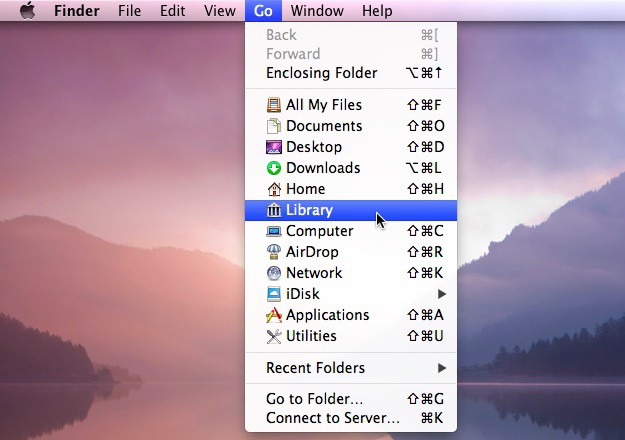
In Mac OS X 10.7 Lion, Apple set things up so that the user Library folder isn’t available to the casual user. This is probably to keep less savvy folks from getting in there and messing about with files they shouldn’t be. For the rest of us, however, today’s tip is all about freedom of information, power-user style.
There are actually two different ways to get to this bad boy. The first is with a little Terminal magic. Launch Terminal and type the following into the app’s window:
chflags nohidden ~/Library
Hit return and the Library folder will show up in your home folder, which resides on your root hard drive in the Users folder.
Want to hide it again? Simply do the reverse,
chflags hidden ~/Library
and it’s see ya, user Library folder.
If you want to access your Library folder once in a while, but don’t want to leave it lying out available for anyone with access to your machine, simply hold the Option key down when in the Finder and select the Go menu from the top of the screen. The user Library will be visible to select, or will turn back into Computer if you let go of the Option key. Sneaky!
[Source: TechRadar]
Got an OS X tip? Need help troubleshooting OS X? Drop me a line or leave a comment below.

Rob LeFebvre is an Anchorage, Alaska-based writer and editor who has contributed to various tech, gaming and iOS sites, including 148Apps, Creative Screenwriting, Shelf-Awareness, VentureBeat, and Paste Magazine. Feel free to find Rob on Twitter @roblef, and send him a cookie once in a while; he’ll really appreciate it.

