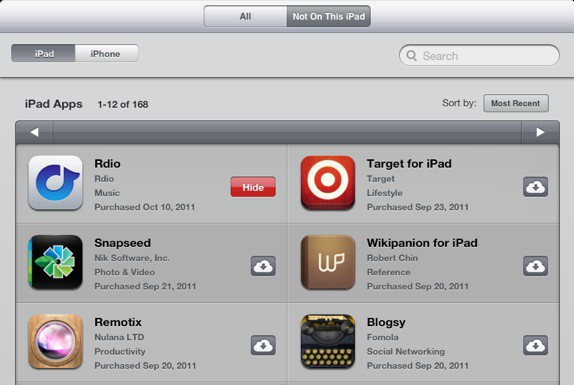

One of the new features Apple added in the App Store alongside iCloud and iOS 5 is the ability to re-download all of your purchases on any authenticated iOS device. This means that all of your purchased apps are available to see and download in the App Store at any time.
If having a concrete record of all your past app purchases isn’t really your thing, you can actually hide specific App Store purchases.

It’s very easy to hide purchases in the App Store. On the iPhone, navigate to the “Updates” section of the App Store app and tap on the “Purchased” menu. You will then see a list of previously purchased apps categorized into “All” and “Not On This iPhone.”
Swipe with your finger on each app to bring up the option to hide that purchase. Tap “Hide” and the desired app will be erased from your purchase history. The same option can be used in the “Purchased” section of the App Store on the iPad.
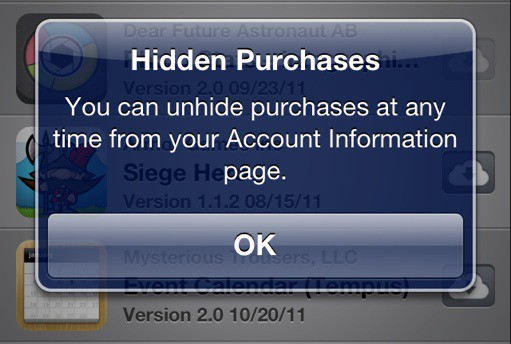
If you want to unhide an app, swipe to the bottom of the “Featured” section of the App Store and tap on your Account ID. You’ll be able to unhide previously hidden purchases from your account page.

Alex Heath is a journalist who works for Tech Insider. He’s the former co-host of The CultCast. He has been quoted by the likes of the BBC, KRON 4 News, and books like “ICONIC: A Photographic Tribute to Apple Innovation.” He lives in Lexington, Kentucky. If you want to pitch a story, share a tip, or just get in touch, additional contact information is available on his personal site. Follow him on Twitter.

