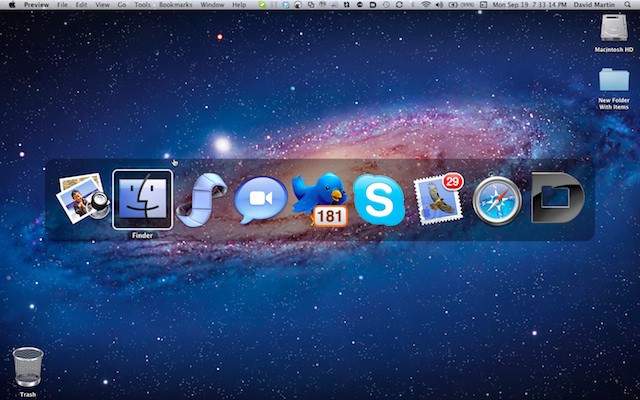

I was checking for new mail in my Cult of Mac mailbox the other day and ran into a new message from Cult of Mac reader Justin Kurian. He wrote:
…’Apple iMac Users Experience More Graphic Anomalies‘
Hi David,
I was reading your article and noticed the picture of the task switcher in Lion. How do I access that? I hate how they got rid of the swipe function for it. Thanks!
– Justin
Accessing the Task Switcher in Mac OS X Lion is easy and I’ll show you how to do that today. Plus we’ll look at using swiping gestures while the Task Switcher is active.
If you have a trackpad and the Task Switcher is active and the mouse cursor is hovering over it you can use a one fingered left or right swipe to behave in the same fashion as hitting the Tab key repeatedly above. If you use two fingers instead you can turbo scroll through the app icons in the Task Switcher which is handy if you have a lot of apps running.

If you use three fingers to swipe something different happens – you end up dragging the displayed list of app icons in the Task Switcher between your current desktop and other full screen apps or desktops. Basically this means that the Task Switch stays frozen in place, but the background desktop or full screen app changes as you swipe left or right.
Finally there is one thing to remember – once you use the Command+Tab keys to launch the Task Switcher you must continue to hold the Command key while it is active so that the swipes work. If you let go the Task Switcher exits until you hit Command+Tab again.

David W. Martin has more than 20 years of experience in the industry as a programmer, systems and business analyst, author, and consultant. David has written for CNET’s iPhoneatlas.com, MacLife.com, CultofMac.com, BYTE.com and recently for aNewDoman.net. He comes to Cult of Mac’s website with deep knowledge and passion for the all things Apple. Follow David on Twitter @david_w_martin or see what he’s up to now at davidwmartin.com.

