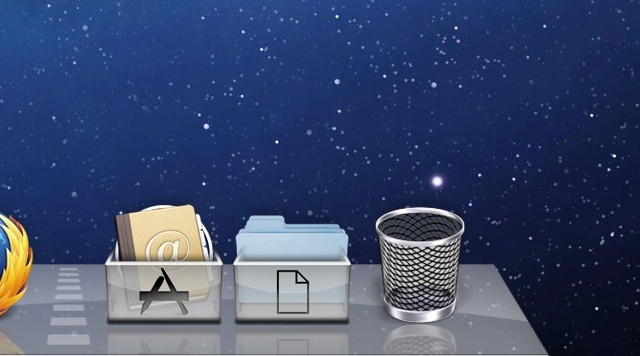
Recently, I was asked about the custom “bin” overlays that I have on the Applications and Documents stacks in my dock. These bins are cool tweaks that you can apply to any Dock stack to not only customize the look of them, but to also keep things organized and identifiable at a glance. In this video, I’ll show you how you can set up your own Stack bins.

Michael Steeber is a student who is obsessed with everything Apple. He enjoys making videos and runs the MSComputerVideos YouTube channel in his free time. You can follow him on Twitter as well.


82 responses to “Turn Your Dock Stacks Into Organized Bins [Video How-To]”
It doesnt seem to have worked for me :O As I placed the icons over the stack in the dock, it just went within and retained the previous icon
It doesnt seem to have worked for me :O As I placed the icons over the stack in the dock, it just went within and retained the previous icon
hey man this was a sorry ass tutorial it didn’t even work
What previous icon do you mean?
try it again, perhaps you missed a step.
I can’t get the name blank, if i delete it and hit enter it just puts the name back, how did u do it?
You have to hit the spacebar so that it doesn’t default back to the original name.
ok got it, had to right click and change my “display as” to stack
nice hack!
If anybody is having trouble with this, remember to hit the spacebar when you delete the name. That renames the file with just a blank space, otherwise it will default back to the original name. You may also have to right click on your stack and click Display as stack.
I found out what was wrong haha… Double click Folder > Navigate to Display As > Select Stack instead of folder :P
I thought it was the renaming , until i figured out the display as.
Thanks for the cool hack, doing this to both my mac’s and shared on FB & twitter
I also found you have to have it “Sort by” either Name or Date Added. If its sorted by any other option it also wont show.. Hope this helps others.
Why would I need to do this? How does this make the organization of my files and apps any easier?
Organizing this way may seem really anal but it’s actually pretty useful. I took the time to do this a couple weeks ago and it’s way easier to find Apps now. I attached a screen grab – it’s not as pretty as Michael’s tutorial but I really like organizing by App name and category. I think I’ll wait and see what Lion brings and then maybe prettify the bins if need be.
http://i.imgur.com/qCv9S.png
Awesome! Love the look.
It works for me — really cool!! You need to have the stack to be sorted by name though. That’s why I can’t use it for a Downloads folder (sorted by Date Added). But my docs and apps folder look pretty sweet!
Hmmm… renamed to a space, already set to Display as Stack, but still not working on my early 2008 macbook — they just show as sheets of paper when dropped into their respective dock stacks.
Thanks for this. Everything worked fine, but when I tried to move it I got a grey piece of paper with a white circle with a line through it overlaid on my documents which also showed up in the stack when I opened it. When I clicked this icon I got some message that Classic environment was no longer supported.
How do I customize the folder image? I tried saving it but it doesnt show up.
Im geeting the same error message that it doesnt support classic environ. How exactly do you set it to display as a “stack” and I assume thats the icon or the folder, for example “applications” or such. When i rename it and move it to the dock it just shows an empty bin with nothign in it. And you can drag it onto a app like the address book as the tutrial indicates.
Had the same problem…until I read your post. Now it works. I kept dragging it over the Applications folder on the dock and it just sucked it up. But after changing it Display As Stack, as you did, it was fine.
Pretty slick. Funny that the site he pointed to doesn’t just ditch all that UNIX code for this incredibly simple process.
Worked for me. My Dock and Desktop views are cleaner and much more organized. Thanks for the tip.
Details below on how to set the date/time of a file. Set the image file way into the future to overcome the date added sorting issue
http://blog.grapii.com/2010/07…
… MAN FUCK YEAH >> THIS VIDEO IS THE BOMB … ITS EVEN BETTER THAN WHAT I EXPECTED! CHEERS AND THX
Hey, great video, cheers! One thing though, I can’t work out how to customise my own bin. I open the blank one in preview, and add an image to it, but then I can’t save it. What do I need to do?
So did I.
Me too. There was an ” .app” suffix after the name of each icon and deleted and renaming with spaces only did what Carolyn described above. And I’m running the latest OS (SL) and everything is up to date.
Here is a great link for those who want to keep your downloads folder sort by date added and cant due to using dock stacks as bins as described in the article.
http://justinhileman.info/arti…
Did you copy the file out of the Disk Image? The Disk Image is Read only and won’t let you save. Make a copy on the desktop and then try.
Stacks make it pretty convenient to find commonly used items. It’s nice too that you can drag to them as though they were normal folders. This little trick is mostly just for the eyecandy, but if a person had multiple documents folders and used a custom icon to show which folder is full of what doc type, it could save some time.
Everything works fine until I drag the icon onto the stack. The icon image changes into a doc image. When I drag it back onto the desktop, it changes back into a bin.
Suggestions?
I tried that, even when I make a copy of it though, and add an image on top, the icon doesn’t change…
or it just wont let me save it.
I’ve tried everything can’t seem to get it to work. It does woork on 10.6.8?
I have it set to stack, however when I rename it with the space bar, I get a blank bin file discription.
doc drawer works fine, but cannot get the application bin to work. I’ve renamed as suggested, dragged it into my app folder, placed the drawer on the doc but when I click on the drawer I get the “classic environment no longer supported” error message. Running 10.6.8 on a MacPro. What gives?
very cool and clean looking..thx
Question: According to Mac’s System Profiler, the bin “apps” are Classic Apps (compared to Universal or Intel apps). Does this mean they won’t work in Lion?
Thanks for the tutorial, it works great. But I tried to make a custom one for my dropbox folder editing the blank icon in preview and it didn’t work.
I can open the blank icon in preview and add a transparent dropbox folder. I did it in every resolution inside the .icns file. Then I save it and it saves ok, but the icon doesn’t change. When I open it again the file contains the images with the dropbox symbol, but it just doesn’t show in the icon.
Any help on this? Thanks
I’m having the same problem. Instead of a bin, it shows up as a sheet of paper – the same one you see if you double click the icon.
They do work in Lion. I am using them now.