Top stories

Apple Now Accepting iPad Apps, Planning “Grand Opening” of iPad App Store

Apple is now accepting iPad apps for a “grand opening” of the iPad App Store, according to an email just sent to registered developers.
“iPad will begin shipping soon and your opportunity to be part of the grand opening of the iPad App Store starts today,” the email says.
There’s no details about when the store’s grand [...]

Security Expert: “Mac OS X Is Safer, But Less Secure”

20100319-ipwned.jpg

Tech site H-Online has an interesting story today, quoting security expert Charlie Miller about his forthcoming talk at the CanSecWest conference next week.
He says OS X is full of security holes. There are lots more than in Windows, he claims.
And yet: OS X is a safer system to use. Why? Because, in the words [...]

Apple Devotes Entire Home Page To Jerome York Obituary

20100318-york.jpg

If ever you needed a sign that Apple was a different kind of technology company, this is it.
What other computer manufacturer would remove its top-selling, hype-inducing, industry-altering new product from the prime spot on its website home page, and replace it with an obituary to an investor?
This is one of those “Here’s to the [...]

Coming Soon: Steve Jobs, the Sitcom

Fake Steve creator Dan Lyons just signed a deal to bring Steve Jobs to another small screen near you.
The half-hour series called “iCon” is billed by the presser as “a savage satire centering on a fictional Silicon Valley CEO whose ego is a study in power and greed.”
Making sure the barbs prick will be the [...]

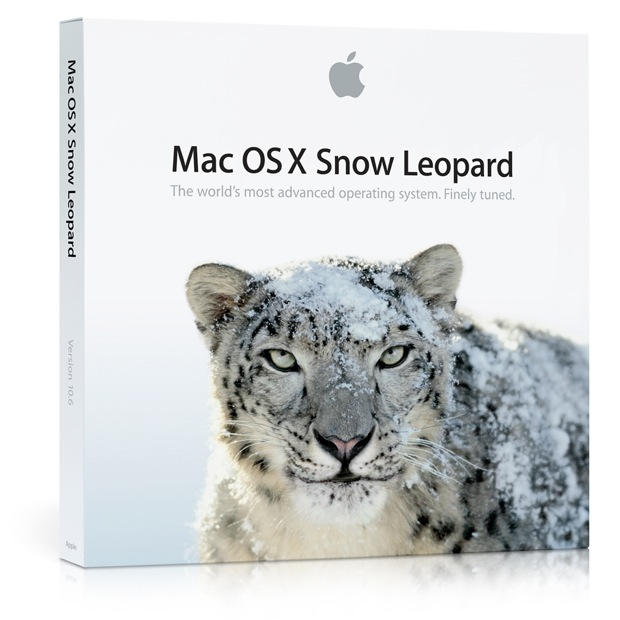
How-To: Upgrade To Snow Leopard — The Right Way

snow_leopard

A lot of people will be upgrading to Snow Leopard this weekend. There’s the right way to do it, and there’s the wrong way.

Here’s how to do it right.

When it comes to upgrading to Snow Leopard, you’ve basically got two options: upgrade Leopard or wipe the old OS and start fresh.

Upgrade: This is the easiest option — simply upgrade. Install Snow Leopard right on top of your existing Leopard install. Apple recommends this, and in most cases it’ll be an easy, painless upgrade. Of course ‘painless’ is a relative term in Cupertino, and if our experiences upgrading from Tiger to Leopard are any indication, this option leaves us a bit wary. Not to mention, over time our computers become crud-magnets; collecting up all order of detritus.

Our recommendation:

Start From Scratch: Here’s what you should do: wipe your drive and start from scratch. That sounds radical, we know, but we’re such big fans of this option that we actually do this every six-months, wether or not there is an OS upgrade to be performed. You’ll be amazed how snappy your ‘old’ Mac is when it’s starting on a pristine new disk.

Ingredients:

  • Singular - a shareware program and automator action for finding duplicate files.
  • Omni Disk Sweepernow freeware from our friends at OmniGroup, this will help us clean slim down our drives
  • Carbon Copy Cloner — a freeware/shareware app that makes a bit-for-bit copy of your hard dive. Usually used for making backups.
  • Extra hard drive or external hard drive (preferably Firewire) – Firewire is faster, and only Firewire drives are bootable, so get a Firewire drive if you want to make sure you can roll back to Leopard if anything goes wrong (or mission-critical software is incompatible with Snow Leopard). Otherwise, you can use a USB2 external drive.

The recipe:

Step 1 – Put your hard drive on a diet

More than saving space, you will ultimately save time during the upgrade process if you’ve removed most of the useless garbage from your drive first.
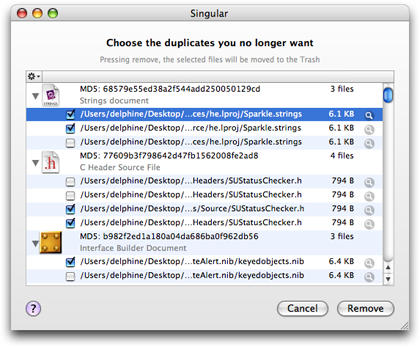
singular-screenshot

Start with Singular, drag your most likely suspect folders (Documents, Photos, Movies, Music) to its main window and start killing your duplicates

After you’ve cleaned up all your redundant files, now it’s time to ‘sweep’ your disk. Our hard drives always seem to be shrinking, and it’s often hard to tell where most of that space goes. Fortunately, our friends at Omni Group have a utility just for that.
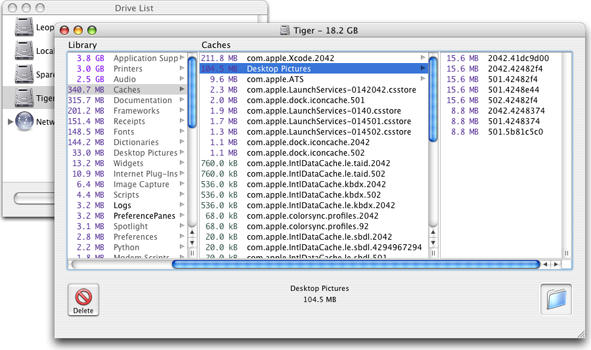
OmniDiskScreen

Give it a whirl, and you may be just as surprised as we were to learn that your ‘Downloads’ directory is taking up half your hard drive.

Step 2. Create a Reliable backup

Update: Reader Ben G, advises us (and we’ve confirmed) that Intel Macs can indeed boot from USB 2 now.

If your Mac supports it, we recommend a Firewire external drive. Not only is the sustained transfer rate of Firewire MUCH faster than USB, but it’s the only kind of external drive that your Mac can boot from.

To create a bootable backup of your main drive there is only one choice, Carbon Copy Cloner, and it’s push one button simple. Just remember to make your backup drive bootable, you will have to completely wipe your destination drive.
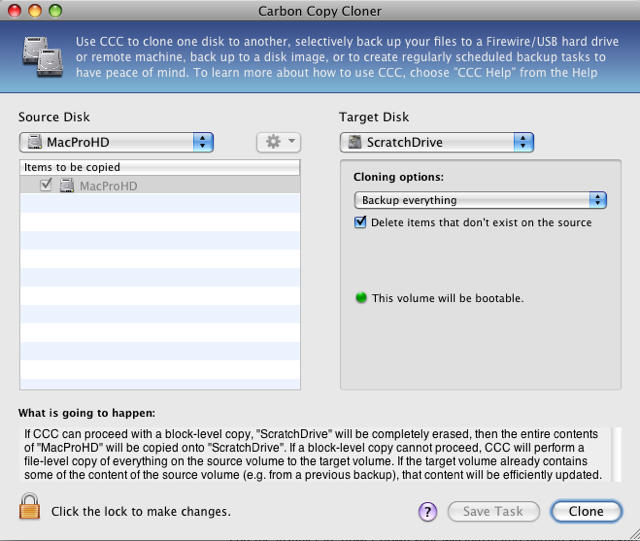
CCC SS

Now, depending on the size of your hard drive, you’ve got a chance to watch either the standard, or extended version of Lord of the Rings.

Once CCC is done, reboot your Mac with your external drive still connected, holding down the option key to boot from the backup drive. Make sure everything boots up, poke around a bit, make sure everything seems to be working.

Pop the installer in, power down your Macintosh and unplug your backup drive, it would be a cryin’ shame if you accidentally installed over your backup.

Step 3. Install Snow Leopard
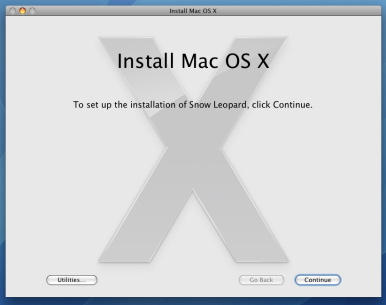
SnowLeo Install SS

Very straight forward, only remember you’ll need to wipe your hard drive first. This is easily accomplished from the installer, just select the erase and install option (remember to breathe, it’s okay, you booted from your backup right?), and follow the remaining onscreen prompts.

Time to watch that episode of House you tivo’d.

Step 4. Migrate settings

On booting Snow Leopard, your Mac will boot up just like it did when you first took it home from the Apple Store –heck that feeling alone is worth doing this every 6 months.

You’ll be presented with an option to migrate files and settings, select “Other Mac” and plug your external drive back in. Now if you select the default option of copying everything you’ll be back where you started, why not do what we do, don’t migrate anything you haven’t used in the past 6 months.

Time to watch The Two Towers, extended version with director’s commentary.

Now the reason we love this process is you loose a lot of the garbage that builds up in systems over time slowing them down. It also gives you an upgrade process that is completely non-destructive and reversible.

The disadvantage is that things that require “device drivers” like VMWare/Parallels, or Little Snitch, or what have you may need to be reinstalled to work properly (just as with any “Migrate me from my old mac” upgrade).

If you need more detail, the fantastic Take Control series has a pair of new PDF ebooks to guide you through the Snow Leopard installation: “Take Control of Upgrading to Snow Leopard” ($10) and “Take Control of Exploring & Customizing Snow Leopard.” ($15). Both highly recommended.

If you enjoyed this article:
Subscribe via RSS or email, or follow us on Facebook and Twitter

About the author

LeighMcMullen

Leigh McMullen leads the Advisory Services & Strategy practices for the professional services arm of one of the Big-Five firms. He has written several books that would cure any insomnia you might have, and is an avid Mac junkie.


Email the author | Read more posts by Leigh McMullen.

95 comments

    It’s not true that you can only boot from Firewire. All Intel Macs can boot from a USB2 drive, and since only Intel Macs can run Snow Leopard, anyone doing this will be able to.

    Should I do erase and install since i only got my new MBP at the start of this month or should i do a simple upgradE?

    Ben G. I’ve done researched it and you’re totally right.

    @iChet- Just do an upgrade. You probably haven’t installed a whole lot of stuff in those 3 weeks…

    iChet. If you just bought your MBP this month, I would just do a simple upgrade. You probably havent been using it long enough to collect any junk on your system. But that’s really for you to judge, If you’re a power user who takes his laptop on the software equivalent of a 20 Mile hike every day with loads of stuff installed then maybe you should start afresh. ^_^

    Curious why you’d go to the effort of using CCC. Why wouldn’t you use your time machine backup to accomplish the same task? Assuming you’re already using time machine on a daily basis.

    Carbon Copy Cloner is not the only cloning tool. SuperDuper! is an elegant Mac application for making a bootable clone. Version 2.6 is the Snow Leopard update.
    (http://www.shirt-pocket.com/SuperDuper/SuperDuperDescription.html)

    What on earth are you people doing to your Macs which makes them slow down so much after six months? I’ve been using Macs for eight years and I’ve never had issues with them slowing down over time. Windows does this, but not OS X.

    I’m going for the Upgrade option, not wasting time with a full reinstall.

    Since my MacBook with Leopard is relatively new, I’m cloning my current Leopard drive to a bootable backup using SuperDuper. (And yes, USB drives are bootable on Intel Macs, I do it all the time). I plan to do the regular upgrade install of Snow Leopard. If things are too wonky, I can always start over with the methods you describe in this article.

    Question for a really dumb user. USB2 drive? Are you talking about the flash drives or another piece of hardware? Thanks and don’t laugh!

    It’s the migrating settings that I don’t like about the “clean” upgrade. Every single time I do it, doesn’t matter whether it’s OS X or Windows, something goes wrong with it. I’m going to upgrade first and if it really really causes problems, then I’ll do a clean install.

    @Linda – No, they’re talking about external USB hard drives.

    This clean-install advice is great if you’re a wonk, have endless amounts of free time, or have an unhealthy obsession with those terrible Tolkien movies. For everyone else, head over to daringfireball.com for a well-argued prescription that a simple upgrade is the most prudent course of action.

    My bad – it’s daringfireball.net not .com

    Thanks. I have a MacBook running Leopard 10.5.8 and want to upgrade. My most current back-up device is Iomega zip 750 mg. So I guess my question is what should I get to back up my mac? Thanks. Somebody has to ask the stupid questions. I use for home pics and music and internet. Some graphics.

    I agree that this is simpler to do with your time machine backup…unless you have so little faith in the system that you want to have a bootable backup like CCC provides.

    I have a 1TB drive with two partitions, one with a SuperDuper clone that is bootable, and the other with Time Machine, such that I get the full file backup from the time I first installed Leopard. Then I have a second smaller driver that is just another SuperDuper clone (it typically stays at work). I recommend using both CCC/SuperDuper and Time Machine since they are really doing different things. That said, 2 drives with 3 backups should be enough to give a clean install a go and have no problems reverting if necessary.

    I’m picking up 10.6 today and I have a macbook which unfortunately has a dead super drive in it right now. Is my only installation option a disc image on an external firewire drive or DVD drive? I have USB external drives available but I seem to recall them not working under target disk mode for OS installs. The last time I wiped the macbook clean and reinstalled everything I used a borrowed external firewire enclosure with a DVD drive in it that took me days to track down.

    Thanks in advance for any advice you all might have!

    This has me thinking, which can be either bad or good. I’ve done this before on two or three new MacBook Pro’s, 2 iMacs, and my Mac Pro. I’ve really haven’t noticed any difference in speed, ever. It seems pretty tempting though and I can see the reasoning behind it, I just cannot justify spending all that time on two separate machines. I’m expecting SL at my door any minute now. My MacBook Pro is getting it first ( via the upgrade ) to test it. If Im not happy, then I will do all this tedious stuff with my Mac Pro–and of course, report it here. Thanks for the tip.–Seattle

    @ People asking why to use CCC (which we prefer to Superduper due to it’s “free-ness”) rather than time machine, or whatever.

    The main reason is that our macs are our work machines, if things go totally sideways on us, we can easily restore from the CCC backup. OR we can even work from the CCC backup.

    On the subject of this being a time vampire, it sure is. It’s also the 100% only safe, reliable, and reversible for updating your system. I trust and adore apple as much as the next cultist, but one need only google: “Leopard Install Problems” to understand our caution.

    I find clean installs on OS X to be more painful than upgrading over the current install – not only does any app that installs drivers or other kexts need reinstallation, but I have to reinstall Macports, Xcode, etc. The ’slowness’ of accumulated crud is mainly psychological (and likely based on bad experiences with that other operating system from Redmond).

    I purchased a macbook pro right around the time when leopard came out. This resulted in the computer shipping with a leopard upgrade disc, but with tiger already pre-installed.

    When I initially booted up the computer the first thing I did was upgrade to leopard.

    Anyway, fast forward to now, and I am going out to get snow leopard today. Think I have more reason to do a clean install of snow leopard, since I have technically already done one OS upgrade to my system?

    Thanks…

    Just for the record, I’m using an iMac G4, 1 GHz that I bought in Feb. ‘03. I’ve done simple upgrades from Jaguar to Panther to Tiger and have never done an archive and install or a wipe and install. I chose not to buy Leopard since I’ll be upgrading to a new Mac soon (I’ve been saying this for a while!) and of course I can’t go with Snow Leopard on this PPC anyway. I really am getting near to getting a new iMac, hopefully the 24 inch.

    I really have got to believe that Apple’s engineers have designed the OS to be upgradeable via the simple upgrade install and this should be our first choice. I am a firm believer in maintaining a bootable clone backup and this always gives the user the option to go the wipe and install route if need be at some point. Just wanted to toss this out there.

    I get very irritated by clean install recommendations every time there is a major upgrade to OSX. With previous iterations of OSX where “archive and install” was an option, which would wholly replace the system folder, the idea seemed particularly fallacious. To argue that simply upgrading is the “wrong” way is irresponsible when there is no concrete evidence that it offers an advantage.

    would you recommend a similar strategy coming from tiger?

    The option erase and install is not available in the installer to do a clean install for snow leopard it has to be done by going to the disk utility but if you are in the Macintosh hard drive you don’t get the option to erase that drive could somebody pls explain the procedure of clean install step by step thanks.

    I did the simple upgrade option to Snow Leopard (I have a full cloned backup just in case something went wrong), and it went absolutely flawlessly. Seems like the easiest Mac OS upgrade that I can recall, and I have done all of them from 10.0 to 10.6

    just do the upgrade,
    this erase and install is over engineering a non-existent problem, or a mindset from that other OS.

    Nice Tips, personally I’m re installing Leopard from the dicks that came with my computer first, so it’s already clean, then going to install Snow Leopard, iLife ‘09 (Yeah, i’m late), and iWork.

    My upgrade to 10.6 Snow Leopard went flawlessly. I see no reason to go through a full installation.

    how long ought a snow leopard installation take if you simply let it run on top?
    screaming to get to my email!
    -via mobile

    Intel Macs have booted from USB hard drives for years. The installer on SL is completely different from those that have gone before, Mr. Kahney right and wrong way is a mind fart on his part, he’s using old rules on a new OS thats designed to do just what he claim is the wrong way, I worked for Apple in their engineering department for over 5 years before I retired. He’s blowing smoke again. My installation of 10.6 was without a glitch and I also see no reason to do an unneeded clean installation. Install at Mr. Kahney’s way at your own risk, writing about a subject doesn’t make the author an expert on that subject. Another legend in his own mind.

    [...] use. August 28, 2009YouTube – How To Convert Vinyl or Cassette to CD For Free! August 28, 2009How-To: Upgrade To Snow Leopard — The Right Way | Cult of Mac August 28, 2009Teaching Challenges: Tech Tips Tuesday August 27, 2009Twitter Targeting Tweak, [...]

    where do you do the erase and install?!? i made the carbon copy, put the disc in and there was no button or option to erase and then install?

    It doesn’t take THAT much time to clone your drive. My 200GB drive clones in a little over 2 hours using a FireWire 800 hard drive.

    One thing I’d add to your list of things to do before a clean install is running Disk Warrior. It will repair any disk directory damage that has occurred and make your system run better. I do this every time I clone my hard drive (ever week or 2, depending on how much work I’ve been doing. I prefer SuperDuper!, BTW.

    And yes, it IS a good idea to have a bootable hard drive with your real-world system configuration and data available. You can boot from a DIFFERENT Mac with it in a pinch or if your machine needs to go in for service. OR if you install something that really messes up your system (some Mac OS X point updaters) and you want to restore it to a previous, functional state. Granted this is extremely rare, but occasionally I’ve needed to do it.

    I think cloning time depends very much on the app. Of late, I’ve noticed CCC is maybe twice as fast as SuperDuper!, although the latter is typically more accurate. It also obviously depends how much data you have and how many files. A 200GB drive full of tiny files will take a lot longer to back-up than a half-empty 200GB drive with fewer items.

    Good call about some kind of disk tool, though. If people haven’t got Disk Warrior but are planning on following Leander’s ’start from scratch’ approach, I would recommend running Disk Utility, formatting using zero all data and doing a quick sanity-check verify afterwards.

    Dear oh dear oh dear. This article has apparently been written by someone who hasn’t actually updated with Snow Leopard. If he had, he’d know there’s no option to Erase And Install.

    If you’re dead set on following the flawed advice that you need to erase and
    install, the only way of doing this with the Snow
    Leopard disc is to first drag out your LEOPARD install discs, and do an Erase And Install from there. Only then can you continue to upgrade to Snow Leopard on a clean system.

    But I really don’t think there’s a huge
    advantage to this…

    [...] on upgrading to Snow Leopard, check out Leander Kahney’s brief step-by-step posted over at Cult of Mac (which also goes bootable drive backup route) and Gina Trapani’s post at Lifehacker (which [...]

    does “migrate settings” copy all the programs as well as files etc.?

    It’s not necessary to wipe the destination drive when creating a bootabe backup using CCC. I make a new bootable backup every month, and while I start by deleting almost everything, there is one backup folder that I always leave intact. The new clone boots like a charm every time.

    Singular crashed on trying to find duplicates in my Music folder which has 42,392 items…

    Hi,

    I simply upgraded to 10.6 from 10.5.8 on my Core 2 Duo MacBook Pro, and everything has gone as expected. So far Snow Leopard is pretty similar UI wise to Leopard, but the speed improvements are noticeable.

    Very happy Mac user here!

    The migrating option is a huge pain, you end up having to reinstall some programs, and there always seems to be at least one serial number you can’t find. If you want to occasionally defragment your hard drive, it is much easier to use CCC. Do a regular install of Snow Leopard, get everything working to your satisfaction, and get rid of any duplicate files and other wastes of space. Clone to an external drive, boot into the clone, and use Disk Utility to format your hard drive. Then use CCC to copy the clone back to your main hard drive. CCC is file level, not a bit to bit copy. So when you make a clone it is automatically defragmented.

    Guys, how long does the upgrade process takes. It has been 2 long hours and my mac is still on the white screen with apple logo.

    I’ve got an X-Serve w/ 1T drive aat work. Possible to make bootable backup on the server HD?

    @Dabiddo: Average appears to be about 45 minutes. When you say your Mac is ’stuck’, is that post-reboot?

    I installed Snow Leopard but now the Mail app isn’t working – crashes when I try to open it. Everything else A-OK… Would an Erase then Install fix this?

    @Owen-B It is quite possible to do an “erase and install” with just the Snow Leopard DVD.

    Insert the DVD into the superdrive and restart holding down the C key, Select your language then go to the Utilities Menu on the menu bar at the top and select Disk Utility. Erase out your partition, then quit Disk Utility. You may now proceed to install Snow Leopard on your empty Hard Drive.

    Well I did it both ways. Did the simple upgrade on the wife’s iMAC. Did the suggested clean up, backup and clean install on my MAC Pro suggested here. The wife’s iMAC took about 45 minutes, no problem. Two hours later I’m still trying to update all my drivers and programs programs on the MAC Pro. The only good advise was to backup using Carbon Copy. Now I can restore my hard drive and do a simple upgrade.

    [...] How-To: Upgrade To Snow Leopard — The Right Way – Walkthrough of the “wipe and redo” method from Cult of Mac. I should probably do this with my dev box, but I dread the work. [...]

    I’ve been running OSX since it came out and I don’t think I’ve ever done a clean install. I’m not entirely sure what I’m doing right that you’re doing wrong, but given the ridiculous instructions on this page I’d suggest it’s just that these self-confessed experts are in fact extremely ignorant :-P

    How can you possibly not spot that your download directory is full of crap? I use WhatSize (or ‘du -h -d 1′ from the command line) to find hidden problems, but surely that and Documents/Movies/Music are the first places you check? You DO know that Apple-I gives you the directory size, right?

    And I’m staggered that ‘experts’ wouldn’t know Intel macs can boot from USB2. I’ve been using this functionality for years.

    Fair enough – but not made at all clear in the text which appears to be aimed at people who don’t really know much about installing new Mac operating systems. I say that because almost everyone that does have experience knows that a complete erase and install offers negligible benefits and is an absolutely huge ball-ache…

    ;)

    There is no “erase and install” option, and how exactly does one migrate only items used in the past 6 months.

    I tried importing user settings from my iomega Ego through USB, no such luck. Had to switch out cable for firewire in order to be recognized.

    Not a very good walk-through.

    [...] said, after doing a clean install of Snow Leopard (Cult of Mac), Photoshop CS2 starts up and seems to run just fine with Apple’s Rosetta [...]

    I did the ‘erase and install’ approach for my upgrade to SL as well. I’m not sure I would recommend this for normal users, but for me as a developer its nice to wipe away all of the cruft of various dev tools and configurations I have applied in the past. Re-installing the OS from scratch is more about keeping a tidy house for me than for ’speed’ reasons which I think are dubious at best. Also there are benefits for developers in doing an erase and install (followed by re-install of your current dev configuration) as the time invested is offset by the time you would spend tracking down issues with 32/64 bit conflicts in your dev tools.

    As for the benefits of clean install? Its like that feeling of getting out of the shower after a hard day working in the muddy yard. You just feel better afterwards. Working on a clean slate eliminates all those pesky worries about what got upgraded properly, whats partially working, and what’s totally broken.

    Cheers.

    Not good advice from Mr. Kahney. Actually, his suggestions are likely to cause more problems than anything else.

    Back in the days of System 6, 7, 8, and 9, there sometimes were reasons to start “from scratch” but in those days it wasn’t such a big deal to reinstall applications. (Have you ever tried to install Adobe CS4 upgrade when you don’t have ther previous versions of CS installed? It’s not fun…and Kaney’s instructions will put you into that nightmare…call India…try to understand the “tech support person”…stay on hold for hours…get nowhere fast…etc.).

    Apple has designed this thing to install as an upgrade…listening to outdated advice like Kahney is putting out is a bad idea…

    …just follow Apple’s recommendations.

    P.S. Only part of the advice I like is (and you should already know this anywa)…create a clone backup in case a problem *does* develop.

    There is no “erase and install” option anywhere. Anywhere.

    I’m just doing the upgrade, as recommended. I don’t even know why I thought I should use the migration tool, since that has worked exactly never for me. It ends up being such a huge hassle that I might as well have just wiped the drive and reinstalled everything–the only surefire way to make sure everything works, but requires setting up absolutely everything again.

    You can still do an Archive and Install with Snow Leopard; only thing is you’re going to have to do the archiving yourself (on the same partition, no external drives or copy issues).

    This is how I did it: http://intlect.com/how-to-archive-and-install-os-x-snow-leopard/

    [...] How-To: Upgrade To Snow Leopard — The Right Way | Cult of Mac [...]

    Tried to use Singular several times. Crashes on large amounts of files. Needs some work I think. Good idea.

    i have the same problem as Dabiddo, but I didn’t see his repsonse to see his reply to your question. My white screen is when it was rebooting after iinstall. First, the disc was stuck so I manually ejected holding the house key down during start up. But it is stuck on the white screen/apple logo. Have i bricked my mac mini?

    [...] vandaag Snow Leopard geinstalleerd en was niet de enige. Op het eerste oog is er weinig veranderd. Versie 10.6 van Mac OS is kleiner, [...]

    [...] people have been making out with Snow Leopard. I immediately happened upon a few upgrade guides like this one, providing sage advice about the upgrade process. They recommended the “slash and burn” [...]

    [...] forums are ranting about. I even followed Leander Kahney’s advice from his article over at Cult of Mac — How-To: Upgrade To Snow Leopard — The Right Way. It’s a great piece and I followed it to a T except one very important part that lead to me [...]

    I followed this, and it was a waste of time. It takes several hours (and I mean literally seven) to transfer 150 GB of data using FireWire 400 and CCC. Add to that the 50 minutes for Snow Leopard install, then another hour to transfer back settings and files using the Migration Assistant.

    In the end, I was hoping this would fix my corrupted Address Book application, but whatever is wrong with Address Book (I haven’t figured it out after months of research) was just copied back onto my machine which otherwise runs 10.6 flawlessly. It still doesn’t sync, nor can I add or delete contacts — it’s just stuck. I’m going to suck it up and do a complete reinstall, which will take about as much time.

    The Migration Assistant doesn’t give any options to transfer specific applications or files (unless I overlooked it), and I still have all the garbage I didn’t want to transfer over.

    Even if it doesn’t speed up your system, a clean install is nice since you know everything is how it should be and its all fresh :) .

    I was lazy; did an upgrade install – went smooth on my Macbook Pro and my iMac.

    MBP runs flawlessly.

    Early on, I had the rainbow wheel of death – which happened a second time, yesterday — I have considered wiping and reinstalling, though we all know it’s a pain to reinstall apps (e.g. Adobe Creative Master Suite CS4 and Microsoft Office 2008)…

    I did a straight upgrade and my MB has become almost unusable. Every app crashes frequently. Disk Utility says everything is fine. I have eliminated duplicate fonts but alas, the crashes continue. I have so many apps and I really am loathed to have to search for all those lost installation codes etc, but I think I am going to have to start afresh. I have always just upgraded and this is the first time it went bad. I need my Mac for work and I am wasting hours… and now I am terrified of loosing essential apps and things not working. I am also holding off upgrading my other Macs. oh woe!

    [...] is no more "archive and install" option etc. (unless one wants to wipe the drive and start from scratch…) But before that, it may be a good idea to log in as another user and see if the problem [...]

    link for Singular is broken
    found this one in version tracker
    http://www.versiontracker.com/dyn/moreinfo/macosx/32217

    Hello all.

    I been told to upgrade to snow. I am really nervous to do it. I got everything I need on it already and don’t want the hassel if it all goes wrong. I had my MBP for 1.5 years. Can someone reasure me of what I should do>
    Or should I do it when I finish my studies.
    To back it up, time machine how?
    i am clueless sometimes. Or I panic if my laptop messes up. Coz I did wipe my operating system of when i first had it and had to go to the mac shop to have it fixed. Shall I leave it?

    IMHO, if you’re a person who:
    -periodically evaulate new sw (and therefore your Recipes folder and Application support and Preferences get stuffed), or
    - you use macports, or fink (own python and so on)
    the better way is clean install. othervise just go uprgrade.
    jm

    Well, I’m going to do a clean install. I haven’t done one in years and each time I’ve bought a new Mac I’ve just done the option to get the data from another mac. But I’ve been having lots of buggy things happening with applications refusing to run, weird empty folders in my preferences. I think it’s time for the dreaded clean install all the way to re-installing all software.

    I had to do this on another of my Mac’s recently. Programs I had problems with are working fine now. I think somewhere along the way, something went wonky (technical term) and I’ve been copying it to each new machine.

    I’m starting from OSX 10.4.11, and wanting to get SL installed. Would the upgrade work for me, since I never upgraded to Leopard? Would you suggest using Singular or OmniDisk even if you don’t plan on doing a backup just to get things running more smooth?

    @Holly yes the upgrade will work for you even if you’ve never upgraded to Leopard. But, definitely follow the advice about Carbon Copy Cloner to import your settings & files back in as you will probably have to erase your HD as Leopard probably will give you a message saying it cannot install to the HD without doing so.

    Getting ready to install SL. I already made a Time Machine backup. Can I do a clean install and all the stuff will be restored? Do I also need to do a CCC backup? I’m confused.

    Things that burden the Mac OS are:
    - misguided users that don’t understand just what they are dealing with.
    - useless “freeware” that doesn’t work.
    - misinformation from so called experts

    can anyone tell me how to save/reinstall programs if I do a wipe of he OS? like if I buy off eBay and want the confidence of a clean install, but maybe it came with a lot of expensive software that I’d want to retain. I am assuming it’s not as simple as copying the applications folder out and back in.

    Thanks.

    @ Joe… thats what we laypersons refer to as software piracy… which we here at the cult don’t condone.

    But what we do condone is customer service, so since you asked: use the same carbon copy cloner method, make a clone of the drive. and on copy settings from my mac upgrade procedure, just select the specific applications you want to restore.

    Questions,
    1) do i need the original leopard disks for any reason if i go the route of a clean install of snow leopard? I dont have them fwiw, there in bc and im in toronto
    2)I dont care about any of my programs, files, address contacts emails etc, so i dont THINK i need to make a back up
    3) At any point of the clean install do i need a backup copy of any files/data from leopard? I dont have an external hard drive (i do, if a macbook counts and a firewire cord)

    Thanks for all yoru help!

    I’ve followed your directions exactly, but have been unsuccessful in installing Snow Leopard. Once I select the language, instead of going to the “Install Mac OS X” window, I get “Mac OS X can’t be installed on this computer. This disc requires that Mac OX X 10.5 or later already be installed.” I now have the option to either Restart (which does just that) or “Restore From Backup”. If I choose to restore, it begins searching for a Time Machine backup (which I don’t have), it does give me the option of plugging in my external disc, but doesn’t respond in any way when I do.
    I’ve never had to re-install an OS, so it’s possible that I missed something small.
    I have enough disc space and RAM, it’s a MacBook with an Intel processor, and, if I understand the meaning of a clean install, it shouldn’t matter if I was previously running 10.4 or 10.5, at least not as far as actually getting 10.6 installed.
    Any ideas on how to get this to work?

    I have the same prob as Heather! Any help here ppl?

    im using 10.4 what should I do
    the cd doesnt want to install into my mac

    Heather, Evan, Naz, Connor, :

    You can’t install Snow Leopard over previous versions of OS X except Leopard.

    HOWEVER, if you follow the directions exactly, and erase your hard drive during the install process, either select erase and install or (interrupt install, go to the ultilities menu, select drive util, format main hard drive).

    Snow Leopard will install, if you have a retail install.

    If you don’t know how to do what I just said. STOP. Find a copy of leopard, upgrade, to leopard, and then upgrade again to snow leopard.

    Connor: Snow leopard will install on a totally blank system. that is our recomended approach.

    If I upgrade this way (wiping clean, then migrating old stuff) will I have to reinstall all my programs, like photoshop, etc? I’m not really clear on which programs run with drivers.

    I need HELP!

    I did not do enough research at the beginning and managed to mess it up real bad with my only (work) MBP. Now I don’t know how to get out. Wish I had read this thread before installing. Guess I had too much “rookie” faith in Apple.

    I have a Time Machine backup on 2/11 on 10.5.8, then wiped off the 320G internal hard drive and installed a clean 10.6.

    Now when I went back to Time Machine to bring back my files, it did copy over but I could not see any of them in the 320G. The whole 260G content was missing. I guess it was due to the difference in 10.5.8 (Time Machine) and the 10.6 (320G).

    How do I bring back everything? I don’t need this 10.6 anymore, and I need to make a living with my old 10.5.8 files.

    Thanks

    @Huan:

    Do not dispare, my friend, As long as you have a complete and recent Time Machine backup, you’ll be back up and running again in just a few hours.

    1. Make sure you have a fresh install of OS X 10.6 on your MB Pro.
    2. Plug your MB Pro into your Time Machine box using an ethernet cable (if you try to do this wirelessly, it will take the rest of your natural life)
    3. Fire up your new copy of OS X when it asks you to make the main account, just create a disposable identity like “Admin” rather than entering your actual user name. (this is somewhat important unless you want 2 users named “Huan” on your MBP
    4. On your MBP, launch “Migration Assistant”
    5. Select “Continue” than select “From a Time Machine Backup or other Disk”
    6. Press “Continue” and then select your time machine disk.
    7. Go see a movie.

    when the process is completed, you should have all your apps and files back, as well as have your main user identity back, log as “Huan” or whatever your main identity used to be, delete the old admin account you used for migration, and you’re back in business, buddy.

    Leigh

    Thanks Leigh for the immediate response.

    I tried to follow your suggestion to a T.

    Unfortunately I was stuck at item 6. At this screen, the Time Machine drive was not listed to choose. The only drive listed here was the laptop hard drive and the Time Machine drive was not listed.

    The Time Machine drive did show up in the Finder device list.

    What gives Leigh ?

    Thanks

    Huan,

    Make sure you’re plugged into the time capsule drive with a physical cable

    then you might try firing up Time Machine first, to see if it can attach to the time machine volume if it sees the drive, stop it, and resume from step 4 above.

    if that doesn’t work, then my friend, I think it’s time for you to take your MBP and Time Capsule to the Apple Store as we’ve reached the limits of what help we can provide in a comment stream.

    Thanks Leigh, having an appt with the Apple Store at 5pm today. Will keep you posted and wish me luck.

    Happy Valentine’s to you and yours,

    Huan

    I upgraded from Tiger 10.4.11 straight to Snow Leopard last night with no problems whatsoever on my first generation black Macbook (Duo Core I). It took just over an hour to install the upgrade and then about an hour to install all the newest application updates and printer drivers. So far everything I’ve tested works fine (I’ve only tested Office ‘04, Messenger, iTunes, iPhoto and Safari).

    After a week of researching on the web I choose the upgrade route instead of going with a clean install based almost solely on the system requirements listed on the box (Intel Processor, 1 GB ram, 5 GB of free disk space). I don’t know what all the fuss is about. Perhaps there were issues when 10.6.0 first came and perhaps the 10.6.1 and 10.6.2 patches fixed those issues, I don’t know the answer to that question, all I know is that my 4 year old computer made the jump from Tiger to Snow Leopard without a single hiccup is now running the latest Apple OS problem free. I’ve been rubbing that fact in the faces of my PC friends all day.

    Nick,

    When you say, you went with the upgrade method do you mean you upgrade to Leapord first then to Snow Leapord ? Or did you just go from Tiger straight to Snow Leapord ? If so could you please explain how.

    thank you,

    Richard

    Forgive me if this sounds stupid, but if I wipe my drive and install Snow Leopard on my iMac 2.4 core duo/24 inch, will i need to purchase iLife ‘09? Or is there some way for me to install my old iLife that came with the system?

    My friend recently got a new macbook, mine is about a year old and has os x 10.5.8. I want to upgrade to snow leopard (using her install disk) but it says os x 10.6.1 cannot be installed on this computer. I have 40 GB of free space, and 1GB RAM. Why can’t snow leopard be installed? I’d rather not go though the hassle of clean installation, my mac isn’t too cluttered i don’t think.

Add your comment

Name(Required)

Mail (required, but not published)

Website

Comment

Buy Inside Steve's Brain Buy from Amazon.com Buy from Barnes & Noble