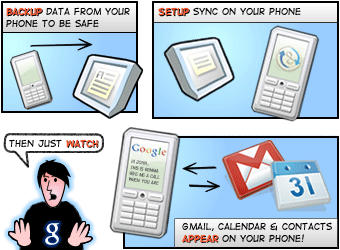
Google has added push Gmail to the iPhone/iPod Touch via its Google Sync service.
“Using Google Sync, you can now get your Gmail messages pushed directly to your phone,” says the Google Mobile Blog, which announced the change. “Having an over-the-air, always-on connection means that your inbox is up to date, no matter where you are or what you’re doing.”
Google Sync also syncs contacts and calendars, or any combination of contacts, calendars and Gmail.
Push Gmail works in the iPhone’s/iPod’s native Mail app, but you have to set up your Gmail account as an exchange account. Full instructions after the jump.
Instructions courtesy of Google.
Google Sync: Set Up Your iPhone or iPod Touch
To set up Google Sync on your iPhone or iPod Touch device, please follow the steps below.
Requirements and Upload
1. Google Sync is only supported on iPhone OS versions 3.0 and above. You can check your current version by going to Settings > General > About > Version. To upgrade, follow the instructions at https://www.apple.com/iphone/softwareupdate/. Please upgrade to iPhone OS 3.0 before setting up Google Sync.
2. Perform a sync with iTunes to ensure that Contacts and Calendars from your iPhone are backed up to your computer.
Getting Started
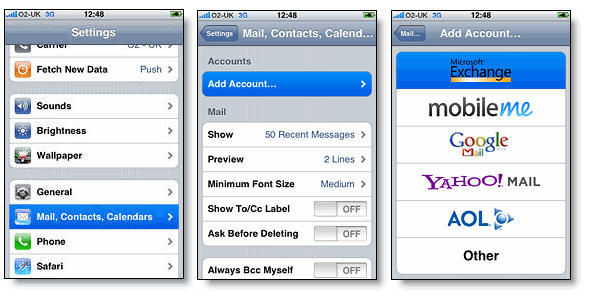
1. Open the Settings application on your device’s home screen.
2. Open Mail, Contacts, Calendars.
3. Tap Add Account….
4. Select Microsoft Exchange.
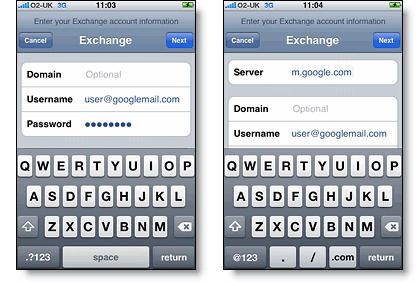
Enter Account Info
5. In the Email field, enter your full Google Account email address. If you use an @googlemail.com address, you may see an “Unable to verify certificate” warning when you proceed to the next step.
6. Leave the Domain field blank.
7. Enter your full Google Account email address as the Username.
8. Enter your Google Account password as the Password.
9. Tap Next at the top of your screen.
9a. Choose Accept if the Unable to Verify Certificate dialog appears.
10. A new Server field will appear. Enter m.google.com.
11. Press Next at the top of your screen again.
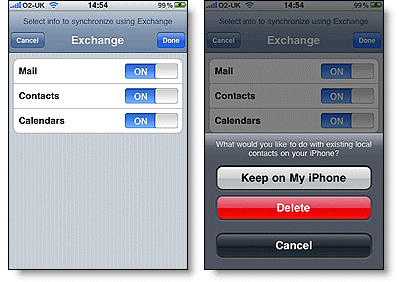
12. Select the Google services you want to sync.
13. Unless you want to delete all the existing Contacts and Calendars on your phone, select the Keep on my iPhone option when prompted. This will also allow you to keep syncing with your computer via iTunes.
If you want to sync only the My Contacts group, you must choose to Delete Existing Contacts during the Google Sync install when prompted. If you choose to keep existing contacts, it will sync the contents of the “All Contacts” group instead.
You’ve set up Google Sync for your iPhone. Synchronization will begin automatically if you have Push enabled on your phone. You can also open the Mail, Calendar or Contacts app and wait a few seconds to start a sync.
Next learn how to choose which calendars to sync, if you’d like to enable multiple calendars.
Tip: If your business, school, or organization uses Google Apps, your administrator will first need to enable Google Sync before you can take advantage of this feature.

Leander Kahney is the editor and publisher of Cult of Mac.
Leander is a longtime technology reporter and the author of six acclaimed books about Apple, including two New York Times bestsellers: Jony Ive: The Genius Behind Apple’s Greatest Products and Inside Steve’s Brain, a biography of Steve Jobs.
He’s also written a top-selling biography of Apple CEO Tim Cook and authored Cult of Mac and Cult of iPod, which both won prestigious design awards. Most recently, he was co-author of Cult of Mac, 2nd Edition.
Leander has been reporting about Apple and technology for nearly 30 years.
Before founding Cult of Mac as an independent publication, Leander was news editor at Wired.com, where he was responsible for the day-to-day running of the Wired.com website. He headed up a team of six section editors, a dozen reporters and a large pool of freelancers. Together the team produced a daily digest of stories about the impact of science and technology, and won several awards, including several Webby Awards, 2X Knight-Batten Awards for Innovation in Journalism and the 2010 MIN (Magazine Industry Newsletter) award for best blog, among others.
Before being promoted to news editor, Leander was Wired.com’s senior reporter, primarily covering Apple. During that time, Leander published a ton of scoops, including the first in-depth report about the development of the iPod. Leander attended almost every keynote speech and special product launch presented by Steve Jobs, including the historic launches of the iPhone and iPad. He also reported from almost every Macworld Expo in the late ’90s and early ‘2000s, including, sadly, the last shows in Boston, San Francisco and Tokyo. His reporting for Wired.com formed the basis of the first Cult of Mac book, and subsequently this website.
Before joining Wired, Leander was a senior reporter at the legendary MacWeek, the storied and long-running weekly that documented Apple and its community in the 1980s and ’90s.
Leander has written for Wired magazine (including the Issue 16.04 cover story about Steve Jobs’ leadership at Apple, entitled Evil/Genius), Scientific American, The Guardian, The Observer, The San Francisco Chronicle and many other publications.
Leander has a postgrad diploma in artificial intelligence from the University of Aberdeen, and a BSc (Hons) in experimental psychology from the University of Sussex.
He has a diploma in journalism from the UK’s National Council for the Training of Journalists.
Leander lives in San Francisco, California, and is married with four children. He’s an avid biker and has ridden in many long-distance bike events, including California’s legendary Death Ride.
You can find out more about Leander on LinkedIn and Facebook. You can follow him on X at @lkahney or Instagram.

