How Snow Leopard Ditched Creator Codes, And Why It Matters
12:03 pm, September 8th, 2009, Giles Turnbull

Apple has introduced a new system for controlling the way files are opened in Snow Leopard, and some users are very upset about it.
“Apple has made a huge, dumb mistake,” says Ross Carter, a developer whose application, Pagehand, is affected by the change.
What’s changed is the use of Creator Codes to identify the app that a particular file should be opened with.
Creator Codes are stored in a file’s resource fork. They are little four-character strings that tell the computer what to do with the file concerned. They’ve been around for years, but a lot of people considered them better than alternative systems that specifically linked file extensions to applications.
Creator Codes specify “ownership” of a document by an application. The app that created that document can apply the code, which tells the system “I made this: I should be the default app for opening it.”
Previously, if I created a text file in TextEdit, it would always open in TextEdit when I double-clicked it in the Finder; even if I had many other text editing applications installed.
How has this changed in Snow Leopard?
In Snow Leopard, the Creator Codes are still there – but the OS completely ignores them.
Instead, it now uses the Launch Services database to see which app has been assigned which filetype. So if your computer has been told to open all HTML files in Safari, it will do so – even if they are HTML files you hand-coded yourself in a text editor.
Ross Carter is particularly annoyed about this. His word processor app, Pagehand, saves files as PDFs. In Leopard, there’s no problem re-opening them with a double-click in the Finder, because the Creator Code tells the system to open them in Pagehand, the app that created them.
But in Snow Leopard, the system sees that the files are PDFs and opens them in Preview, the app that’s been set as the default for opening PDFs. The only way to change this behaviour is to tell the computer to open all PDFs in Pagehand – which would be equally ridiculous. Ross just wants the documents that were created in Pagehand to open there, and all other PDFs to open in Preview. (He has since added a preference to Pagehand – “Mange double-clicks on PDF files” – which solves the problem, at least for his app.)
Ross says in this blog post: “Apple has made a huge, dumb mistake.”
And later he adds: “Snow Leopard takes one of the Mac’s most elegant features— launching the correct application for a file— and desecrates it.”
So how might this affect the likes of you and me?
Well, it’s only going to impact your workflow if you commonly use two or more apps for the same kind of file. If you always, always read and edit plain text files in one text editor, no problem. But if you’d prefer some rich text documents to open in TextEdit and others to open in Word or Pages; well, you’re going to have to change the way you work a little.
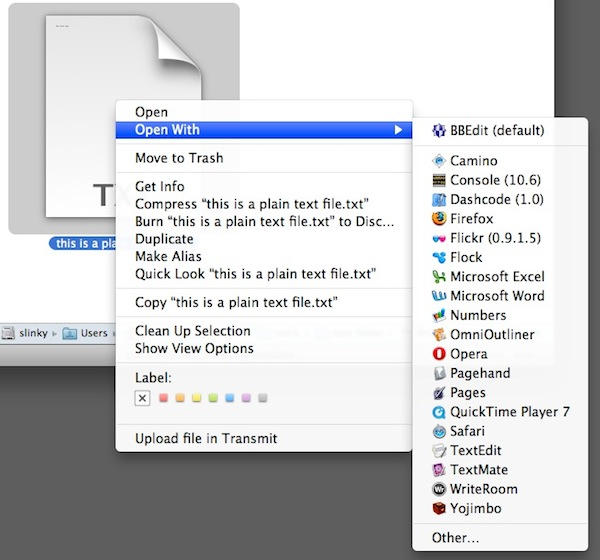
The simplest workaround is to get used to opening files by right- or control-clicking, and using the “Open with…” menu. Or by dragging them on to the icon of the app you wish to use. (This is where the Finder toolbar comes in handy. You probably know that you can drag stuff into that toolbar; dragging some application icons in there means you’ll always have them handy when browsing the file system, and can easily drag files into the app you want to use.)
There’s a lot more detail about this issue in this article by Matt Neuburg over at TidBITS. Some of the comments there are heartfelt. One commenter says this change has destroyed his workflow: “I am angry to the verge of tears.”
It’s worth noting that some of the comments on Carter’s post and on the TidBITS article are very positive, with several people saying they always wished things had worked this way.
Posted by Giles Turnbull in News, OS X | Comment on this article
If you enjoyed this article:
Subscribe via RSS or email, or follow us on Facebook and Twitter


What is this asshole developer talking about? About file creators and types, which are here from 1984? Creator types has been deprecated by Apple sometimes in 2001 and he is still using those? Why is he not using UTIs (Universal Type Identifiers)? He is just showing, how lame developer is he.
Even Adobe (and that’s says something) is using UTIs!!!
http://developer.apple.com/macosx/uniformtypeidentifiers.html
http://developer.apple.com/mac/library/documentation/Carbon/Conceptual/understanding_utis/understand_utis_intro/understand_utis_intro.html
Jozef Remen, on September 8th, 2009 at 12:48 pm
Jozef, I am 95% sure that UTIs do not specify which app is supposed to open a document, only that that app _can_ open it. Big difference. Of course, Apple’s use of UTIs is pretty sucky IMHO, since they still (still!) are not a wholesale replacement for those awful (.xcodeproj, .imovieproject) super-long file name extensions.
Last time I checked, UTIs are based off of file name extensions or 4 character type identifiers, not the other way around, sadly.
Dave
Dave Sopchak, on September 8th, 2009 at 1:26 pm
NOT TRUE!
Make two text documents. Press apple+i. And change one of the two documents to open in OpenOffice, the other to TextEdit. Works fine…
Christoph, on September 8th, 2009 at 1:52 pm
I actually found those file creatior codes a rather annoying artifact of the resource fork garbage from the pre-OS X days. For example, I want Photoshop (PSD) files to open in Photoshop, but all other image formats (JPG, PNG, etc.) to open in (for example) Preview because it starts up quickly with low overhead. If I really want to open a PNG in Photoshop, I can easily drag it into the dock icon. When exporting from Photoshop to PNG, I’d get these files that would always want to open in Photoshop with no easy visual way to tell what program would launch upon opening. I would have to traverse the right-click Open With… menu or pull up the file properties to actually know what application would launch. More often than not, I’d double-click on a file and find Photoshop launching. I would then have to make the choice between waiting for Photoshop to finish or force-quitting it.
I’m delighted by the thought of a given file-type consistently tied to one default application. It takes out the guesswork and force-quitting.
Brian Enigma, on September 8th, 2009 at 1:58 pm
So “Get Info” that file and choose what app to open it with. Is this guy that lazy, or not a real Mac developer?
Scott, on September 8th, 2009 at 2:44 pm
I agree with Christoph. This story should have been fact-checked.
Eric, on September 8th, 2009 at 2:46 pm
Remen,
You missed the point. UTIs only identify the data type of a particular file and what kind of files an App can open. It doesn’t link a particular file to a particular App. Resource Forks not only said what kind of data a file was, but which specific App wrote it and which App should open that file, for each individual file. Not say, all JPEGs, for example, should open in Preview; when some you want to open Photoshop, some in Preview, some in Safari, etc.; which Resource Forks would allow.
While UTIs make identifying file data types better (and yes, truly better than Resource Forks and file extensions), they only do half of what Resource Forks could do.
jsk, on September 8th, 2009 at 2:47 pm
First, file/creator code are NOT stored in the Resource Fork. They are stored in the directory tree with the file name/permissions/etc (at least on HFS/HFS+ volumes).
And using them links a file with the application that just created it. It sucks creating a text file with BBEdit, that just after saving it, opens with TextEdit instead. Most of the time, you want to continue opening/viewing the file with the application you used to create it. And moving the file to another computer or sending it to somebody else without that application doesn’t screw them up if they don’t have that application, as the Finder goes back to using the file extension automatically, so if they don’t have say, Word, the file would open with OpenOffice or Pages instead, without any user interaction.
dave, on September 8th, 2009 at 3:18 pm
blah blah blah…find a cure to what ails you…and not bitch about it
Alexis, on September 8th, 2009 at 3:18 pm
Dave: the Wikipedia entry for resource forks lists TNAM (type name) as one of the major data types in a resource fork, and describes one as “A string representing a value such as a creator code”. That’s why I wrote that creator codes are stored there. That said, it’s not unknown for Wikipedia to be incorrect about things, so if I have placed too much trust in it and made an error as a result, please accept my apologies
Christoph and Eric: no-one is saying that a file’s “Open with…” attribute cannot be changed after the fact using the Get Info panel. The point made by Ross Carter and others is that the behaviour of the OS when opening files has changed since the release of Snow Leopard. I recommend you read the post by Ross that we linked to, for his detailed examples of the old and new behaviours compared.
Giles Turnbull, on September 8th, 2009 at 4:23 pm
No worries Giles, but you misunderstood the wikipedia page and the term “data type”.
Four-character values were used all over the place in Classic Mac OS programming, for creator codes and many other things, such as resource ids ‘ALRT’ ‘STR#’ etc. TNAM as a data type means the resource fork, or more correctly the ResEdit tool itself, supports this kind of data natively, ie. when viewing resource data in ResEdit it knows to show the data as 4 ascii characters instead of maybe as a large number.
In other words, a resource in a resource fork *could* contain 4-char codes, whether that are file creator code values or whatever, but that doesn’t mean the system *does* use them for file creator codes.
Dave is correct, file types and creators codes are indeed stored in the HFS file systems in dedicated meta-data slots exactly like name, file size creation & modification dates are stored. But they are usually lumped with the resource fork as they together are the major additions in HFS that aren’t on other file systems. Indeed on other file systems, they are stored in those “._” files along with the resource fork.
So mostly semantics, but in practice: on HFS/HFS+ you can strip the resource fork from a file and the file type & creator codes will remain, on other file systems you delete the companion “._” files and both resource fork and file type & creator codes will be gone.
smallduck, on September 8th, 2009 at 5:37 pm
OMG is doing a right click/control click really that much work. are folks that lazy
Charli, on September 8th, 2009 at 5:43 pm
UTIs are more than just an analog to file types, they not only define the file’s format but are better for more finely describing it’s content. Apple should have really have made more/better documentation & examples for transitioning from the old way to the new, what’s there is a bit hard to get one’s head around.
In classic Mac OS usually the file type + creator code together were necessary to tell which kind of text file or PDF file you had, this can now entirely done by the UTI. Plus the fact that the user can also manually declare which app should open any particular file or all with any given UTI make OS X superior to the old OS 9 scheme.
I suspect the Pagehand developer should define it’s own UTI file type that only their app handles, while also declaring it to be compatible with PDFs so Open With.. will still list Preview. This makes sense because these files really aren’t just regular PDFs, they’re special class of PDFs that are really word processor files. The developer should maybe consult the forums or Apple DTS to find out if the files should be named “.pdf” even though the UTI is distinct, I suspect this would indeed give the correct behavior for systems without the Pagehand app, but I’m no expert.
smallduck, on September 8th, 2009 at 6:09 pm
Seems to me like in Snow Leopard, there’s an easy workaround, and that is to create a service to open a file type with whatever app you want. Make 3 or 4 such services for each app you might want to use for that file type, and your problem is solved. Now you can right-click and choose your “Open with…” service of choice.
It might not be as seamless, but it’s certainly a passable way of doing things in a pinch.
Scott, on September 8th, 2009 at 6:20 pm
*facepalm*
Rimtiz, on September 8th, 2009 at 9:47 pm
This is worrying. When browsing JPEGs on my Mac, I want Preview to open them, but I need Photoshop to open JPEGs I created myself. It’s a huge step backwards.
peterpan, on September 9th, 2009 at 2:31 am
This is a good thing, not a bad thing. I hate not being sure which application a particular file is going to open in when I double click it. On the occasions where you want to do something other than the default behaviour then just drag the file onto the relevant Dock icon, or right click it and go to the Open With menu. It’s not that hard!
As far as I’m concerned this is a big improvement, not a step back like the author says.
Matt, on September 9th, 2009 at 7:09 am
Yeah, I’m all for it. I wish my Photoshop stuff would just open in Preview, to save time. Preview is almost always open on my desktop. If I need to edit something, I can just drag it into Photoshop. A no brainer. Too many whiners…
Ictus75, on September 9th, 2009 at 9:13 am
Good riddance, I hate Creator Codes with all my heart.
badass-mofo, on September 9th, 2009 at 9:45 am
It would be nice if preview provided the Open With context menu so that you could quickly launch the desired program without having to close preview, then click open with and then choose the program.
Alan, on September 9th, 2009 at 10:32 am
Sorry, but this is the best change Apple ever could make!!
Thank, thanks, thanks!!!
I, the user, decide what Program the file launches. NOT the Program!!
I ever was very upset that a Photoshop created JPG was launched in Photoshop and not in Preview, my default!
So this is no mistake! This is one if the biggest advantages on OS X in years!!!
tvdeyen, on September 10th, 2009 at 3:45 pm
this sucks. I get multiple client files that are .eps. They are created with: quark, illustrator, photoshop, freehand, indesign…now, i have no idea WHAT PROGRAM created them. What a crock. I have to choose ONE program to claim ownership.
Before 10.6, I could tell what program created these files by the file icon, not anymore….
glen, on September 18th, 2009 at 9:12 pm
For those of you who wish to automate the assignment of the application that opens a document to its creating app, you can use SLopen, which I’ve just released. Please see the website at http://chuchusoft.com/SLopen/index.html for information.
Vincent Tan, on October 9th, 2009 at 8:58 pm
I regard this article as poor because it does not mention metadata, which seemingly has took over the function of Creator Codes.
You can easily play around with the metadata (of a single file):
Open a shell, change to where test.txt resides, created with TextEdit.
On the shell, type mdls test.txt
You see a list of metadata (including a key called kMDItemFSCreatorCode)
Via right-click–>Information change “Open with” to “Safari”.
Repeat the mdls command and find kMDItemFSFinderFlags to be changed.
(I’m running 10.5.8 Leopard)
I am wondering: why not kMDItemFSCreatorCode?
Anyway, the metadata list seems more flexibilty than Creator Code.
Could someone be so kind to post a link on how (and why) the creator is encoded in metadata?
Does there exist a more general “metadata editor” then right-click–>Information?
Thank you
cognonaut, on November 26th, 2009 at 6:32 pm
I use illustrator EPS files and Photoshop EPS files in my graphic design work – have done for the last decade, and my back-ups reflect this. Most of my backups are in Quark – if I wanted to open/edit an image quickly off a page I’ve designed I used to be able to simply double-click on the image within Quark and it would open in Illustrator or Photoshop, depending on which type of EPS it was.
Now with Snow Leopard this is no longer possible – it just opens the file in whatever default app I have set to open EPS’s with. WHAT A BUNCH OF ARSE.
Nor is it possible for me to do this with a double-click in the Finder – e.g. from within the job folder that image is filed within on my system. Instead I have to do a ‘right-click’ on the EPS file and then select the correct app from within the ‘open with…’ drop-down, or drag the file onto the correct application in my dock – which sods bluddy law isn’t the right one. WHAT A TOTAL BUNCH OF ARSE. TIMES TWO WITH KNOBS ON.
wipwopwoo, on December 15th, 2009 at 11:26 am

