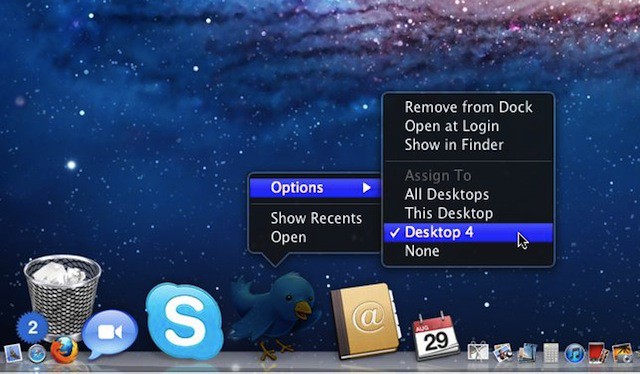

Mac OS X Snow Leopard would allow you to assign applications to a particular space using a control panel in System Preferences. This is no longer the case with Mac OS X Lion which offers a completely different option for assigning applications to spaces.
- All Desktops – the application opens on each desktop (space).
- This Desktop – the application opens on the currently selected desktop.
- None – the application will open on the current desktop.
Once applications get assigned to desktops you’ll find them listed when you Control+click or right-click on their dock icon just like in the image above where a Twitter application shows that it is assigned to Desktop 4.

David W. Martin has more than 20 years of experience in the industry as a programmer, systems and business analyst, author, and consultant. David has written for CNET’s iPhoneatlas.com, MacLife.com, CultofMac.com, BYTE.com and recently for aNewDoman.net. He comes to Cult of Mac’s website with deep knowledge and passion for the all things Apple. Follow David on Twitter @david_w_martin or see what he’s up to now at davidwmartin.com.

