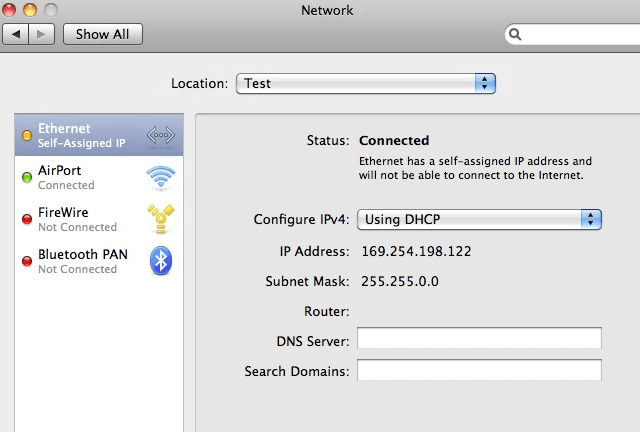
Not being able to get online can be a frustrating problem. It can cost hours of time and test your patience. See, Mac OS X doesn’t always work properly all of the time, and will occasionally assign itself an IP address, which will result in you being unable to connect to the internet. Luckily, there is an easy solution. You can use System Preferences to set a new Network Location, as well as renew your DHCP lease to fix the problem. This video will show you how to quickly fix the problem of self assigned IP addresses through System Preferences.

Michael Steeber is a student who is obsessed with everything Apple. He enjoys making videos and runs the MSComputerVideos YouTube channel in his free time. You can follow him on Twitter as well.


3 responses to “How To Fix Self-Assigned IP Addresses In Mac OS X [Video How-To]”
the video not help :/ ,
please help
ethernet connection give 169.254.x.x
address (my network is 192.168.0.x net mask). I can’t seem to find any
reason for it because I’ve verified that the switch is working properly,
the router is working properly, the cable modem is working properly.
I use Tp-link in win7 working properly
Well that was worthless…
First you show that you are connected to the AirPort and that the ethernet is “self assigned” then you show how to connect with the AirPort after you have it done, and then leave the ethernet problem there once again.
Plan your videos before posting… Worthless video!
Bitch, you’re full of shit! This did not solve the Ethernet DHCP assigned IP address
problem!