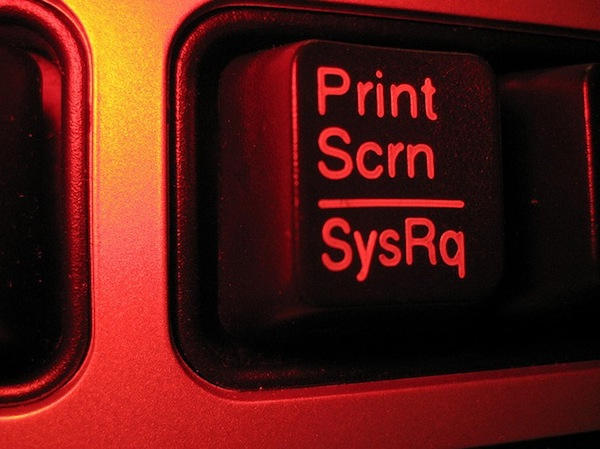
100 Tips #30: Where’s The PrntScrn Button On A Mac?

20100923-prntscrn.jpg

Photo by Phil Sexton, used with thanks under CC License

Windows users are accustomed to a “Print Screen” or “PrntScrn” button on their keyboard. When hit, the computer takes a picture of the current screen and saves it to the clipboard, ready for pasting into a graphics program.

So where’s the PrntScrn button on a Mac? How do you take a screenshot?

Vance L from Australia contacted us at (sorry, you need Javascript to see this e-mail address)saying that when he switched from PC to Mac, he spent 10 minutes looking for that button before realising it wasn’t there. But as he found out, there’s another way.

In fact, there are two easy ways to get a screenshot on OS X.

The easiest is to press COMMAND+SHIFT+3 all at the same time. Go ahead, try it now. Your Mac should make a little camera-shutter clicking sound, and a new image file will appear on your Desktop. That’s the screenshot. If you’re using an up-to-date copy of Mac OS X 10.6, the file will be named with the current date and time; on older systems, it will be called “Picture 1’ (unless you already have a file there called Picture 1, in which case the new one will be “Picture 2’…)

That’s the simple option. There are more, though.

Want to grab just a section of the screen? Press COMMAND+SHIFT+4 instead. You’ll see a tiny crosshair symbol appear – drag it over what you want a picture of, and when you let go of the mouse button it will save an image.

For more options, there’s the Grab application. You’ll find it inside the /Applications/Utilities folder, but the quickest way to open it is to type “grab” into the Spotlight menu in the top-right of your screen.

(Thanks to Vance L for suggesting this tip. If you’ve switched from Windows to Mac, and there’s a question you’d like to ask us as part of this series, get in touch: (sorry, you need Javascript to see this e-mail address).)

(You’re reading the 30th post in our series, 100 Essential Mac Tips And Tricks For Windows Switchers. These posts explain to OS X beginners some of the most basic and fundamental concepts of using a Mac. Find out more.)

DON'T MISS
100 Tips #22: Hold Down Option For More… Options

Apps you might like

  • Moritz Schmale

    Also, when in CMD+SHIFT+4 Mode, you can toggle to a whole-window-shot with the spacebar. If you don’t want to store the Picture on your Desktop but in your Clipboard, use CTRL+SHIFT+3 or CTRL+SHIFT+4 instead.

  • Hubert Kunnemeyer

    Wow, thanks that works great with Snow Leopard. I’m always looking for better, faster ways to do things on my macs. I appreciate it.

    HK

  • ttzero

    Thanks for the tip. What about when I’m on a Mac, but running the Windows partition? The two options you listed here didn’t work for me.#

  • LD

    Doesn’t work on my MacBook Pro.

  • http://www.naumangla.com Nauman

    Another useful method:

    You can capture a single window including it’s shadow:

    1) Cmd+Shift+4
    2) Space bar
    3) Click

    Saves as a transparent png with OS X’s drop shadow on the window.

    Boom.

  • Brooke

    Cool! Works on my MacBook Pro. Thanks for the clipboard tip, Moritz.

  • http://ktula.com ktula

    On some Macs, to store the screenshot in clipboard instead of a file, you press these keys:

    capture desktop: CTRL-SHIFT-COMMAND-3

    capture window or area: CTRL-SHIFT-COMMAND-4

    If you think these keys combinations are too complicated, you can change them in System Preferences:

    System Preferences –> Keyboard –> Keyboard Shortcuts –> Screen Shots. Just double-click on the configured key combinations to change it.

  • Don Pope

    @ttzero

    If you’re on Windows and you have a full mac keyboard I would suspect that F13 would be the Print Screen button.

    If you only have one of the small keyboards that don’t have a numeric keypad, then you’re probably out of luck. You’ll have to use a 3rd party utility to capture the screen.

  • Paul F

    Also, for those that can’t remember keyboard combinations you can use Preview (with Snow Leopard at least) to take screen shots of the entire screen, a selected window, or just some selected portion. Form within the Preview app just head to ‘File’, ‘Take Screen Shot’.

  • Ted

    Any ideas on how to screen grab from a paused video running in Quicktime or DVD Player? The regular screen grab methods appear to be disabled in those programs running on Snow Leopard – presumably a copyright thing. Thanks.

  • Jon

    The “PrntScrn” button, that is so 1981!

  • JeeBee

    Note that Grab will save the images as the bulky and generally useless TIFF format, whereas the keyboard shortcuts will save them as PNGs, making them far more useful (and saving the step of loading the image in Preview and saving as… PNG.

About the author

gilest

Giles Turnbull is a freelance writer in England. He writes for the Press Association and The Morning News. He has a website you can ignore and a Twitter account you needn't follow.

(sorry, you need Javascript to see this e-mail address)| Read more posts by .

Posted in 100 Tips, How-To, OS X, Tips & Tricks |

