
Not knowing your Mac’s password is like locking yourself out of the house; it’s inconvenient (at best) and always happens at the worst possible time. In our efforts to shield information from others we often wind up just blocking access for ourselves. Fortunately there are several ways to reset your Mac password when amnesia strikes or relevant information isn’t available.
Some methods of resetting your password can affect access to the keychain, however, where many of your other passwords are stored. Nothing in life is free…
Changing a Known Password
The easiest form of password reset is to change your password when you already know the existing one. This is handled in System Preferences. Login to your account (or the account to be changed), and go to System Preferences –> Accounts. Select your account and click Reset Password… The Mac will ask for your existing password and the new one, entered twice for verification.
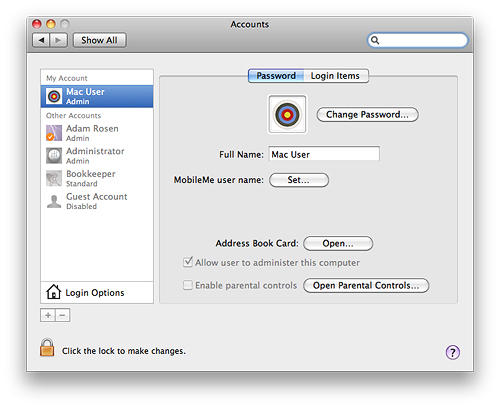
If your user account does not have permission to administer the computer, you will need to enter an admin account name and password to complete the change. The system will then confirm with the following dialog (or something similar):
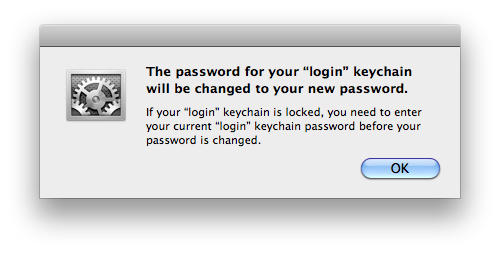
When you don’t know your existing password, things get more interesting.
Resetting a Password from another Admin Account
If your Mac has multiple user accounts defined and you know the password for another admin account, you can use the second account to reset the first. Logout of the affected account (if necessary) under the Apple Menu, then login to the accessible admin account.
Go to System Preferences –> Accounts and click the lock at the bottom left of the window to authenticate as an administrator, then select the account needing the change. Click Reset Password… and enter the desired new password. The account has been reset again, except for one important difference.
When you reset a password from outside a user account, that user’s Keychain password does not get reset. The keychain is an encrypted file on your Mac which stores many of your other passwords (web sites, WiFi networks, etc.). By default the keychain password matches the account password. However when you force-reset an account password the Mac can’t access the keychain, since it doesn’t know the existing password to use for decryption.
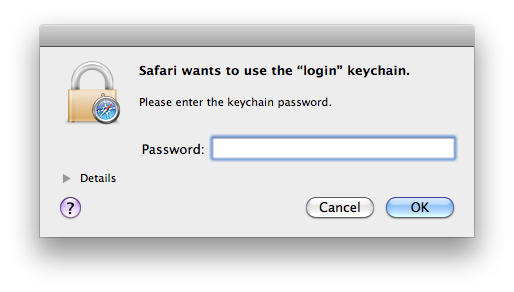
In this situation you can login to the account but now each time you try to retrieve or save a password you will be asked to reenter the old keychain password. Which you likely don’t know, otherwise you wouldn’t have had to reset this in the first place!
The usual workaround is to delete the old keychain file (named login.keychain) located in your Home folder –> Library –> Keychains (or in UNIX speak ~/Library/Keychain/login.keychain).
Once deleted the system will create a new keychain file using your new account password and the error messages will stop. However, it also means you will no longer have access to all the passwords previously saved in the keychain and will need to enter these items again.
As noted, there’s no such thing as a free lunch.
Resetting via Password Utility on a Mac OS X Install DVD
If you don’t have an accessible admin account on your Mac, you can always use a Mac OS X Install DVD to accomplish the task. The grey Software Install disc that came with your Mac will work, or any retail (black) Mac OS X installer which supports that model. You will need physical access to your Mac to perform this kind of reset.
Insert the DVD, reboot and hold down the C key. Let the installer start and run normally until you get access to the menu bar, then choose Utilities –> Reset Password. The Mac will scan for all available accounts and allow you to change passwords as desired. When complete, quit the Reset Utility and the Installer, then reboot normally.
The Mac will boot to the login screen when reset in this fashion, disabling any previously setup auto-login. As above the keychain password does not get reset when using this method; expect to delete the old keychain and start fresh once you’re back into the affected account.

Adam Rosen is an Apple certified IT consultant specializing in Macintosh systems new and old. He lives in Boston with two cats and too many possessions. In addition to membership in the Cult of Mac, Adam has written for Low End Mac and is curator of the Vintage Mac Museum. He also enjoys a good libation.

