
100 Tips #21: How To Save PDF Files

default100tips.jpg

If Apple were interested in marketing their computers to people who live just to print, they’d probably use a slogan like: “Macs: PDF everywhere.” Or something.

Because it’s true. The ability to turn anything that’s printable into a PDF file is built right in to the OS X operating system. And it’s easy to get to from anywhere.

Say you have a document. It doesn’t really matter what it is, or what application you used to create it – as long as you can print it, the chances are you can turn it into a PDF.

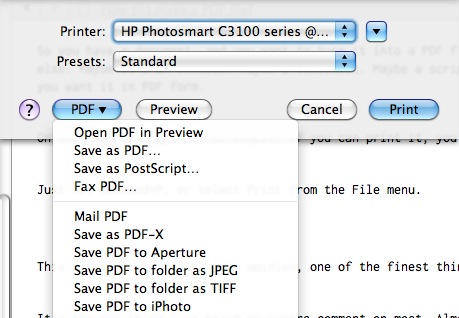
Just hit Command+P, or select Print from the File menu. You’ll see a button labelled “PDF” at the bottom-left of the Print dialog; click this, and you get a bunch of PDF options. The second one down is “Save as PDF…” That’s all there is to it.
20100602-savepdf.jpg

If you have other PDF-friendly applications installed, they will appear here, so you can save PDFs directly to those applications.

DON'T MISS
Readdle’s PDF Converter Will Turn Any Document Into a PDF On Your iPad

You can save all sorts of things as PDFs. Documents, spreadsheets, web pages, notes, photo contact sheets, anything. If you can print it, you can PDF it.

Every time I show this to a newcomer who’s switched from Windows, they smile and their eyes light up. Then they say: “Why hasn’t it always been that easy?”

By which they mean: “Why wasn’t it that easy on Windows?”

About the author

gilest

Giles Turnbull is a freelance writer in England. He writes for the Press Association and The Morning News. He has a website you can ignore and a Twitter account you needn't follow.

(sorry, you need Javascript to see this e-mail address)| Read more posts by .

Posted in 100 Tips, 7, Tips & Tricks |

  • http://jonatancortes.tumblr.com Jonatan

    Just another complementary tip: some pdf can’t be printed due to print restrictions. In these cases, in order to remove those restrictions, just open and save the pdf with ColorSync (don’t ask me why, but it works).

    ColorSync removes all pdf restrictions and let’s you print all pdfs.

    Hope it helps!

  • Tom

    Also – You can use the Reader function on Safari 5.0, then Print, save as PDF. Cuts out some of the extraneous adverts etc in a saved webpage, and can put all the pages of a multipage web article in one document (though you need to page down and let all the pages load, and check all of the pages have loaded in Reader first).

  • Kallt

    I wish there was a right-click “Print as PDF” option. I hate it to open Microsoft Word everytime someone sends me a Word document. I want a simple, instant solution to print PDFs without opening the entire application. Definitely something Apple should add in 10.7.

  • MacTex

    Here’s another reminder to please publish Tip #18.

  • Bob

    One complimentary tip: The “printed” PDF files are often very large. Reduce them opening the file in Preview, go to Save As, and in the Quartz Filter window choose Reduce File Size. Voila’ – instant success.

  • http://darrenjgore.com/ Darren Gore

    Seems to be undocumented, but certain fonts (Arial is one) render incredibly poorly when using the ‘Save as PDF’ option; at least when working in iWork.

    I’ve found the solution is to choose the ‘Save as Postscript’ option from the same menu, then open the resulting PS file in Preview (this is the default for Postscript files) and *then* save as a PDF.

    Slightly larger file size but all fonts render exactly as in the originating application…

  • http://gilest.org Giles Turnbull

    MacTex: don’t worry, I haven’t forgotten! It’s on the way soon!

  • Deepak

    I have problem with PDF factory pro.The problem is when ever i want to take print out it will ask me to save that file and after that only i can take print out.

  • Lmileva

    I agree that’s an incredibly simple way of saving and using documents and webpages in PDF.
    The problem i have as a brand new mac user is that when i save it in PDF(as per your instructions) I get just half of the actual document and the rest of the page are links (usually these links appear on the very right side of the original document) Obviously i need to do something to resize or compress the document in order to get the whole view in the PDF document…
    Your help will be greatly appreciated.
    Lili

