
100 Tips #19: What Are Smart Folders?

20100630-smartfolder.png

A normal folder is simple; it’s a thing you store files in. You choose which files are there, you have complete manual control over what’s inside that folder.

A smart folder is one whose contents are partly or completely determined by a set of rules that you’ve created.

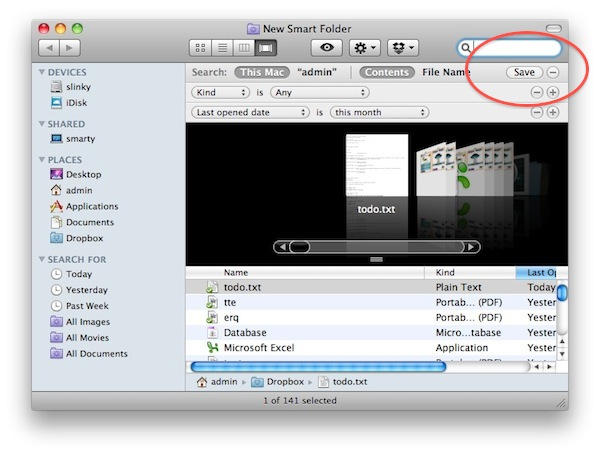
To set up a Smart Folder, make sure you’re in Finder and then select File -> New Smart Folder. You’ll see a Finder window appear, but it’s slightly different to normal ones.

At the top of the window, just below the toolbar, there’s a new bar of controls. You choose whether the search scope covers everything on your Mac, or just the current folder. You also choose whether you’re searching file contents or file names.

It’s not smart yet, though. See the little “plus” sign at the far right of that new control bar? That’s how you start getting smart.

Click it, and you can start adding search criteria. Click it several times to add several criteria. You can select your options from the drop-downs that appear.

So, if you want audio files modified in the last week, you can find them. If you want presentations containing the word “sales”, you can bring them all together. If you want a list of the folders you’ve opened in the last 24 hours, you can make it. Smart Folders are designed to bring related items together, no matter where they are actually stored in your filesystem.

It’s worth noting that Smart Folders are virtual folders; your Sales presentations might be spread across different folders, but a Smart Folder will collate them in one place. It hasn’t moved the original files – it’s just displaying them together.

The best thing about Smart Folders is that they stick around. They will always be up-to-date with the stuff you’ve told them to look for. The computer does the searching for you, all the time.
DON'T MISS
Amaze Your Friends With Mac OS X Lion Improved Smart Folders [OS X Tips]

20100630-smartfolder2.jpg

When you’re done putting your Smart Folder together, click the Save button at the top-right (just next to the plus sign we mentioned earlier). In the save dialog you’ll see a checkbox that says “Add to Sidebar” – just click this to make your new Smart Folder appear in the Finder sidebar under the “Search For” heading.

Note to regular readers: The tips have been few and far between recently, because of some personal commitments that kept me from posting much. Apologies for that. I’m hoping to keep things more regular henceforward.

(You’re reading the 19th post in our series, 100 Essential Mac Tips And Tricks For Windows Switchers. These posts explain to OS X beginners some of the most basic and fundamental concepts of using a Mac. Find out more.)

About the author

gilest

Giles Turnbull is a freelance writer in England. He writes for the Press Association and The Morning News. He has a website you can ignore and a Twitter account you needn't follow.

(sorry, you need Javascript to see this e-mail address)| Read more posts by .

Posted in 100 Tips, Tips & Tricks |

  • Kike

    ” You choose whether the search scope covers everything on your Mac, or just the current folder.”…
    Really? How? When I click “File -> New Smart Folder”, the location options are only “this mac” (everything on my mac) and “kike” (which is my home). The search options are “Contents” and “File Name”, as you say.
    So… if I want a Smart folder to search within a given folder… How should I instruct it to do so?
    Cheers!

  • http://gilest.org Giles Turnbull

    Kike: simple: go to that folder first. *Then* hit “File -> New Smart Folder”. Your current location will be one of the options shown.

    :)

  • http://www.diaspoir.net/ dave

    Is there anyway to make a smart folder containing folders rather than files? I’d like to be able to see a list of folders with changes in the last week, which would correspond to projects I’m working on now.

    The only way I can think of to do it is with a shell script making symbolic links depending on the contents of the folders.

  • http://gilest.org Giles Turnbull

    dave: in the criteria selector drop-down, choose “Kind”; then in the next drop-down choose “Folder”; that will limit the search to folders, not files

  • Machete9236

    Five years after the introduction of Smart Folders in OS X Tiger, Windows 7 finally has the same feature, under the name of “Libraries.”

  • johnQ

    @Machete9236: and 18 years after the introduction of virtual desktops in swm, os X 10.5 finally has the same feature, under the name of “spaces.”
    Your point being?

  • ChuckEye

    Having the same problem as Kike. I’m trying to create a smart folder inside my Downloads folder using the File menu (or keyboard shortcut), and no matter what I do, the only options for the search scope are This Mac and my home directory.

    Actually, scratch that…

    If you DON’T do File->New Smart Folder, but instead do a Spotlight search, THEN you can create a new smart folder from that search by hitting the Save button in the top right of the window’s header, and the scope seems to work. (10.6.4)

  • Machete9236

    @johnQ: Lol, geez, I was only saying that Mac OS X has had a helpful feature for awhile that was only recently in Windows. Nothing more, nothing less. I was just poking some more fun at the age-old Mac vs. Windows debate. I’m fully aware that Apple is not the first to introduce every feature. Oh, by the way, Windows still doesn’t implement virtual desktops, so I guess it’s only a mainstream interface because of Linux distros and the Mac. Your point being?

  • PWNtage

    LoL, Machete9236 PWNd that b!+ch (JohnQ). Don’t forget that Windows doesn’t have the ability, by default, to visualize PDFs or even their own Office formats. Way to FAIL Microsoft.

  • MacTex

    I’ve been unable to find the 18th tip.

  • http://gilest.org Giles Turnbull

    MacTex: yikes! You’re right, looks like number 18 got lost in transit. It’s written – it’s about Spaces – and it was supposed to be posted, but I must have forgotten to hit Publish. I’ll make amends soon.

  • 207guy

    Has Apple made Smartfolders, smartlists, etc. with the ability to sync between devices? I’d love to have them on my iphone.

  • http://www.diaspoir.net/ dave

    Giles – Thanks, that’s useful. Now how do I specify the search using Regexps?

