
The busier my life gets, the more disorganized I become. I fumble for a notepad when I’m out and want to get someone’s phone number. I think of get short story ideas when I’m in the shower, and I have tons of books and movies I want to get (usually when I’m broke). Don’t get me started on shopping lists. Who has time to write those out?
My digital life is just as disorganized. There are web links to save, photos of stuff I want to share with friends, and notes I need to refer to while writing articles on the web. They’re each in their own separate apps or websites, making pulling everything together a pain.
Notes in iOS 9 solves this dilemma by allowing us all to keep all our photos, notes, shopping lists in the one place we’re most likely to find it: on our iPhones.
Better yet, you can dictate an idea for your next screenplay right out of the shower, then pick up your iPad when you get to work and resume it right there.
Here’s how to get the most out of your new Notes app, and never be disorganized again.
Notes still lets you type or dictate regular old text notes, which are also accessible on any device you’ve signed into iCloud on, including the web when you go to iCloud.com. What iOS 9 adds, however, kicks the app up such a huge notch that it’s now pretty solid competition for apps like Evernote.
The new features like Sketches, Attachments, and Checklists finally make Notes a contender for your important stuff.
Sketching
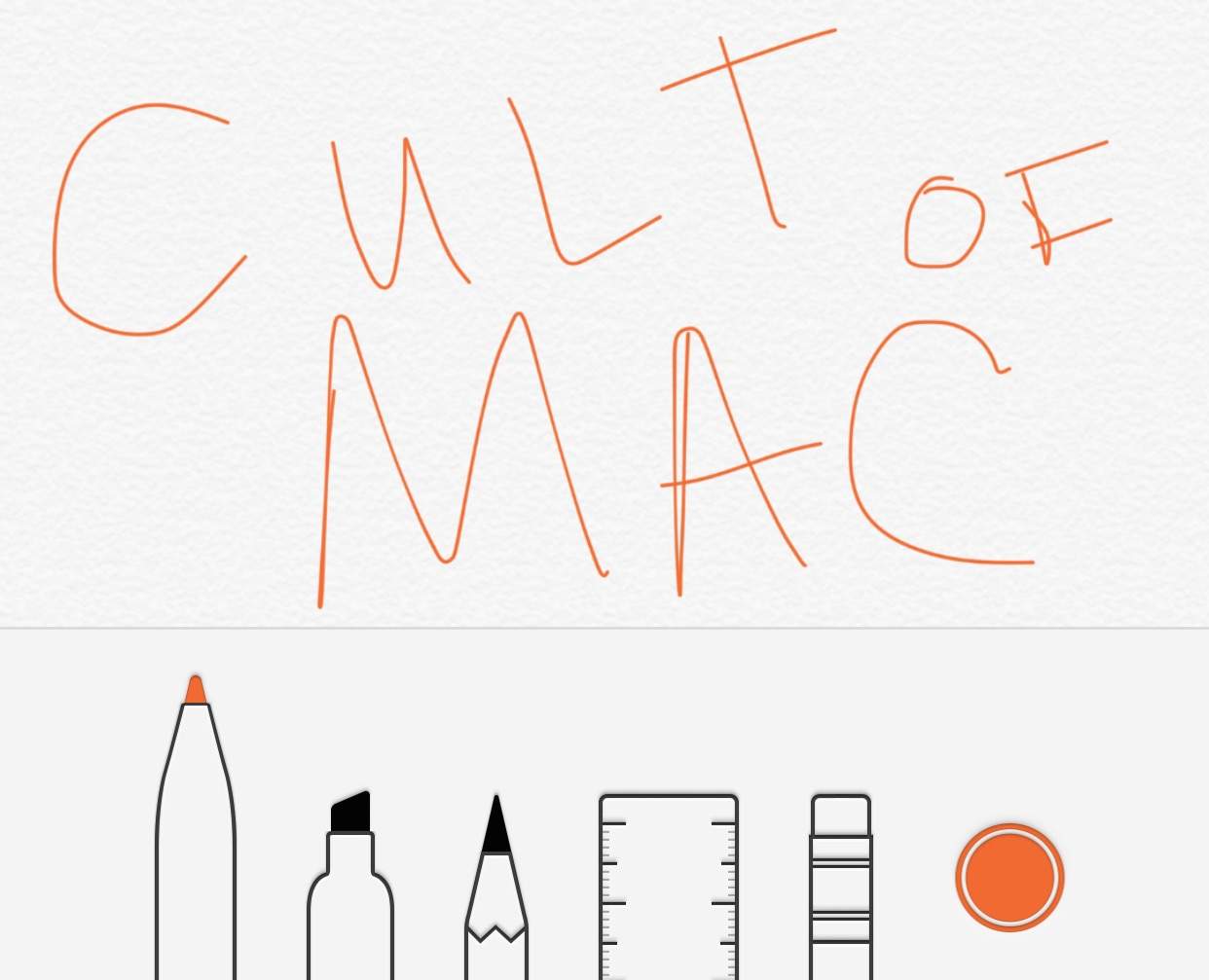
Photo: Buster Hein
Headed to the store to buy a new refrigerator? Draw out the dimensions of your kitchen space right in Notes and have it with you at the store, or share it with the person headed to Home Depot to look at appliances. Draw a funny picture and send it to your buddies via iMessage, or write a love note to your sweetie. Notes makes it all possible, and saves it all on your iPhone for later access.
When you open a new Note on your iPhone or iPad, you’ll see a new plus symbol in the lower right of the text. Tap that, and then the squiggly line to see the various options for drawing on your device with a finger or capacitive stylus. You can use the fine-tip marker, the thick and translucent highlighter marker, or the pencil tool to draw out whatever you like. There’s even a ruler that takes advantage of iOS’s multi-touch technology to let you draw straight lines, and an eraser to clean up any mistakes. There are 24 different colors to choose from, as well, with several shades of gray included.
Checklists
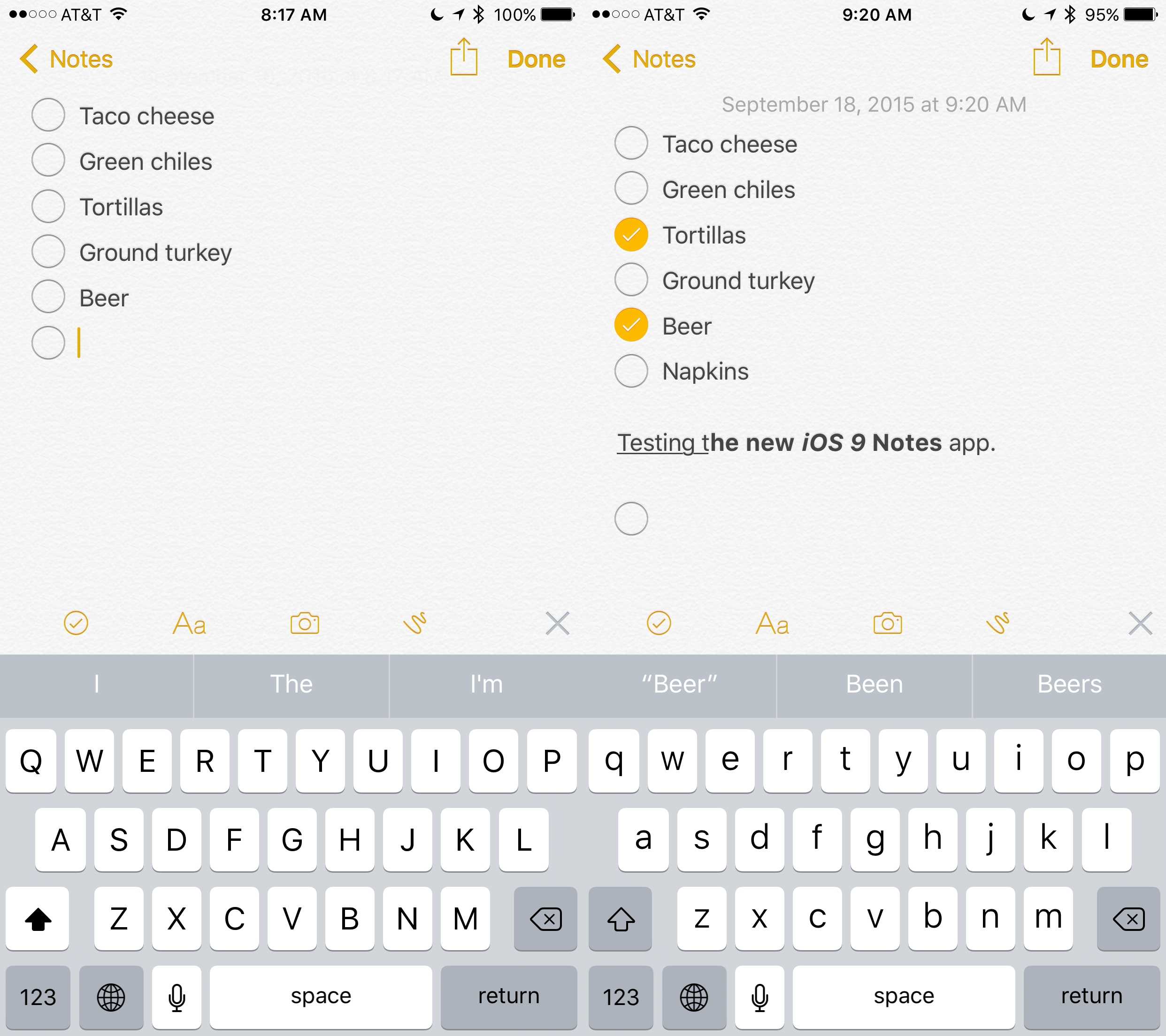
Photo: Rob LeFebvre/Cult of Mac
I’ve used Reminders for quite some time now for shared shopping lists, but it sure is handy to be able to keep check-able lists in the same app I’m doing everything else in. List of movies I want to watch? Check. Shopping List I can share with my girlfriend so we don’t forget the butter or buy too much milk? Check. List of best albums of all time, comic books I’m still looking for, lists of presents I want to get my kids? Check, check, check.
All you need to do to create a checklist in Notes is to start a new Note or open a previous one, then hit that plus symbol in the lower right corner. Next, tap on the little checkmark in a circle icon and type (or dictate) the first item on your list. Hit return on the keyboard to continue making a list with the little checkbox next to it. If you want to take a list item out of the checklist format, simply place your cursor somewhere on the line and tap that little check in a circle icon again.
Attachments
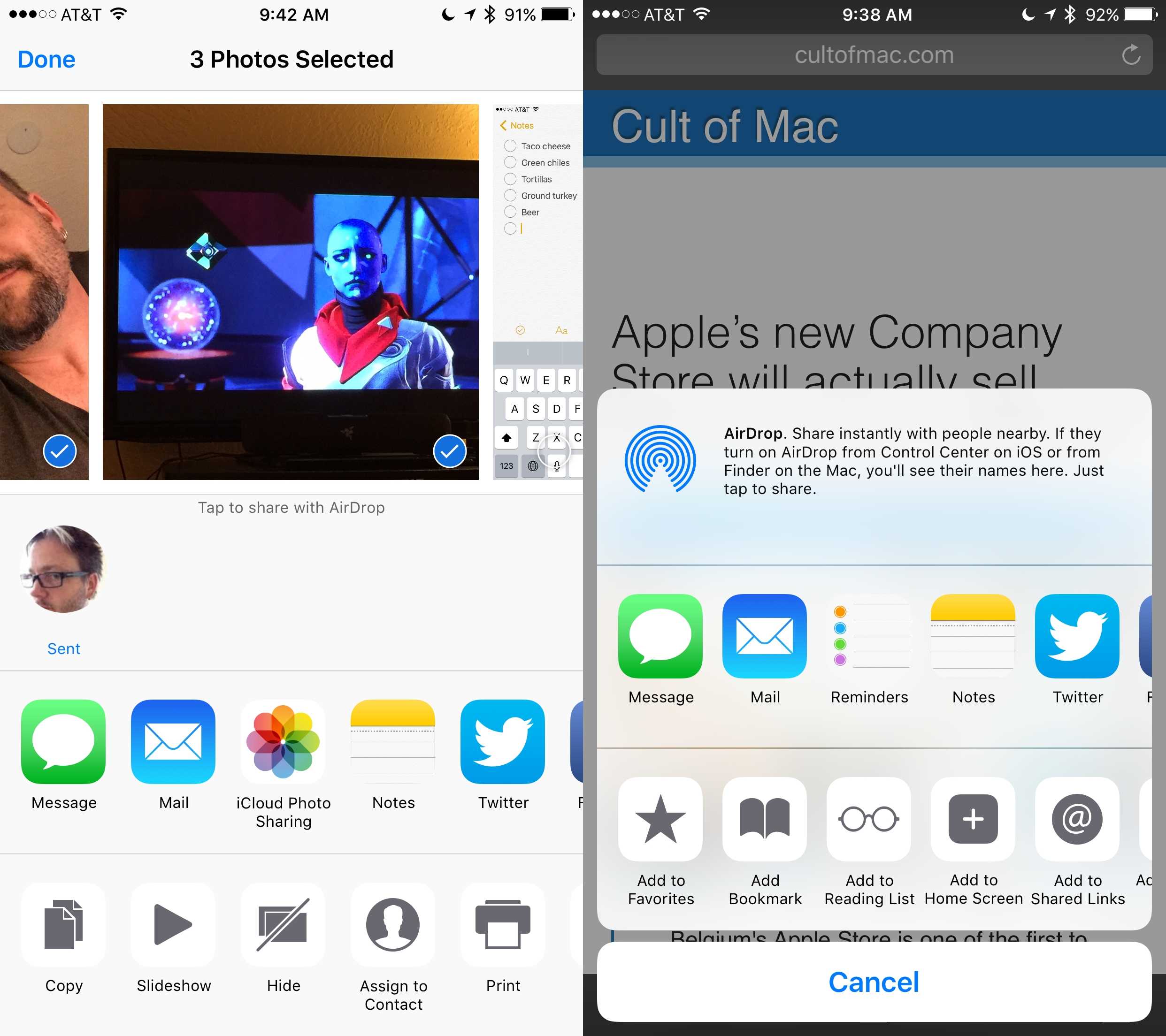
Photo: Rob LeFebvre/Cult of Mac
The new iOS 9 version of Notes lets you store all sorts of things, including photos and web sites. In fact, you can add pretty much anything that has a Share button ability thanks to iOS 9’s new and improved share facilities.
Photos can be added to new or existing Notes by tapping on the big plus icon in the lower right, then tapping on the camera icon. You’ll be able to grab a photo from your Photo Library, or take a photo right there and add it to your Note.
I take photos of books I want to buy and receipts I need to keep, but always have a tough time finding the photos again. With a quick dip into Notes, now, though, I can keep a photographic record of the media I want and find it with ease every time.
You can add photos to Notes easily from the Photos app, too, by selecting the photos you want and then tapping the Share button. You’ll get a pop-up that lets you add text with the chosen photos, as well as a way to choose what Note you want to add them to. Simply tap on Choose Note and you’ll have access to all of the Notes on your iPhone, or you can just leave it alone and add the photos to a new note by default.
If you’re browsing the web and want to save a specific site for later, you can Share right from Safari with a tap, too. When you choose to share to Notes, a little pop up will appear with the web link, a picture of the site’s icon, and a place to add text. You can also choose which Note you want to add the bookmark too here, as well.
Ultimately, if you need to keep all your stuff in one place, access it from any device you want, and stop that sinking feeling when you realize that you just lost that receipt you needed, Notes may be the best answer you’ve got.

Rob LeFebvre is an Anchorage, Alaska-based writer and editor who has contributed to various tech, gaming and iOS sites, including 148Apps, Creative Screenwriting, Shelf-Awareness, VentureBeat, and Paste Magazine. Feel free to find Rob on Twitter @roblef, and send him a cookie once in a while; he’ll really appreciate it.


14 responses to “How to use Notes in iOS 9 like a boss”
Use Notes like a boss?
Naw, I’d rather use it correctly and efficiently. ;)
And yet you can’t draw ON TOP of photos. What the hell Apple??
Only in the Mail app
NOTES: family sharing never?
Only thing lacking is Apple Watch support. What if I make a checklist and want to access it on my watch while shopping and mark them off?
What’s missing is interoperability outside of the Apple ecosystem. My work computer is windows, my toy computer runs Linux, my personal laptop is a MacBook Air, and I use an iPad as well as the iPhone. If I can’t share my notes across all of my devices, then it is incomplete and too much hassle. Evernote still wins – UNTIL I can access my notes from anywhere I happen to be computing.
Can’t think of a single reason why Apple didn’t make the new Notes shareable, as Reminders is. I want to be able to share these with my family members so we can all update various lists we share. Nope, have to stick with Reminders, which is very limited compared to Notes for our purposes.
Why doesn’t iOS9 Notes support sketching on iPad2? Surely there’s no hardware limitation!
They seem to have REMOVED the ability to find text in multiple places in a note. It now just brings up the note and shrugs “meh, it’s in there somewhere.”
Check out a great@ way how you can earn a lot of extra $ by finishing basic jobs online from home for few hrs /daily VISIT MY-DISQUS-PROFILE to find out more
I used to be able to upload my iOS note straight to Evernote via a share button. This ability is now gone. Can someone explain? Thanks.
me 2
Updated to iOS 9 on iPhone 6 but I don’t have these new functions in the notes app. Any idea why?
In the new versions, did they add the arrow function key at the bottom right of the note so I can tab through all of my notes? This was very helpful tool which helped me scroll through all of my notes in order to delete things I no longer wanted.