
100 Tips #3: Quit And Close, They’re Not The Same

default100tips.jpg

On Windows, when you’ve finished using a particular piece of software, you close it with the X symbol in the top right corner of the application window.

Many switchers assume that the window close control in the top left of an OS X application window does the same job: but that’s not quite true.

On Windows machines, when you close the window, you close the app. But on a Mac, when you close the window, that’s all you do: just close the window. The app itself it still running.

Why does it work this way? Because Mac apps have a history of being document-oriented. In other words, you might have many different documents open at once, and closing one of them wouldn’t mean you wanted to close them all. Things have changed a little in recent years, and today there are a lot of apps on OS X that keep multiple documents in tabs, rather than each in its own window. But the default behavior remains much the same.

Well, most of the time.

There are one or two annoying exceptions. One is Apple’s own System Preferences application, which is somewhat similar to the Windows Control Panel. When you close the System Preferences window, the application quits as well. But exceptions like this are pretty rare.

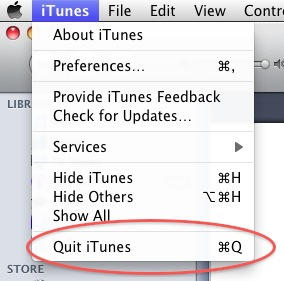
On OS X, to close the application completely, you need to explicitly tell it to Quit. You can either do that from the Menu Bar:
20100316-quit.jpg

Or you can just remember the most basic keyboard shortcut of them all: Command+Q. Hit this, and the app you’re using will Quit. If you have any unsaved work it will ask you what to do – whether you want to save that data or discard it.

DON'T MISS
How To Deal With Crashed Apps [100 Tips #51]

To sum up, then: using the window close control just closes the window. If you want to quit the app, hit Command+Q.

Addendum: some people argue that with today’s incredibly powerful and fast computers, there’s no real need to Quit anything in most circumstances. You can, in theory, leave your most-used applications running pretty much all the time. This is sort of true, but to keep things tidy and to keep your computer running at its fastest and most efficient, I’d recommend quitting the apps you’re not using.

(You’re reading the third post in our series, 100 Essential Mac Tips And Tricks For Windows Switchers. Find out more.)

About the author

gilest

Giles Turnbull is a freelance writer in England. He writes for the Press Association and The Morning News. He has a website you can ignore and a Twitter account you needn't follow.

(sorry, you need Javascript to see this e-mail address)| Read more posts by .

Posted in 100 Tips, Tips & Tricks |

  • Scott

    “I’d recommend quitting the apps you’re not using.” OSX does a really excellent job of managing resources, and so apps that aren’t being actively used will use very few resources–so few you probably won’t notice a difference in performance with your active apps if your inactive ones are quit or not.

    It certainly makes sense to quit the apps you have no intention of using for a long time (mostly just to keep things tidy), but some apps take a little bit to launch. For those apps, I like to keep them running even with no windows open if I anticipate that I might need to use the app in the relatively near future.

  • Tom

    Another way to quit an app is to right click on the app’s icon in the dock and click on Quit from the context menu. If the app has crashed and isn’t responding, a right click will bring up Force Quit for immediate shutdown.

  • Alan

    An additional tidbit: if the document you are working on has new changes to save, the red dot will have a darker red in the center. If your save is up to date it is uniform red so you have a quick indicator that saving is needed before closing.

  • http://www.metrokids.ca Conrad

    Wow, Alan. Did not know that! Just checked it out, how cool! I only made the switch in July… have been SO happy with my Mac. Thanks for the tip, Alan!!

  • Daniel Kramer

    This is exactly why I chose to follow these tips, even though I consider myself to be well informed about my Mac: Alan, your tip with the little red dot didn’t make sense at first (what red dot is he friggin’ talking about…?), but once I got it and tried it I must say: thanks for sharing this insight… I hadn’t noticed this before…

  • http://gilest.org Giles Turnbull

    Thanks to everyone who has commented here with helpful extras; your contributions are very helpful for the newbie Mac users out there. :)

  • Herman

    Insightful explanation, and at the risk of overwhelming the new user with shortcuts, this one is just too useful to pass up on: If you want to close just the window as described here, press “Command+W” – this works for the tabs in your browser of choice, too.

  • Optical

    Ahhhh the dreaded ‘Close the document window, forget the app remains open’ situation… I’ve lost my temper more than a few times at ‘experienced’ Mac users that wonder why their machine is acting erratically/slows down/there seems to be memory issues (no, it shouldn’t be an issue, I know, but in machines with not much RAM/HD space/speed it CAN make a difference). You check and sure enough, there are six or more apps open, besides the one actively used. Please, switchers: learn this.

  • Ricardo Vilavinuevastinaso de Poo

    Dang “switchers!” Always drinking my cup of tea. But just remember something Swanky Pants, you’re all Mac newbies in master
    Ricardo Vilavinuevastinaso’s eyes.

  • http://synapse-thoughts.blogspot.com/ Alan

    I also noticed that iPhoto quits on closing the window. I’m not sure why – perhaps the app takes up (or potentially takes up) so much memory they decided to break with convention to avoid slow performance.

  • RyanTV

    Calculator quits when you click the red dot as well

  • Scott

    There’s a setting the programmer can choose to quit when the last window closes. By default it isn’t active.

  • http://bytesizecreations.com Michael

    I find the easiest way to close any apps that you don’t need to have running is to right click on any apps in the Dock that have a blue dot under them and select Quit. Rather than going between apps and pressing Cmd+Q or File->Quit.

    Another tip: quite often if you can’t right click an app’s dock icon if it has stopped responding (coloured, spinning wheel of death) – switch to another app and then right-click your unresponsive app in the Dock and select Quit.

  • http://www.brockerhoff.net/bb/viewtopic.php Rainer Brockerhoff

    It’s quite logical, but few people seem to notice.

    If the application has a single window (Calculator, System Preferences, iPhoto, Dictionary, etc.) it should quit when you click on the red button. In other words, those applications are not document-oriented.

    If the application is document-oriented, it can have multiple open windows (TextEdit, Preview, Safari, etc.) and you’ll have to quit it explicitly. The advantage is that you can open new windows without restarting the application.

    Unfortunately some developers don’t follow the first guideline. Keep an eye on the application’s name in the menu bar (next to the Apple menu, top left) while clicking on the red button, and if the application quits, it will change at that moment.\

    iTunes is an odd duck here, in that it’s not document-oriented (it works off a global database) but it can have multiple windows open. However, this makes sense in that it doesn’t stop playing when you close its last window; handy if you just want background music.

  • Jonny

    Understandable, but why do the Apps that quit when “closed” even give the option for “Close Window” under “File” (like iPhoto)? That seems kinda dumb.

  • GM

    I would like to point out that its very easy just press CMD+W (Close Windows) or CMD+Q (Quit App) On Safari and Firefox CMD+W Closes the open tab and SHIFT+CMD+W Closes the window, and all tabs in it.

    An easy way to quit loads of apps at once is to CMD+TAB, then keep the CMD pressed down, but not the TAB button, press Q. Very fast.

  • Alvin Eloy Luna Castro

    I like your post.  It is very educative.  But, I have to confess, it is annoying having to press COMMAND + Q every time in order to close the app.

  • Coneyjones

    I have noticed in the last week, since there was some update, that command Q will not close safari… what’s up?  Funny thing… it still closes all other programs.  What happened? Any ideas?

