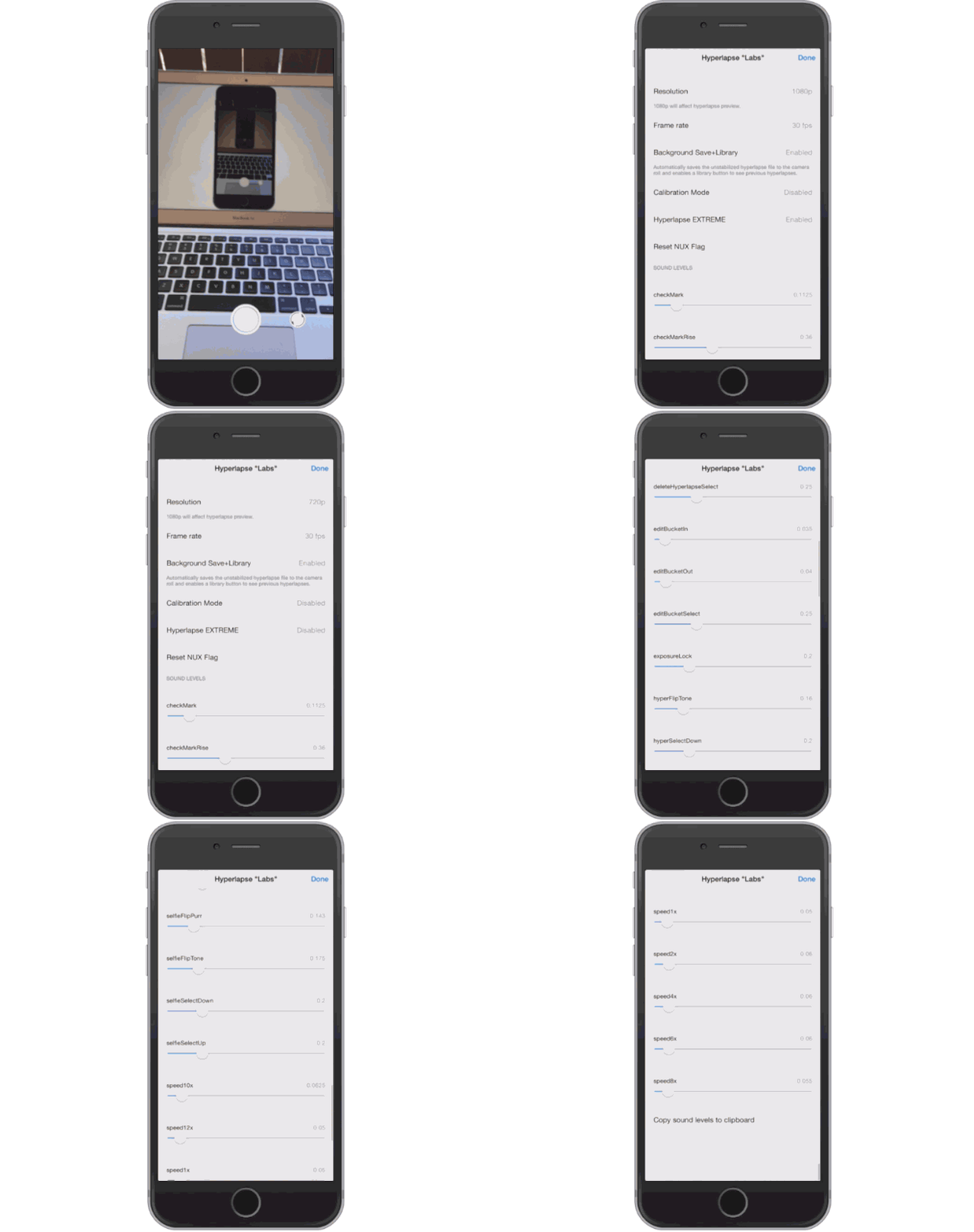
Instagram’s new Hyperlapse app is a phenomenal tool to capture buttery smooth timelapse video with more options and tweaks offered than iOS 8’s built-in timelapse feature. But if you’ve got a new iPhone 6 and want to record 1080p Hyperlapses you’re out of luck, unless you know how to access its secret settings menu.
Hyperlapsers can tap into their iPhone’s full potential by accessing the hidden ‘Labs’ menu that lets you tweak everything from your recording resolution, frame rate, speed multiplier options and even the sound levels.
Here’s how to access Hyperlapse’s secret settings:
Step 1: Open Hyperlapse
Step 2: Tap the screen four times with four fingers (it may take a few attempts).
Step 3: Adjust resolution to 1080p.
Step 4: Enable Hyperlapse EXTREME – adds 24x and 40x speed multipliers
Step 5: Tap done.

Buster Hein is a freelance writer who lives in Phoenix, Arizona. Twitter: @bst3r.


8 responses to “How to access Hyperlapse’s secret settings and record in 1080p”
This also works on iPhone 5.
It also works on my 5s
And also works on iPhone 4s
Not sure if anyone saw it but The Verge did a piece about Hyperlapse the other day showing how amazing the app is when just recording at 1x speed. The amount of stabilization is astounding.
Be sure to check out the bonus video with the video crew of The Verge commenting on the pros and cons of Hyperlapse. There’s also a bunch of other samples that didn’t make it to the lead video.
http://www.theverge.com/2014/10/13/6968699/hyperlapse-is-really-good-at-stabilized-video
and the iPad3
Nice tip!
4 quick taps about the speed of the “knock 4 four times” from the Master in Doctor Who.Sorry, but that’s the best way I could describe it.
This is the only tip that finally got it working for me haha