OS X Mavericks has been designed to optimize your Mac. Whether it’s an older Mac or a new one, a desktop or a laptop: Mavericks just makes everything work better.
One feature that helps in the effort to keep your battery from running out as fast as it could is App Nap, a way for your Macbook to put the apps that aren’t being actively used on a low-energy mode, which consumes less power, and helps your battery stay fuller, longer.
However, you can also turn this feature off for a specific app that you want to run at full power all the time.
Drop into the Finder with a click on the happy Finder face icon in your Dock, or use Command-Tab to make the Finder active. Then, open your Applications folder to select the app you’d like to turn off App Nap for.
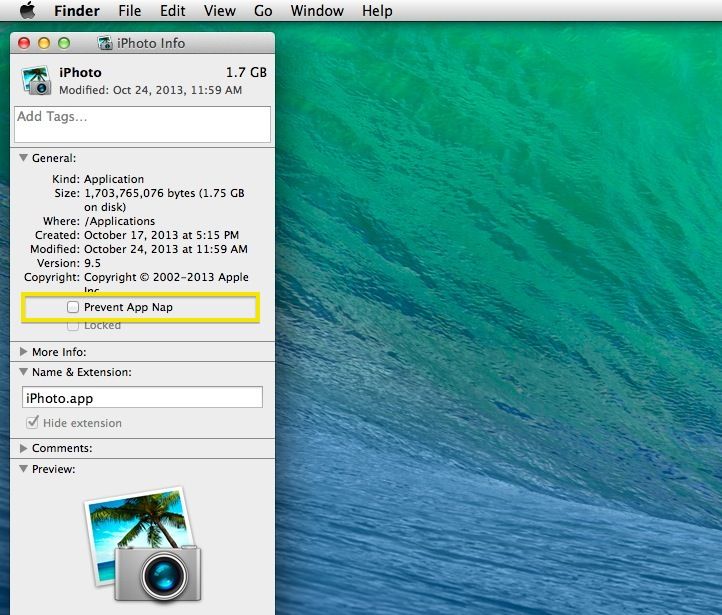
Click on the app’s icon, and then hit Command-I to bring up the Get Info window for that app. Alternately, you can click on the File menu in the Finder, and choose “Get Info…”
Once the Get Info window shows up, you’ll see a checkbox near “Prevent App Nap” in the General section. You may need to click on the little disclosure triangle next to “General” to reveal it.
Click on the checkbox to keep the specified app from getting put into App Nap mode, and it will always run at full power.
Via: TechRadar

Rob LeFebvre is an Anchorage, Alaska-based writer and editor who has contributed to various tech, gaming and iOS sites, including 148Apps, Creative Screenwriting, Shelf-Awareness, VentureBeat, and Paste Magazine. Feel free to find Rob on Twitter @roblef, and send him a cookie once in a while; he’ll really appreciate it.

