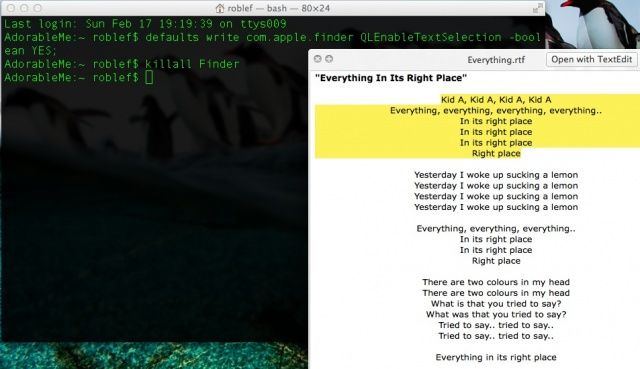
Quicklook is Mac OS X’s way of letting you see any file up close with just a tap of the spacebar. When you’re in the finder, for example, and you click on a photo, you can hit the spacebar and see the photo large and up close, making it easier to figure out which images to toss, and which to save. You can do the same with any supported text file, like an rtf, doc, or pdf file to see what’s in it at a glance.
But what if you want to copy a quick bit of text to paste somewhere, like an email? Instead of opening the file, waiting for the associated app to load, and then copying the bit of text, give this trick a shot.
First up, launch Terminal, and type or paste the following command into the window:
defaults write com.apple.finder QLEnableTextSelection -boolean YES;
Then restart the finder with the following command:
killall Finder
Now you’ll be able to pop open a text file with Quicklook and highlight and copy bits of text to use elewhere. Want to put it back the way it was? Simply enter the following in terminal:
defaults write com.apple.finder QLEnableTextSelection -boolean NO;
and then the killall Finder bit again, and you’ll be right as rain.
Source: Lifehacker
Via: Addictive Tips

Rob LeFebvre is an Anchorage, Alaska-based writer and editor who has contributed to various tech, gaming and iOS sites, including 148Apps, Creative Screenwriting, Shelf-Awareness, VentureBeat, and Paste Magazine. Feel free to find Rob on Twitter @roblef, and send him a cookie once in a while; he’ll really appreciate it.

