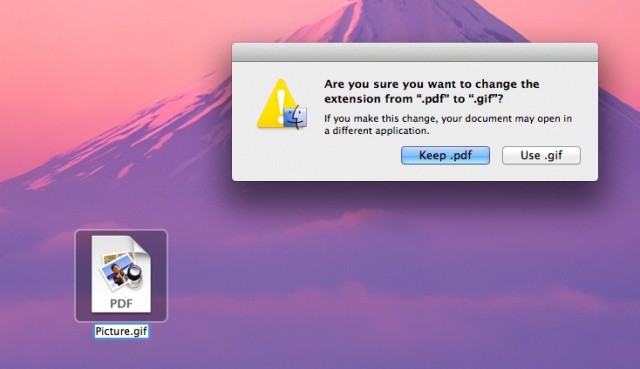
Good heavens there are a lot of warnings in modern computing operating systems, am I right? Yes, I totally did want to close that window. Honest.
One of the more annoying warnings in OS X is the one that pops up when you try to change the three letter extension on a file, like changing an image file to something else, say, .jpg to .gif or whatnot. Honestly, I should be able to do this. Usually, I do it when I get a file from another person who may not have such a great handle on how the file extensions work. If you want to get rid of the standard warning when you do this, today’s tip should help.
To lose the warning when changing a filetype, head on over to the Terminal app, which is in the Utilities folder, itself located in the Applications folder. Once you launch Terminal, type or paste the following command in:
defaults write com.apple.finder FXEnableExtensionChangeWarning -bool false
Once you do that, you then have to issue the command to restart the Finder by typing or pasting the following into Terminal as well:
killall Finder
You will no longer see the warning when changing one filetype to another, so have at it. If you want to put it all back the way it was, simply replace the false above with the word true, then restart the finder with killall Finder again.
[Source: OS X Daily]

Rob LeFebvre is an Anchorage, Alaska-based writer and editor who has contributed to various tech, gaming and iOS sites, including 148Apps, Creative Screenwriting, Shelf-Awareness, VentureBeat, and Paste Magazine. Feel free to find Rob on Twitter @roblef, and send him a cookie once in a while; he’ll really appreciate it.

