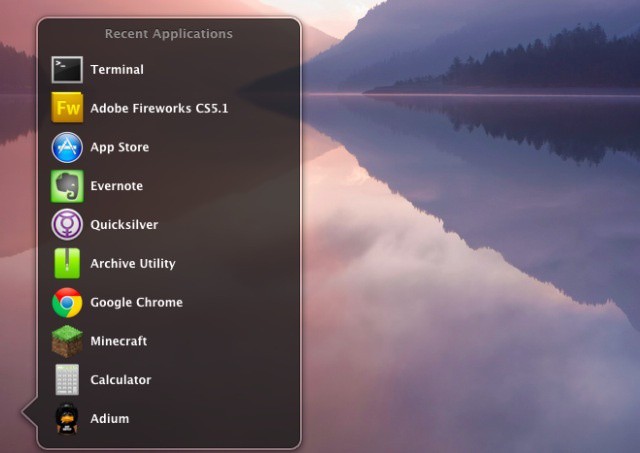
Last week, we showed you how to create a stack to show all your recent items. Today, we’re going to show you a way to change the default look of all your stacks, to a list view. This might be easier on your eyes, might appeal to your inner aesthetician, or it just might be a neat way to change the way your OS X Lion Mac behaves.
This tip is a simple one, and if you’ve been following along with all our Terminal tips, you should have no trouble at all. Simply launch Terminal from the Utilities folder (unless you’ve moved it elsewhere, in which case launch it from there), and type or paste in the following code:
defaults write com.apple.dock use-new-list-stack -bool YES
Next, don’t forget to restart the Dock by typing or pasting the following into the Terminal:
killall Dock
Control-click on the stack you want to use list view with, and choose List from the “View Content As” section that pops up. Click again on that stack and you’ll have a nice list of the stuff in that stack, complete with scrollbars if needed. What’s great is that this allows you to choose which stacks are in list view, and which in grid view. Customization win!
[Source: AppStorm Mac]
Got a tip of your own? Need help with your OS X Mac? Let us know in the comments below.

Rob LeFebvre is an Anchorage, Alaska-based writer and editor who has contributed to various tech, gaming and iOS sites, including 148Apps, Creative Screenwriting, Shelf-Awareness, VentureBeat, and Paste Magazine. Feel free to find Rob on Twitter @roblef, and send him a cookie once in a while; he’ll really appreciate it.

