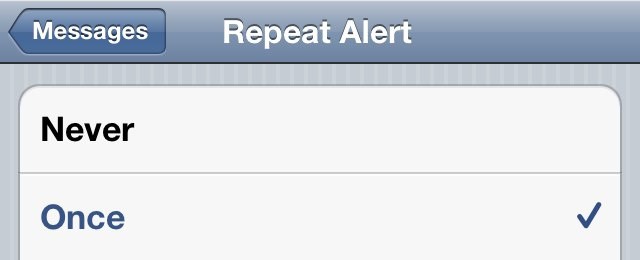
While repeated alerts for our text messages are helpful sometimes, other times they’re just downright annoying. If you find that they frustrate you more than they help you, here’s how to turn them off and receive just one alert per message.
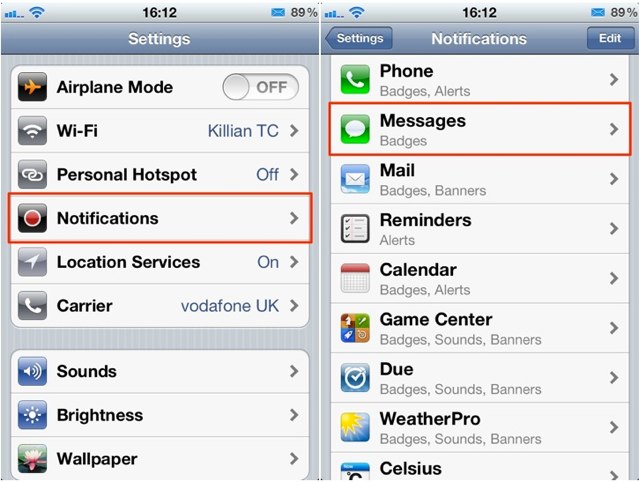
First, open up the Settings app on your device, and then tap ‘Notifications’. Now find the ‘Messages’ tab and tap on that.
Now scroll down and tap on the ‘Repeat Alert’ tab. Here you have options to turn alerts off completely, or to receive them once, twice, three times, five times, and ten times. Of course, you’re going to want to select ‘Once’.
UPDATE: As pointed out by a number of readers, I made a glaring error that I will be violently punished for. Instead of selecting ‘Once’, you actually want to select ‘Never.’ This will ensure that you get your first alert, but that it doesn’t repeat again. Thank you, helpful readers.
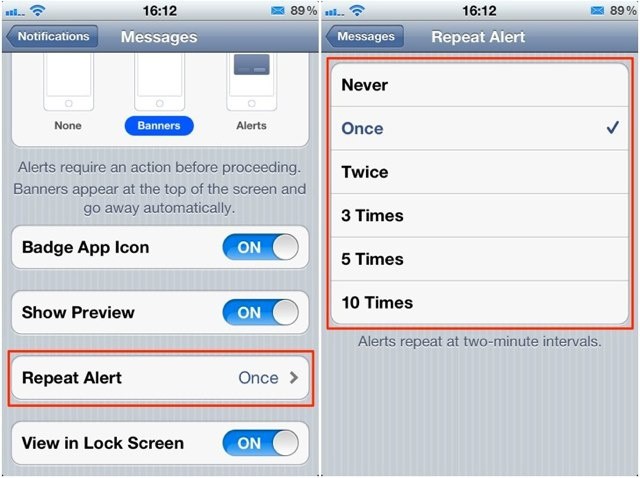
You will now receive alerts only once when you get a text messages.

Killian Bell is a freelance writer based in the U.K. He has an interest in all things tech and also covers Android over at CultofAndroid.com. You can follow him on Twitter via @killianbell.

