

One of the nifty little features in Apple’s iOS operating system is the ability to “swipe to delete” certain items. You can use the gesture to remove songs, podcasts, videos, text messages, emails, and more from your device, but for some bizarre reason, not audiobooks.
Here’s how to delete audiobooks directly from your iOS device — without the need for a computer.
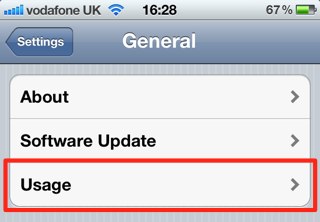
First, open up the Settings app on your device, then tap on the ‘General’ then ‘Usage’ tabs.
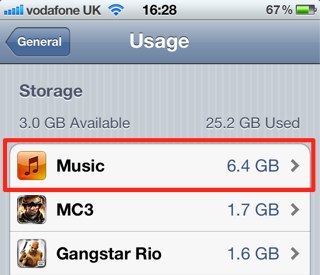
Under the ‘Storage’ heading, you’ll be presented with a list of content that’s eating up the space on your device. Tap on the ‘Music’ app.
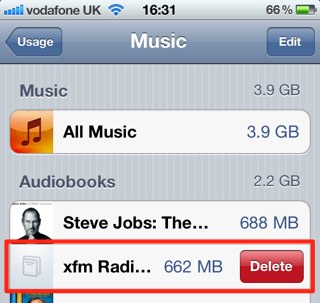
Within this menu you’ll be able to see all of the audiobooks currently installed on your device. To delete one, simply swipe your finger along it to reveal the ‘Delete’ button, or use the ‘Edit’ button in the top right-hand corner to delete them quicker if you’d like to remove more than one.

Killian Bell is a freelance writer based in the U.K. He has an interest in all things tech and also covers Android over at CultofAndroid.com. You can follow him on Twitter via @killianbell.


4 responses to “How To Delete Audiobooks Directly From Your iOS Device [iOS Tip]”
This method is not longer possible in iOS 7 bu there are many methods to delete photos from yoour iPhone by using windows PCs, Mac, and iPhone without a strange thord parity app in the post linked bellow cantanis these methods and more.
Thanks
http://iphonphone.blogspot.nl/2014/01/how-to-delete-photos-from-iphone.html
https://plus.google.com/110048656132173113003/posts/WEifaP7WnYg
Thank you. Worked perfectly and easily!