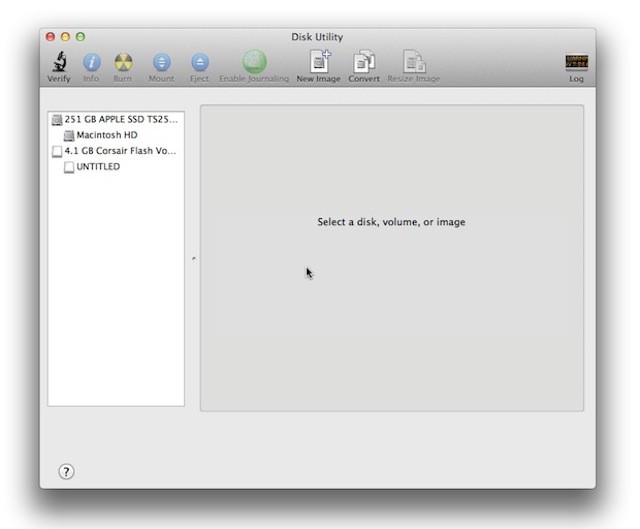

File Vault 2 in Mac OS X Lion is very useful and it has improvements over its predecessor that I really like. One of those improvements is that you can now use it to encrypt external drives this even includes USB thumb drives which are easily lost.
If you encrypt your USB thumb drives or other USB, Firewire, or Thunderbolt drives you won’t have to worry about your data if they are lost or stolen.
The only catch is that setting it up requires that you format the drive so if you have data on an existing drive you must copy it to another safe place on your network or to another drive, format the drive you want encrypted with the encryption option (see below) and then copy your data back to the newly formatted drive.
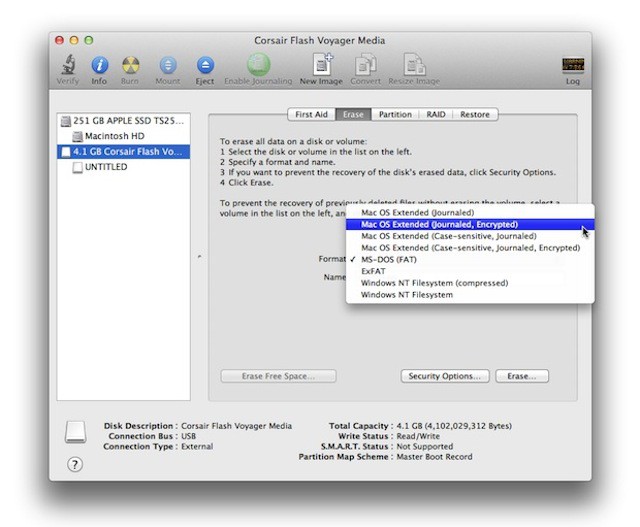
Here is a screen shot of the available format options in Disk Utility, but generally you will always use Mac OS Extended (Journaled, Encrypted).
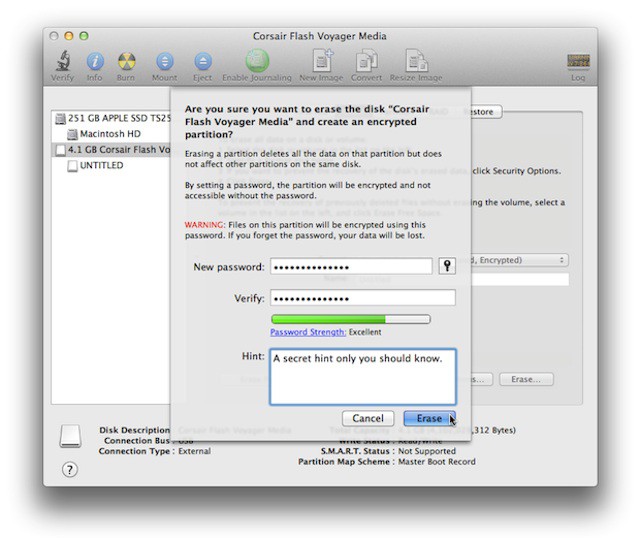
Once you’ve formatted the drive you can copy your data back if you need to or just start using it. If you eject the drive the next time you plug it into your Mac Mac OS X will prompt you to enter the password you used when setting up the encryption in Disk Utility (see below). If you enter it correctly the drive mounts and you’ll be able to get access to the data. If you don’t enter the password correctly you are out of luck and the drive will not mount so don’t loose that password.
The only drawback to using this method of encryption is that it will only work on a Mac. The encrypted drives are not compatible with other Operating Systems like Windows or Linux. If you need encryption you can share with all three operating systems then you might want to take a look at an app called TrueCrypt.

David W. Martin has more than 20 years of experience in the industry as a programmer, systems and business analyst, author, and consultant. David has written for CNET’s iPhoneatlas.com, MacLife.com, CultofMac.com, BYTE.com and recently for aNewDoman.net. He comes to Cult of Mac’s website with deep knowledge and passion for the all things Apple. Follow David on Twitter @david_w_martin or see what he’s up to now at davidwmartin.com.

