
One of my favorite improvements that shipped with Mac OS X Lion is Mail 5.0 and its new Conversations view. This new view allows you to view message threads by combining messages into a chronological timeline. It has one drawback, since by default, any messages that you sent don’t show up in the timeline. That makes it hard to read and make sense of the thread. Here is a tip on how to fix it.
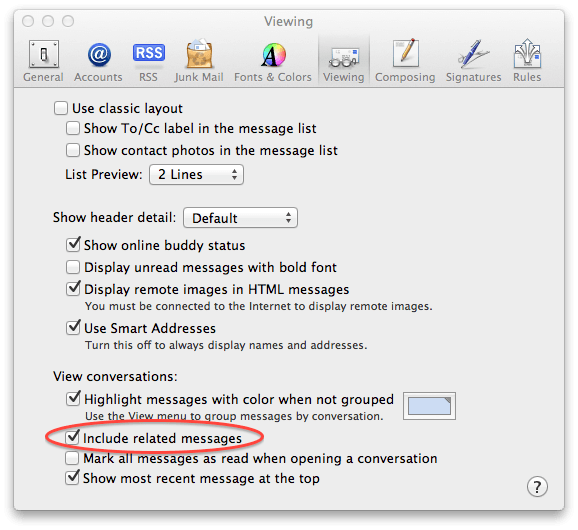
Launch Mail and access its preferences by pressing Command+Comma (CMD+,). Click on the Viewing tab. You will see a section labeled View Conversations. Locate Include Related Messages and check it.

David W. Martin has more than 20 years of experience in the industry as a programmer, systems and business analyst, author, and consultant. David has written for CNET’s iPhoneatlas.com, MacLife.com, CultofMac.com, BYTE.com and recently for aNewDoman.net. He comes to Cult of Mac’s website with deep knowledge and passion for the all things Apple. Follow David on Twitter @david_w_martin or see what he’s up to now at davidwmartin.com.

